
Introduction
The Handheld Class screen allows you to define all of the handheld options available to your drivers on route. Each class will control the type of handheld, the features available to the driver, and messages that will print on each customer’s receipt. This section contains a majority of the options available for setting up handhelds in the program.
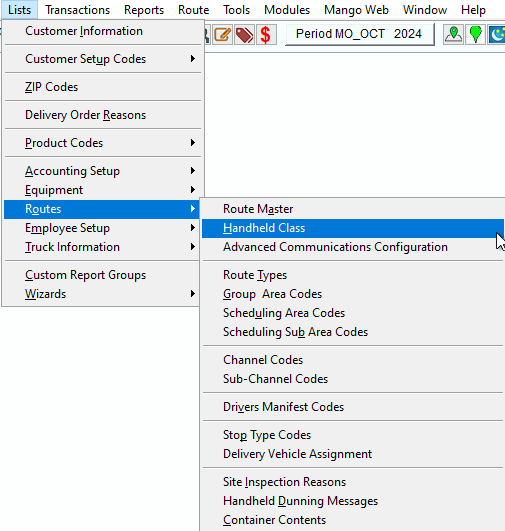
You can make he changes to the Handheld Class by going to Lists>Routes>Handheld Class.
Setup
NOTE: At least one Bank Account (covered earlier) will need to be added to RMA in order to create a new Handheld Class — or modify an existing one.
- Open the Handheld Class by going to Lists > Routes > Handheld Class.
2. Create a new Handheld Class by clicking Add.
3. Enter an ID and Description for the new class.
4. Carefully go through each tab and define each option based on the definitions provided below.
NOTE: A separate Handheld Class should be created for each handheld type used at your company.

General Tab
The General tab contains common options used on the handheld.
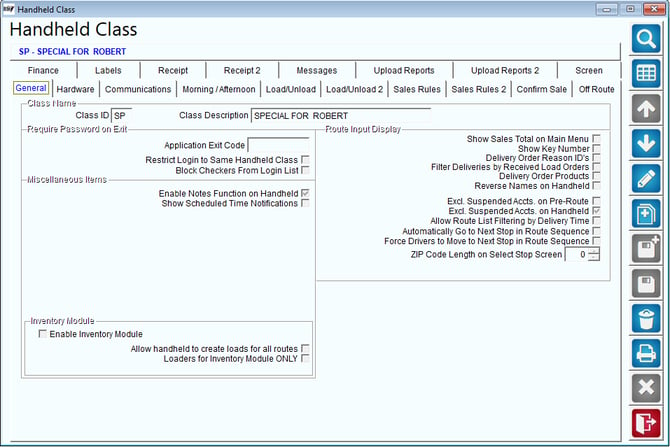
Inventory Module:
Enable Inventory Module: Select this option to allow users to manage RMA inventory on the handheld.
NOTE: Enabling this option will allow you to use all of the desktop inventory adjustment options on the handheld.
Allow Handhelds to create loads for all routes: Select this option to allow creation of loads for multiple routes from one handheld.
Loaders for Inventory Module ONLY: Selecting this option will block all menu options in mango mobile except inventory module (forklift icon)
Filter Deliveries by Received Load Orders: Choose this option to filter deliveries by received load orders.
Delivery Order Products: Choose this option to show delivery order products.
Reverse Names on Handhelds: Choose this option to show names in reverse on Handhelds.
Hardware Tab
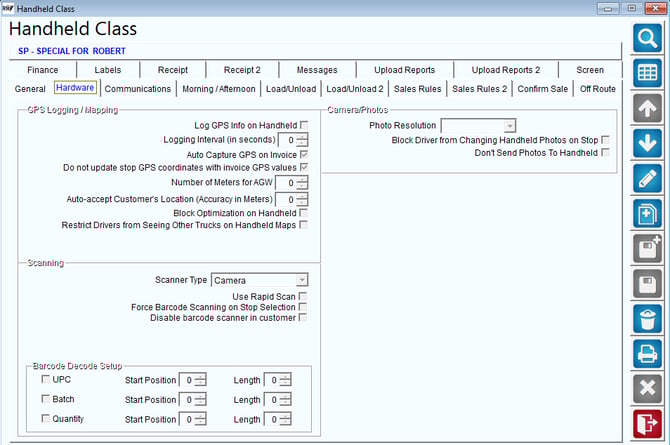
The Hardware tab contains information related to the type of handheld, and transfer methods being used.
GPS Logging:
GPS Logging is used to write detailed GPS coordinates to the driver’s route upload throughout the day for tracking stop times, locations, duration, and more.
Log GPS Info on Handheld: Select this option to log the GPS information internally on the handheld.
Logging Interval (in seconds): Enter the number of seconds to capture and log GPS coordinates each time.
Auto Capture GPS on Invoice: Select this option to automatically capture the handheld GPS location during the Save Invoice routine.
Do not Update stop GPS Coordinates with Invoice GPS Values: Select this option if the Customer GPS values are not to be overwritten by the Invoice GPS Values.
Number of Meters for AGW: Enter the minimum accuracy for auto accepting GPS coordinates.
Auto-Accept Customer's Location (Accuracy in Meters): Enter the value (In Meters) to accept Customer's Location.
Block Optimization on Handheld: Select this option to block the Driver from Optimizing stops on the Handheld.
Restrict Drivers from Seeing other Trucks on Handheld Maps: Select this option to restrict the Drivers from seeing other trucks on the handheld maps.
Scanning:
Select the type of Scanner:
- Camera
- Integrated (SX4/Fibetter)
- Wedge
Use Rapid Scan: Select this option to use Rapid Scan on the scanner
Force Barcode Scanning on Stop Selection: Select this option to force barcode scanning in Stop Selection
Disable Barcode Scanner in Customer: Select this option to disable the Barcode Scanner on the Customer.
Barcode Decode Setup:
Select one or more of the following:
- UPC
- Batch
- Quantity
For each of the selected, enter the Start Position and Length.
Camera/Photos:
Photo Resolution: Choose the desired picture resolution:
- Low (250KB)
- Medium (350KB)
- High (High 550KB)
NOTE: The higher the resolution, the better the quality and size of the picture — adjustments may need to be made if higher resolutions are causing slow data transfer speeds.
Block Driver from Changing HH Photos on Stop: Select this option to block a driver from changing photos per customer stop.
Don’t Send Photos to Handheld: Select this option to not be able to send HH photos to devices assigned to this handheld class
Communications
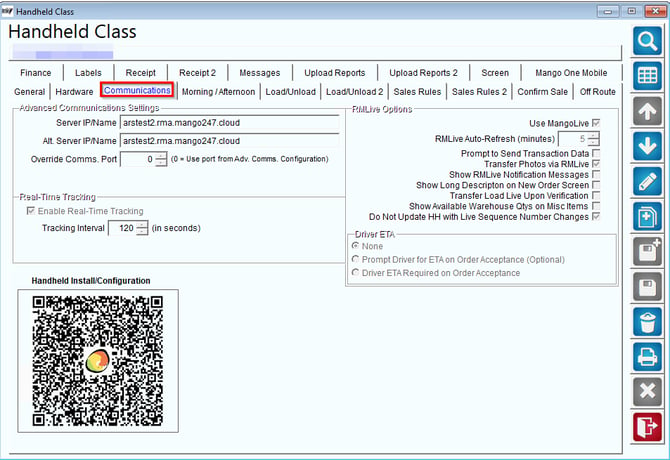
Advanced Communications Settings
Adv. Comms. Server IP/Name: Enter the IP Address or DNS Name of the server where the Advanced Communications Service is running.
Alternate Adv. Comms. Server IP/Name: Enter an alternate IP Address or DNS Name of the server where the Advanced Communications Service is running. This is useful for when one handheld class may sometimes transfer outside the office and sometimes from within the office. Thus, one Address would be the External Address and one would be the Internal Address.
Real Time Tracking
Enable Real Time Tracking: Select this option to enable the Real Time Tracking feature of the RDM Module.
Tracking Interval (seconds): Enter the number of seconds between data capture.
RMLive Options (RMLive Module Only)
Use RMLive: Select this option to use RMLive
RMLive Auto Refresh (In Minutes): Override the RMLive Auto Refresh setting by entering the number of minutes between each refresh.
NOTE: RM Live is a module that works within the Route Manager system and may be added to your existing Route Manager software by contacting Advantage Route Systems.
Prompt to Send Transaction Data (RMLive Module): Choose this option to prompt drivers to transfer data via RMLive after each transaction on the handheld.
NOTE: For further information on Network, Wi-Fi , and RMLive transfer settings, please contact Advantage Route Systems.
Transfer Photos via RMLive: Select this option to send photos from the handhelds to RMA viw RMLive.
Show RM Live Notification Messages: Select this option to receive notifications of changes to the orders downloaded to the handheld via RMLive.
Show Long Description on New Order Screen: Select this option to show the product long description on the New Order Screen.
Transfer Load Live Upon Verification: Select this option to transfer the Load back to RMA when verified.
Show Available Warehouse Qtys on Misc Items: Select this option to show the warehouse quantity available on Miscellaneous items.
Do Not Update HH with Live Sequence Number Changes: When this feature is enabled, it will not auto update sequence numbers on the handheld. When it is disabled (by default), it will continue to auto update the sequence numbers on the handheld.
Driver ETA (RMLive Module Only)
None: Select this option to disable Order Acceptance prompts on the handheld.
Prompt Driver for ETA on Order Acceptance: Select this option to prompt the driver for a time estimate when accepting a new order on the handheld.
Driver ETA Required on Order Acceptance: Select this option to require a time estimate on the handheld when a driver accepts a new order.
NOTE: The RMLive Module allows your drivers to receive and transmit data from the field during the route day. Contact Advantage Route Systems for further information.
Morning/Afternoon
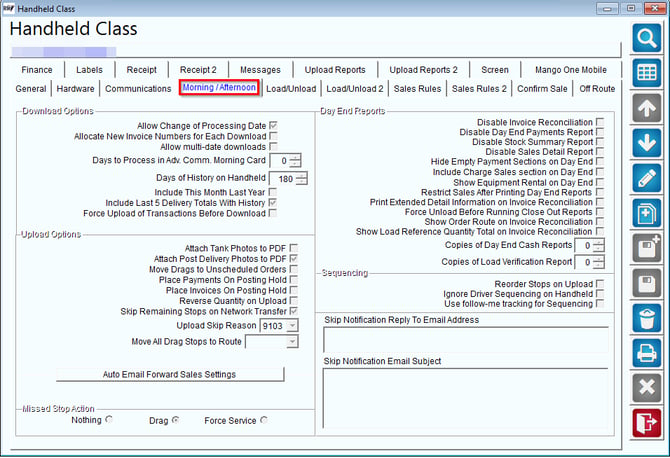
Download Options:
Allow Change of Processing Date: Select this option to allow the drivers to change processing date on the handhelds.
Allocate New Invoice Numbers for Each Download: Select this option to allocate new invoice numbers for each download.
Allow Multi-Date Downloads: Select this option to allow multiple dates to be entered on the download screen.
Days to Process in Adv. Comm. Morning Card: Select the number of days to process in Advance Communications Morning Card
Days of History on Handheld: Select the number of days of history to keep on the handheld.
Include this Month Last year: Select this option to show history for this month last year on the handheld.
Include last 5 Delivery Totals with History: Select this option to include the last 5 delivery totals with history.
Force Upload of Transactions before Download: Select this option to force the upload before a new route can be downloaded.
Upload Options
Attach Tank Photos to PDF: Select this option to attach tank photos to PDF on Upload.
Attach Post Delivery Photos to PDF: Select this option to attach Post Delivery Photos to PDF on Upload.
Move Drags to Unscheduled Orders: Select this option to move dragged customers to Unscheduled Orders.
Place Payments on Posting Hold: Select this option to place payments on posting hold.
Place Invoices On Posting Hold:
Reverse Quantity on Upload: Select this option to reverse Quantity on Upload.
Skip Remaining Stops on Network Transfer: Select this option to skip remaining stops on Network Transfer.
Upload Skip Reason: If the above checkbox is selected, enter the Skip Reason in this field.
Move all Drag Stops to Route: Enter a Route in this box to move all dragged stops to on upload.
Missed Stop Action: Select one of the following:
- Nothing
- Drag
- Force Service
Day End Reports
Disable Invoice Reconciliation: Select this option to disable invoice reconciliation.
Disable Day End Payment Reports: Select this option to disable day end payment reports.
Disable Stock Summary Report: Select this option to disable stock summary report
Disable Sales Detail Report: Select this option to disable stock summary report.
Hide Empty Payment Sections on Day End: Select this option to hide empty payment sections on day end.
Include Charge Sales Section on Day End: Select this option to include charge sales section on day end reports.
Show Equipment Rental on Day End: Select this option to include equipment rental on day end.
Restrict Sales after Printing Day End Reports: Select this option to restrict printing day end reports.
Print Extended Detail Information on Invoice Reconciliation: Select this option to print extended detail information on invoice reconciliation.
Force Upload Before Running Close Out Reports: Select this option force upload before running close out reports.
Show Order Route on Invoice Reconciliation: Select this option to show order route on invoice reconciliation.
Show Load Reference Quantity Total on Invoice Reconciliation: Select this option to show the load reference quality on the Invoice Reconciliation.
Copies of Day End Cash Reports: Enter a number for copies of Day End Cash Reports printing.
Copies of Load Verification Report: Enter a number for copies of Load Verification reports printing.
Sequencing
Reorder Stops on Upload: Select this option to reorder stops on upload.
Ignore Driver Sequencing on Handheld: Select this option to ignore driver sequencing on the handheld.
Use follow-me tracking for Sequencing: Select this option to use follow me tracking for sequencing.
Skip Notification Reply to Email Address: Enter an email address to send skip notification.
Skip Notification Email Subject: Enter an Email Subject for the Skipped Notification.
Load/Unload Tab
The Load/Unload tab contains information related to handheld verification procedures.
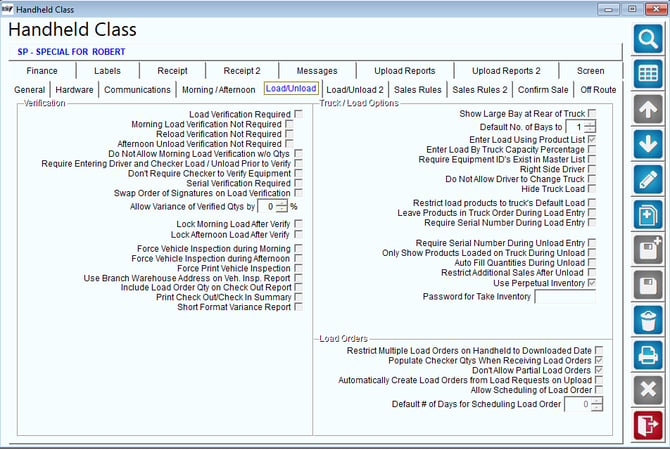
- Morning Load Verification Not Required: Select this option to disable the Morning Load verification option.
- Reload Verification not Required: Select this option to disable the Reload verification option.
- Afternoon Load Verification not Required: Select this option to disable the Afternoon Load verification option.
NOTE: The Perpetual Inventory feature allows you to carry product inventory totals on your truck from one day to the next — this is especially helpful for companies running coffee service or snack routes. Refer to Chapter 3.17 of the Supplemental Guide for further information.
Password for Take Inventory: This is the password required when taking inventory using the handheld.
Load/Unload 2
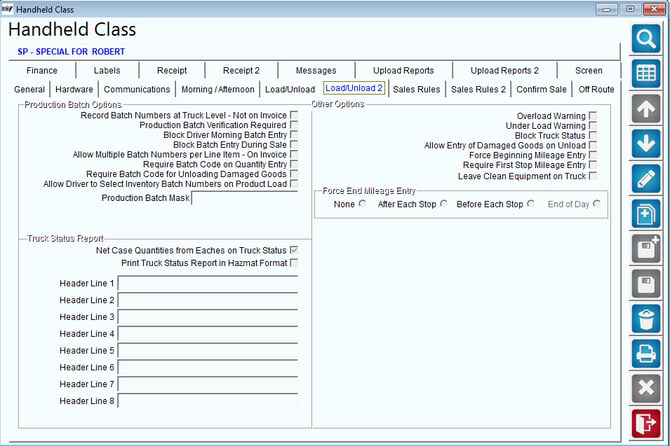
Production Batch Options:
Production Batch Codes are identification codes that can be assigned to products in RMA to identify and track a batch of products for quality control and recall purposes.
NOTE: Refer to Chapter 4.02 of the Supplemental Guide for further information on these items.
Record Batch Numbers at Truck Level-Not on Invoice: Select this option to disable Production Batch Code entry or selection within the Invoices and Adjustments screen and the handheld invoice entry screen -- this forces you to enter and select batch codes from within the Morning Load screen.
Production Batch Verification Required: Select this option to require that both the Driver and Checker verify the batch numbers entered on the handheld during the Morning Load process.
Block Driver Morning Batch Entry: Select this option to only require the Checker to enter batch numbers on the handheld during the Morning Load process.
Block Batch Entry During Sale: Select this option to disable the batch number selection screen that appears when an item assigned to a production batch code is sold on an invoice.
Allow Multiple Batch Numbers per Line Item - On Invoice: Select this option to allow more than one Production Batch Code to be selected per line item during a transaction.
Require Batch Code on Quantity Entry: Select this option to require a batch code number on quantity entry.
Require Batch Code for Unloading Damaged Goods: Select this option to require a batch code number on unloading damaged goods.
Allow Driver to Select Inventory Batch Numbers on Product Load: Select this option to allow the driver to select inventory Production Batch Code on product load.
Production Batch Mask: Enter the format that should be followed when entering production batch codes on the handheld (hover the mouse cursor over the mask field to view formatting options).
Truck Status Report
Net Case Quantities from Eaches on Truck Status: Select this option to net case quantities from eaches on your truck status report.
Print Truck Status Report in Hazmat Format: Select this option to print the truck status report in the hazmat format
Header Lines 1-8: Enter header information for your truck status report if you would like it to differ from the default format.
Other Options:
Overload Warning: Select this option to warn drivers when too much product is being added to the truck.
NOTE: The maximum load per truck can be specified within the Bottle Capacity field under Lists> Truck Information> Trucks.
Under Load Warning: Select this option to warn drivers when product quantities do not meet the promised quantity on scheduled Delivery Orders.
Block Truck Status: Select this option to disable the Truck Status screen on the handheld.
Allow Entry of Broken Bottles on Unload: Select this option to allow broken container quantities to be entered during the Afternoon Unload process on the handheld.
Force Beginning Mileage Entry: Select this option to force the driver to enter beginning mileage for the delivery vehicle on the handheld.
Require First Stop Mileage Entry: Select this option to force the driver to enter mileage on the handheld at the first stop of the delivery vehicle.
Leave Clean Equipment on Truck: Select this option to leave undelivered equipment within the truck’s inventory from day-to-day.
Force End Mileage Entry: Select one of the options below to manage mileage entry options after the driver has completed the Morning Load process:
- None: Select this option if you will not require the driver to enter any mileage information after the Morning Load process has been completed.
- After Each Stop: Select this option to force the driver to enter mileage totals prior to printing each invoice on the handheld and before completing the Afternoon Unload process.
- Before Each Stop: Select this option to force the driver to enter mileage totals prior to accessing the invoice screen on the current stop.
- End of Day: Select this option to force the driver to enter mileage totals prior to completing the Afternoon Unload process.
Sales Rules Tab
The Sales Rules tab contains information related to payment and sales information on the handheld.
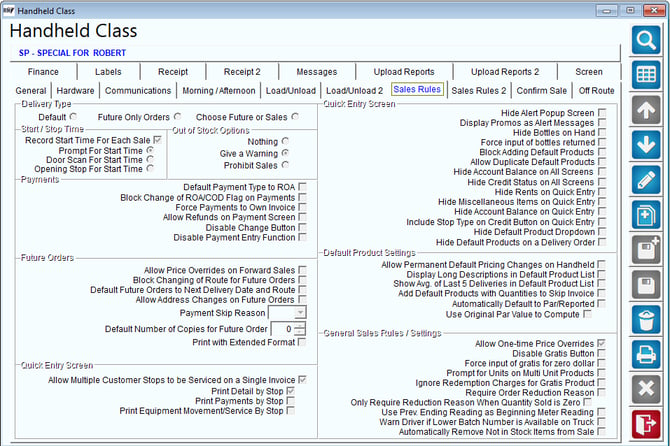
Delivery Type:
Select one of the following options based on the Handheld class type:
-
Default: Standard invoice mode, most commonly used.
-
Future Only Orders: Select this option to use the ‘Pre-Sale’ mode option on the handheld, which allows salesmen to create orders on each account.
-
Choose Future or Sales: Select this option to allow the handheld program to toggle between the Default and Future modes on the handheld.
Start/Stop Time:
Record Start Time for Each Sale: Select this option if the start time for each sales needs to be recorded. If this option is selected, select one of the following:
- Prompt for Start Time: Select this option to prompt the driver to record the Stop Time. When the driver accepts this prompt, the start time is recorded.
- Door Scan for Start Time: Select this option to use the time in which the driver scanned the customers door barcode as the Start Time.
- Opening Stop for Start Time: Select this option to use the time in which the driver opened the stop on his handheld as the Start Time to capture.
NOTE: Start/Stop Time information can be retrieved on the Route Times report, found under Reports > Route Reports > Management, on the desktop.
Out of Stock Options: Select the desired option to use when a product is sold to a customer that is not available on the truck: Nothing, Give a Warning, or Prohibit Sales.
Payments:
Default Payment Type to ROA: Select this option to establish the ROA (Received on Account) payment type as the default choice within the payment screen on the handheld.
NOTE: The driver can easily toggle between ROA and COD (Cash on Delivery) on the handheld regardless of selection here.
Block Change of ROA/COD Flag on Payments: Select this option to block the Driver from switching between ROA and COD on payments.
Force Payments to Own Invoice: Select this option to require that all payments are entered on invoices that do not include any product sales.
NOTE: On an account purchasing product and making a payment, two invoices will need to be created. One will include the products being sold, while the other will only include the payment and a Skip Reason (required to save the invoice).
Allow Refunds on Payment Screen: Select this option to allow your drivers to enter negative amounts from within the payment screen.
Disable Change Button: Select this option to disable the Payment Change button within the payment screen.
Disable Payment Entry Function: Select this option to disable the Payment Entry function on the handheld.
Future Orders:
Allow price Overrides: Select this option to allow the driver to make price overrides on invoices.
Block Changing of Route for Future Orders: Select this option to block the changing of the Delivery Route on Future Orders.
Default Future Orders to Next Delivery Date and Route: Select this option to default the Future Order to the next delivery date and route of the customer.
Payment Skip Reason: Select a Skip Reason that will be assigned to all ‘payment only’ invoices on the handheld.
Allow Address Changes on Future Orders: Select this option to allow the Driver to make changes to the Customer Address for the future order.
Payment Skip Reason: Select the Payment Skip Reason. (These are Product Codes which have been setup as Product Class '9' on Product Charge Codes).
Default Number of Copies for Future Order: Enter the default number of copies to print for Future Orders created on the handheld.
Print With Extended Format: Select this feature to print the Future Order in the extended format.
Quick Entry Screen:
Allow Multiple Stops to be Serviced on a Single Invoice : Select this option to allow the driver service multiple Stops on a Single Invoice.
Print Detail by Stop: Select this option to print the Invoice Details by Stop
Print Payments by Stop: Select this option to print the Payments by Stop.
Print Equipment Movement/Service by Stop: Select this option to print the Equipment Movement and Service by Stop.
Hide Alert Popup Screen: Select this option to prevent Alert Messages from being displayed automatically when an account is selected on the handheld — the messages can only be accessed using the ‘I’ button on the Quick Entry screen.
Display Promos as Alert Messages: Select this option to show promotions as Alert Messages.
Hide Bottles on Hand: Select this option to hide bottles on hand.
Force Input of Bottles Returned: Select this option to force the Driver to input bottles returned.
Block Adding Default Products: Select this option to block the adding of Default products to the customer.
Allow Duplicate Default Products: Select this option to allow duplicate items to be added multiple times.
Hide Account Balance on all screens: Select this option to hide the account balance of the customer from all handheld screens.
Hide Credit Status on all screens: Select this option to hide the credit status of the customer from all handheld screens.
Hide Rents on Quick Entry: Select this option to hide rents on the Quick Entry screen.
Hide Miscellaneous Items on Quick Entry: Select this option to hide Miscellaneous Items on the Quick Entry screen.
Hide Account Balance on Quick Entry: Select this option to hide Account Balance on Quick Entry.
Include Stop Type on Credit Button on Quick Entry: Select this option to show the Customer Stop Type on Quick Entry.
Hide Default Product Dropdown: Select this option to hide the default product dropdown.
Hide Default Products on a Delivery Order: Select this option to hide default products on Delivery Order.
Default Product Settings
Allow Permanent Default Pricing Changes on Handheld: Select this option to Allow Permanent Default Pricing Changes on the Handheld.
Display Long Descriptions in Default Product List: Select this option to show long products descriptions.
Show Avg. of Last 5 Deliveries in Default Product List: Select this option to show the average of the last five deliveries in the customer default product list.
Add Default Products with Quantities to Skip Invoice: Select this option if the skipped invoices will include the default products with quantities.
Automatically default to PAR/Reported: Select this option to automatically add the quantity needed to the invoice after entering the Reported amount on the handheld.
NOTE: The Par Module allows your drivers to maintain a pre-established quantity of items at a customer’s location at all times. Contact Advantage Route Systems for further information.
Use Original Par Value to Compute: Select this option to use a modified version of the par screen that allows the driver to view the customer’s previous standing par value along with the current one.
NOTE: This is helpful for drivers that need to make adjustments to standing par values frequently based on the customer’s needs.
General Sales Rules/Settings
Allow One-Time Pricing Overrides: Select this option to allow One-Time price changes on the handheld.
Disable gratis Button: Select this option to disable the gratis function on the handheld.
Force input of gratis for zero dollar: Select this option to force a Gratis Reason to be selected when selling an item at zero price.
Prompt for Units on Multi-Unit Products: Select this option to prompt the driver for units on multi-unit products.
Ignore Redemption Charges for Gratis Product: Select this option to ignore redemption charges for Gratis Products.
Require Reason for Order Reduction: Select this option if a reason is required when an order qty is being reduced (applicable for delivery of future orders).
Use Prev. Ending Reading as Beginning Meter Reading: Select this option to populate the customer’s beginning meter reading with their most recent ending meter reading on the handheld (used in the propane industry).
Warn Driver if Lower Batch Number is available on Truck: Select this option to alert driver if a lower batch number is available on truck.
Automatically Remove not in Stock Items from Sale: Select this option to automatically remove no stock items from the invoice.
Sales Rules 2 Tab
The Sales Rules 2 tab contains additional information related to payment and sales information on the handheld.
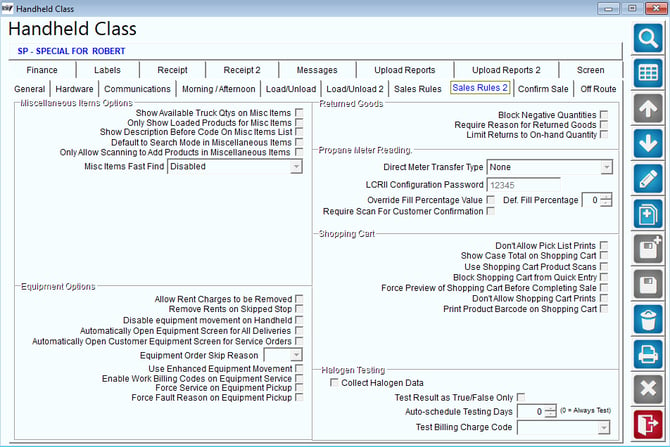
Miscellaneous Items Options:
Show Available Truck Qtys on Misc Items: Select this option to include Truck Status quantities within the Misc. Items and Forward Sales screens (tap the product to view the totals).
Only Show Loaded Products for Misc Items: Select this option for drivers to only be able to see the items which they have stock of on the truck, and the qty available
Show Description before Code On Misc Items List: Select this option to display the Product Description in front of the Product Code within the Misc. Items screen.
Default to Search Mode in Miscellaneous Items: Select this option to default to Search Mode instead of Product Number entry when searching Miscellaneous Items.
Only Allow Scanning to Add Products in Miscellaneous Items: Select this option to all Products in Miscellaneous items by scanning only.
Misc Items Fast Find: Select an available option to enable/disable the keypad search option that can be used within the Misc. Items screen on the handheld (helpful if you have a large inventory of items); you can elect to search by Charge Code or Description.
Equipment Options:
Allow Rent Charges to be Removed: Select this option to allow the driver to remove any rent charges that may appear on the handheld
Remove Rents on Skipped Stop: Choose this option to automatically remove any rent charges when ‘skipping’ a stop from the invoice screen.
Disable equipment movement on handheld: Select this option to disable the equipment movement options on the handheld invoice screen.
Automatically Open Equipment Screen for all Deliveries: Select this option to automatically open the Equipment Screen when making any delivery.
Automatically Open Customer Equipment Screen for Service Orders: Select this option to automatically open the Customer Equipment Screen on any service order.
Equipment Order Skip Reason: This option only becomes available if 'Automatically Open Customer Equipment Screen for Service Orders' is selected. Enter the reason to be selected if Equipment Orders can be skipped.
Use Enhanced Equipment Movement: Select this option if you would like to give your drivers the ability to assign meters/manifolds to equipment
Enable Work Billing Codes on Equipment Service: Select this option to enable work billing codes to be used during equipment servicing.
Force Service on Equipment Pickup: Choose this option to force the driver to enter an Equipment Service Code when picking up equipment on the handheld.
Force Fault Reason on Equipment Pickup: Select this option to require that an ‘Equipment Fault’ code be selected on equipment pick up.
Returned Goods:
Block Negative Quantities: Select this option to block entry of negative quantities for returned products.
Require Reason for Returned Goods: Select this option to force entry of a reason for returned goods.
Limit Returns to On-Hand Quantity: Select this option to limit returned to handheld on-hand quantities.
Propane Meter Reading:
Block Negative Quantities: Select this option to block entry of negative quantities for returned products.
Direct Meter Transfer Type: Generally only used in the propane industry, select one of the ticket types for entering ‘Capacity’ readings on the Confirm Sale screen.
LCRII Configuration Password: Select this option to enter the configuration for LCRII.
Override Fill Percentage Value: Select this option to allow an override the fill percentage value
Default Fill Percentage: Enter the default fill percentage.
Require Scan for Customer Confirmation: Select this option to require a scan for customer information on the propane meter
Shopping Cart:
Don’t Allow Pick List Prints: Select this option to prevent driver from printing a copy of the pick list.
Show Case Total on Shopping Cart: Select this option to show the case total on the Shopping Cart.
Use Shopping Cart Product Scans: Select this option to allow the driver to scan in products via the Shopping Cart screen to confirm sold quantities. If the driver scans a different value than what was entered, upon exiting the Shopping Cart, it will warn the driver about the mismatch.
Block Shopping Cart from Quick Entry: Select this option to disable the shopping cart from the Quick Entry screen.
Force Preview of Shopping Cart before Completing Sale: Select this option to force Driver to review the Shopping Cart before creating the invoice.
Don’t Allow Shopping Cart Prints: Select this option to prevent driver from printing a copy of the items listed in the Shopping Cart.
Print Product Barcode on Shopping Cart: Select this option to print the Product Barcode on the Shopping Cart.
Collect Halogen Data:
Collect Halogen Data: Select this option to allow the Driver to collect Halogen data.
Test Results as True/False only: Select this option to only allow true or false answers for the halogen test
Auto-Schedule Testing Days: Enter the number of days until prompt for next halogen test (since last test)
Test Billing Change Code: Select the product charge code used to bill for the halogen test.
Confirm Sale
The Confirm Sales tab contains information related to invoice information on the handheld.
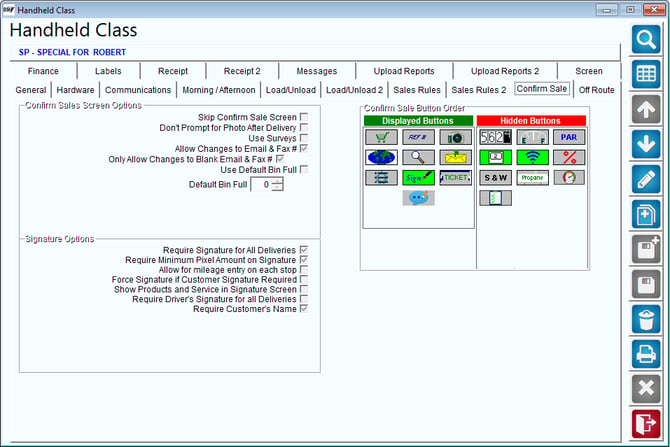
Confirm Sales Screen Options:
Skip Confirm Sale Screen: Select this option to allow the driver to skip the Confirm Sale Screen. The screen will not be shown.
Don't Prompt for Photo After Delivery: Select this option to disable prompt for photo after a delivery is made.
Use Surveys: Select this option to allow the driver to take a survey.
Allow changes to Email & Fax #: Select this option to allow the driver to make changes to email address and fax numbers.
Only Allow changes to Email & Fax #: Select this option to allow the driver to make changes to blank email addresses and blank fax numbers. This option is only made active if the following option is checked: 'Allow changes to Email & Fax #' .
Use Default Bin Full: Select this option if you would like to use the default bin full level.
Default Bin Full: Set a default level if the driver does not enter one
Signature Options:
Require Signature on All Deliveries: Select this option to require a signature on each invoice created on the handheld.
Require Minimum Pixel Amount on Signature: Choose this option to require a minimum number of pixels when capturing a signature.
Allow for mileage entry on each stop: Select this option to require each driver to input a current mileage entry per stop.
Force Signature if Customer Signature Required: Select this option to force a signature if the ‘Signature Required’ option is selected within the customer’s account.
Show Products and Service in Signature Screen: Select this option to display the first three products sold to the customer on the signature screen, for reference.
Require Driver’s Signature for all Deliveries: Select this option to require that the route driver enter a signature on the invoice screen to complete the sale.
Require Customer’s Name: Select this option to require that the driver enter the customer’s name prior to saving the invoice.
Confirm Sale Button Order:
The layout of the Confirm Sale screen on the handheld is dynamic. You can specify what features the driver has access to as well as where they show up on the screen to by placing them in the Displayed Buttons section. Items under Hidden Buttons will not be accessible to the driver. To see a description of each item, hover over each button on the desktop in Modify mode.
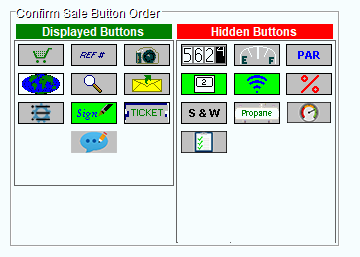
Confirm Sale Screen Buttons:
 : The shopping cart screen shows a list of all transactions to be reviewed for accuracy before printing the invoice.
 : This option allows the driver to enter a purchase order number on the handheld for the current invoice.
 : This option allows the driver to take a picture at the customers location to be storedon the customers account on the desktop.
 : This option allows the driver to enter the truck mileage while at this account.
 :This option allows the driver to enter a site inspection reason on the handheld for displays, equipment, etc.
 :This option allows the driver to capture a signature or not.
 :This option allows the driver to apply payment discounts.
 :This option allows the driver to manually close a delivery order by entering the ticket number associated with the order.
 :This option allows the driver to document an account beginning/ending level (used for tank capacity, freezer capacity, etc.)
 :Enables invoice message to be entered on the handheld. (android feature only)
 :This option allows you to manage your default products on your handheld. (android feature only)
 :This option allows the driver to enter a competitor’s PAR values for a competitor’s product.
 :This option allows the driver to turn on and off Wi-Fi available on the device. ( not available for android devices)
 :This option allows the driver to capture the current lat/long coordinates for this stop.
 :This option allows the driver to use the alternate heading on the printed invoice. (NUST fill in the alternate invoice and alternate credit labels to use this option)
 :This option allows the driver to record the sediment and water levels in the tank.
 :This option allows the driver to fill out the propane inspection on the handheld
 : This options allows the driver to setup automatic email delivery of handheld invoices.
 : Toggle for bin/emtpy. (Android devices only)
 Toggle for bin full/empty
Off Route Tab
The Off-Route tab contains information related to accounts serviced off-route.
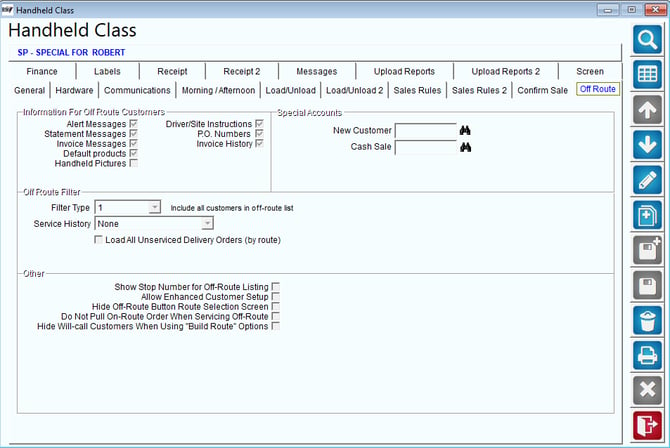
Information for Off-Route Customers:
Select each item that you would like to include with your accounts serviced ‘Off-Route’ on the handheld:
Alert Messages: Select this option to include the pop up alert messages on off route stops.
Statement Messages: Select this option to include the customers statement message on off route stops.
Invoice Messages: Select this option to include the customers invoice message on off route stops.
Default Products: Select this option to include the default products for off route stops.
Handheld Pictures: Select this option to include handheld photos for off route stops.
Driver/Site Instructions: Select this option to include the Driver and Site instructions on off route stops.
PO Numbers: Select this option to include the purchase order numbers on off route stops.
Invoice History: Select this option to include history on off route stops.
Off-Route Filter:
Filter Type: Choose one of the following Off-Route Filter Types to apply on the handheld:
- Include all customers on the off-route list.
- Include only customers on route being processed.
- Include only today’s customers in the off-route list.
- Include all authorized branches in off-route list.
- Include all group areas (from authorized branches) in off-route list.
- Include only group areas (within home branch) in off-route list.
Service History: Select one of the following available filters to include equipment service history on the handheld:
- None: Select this option to disable service history on the handheld.
- On Route Only: Select this option to include service history for equipment assigned to customers scheduled on route.
- Both On and Off Route: Select this option to include service history for equipment assigned to both on route and off route customers.
Load All Unserviced Delivery Orders (by route): Select this option to automatically send ALL open delivery orders to the route, regardless of scheduled date.
Other:
Show Stop Number for Off-Route Listing: Select this option to display stop numbers when searching for customers using the Off-Route option (used with multi-stop accounts).
Allow Enhanced Customer Setup: Select this option to use the enhanced new customer setup utility on the handheld.
NOTE: By establishing default settings on the desktop, the driver will be able to capture more information about the customer than the standard New Customer option available on the handheld. The data received will be uploaded to the desktop, and the customer’s account will be created automatically. For further information on this option, refer to Chapter 4.11 of the Supplemental Guide.
Hide Off-Route Button Route Selection Screen: Select this button to hide the Off Route option on the handhelds.
Do not Pull On-Route Order when Servicing Off-Route:
Hide Will-Call Customers when Using 'Build Route' Options: Select this option to hide will-call customers when building route.
Special Accounts:
New Customer: Select an account number that will be used to temporarily store new customer data captured on the handheld.
Cash Sale: Select an account number that will be used for cash sales on the handheld (i.e., used for walk-ups or off-the-truck sales).
Finance Tab
The Finance tab contains information related to payment collections on the handheld.
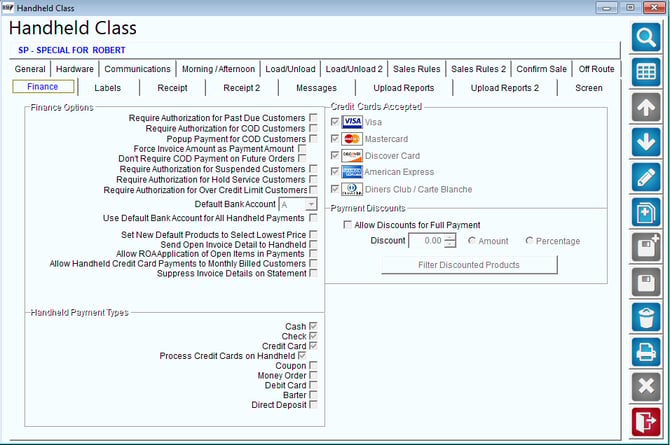
Finance Options:
Require Authorization for Past Due Customers: Select this option to require a Past Due Authorization Code if a driver attempts to service an account that is past due.
Require Authorization for COD Customers: Select this option to require a COD Authorization Code if a driver attempts to service an account that is assigned to a COD Credit Class.
Popup Payment for COD Customers: Select this option to pop-up the payment screen when choosing the Save button on the handheld invoice.
Force Invoice Amount as Payment Amount (Requires Option Above): Select this option to automatically populate the payment field with the total amount due when the payment screen is displayed.
Don’t Require COD payment on Future Orders: Select this option so mango mobile does not force / pop up payment for COD customers when they are taking a future order. It will still require payment on sales.
Require Authorization for Suspended Customers: Select this option will require the driver to call and get an authorization code to service the suspended customer.
Require Authorization for Hold Service Customers: Checking this box will require the driver to get an authorization code to complete a sale without taking a payment on an account that is considered to be on Hold Service status.
Require Authorization for Over Credit Limit Customers: Select this option to require an authorization code if a driver attempts to service an account that has exceeded an established Credit Limit.
NOTE: Daily authorization codes can be printed and distributed on each route using Reports > Route Reports > Daily >Authorization Codes. Additionally, individual authorization codes can be retrieved per customer under Lists > Customer Information, and select the Release Codes button on the Credit tab — this method can be used if you would prefer the driver to call the office for the authorization code.
Default Bank Account: Select the bank account to use for payments collected from drivers assigned to this Handheld Class.
Set New Default Products to Retain Level Pricing: Select this option to set new default products to retain level pricing.
Send Open Invoice Detail to Handheld: Select this option to display the customer’s open invoice information within the Invoices tab of the Extended Customer Info (tap on Current, Past Due, etc.) option on the handheld.
Allow ROA Application of Open Items in Payments (Requires Open Invoice Detail option above): Select this option to allow the driver to select the Open Invoices to apply a payment towards when receiving an ROA payment on the handheld.
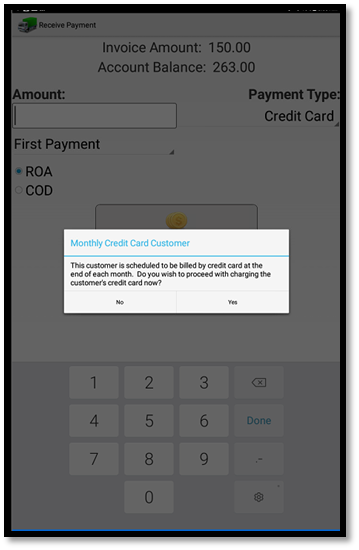
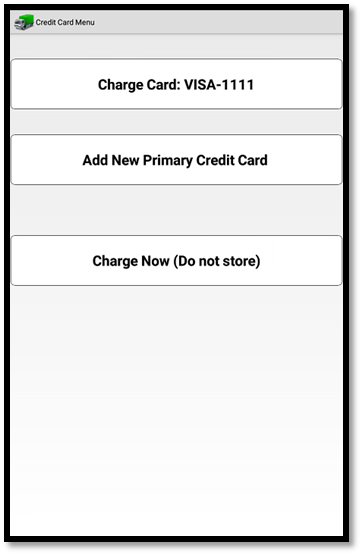
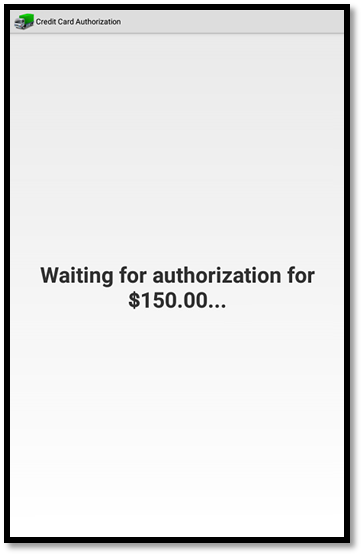
Allow Handheld Credit Card Payments to Monthly Billed Customers: Select this option to allow drivers to take CC payment for a monthly customer, a prompt which does allows him/her to take the payment on the HH for a vaulted CC, New CC to store, or a one time payment CC.
Suppress Invoice Details on Statement: Select this option to not show invoice details on Customer Statements.
Handheld Payment Types:
Select the types of payments that are accepted on the handheld:
- Cash
- Check
- Credit Card
- Process Credit Cards on Handheld: Select this option to automatically process credit card transactions from the handheld.
NOTE: This option requires an active wireless connection and the Electronic Funds Module. Contact ARS for further information and configuration steps.
- Coupon
- Money Order
- Debit Card
- Barter
- Direct Deposit
- Bank Transfer
Credit Cards Accepted:
- Visa
- MasterCard
- Discover Card
- American Express
- Diners Club/Carte Blanche
Labels Tab
The Labels(1&2) tab contains default descriptions and products that will be displayed on the Quick Entry screen of the handheld.
.webp?width=670&height=447&name=1693591286734%20(1).webp)
Labels (Page 1):
Sales Tax Label (Sales Tax is used if blank): Enter the sales tax description used in your company (e.g., VAT, PST, or GST).
Tax Categories: This description is used on the handheld when entering a new customer. This label is displayed above the tax rates.
History Page: Historical data can be accessed and printed from the handheld on each account, enter a description for this option (e.g., Customer History, Statement of Account).
Product on Hand: Enter a description for products or containers on hand (e.g., Bottles on Hand, Crates, or Pallets).
Redemption Label: Enter a standard label that will relate to the redemption value of a container (i.e., in California it is C.R.V.).
Account # Label (Account # is used if blank): Enter a standard account number label.
Standard Invoice Label (Invoice # is used if blank): Enter a standard invoice label.
Credit Invoice Label (Euro Finance Only): Enter an invoice label that will be used on credit invoices.
Gratis Label (Gratis is used if blank): Enter a label that will be displayed next to ‘Gratis’ items on the invoice.
Delivery Address (no label if empty): Enter a label for an alternate Delivery Address on the invoice.
Bill to Label: Enter a label for an alternate Bill to address on the invoice.
NOTE: Select the ‘Print Billing and Delivery Addresses on Receipt’ option on the Handheld Class > Receipt tab to include the billing address on the printed invoice.
PO Number Label (PO Number is used if blank): Enter a standard label for a Purchase Order Number on the invoice.
Invoice Total Label (Invoice Total is used if blank): Enter a standard label for the sales total on the invoice.
Statement Label: Enter the label that will print on all handheld statements.
Store # Label: Enter the label for the Store #..
Labels (Page 2):
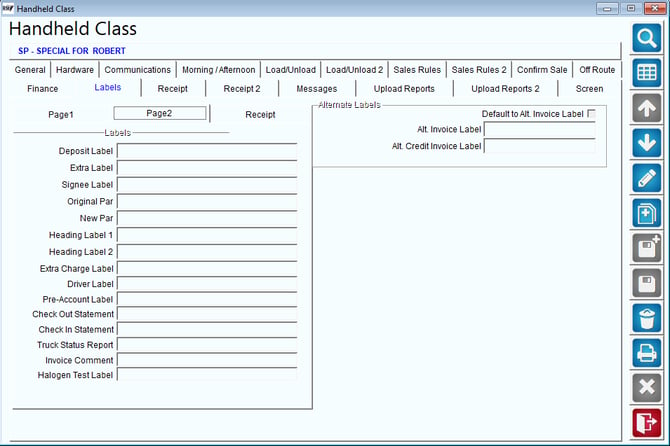
Deposit Label: Enter the label that will print next to all deposit related criteria on the receipt.
Extra Label: Enter a standard label to use for the Extra field under the Account Number on the invoice.
NOTE: The Extra field is used for alternate account numbers or any other reference information, and can be found on the Info tab of Customer Information.
Signee Label: Enter a standard label to display on the ‘Signee’ box displayed within the Capture Signature screen of the handheld.
NOTE: This option must be enabled before a signee name can be entered. Select the ‘Require Customer’s Name’ option under Handheld Class > Sales Rules tab.
Original Par: Enter the label that will print next to original par level values listed at the beginning of the transaction.
New Par: Enter the label that will print next to new par level values listed at the completion of the transaction.
Extra Charge Label: Enter a label to use for products designated as an extra charge on invoices (select ‘Print as Extra Charge on Invoice’ on the Setup tab of the Product Charge Code screen).
Driver Label: A label that can print next to the driver’s name or initials (i.e., Route Salesman instead of Driver).
Pre-Account Label: Enter a custom label that can be included before each account number (up to 15 characters).
Check Out Statement: Enter a custom label for the title of the Check Out Statement.
Check In Statement: Enter a custom label for the title of the Check In Statement.
Truck Status Report: Enter a custom label to be used for the Truck Status report.
Invoice Comment: Enter a custom label to be used for the Invoice Comment.
Halogen Test Label: Enter a custom label to be used for the Halogen Test.
Alternate Labels:
Default to Alt Invoice Label: Select this option to always use the ‘Alt. Invoice Label’ when printing handheld invoices.
Alt. Invoice Label: Enter an alternate invoice label that will print on handheld invoices for accounts with the option ‘Use Alternate Invoice Label’ selected within Customer Information, on the Route tab.
Alt. Credit Invoice Label (Euro Finance Only): Enter an alternate credit invoice label that will print on your handheld invoices on accounts with the option ‘Use Alternate Invoice Label’ selected within Customer Information, on the Route tab.
Receipt Tab
The Receipt tab contains formatting options for the printed receipt.
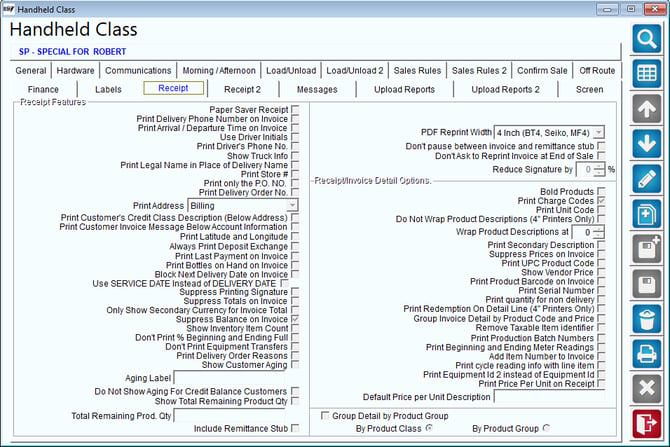
Receipt Features:
Paper Saver Receipt: Select this option to print a condensed receipt for the customer (disables bold text and minimizes text spacing).
Print Delivery Phone Number on Invoice: Select this option to include the delivery phone number on the printed receipt.
Print Arrival/Departure Time on Invoice: Select this option to include the recorded arrival/departure time of the driver on the printed receipt.
Use Driver Initial: Select this option to print the driver’s initials on the handheld receipt instead of their full name.
Print Driver's Phone No: Select this option to print the driver’s phone number on the handheld receipt.
Show Truck Info: Choose this option to print the driver’s initials on the handheld receipt instead of their full name.
Show Truck Info: Select this option to print the Truck ID on the Invoice.
Print Legal Name in Place of Delivery Name: Select this option to print the customer’s Legal Name in place of the Delivery Name on the printed invoice.
NOTE: The customer’s Legal Name can be entered on the Info tab of Customer Information.
Print Store #: Select this option to print the store number on the Receipt.
Print only the PO#: Select this option to suppress the ‘PO Number’ description from printing above the P.O. on the handheld invoice.
Print Delivery Order No: Select this option to include the Delivery Order number on the printed invoice (if applicable).
Print Address: Select the desired customer address details to include on the printed invoice.
Print Customer's Credit Class Description (Below Address): Select this option to print the customer's Credit Class Description.
Print Customer Invoice Message Below Account Information: Select this option to print the customer invoice message below the account information.
Print Latitude and Longitude: This feature is used in conjunction with the Auto Capture GPS on Invoice feature and will print the GPS Coordinates captured at the time of sale.
Always Print Deposit Exchange: Select this option to include the current delivery’s container exchange on the printed receipt.
Print Last Payment on Invoice: Check this box if you would like the last payment date and amount to print on the receipt.
Print Last Payment on Invoice: Check this box if you would like the last payment date and amount to print on the receipt.
Print Bottles on Hand on Invoice: Select this option to include the containers on hand total on the customer’s printed receipt.
Block Next Delivery Date On Invoice: Select this option to suppress the customer’s next delivery date from printing on the invoice.
Use SERVICE DATE instead of DELIVERY DATE: Select this option to replace the ‘Delivery Date’ label printed on the handheld receipt with ‘Service Date’.
Suppress Printing Signature: Select this option to suppress the customer’s signature on the printed invoice.
Suppress Totals on Invoice: Select this option to suppress invoice totals on the printed invoice.
Show Secondary Currency for Invoice Total: Select this option to show invoice Total in Customer's Secondary Currency.
Suppress Balance on Invoice: Select this option to suppress account balances on the printed invoice.
Show Inventory Item Count: Select this option to display the total number of inventory items delivered on the receipt.
Show Inventory Item Count: Select this option to display the total number of inventory items delivered on the receipt.
Don't Print % Beginning and Ending Full: Select this option to not print the beginning and ending full percentages on the receipt.
Don’t Print Equipment Transfers: Select this option to suppress equipment transfer information on the printed invoice.
Print Delivery Order Reasons: Choose this option to print the Delivery Order Reason selected on a Delivery Order invoice receipt.
Show Customer Aging: Select this option to print the customers Aging on the invoice.
Aging Label: Enter a label for Customer Aging.
Do not Show Aging for Credit Balance Customers: Select this option to disable Aging for customer with credit balances.
Show Total Remaining Product Qty: Select this option to show total remaining product quantity.
Total Remaining Prod. Qty: Enter a label for Total remaining Product Qty.
Include Remittance Stub: Select this option to include a payment remittance stub with each printed invoice.
PDF Reprint Width: Select one of the options for PDF reprint.
Don’t Pause Between Invoice and Remittance Stub: Check this box to print both the invoice and remittance stub without pausing between the two.
Don’t Ask to Reprint Invoice at End of Sale: Choose this option to suppress the reprint request after the initial invoice is printed.
Reduce Signature by: Select a percentage to reduce signature by.
Receipt /Invoice Detail Options:
Bold Products: Select this option to bold the font on Products on receipts/invoices.
Print Charge Codes: Select this option to print the Product Charge Code ID’s next to the descriptions on the handheld invoice.
Print Unit Code: Select this option to print the product unit code next to the descriptions on the handheld invoice.
Do Not Wrap Product Descriptions (4" Printers Only): Select this option to disable wrapping of product descriptions on the handheld invoice.
Wrap Product Descriptions at: Enter the number of characters to begin wrapping products descriptions.
Print Secondary Description: Select this option to print the Secondary Description entered for the item on the handheld receipt.
NOTE: The Secondary Description can be entered for each item under Lists > Product Codes > Product Charge Codes, on the Info tab
Suppress Prices on Invoice: Select this option to suppress product prices on the printed invoice.
Print UPC Product Code: Select this option to print the UPC code on the handheld invoice (entered on the Product Charge Code screen).
Show Vendor Price: Select this option to include the vendor price (Purchase Order Module) on the handheld invoice.
Print Product Barcode on Invoice: Select this option to print the product barcode on the invoice.
Print Serial Number: Select this option to print the equipment serial number on rental transactions.
Print Quantity for Non-Delivery : Check this box to print Skip Reason descriptions and quantity detail on the handheld invoice.
Print Redemption on Detail Line (4" Printers Only): Select this option to print a line for redemption.
Group Invoice Detail by Product Code and Price: Select this option to group the product details section by Product Code and Price.
Remove Taxable Item Identifier: Select this item to no longer print the TX tag next to taxable products.
Print Production Batch Numbers: Select this option to include the Production Batch Number on the receipt.
Print Beginning and Ending Meter Readings: Select this option to include the LCR meter reading information (begin and end internal number) on the printed invoice (used in the propane industry).
Add Item Number to Invoice: Select this option to add the product charge code number to the invoice
Print Cycle reading info with line item: Select this option to print equipment reading info with line items attached.
Print Price Per Unit on Receipt: Select this option to include the Price Per Unit breakdown on the receipt. The system will auto calculate the Price Per Unit by taking the Product price and dividing it by the Units Per Package value stored on the Product. NOTE: This is only available for 4” wide printers.
Default Price per Unit Description: Used with the Print Price Per Unit feature above, here you can specify what the label of the unit is that will print on the receipt (such as Gallons, Liters, Lbs, etc). This will vary by industry.
Group Detail by Product Group: Select this option to group invoice details by Product Group or Product Class.
Receipt 2 Tab
The Receipt 2 tab contains additional formatting options for the printed receipt.
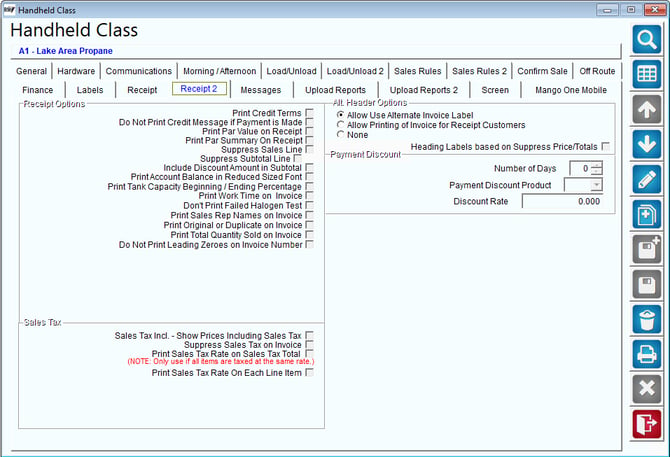
Receipt Options:
Print Credit Terms: Select this option to print the Customer's Credit Terms.
Do Not Print Credit Message if Payment is Made: If a payment is collected on the receipt, this will not print the Credit Message.
Print Par Value on Receipt: Select this option to print the current PAR Value on the receipt.
Print Par Summary on Receipt: Select this option to print the PAR Summary information on the receipt. NOTE: This is available only for 4” wide printers.
Suppress Sales Line: Select this option to no longer print the Sales Total line on the receipt.
Suppress Subtotal Line: Select this option to no longer print the Subtotal line on the receipt.
Include Discount Amount in Subtotal: Select this option to include the discount amount in the subtotal.
Print Account Balance in Reduced Size Font: Select this option to print the customer’s account balance on the receipt in a reduced size font.
Print Tank Capacity Beginning/Ending Percentage: If using the tanks feature, this will print the beginning and ending % full value for the customer tank on the receipt. This will show a percentage like 80% for ending and 15% for beginning.
Print Work Time on Invoice: Select this option to print work time on the invoice.
Don't Print Failed Halogen Test: Select this option to disable printing of failed Halogen Tests.
Print Sales Rep Names on Invoices: Select this option to Print Sales Rep Names on Invoices.
Print Original or Duplicate on Invoice: Select this option to Print Original or Duplicate on Invoice.
Print Total Quantity Sold on Invoice: Select this option to Print Total Quantity Sold on Invoice.
Do Not Print Leading Zeroes on Invoice Number: Select this option to disable leading zeroes on the Invoice Number.
Payment Discount:
Number of Days: Add the Number of Days for the Payment Discount.
Payment Discount Product: Select the payment discount product.
Discount Rate: Add the discount rate.
Sales Tax:
Sales Tax Incl. – Show Prices including Sales Tax: Choose this option to include sales tax totals in the price of each product (instead of printing the total tax separately).
Suppress Sales Tax on Invoice: Check this box to suppress the sales tax label and any tax totals from printing on the handheld receipt.
Print Sales Tax Rate: Choose this option to print the tax percentage rate on the receipt.
Alt. Header Options:
Allow Use Alternate Heading: Select this option to allow the driver to print an alternate heading on the receipt by selecting the ‘Use Alternate Heading’ option on the Confirm Sale screen of the handheld.
NOTE: The Alternate Heading can be entered in the ‘Alt. Invoice Label’ field under the Handheld Class screen, on the Labels tab.
Allow Printing of Invoice for Receipt Customers: Select this option to allow the driver to temporarily override any suppressed options on the handheld receipt (i.e., blocked balances, suppressed prices) and print a complete invoice for the customer.
None: Select this option to prevent the driver from using either of the previous two options on the handheld.
Heading Labels Based on Suppress Price/Totals: Select this option to suppress heading labels based on suppress price/totals.
Messages Tab
The Message stab contains header and footer information that will print on each customer’s receipt.
NOTE: For further information on setting up and formatting your receipt, refer to the Handheld User Guide.
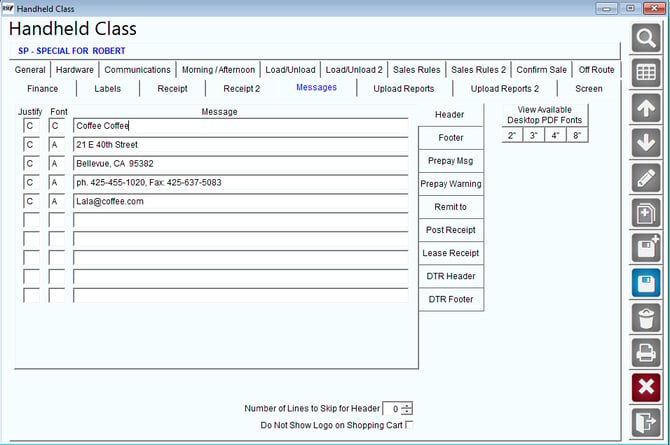
Tabs:
Header Tab: The text in this field prints before the main body of the receipt.
- Number of Lines to Skip for Header: Enter the number of lines to skip between the header and the body of the invoice.
- Do Not Show Logo on Shopping Cart: Select this option to suppress the invoice header logo from printing on the Shopping Cart printouts.
Footer Tab: The text in this field prints after the main body of the receipt.
Prepay Msg (Requires Pre-Pay Option): The text in this field prints after the main body of the receipt for prepay customers.
Prepay Warning (Requires Pre-Pay Option): The text in this field prints after the main body of the receipt to alert the customer that their pre-pay balance is low.
NOTE: For further information on setting up the Pre-Pay option, refer to Chapter 2.09 of the Supplemental Guide.
Remit to: The text in this field will appear on the payment remittance stub.
Post Receipt (Paper Shredding Only): The text in this field will print on a Certificate Of Destruction for the customer.
- Include Post Receipt Document: Select this option to include the Post Receipt, configured above, with each customer’s invoice.
- Require a signature with Document: Select this option to require that a signature be captured with each Post Receipt.
Lease Receipt: This option allows you to format an equipment lease agreement that can be printed from the handheld.
- Contract Period in Months: Use the arrow keys to establish the length of the contract in months.
- Lease Version: Enter version information that can be included on the contract.
- Preview: Select this button to preview the contract on the screen.
NOTE: Refer to Chapter 4.10 of the Supplemental Guide for further information on lease agreements.
DTR Header: Enter the header for your Daily Transactions Report
DTR Footer: Enter the footer for your Daily Transactions Report
Fields:
Justify: Enter an L (left), R (right), or C (centered) that corresponds to how you would like the text to be aligned on the printed receipt.
Font: Enter a letter corresponding to the font size you would like to use on the printed receipt.
NOTE: Refer to Appendix B of the Handheld User Guide for examples.
Message: Enter the information that you would like to print on each line.
Upload Reports Tab
The Upload Reports tab contains a list of all of the report options available when uploaded route data during the Afternoon Card process.
NOTE: Specify the number of copies of each report desired. If ‘0’ is entered, the report will not print.
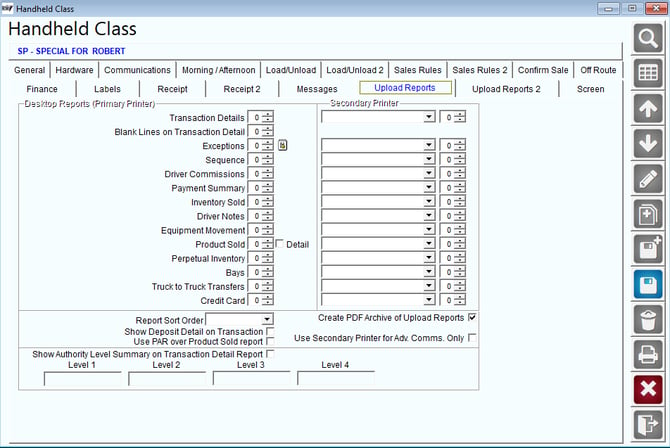
Desktop Reports:
Transaction Detail: This report includes a detailed list of all transactions that occurred while out on route.
NOTE: Entering a quantity of ‘9’ will print a Transaction Detail Report Summary, suppressing all of the detailed information.
Blank Lines on Transaction Detail: This option represents the number of blank lines to include between transactions, giving you additional space to write in notes or changes.
Exceptions: This report includes price changes, skipped stops, sales to past due accounts, and much more.
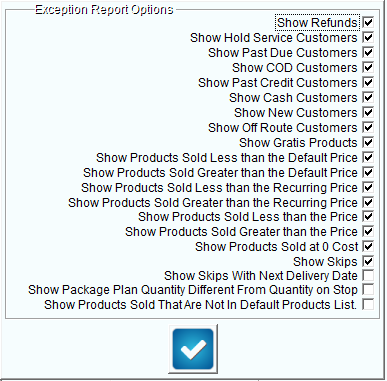
NOTE: Select the box to the right of this report to choose the detailed options you would like to include daily.
Sequence: This report includes stops that were re-sequenced by the driver.
Driver Commissions: This report includes commission totals accumulated for the current route day.
Payment Summary: This report includes a summary of all payments collected on route.
Inventory Sold: This report includes inventory totals for the route day.
Driver Notes: This report includes all notes entered on the current route by the driver.
Equipment Movement: This report includes all equipment movement for the route day (i.e., picked up, dropped off, and equipment left on the truck).
Product Sold: This report includes all the Products loaded/sold/unloaded from the route.
Perpetual Inventory: This report includes perpetual inventory totals for the route day.
NOTE: The Perpetual Inventory option enables the ability to carry product inventory totals on a delivery vehicle from one day to the next. Refer to Chapter 3.17 of the Supplemental Guide for further information.
Bays: This report will print a list of products that were loaded on each Bay.
Truck to Truck Transfers: This report will print the Truck to Truck Transfers if using the Inventory Module feature on the General Tab in Handheld Class.
Credit Card (EC2000 Module Only): This report includes collected credit card data for the route day.
Report Sort Order: Select a sorting option to use on the Transaction Detail Report.
Show Deposit Detail on Transaction Detail Report: Check this box to display all customer bottle exchanges on the Transaction Detail report.
Use Par over Product Sold report (Par Module Only): Not used.
Create PDF Archive of Upload Reports: Select this option to create a PDF copy of each set of reports that print during the Afternoon Card process.
Use Secondary Printer for Adv. Comms. Only: Select this option if you would like to use a different printer for your Advanced Communications reports.
NOTE: Each .PDF file will be stored within the RMA directory under data\PDF\Handheld\Afternoon.
Show Authority Level Summary on Transaction Detail Report: Select this option to show Sales Tax Authority details on the Transaction Detail Report.
Level 1-4 (Requires option above): Enter the description that you would like to display for each authority on the report.
Upload Reports 2 Tab
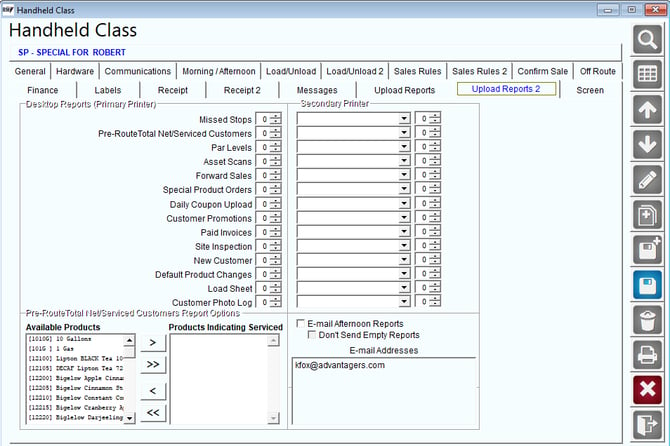
The Upload Reports 2tab is a continuation of the previous tab.
Desktop Reports:
Missed Stops: This report includes any stops that were not serviced on route.
Pre-Route Total Net/Serviced Customers: This report will track the number of customer’s that have been ‘serviced’ based on the items added to the Products Indicating Serviced field (displayed on the same tab).
Par Levels (Par Module Only): This report includes Par Level related information for the current route.
Asset Scans (Shredding Industry): This report includes scanned equipment information.
Forward Sales: This report includes all Forward Sales invoices created on the current route.
Special Product Orders: This report includes special product requests from the customers (including items that you may not carry currently).
Daily Coupon Upload: This report includes all coupon activity on the current route.
NOTE: Contact ARS for further information on using coupons within RMA.
Customer Promotions: This report includes all product activity related to customer promotions.
Paid Invoices: This report includes the invoices that payments were applied to by the driver.
Site Inspection: This report includes the site inspections entered by the driver.
New Customer: This report displays the new customers entered by the driver.
Default Product Changes: This report displays default product changes such as permanent price overrides, removal of default products, and quantity changes.
Secondary Printer: Enter a secondary printer to redirect a second set of Afternoon Reports to another printer on the network.
Pre-Route Total Net/Serviced Customers Report Options: This option allows you to create a report that indicates the number of ‘serviced’ customers based on items added to the Products Indicating Serviced field.
NOTE: This report can also be reprinted on the desktop under Reports>Route Reports>Management>Pre-Route Total Net/Service Customers Report.
Available products: A list of all of the products available within the program.
Products Indicating Serviced: A list of all items that qualify as ‘service’ items.
Other:
E-Mail Afternoon Reports: Select this option to automatically email the afternoon reports to the email addresses listed below, via CMC for each route as they are uploaded.
E-Mail Addresses: Enter the email address(es) that the afternoon reports should be sent to.
Screen Tab
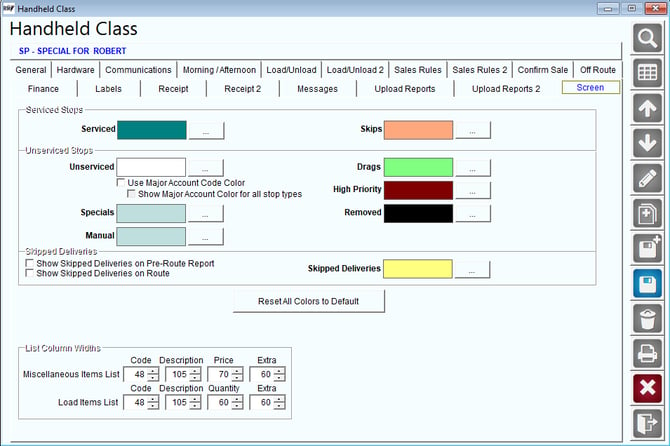
The Screen tab contains options that allow you to color-code the stop selection screen on the handheld. Select the  Browse button next to each option to assign a custom color.
Serviced Stops:
Serviced: Select the color that you would like to display for all serviced stops on the handheld.
Skips: Select the color that you would like to display for all ‘skipped’ stops on the handheld.
Unserviced Stops:
Unserviced: Select the color that you would like to display for all un-serviced stops on the handheld.
Use Major Account Code Color: This color is found under Lists>Customer Setup Codes> Major Account Codes
Show Major Account Code Color for All Stop Types: Changes all stops to the color of your Major Account Code
Specials: Select the color that you would like to display for all un-serviced special deliveries on the handheld.
Manual: Select the color that you would like to display for all manual deliveries on the handheld.
Specials not on a Delivery Order: Select the color you would like to display for all specials that are not on a delivery order such as an equipment service order.
Drags: Select the color that you would like to display for all un-serviced ‘drag’ stops on the handheld.
High Priority: Select the color that you would like to display for all un-serviced ‘High Priority’ stops on the handheld.
Removed: Select the color you would like to display for any stops removed from the handheld.
NOTE: In order for items to be flagged as ‘High Priority,’ the stop must be assigned a Telephone Reason with the option ‘High Priority Reason Code’ selected under Lists > Delivery Order Reasons.
Skipped Deliveries:
Show Skipped Deliveries on Pre-Route Report: Enable this option to show customers that were marked as Skipped on the Pre-Route Report.
Show Skipped Deliveries on Route: Enable this option to show customers marked as Skipped on the Handheld.
Skipped Deliveries: Choose a unique color for Skipped Deliveries to be shown as on the handheld. So they are not confused with standard delivery customers.
Reset all Colors to Default: Select this button to reset the colors of Serviced and Unserviced Stops to their default settings.
Allow Route List Filtering by Delivery Time: Select this option to allow the driver to sort the stop selection screen based on the preferred Deliv. Time (AM or PM) established under each account.
NOTE: This option can be found within Lists > Customer Information > Route > Handheld Options.
List Column Widths:
Miscellaneous Item List: Override the standard column widths on the Misc Items Product List.
Load Items List: Override the standard column widths on the Load Truck Product List.