
Introduction
If you want a convenient system to keep track of products that you give away to your customers, you should take a look at setting up and using the Gratis functionality within Route Manager. This is a built-in function which will allow you to choose which products are available for Gratis, which routes can use Gratis, and even which users have the ability to use.
Setup
Setup requires several steps:
- Setting up your gratis reasons. These are the “why” reasons and categories that you can view your reports by.
- Indicating which products are eligible for gratis
- If you are going to use Gratis when taking orders, you will need to change the security setting to allow your desktop users to do so.
Each of these steps are described in more detail in the following section.
Setting up Gratis Reasons
To set up your Gratis Reasons, you will need to go to Lists > Products Codes > Gratis Reason codes.
As you come into the program, you will see a screen like this:
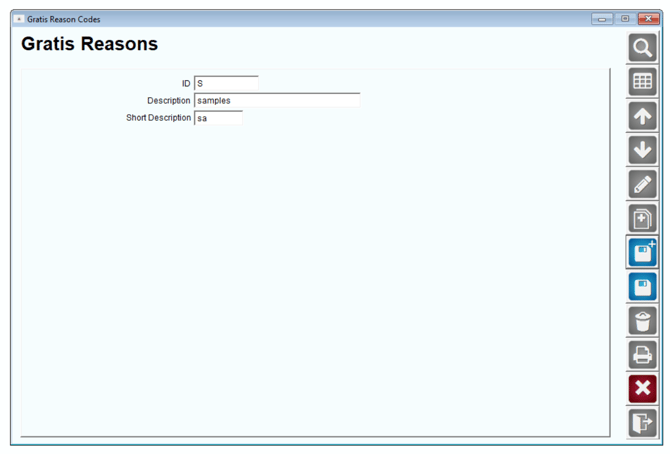
On this screen, you can enter all of the reasons why you give away product. Typical ones are:
- New Customer
- Samples
- Late Delivery
- Etc.
You can add to this list at any time.
Marking products for Gratis
The next step is to mark all products that are eligible for free goods. For example, you may want to give the following away:
- Water
- Coffee
- Ice
But you most likely will not want to give away:
- Bank Charges
- Fixed Assets
- Etc.
Use the screen on Lists > Product Codes > Product Charge Codes to check all products that you want eligible for Gratis. If this box is not checked, free product may not be given away with this code.
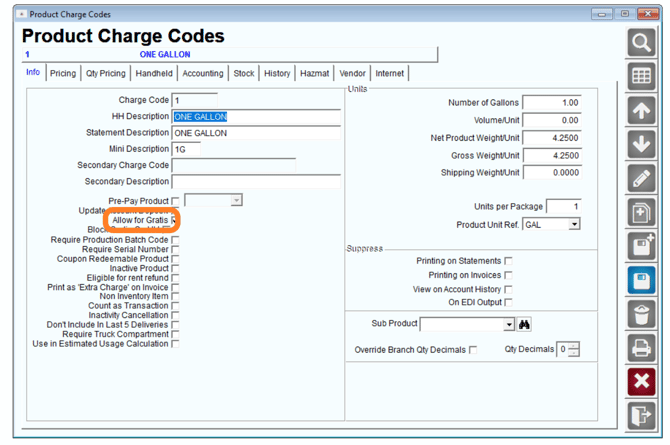
If you decide to allow a new product to be a free one, you can come back to each product and change this flag. Do note the other option right below the "Allow for Gratis" to "Block Gratis On HH". This will only allow the product to be given for gratis on the desktop, and not on the handheld.
Security Settings for Gratis
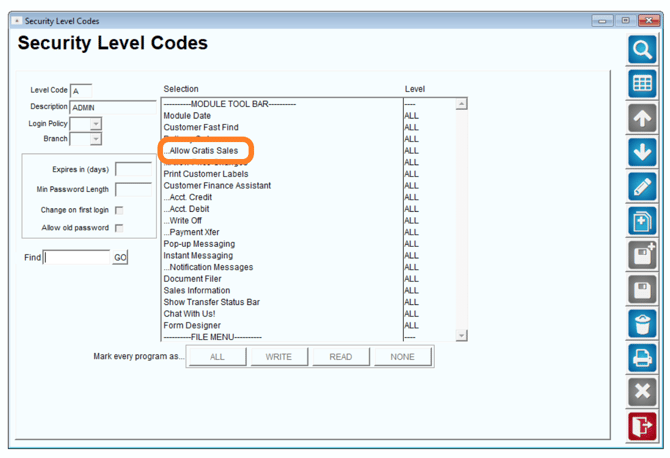
If you want to allow your desktop users to use the Gratis Codes when entering customer orders, you will also need to make sure that the security is turned on for this feature.Go to Lists > Employee Setup > Security Level Codes and locate …Allow Gratis Sales. An example is shown below to help you find it.
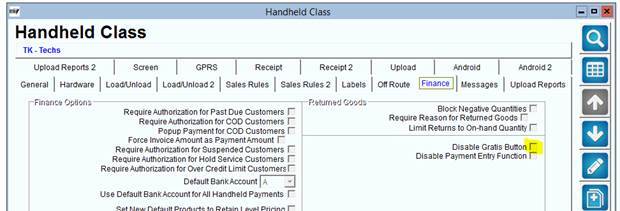
You can also turn off gratis for an entire handheld class under lists>Routes>Handheld Class>Finance tab. Select the option for "Disable Gratis Button".
Using Gratis
There are multiple places in the system where you can use the gratis function. These are:
- Taking Orders
- Entering Invoices
- On the Handheld
More details follow in the area below.
Taking orders
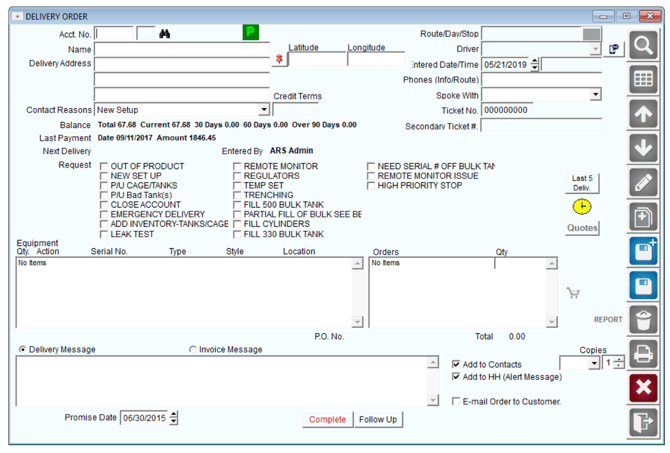
When you take an order on the desktop for a customer, you can enter any product that is to be given away at the time you take the order. This is done on the telephone order screen.
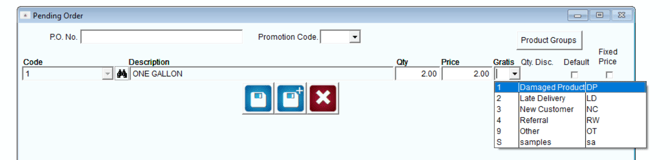
As you enter the detail line portion of the order entry screen, you will see a space for Gratis Reason.If you choose a reason, the price will still show the original price, however all further calculations will be done at 0.00 price.
Entering invoices
You can also choose to give products away in the invoice entry screen. To do this, simply start an invoice. When you get to the line detail, you will enter your gratis information as you do the line detail.
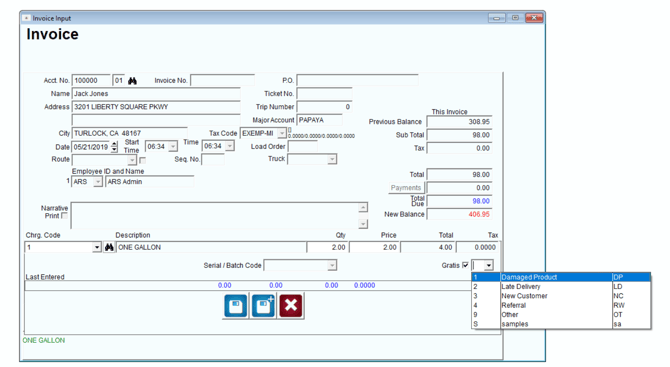
NOTE: If the Gratis dropdown does not appear, generally that means that the product is not eligible to give away for free.
On the handheld
Your delivery person can indicate if they are giving away free product to their customers. This section will describe the steps to do that.
On the handheld, when you are choosing a product, you have the opportunity to override the price. Pressing the displayed price will pop-up the following screen that allows you to adjust the price. Any product that you give away for free will appear on the Exceptions Report at the end of the day.
By touching the word Gratis, you can now give the product away for free. When you use this function, you will be required to enter a reason for the action — this list of reasons is set up ahead of time on the desktop. These reasons are shown in a list like shown below:
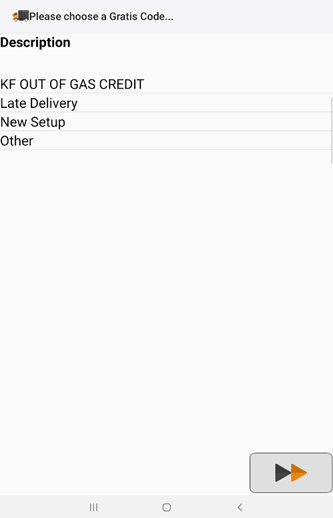
Simply choose one of the descriptions shown and touch the green arrow.
A gratis code can be entered for any product that has been set up that way. If there are multiple products to be given away for free, then each one will need its own code.
If you are delivering some product for free and charging for others of the same product code, then you will need to make line item entries - one for the free product and one for the charged one.
As a final note: you can enter gratis products on the handheld in either the quick Entry screen or on the Miscellaneous items. The functionality is the same.
Reporting
Free Product Report
The Free Product Report has been created for companies that generate credits for free products on the desktop when using Period Discount Pricing or Gratis. The Free Product Report can be found under Reports>Management Reports>Free Product Report.
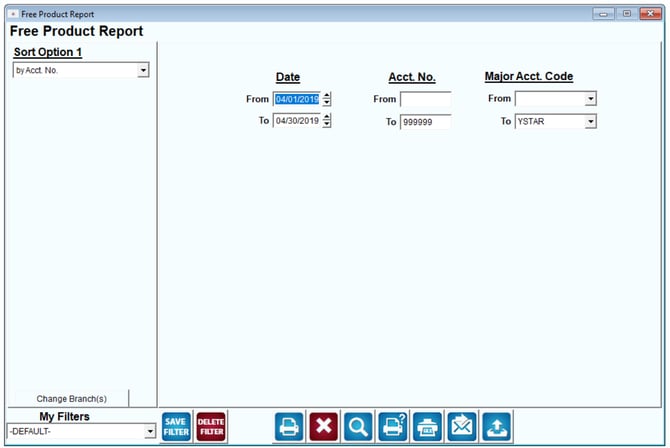
- By Account Number
- By Period Discount Code
Gratis Sales by Route
This report identifies products that were given away for free based on a defined set of ‘Gratis Reasons’. The Gratis Sales by Route report can be found under Reports>Route Reports>Sales>Gratis Sales by Route.
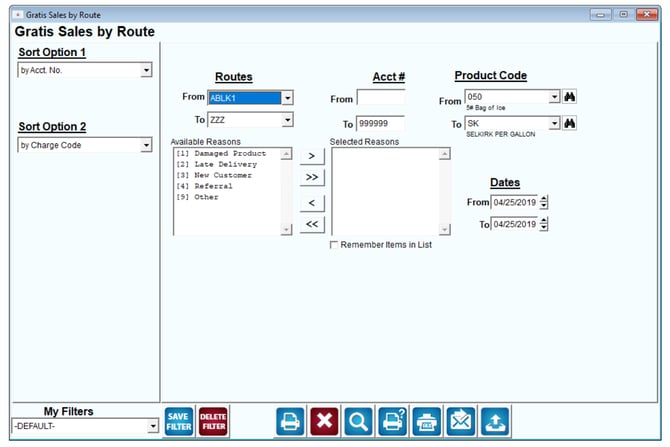
- Account Number
- Charge Code
- Date