
Overview
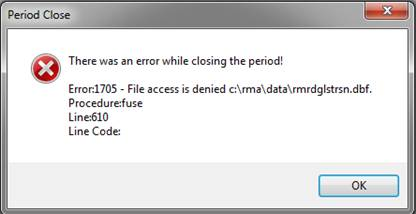
Do you repeatedly run into the error “File Access Denied” when trying to do a single user process in Route Manager? Here are a few ways to resolve the error, as well as ways to avoid receiving this error.
How this Process Works
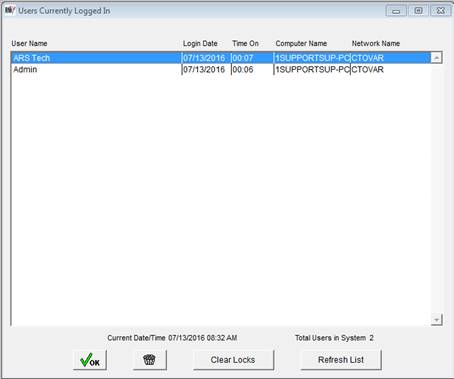
This error is most commonly found during Packing, Backup, and Period Close. The reason it presents itself is to let you know that there is another user holding open a Route Manager file. This typically occurs when an administrator boots a user out of Route Manager by the screen found under Tools > Administration > Users Currently Logged In. By doing this it appears as though all users are logged out, however the RMA program is still running on the other user’s machines.
To avoid receiving this error message, it is always best practice to have each user completely log out (File>Exit and Logout) after they are done using the program. This will ensure to close the program and any open files in their session. You can go around to each computer and make sure that every user is completely logged out of Route Manager, or you can follow the steps below.
This will ensure to close the program and any open files in their session. You can go around to each computer and make sure that every user is completely logged out of Route Manager, or you can follow the steps below.
Ending the Processes
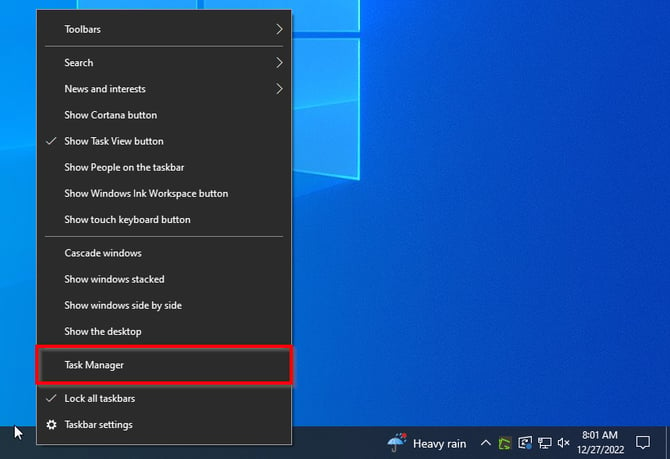
Right click on your taskbar and select 'Task Manager'.
Click on the 'Processes' tab
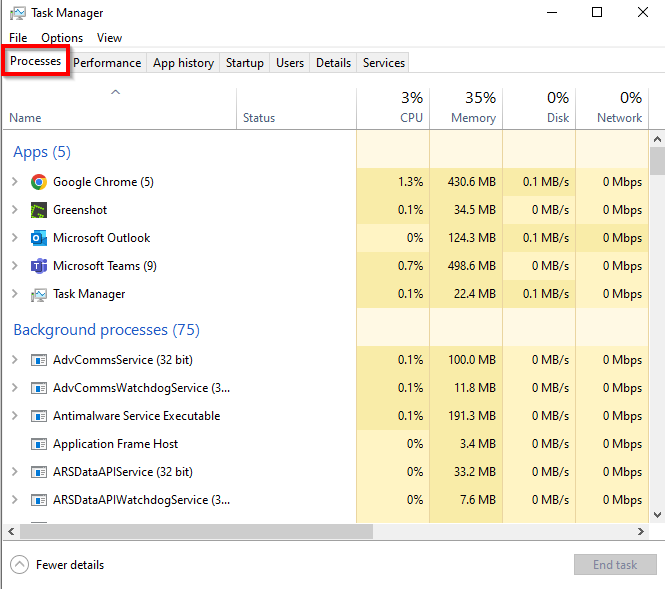
Find the other RMA.EXE which is running and not your own application and select 'End Process.' Once you end all other RMA.EXE applications, you will now be able to complete your Route Manager processes in single user mode. If this does not work, proceed to next section.
.jpg?width=353&height=406&name=rma-tech-tip-17-receiving-error-file-access-denied-during-packing-backup-or-period-close-1499092756%20(1).jpg)
Go to the 'Details' tab.
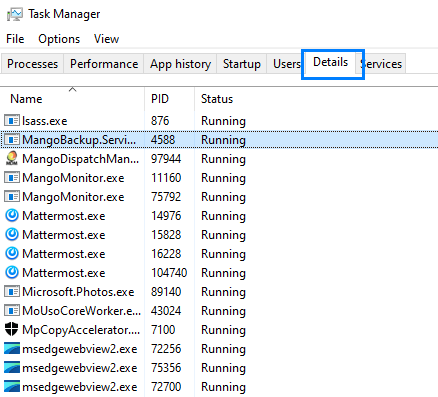
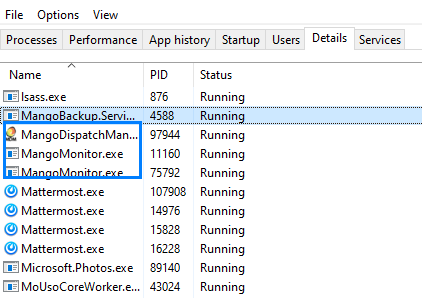
You will also want to make sure that any Mango Dispatch Manager items are closed out and Mango Monitor items.
Right click on them and 'End Task.'
Closing Open Files
Click on the windows icon in the lower left hand of the screen, and type 'computer management' in the search bar and select it from the search box.
.jpg?width=412&height=387&name=rma-tech-tip-17-receiving-error-file-access-denied-during-packing-backup-or-period-close-1499092756%20(2).jpg)
Go into 'Shared Folders', then select the folder 'Open Files.'
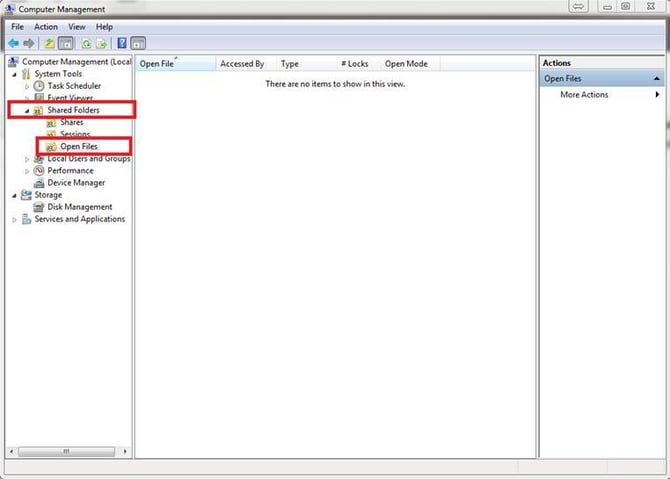
Select the RMA files (Ctrl + click) to select multiple Select the option on the right for the selected files to close them.
Note: Sometimes when you close out RMA files new ones will appear. Continue the steps until there are no more files showing for RMA.
.jpg?width=670&height=190&name=rma-tech-tip-17-receiving-error-file-access-denied-during-packing-backup-or-period-close-1499092757%20(1).jpg)
Once done, test your process again to see if you receive the 1705 error.
Rebooting the Server
If the above steps did not correct your 1705 error, you will need to restart the server where Route Manager is installed. This will close out any processes that are still running that you did not have access to. Do note, if other users are logged into the server using other programs, they will be kicked off and any unsaved changes may be lost.