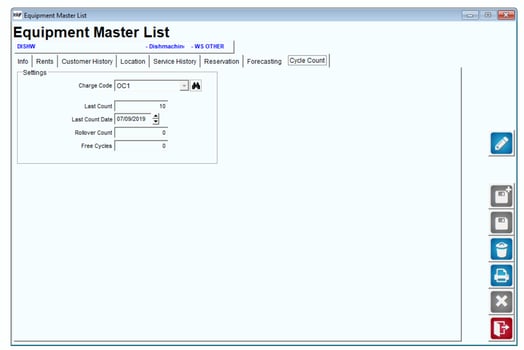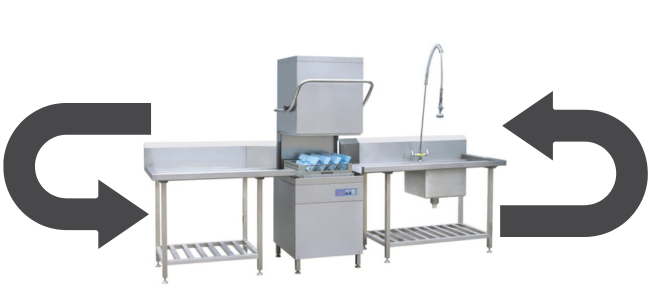
Need a feature that allows you to accurately keep statistics and payments for your equipment that charges off cycles? Here it is! There is a new tab within your equipment master list that allows you to do just that. With this new tab you will be able to assign a product charge code to a piece of equipment and accurately calculate charges per cycle. This tab will keep track of your cycle count, the date of your last cycle count, and more! Within this document we will go through the pre-implementation items in your RMA (desktop), Handheld Processing, and the information upon the end of day driver upload.
Set Up
Setting Up Product Charge Codes for Cycle Count
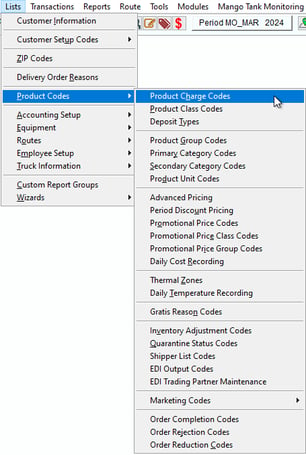
To set up your Product Charge Codes you will Navigate to the Lists > Product Codes > Product Charge Codes.
Create a new product charge code that will later be attached to a piece of equipment to charge per cycle.
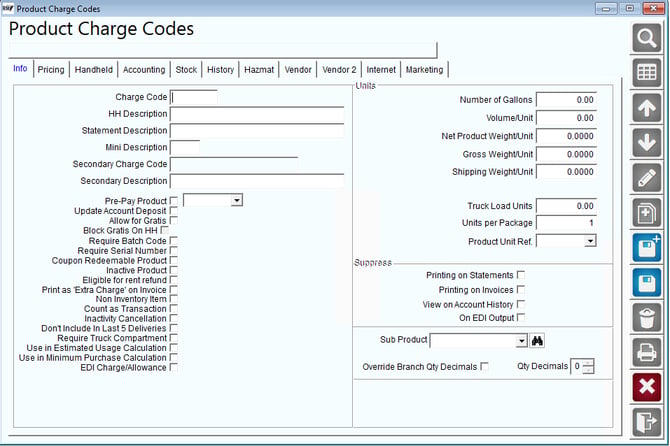
A few things to check to complete your new product charge code:
Info Tab
Charge Code: Enter up to five characters that will represent the Product Charge Code.
HH Description: Enter a description up to forty characters that will be used on the handheld for the item.
Pricing Tab
Price/Cost/Default-Level 9: Enter up to ten levels of prices and costs on each item.
Handheld Tab
Select ‘Handheld Product’: Select this option for this product charge code to appear on the handheld.
Accounting Tab
Product Class: Select a Product Class Code from the drop-down list. The class assigned to each item is used for tracking and reporting purposes.
NOTE: The assigned Product Class Code is fundamental to the operation of RMA and each class is designed to perform a specific function in the program. Refer to Chapter 2 of the Getting Started Guide for further information on this topic.
G/L Acct No: Select the primary G/L Number that you would like to use for general accounting values for the item.
You may select any additional features for your Product Charge Code
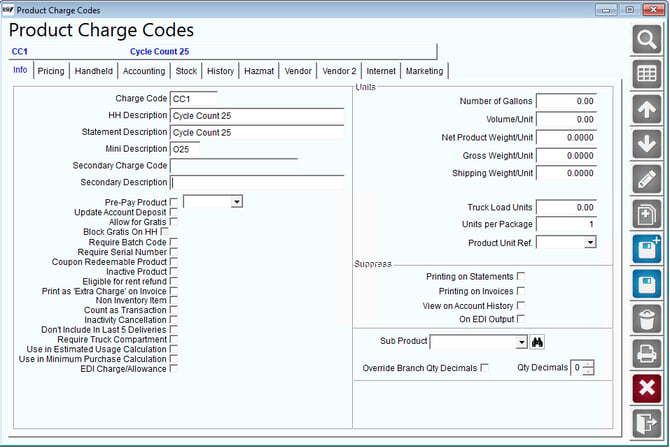
Once your new Product Charge Code is complete, select Save to confirm.
Equipment: Cycle Count SetupTo set up your piece of equipment you will need to navigate to Lists > Equipment > Equipment Master List.
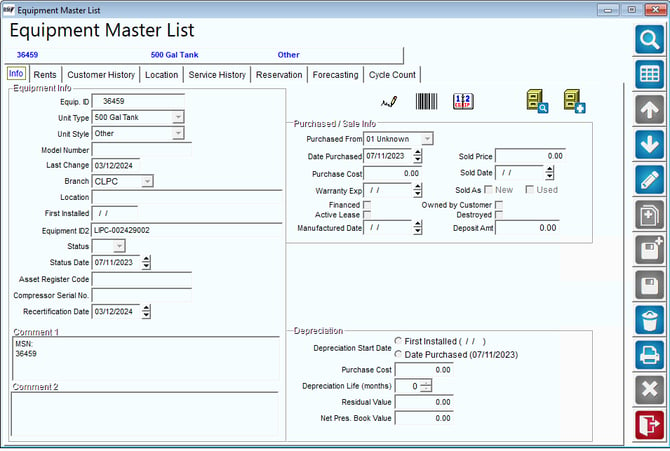
To set up your new Product Charge Code to apply to your piece of equipment you will navigate to the Cycle Count Tab.
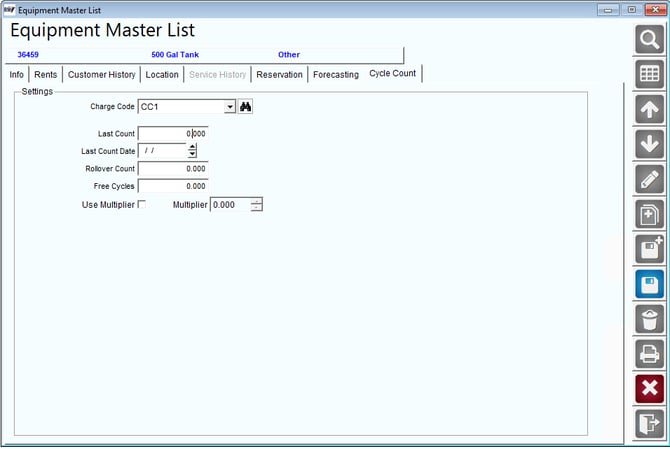
Definitions
Charge Code: Select the charge code that will apply to this piece of equipment to charge per cycle.
Last Count: This field keeps track of the last count after each posting that applies to this piece of equipment.
Last Count Date: The last date the equipment cycles were counted.
Rollover Count: This field keeps track of the rollover count after each posting that applies to this piece of equipment.
Free Cycles: This field keeps track of the free cycle count after each posting that applies to this piece of equipment.
Install Equipment: On Customer Account
To install a new piece of equipment on a customers account you will navigate to Lists > Customer Info > Equipment Tab.
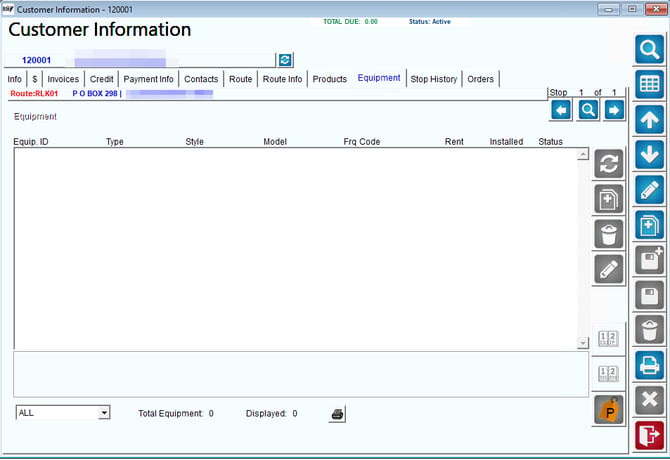
Select Modify and Add to bring you to the below screen. Select your equipment that you would like to install on this customer account and select save.
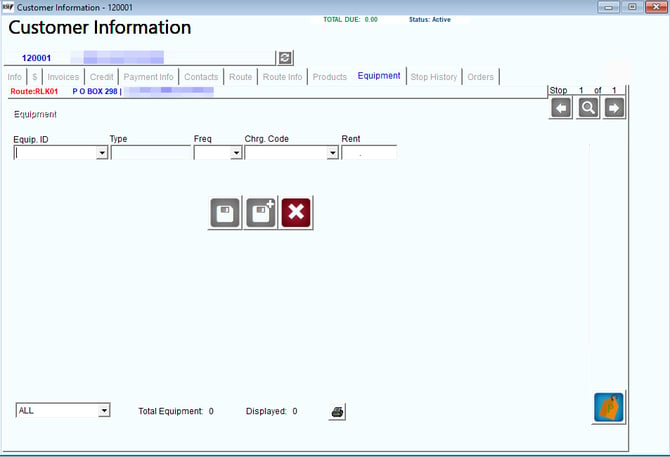
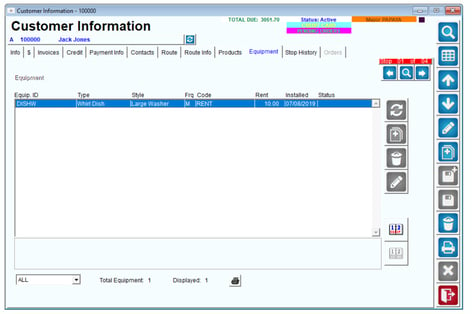
Once you select save the equipment will now be installed on the customers account.
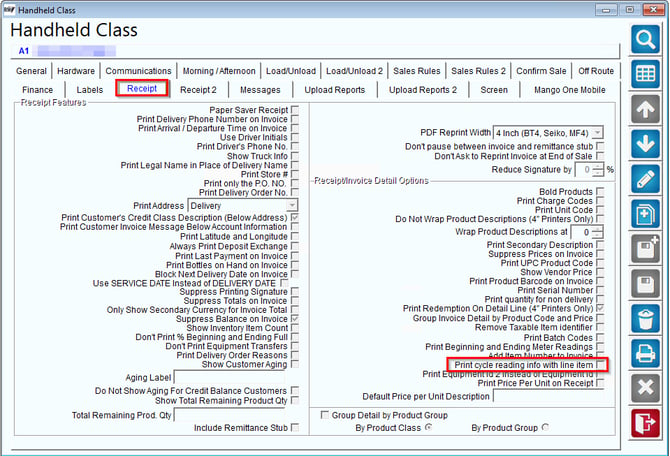
To complete your set up you will need to enable an option in Handheld Class. To enable the Print cycle reading info with line item navigate to Lists > Routes > Handheld Class > Receipt Tab.
Process
Handheld Processing
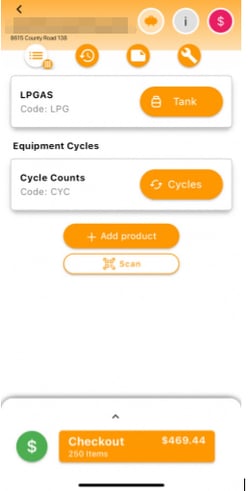
1. Select "Cycle Counts" under Equipment Cycles:
- On a customer account, navigate to the "Equipment Cycles" section.
- Select the "Cycle Counts" option to initiate the cycle count process.
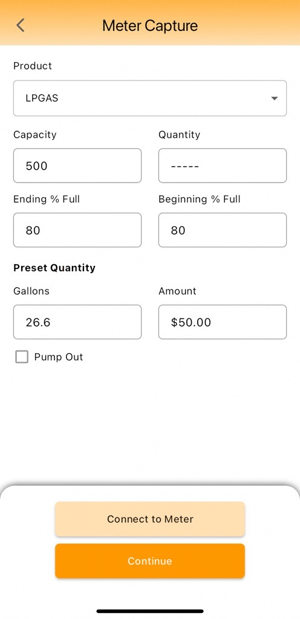
2. Access the Meter Capture Screen:
- You will be directed to the Meter Capture screen.
- Ensure that the meter is correctly connected and functioning.
- Select "Connect to Meter" to establish a connection with the meter.
3. Verify Meter Connection:
- Confirm that the meter connection is successful.
- Check the status indicators to ensure proper connectivity.
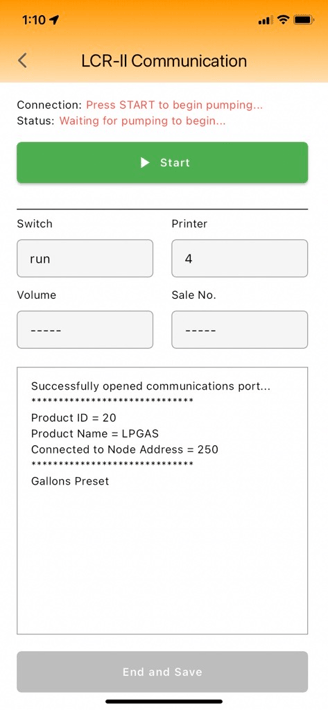
4. Connect to Meter and Begin Pumping:
- Once connected to the meter, press the green "Start" button to begin the pumping process.
- Monitor the meter readings and ensure that the process is running smoothly.
- If any issues arise during the pumping process, troubleshoot accordingly.
5. End Pumping and Save Data:
- After completing the pumping process, select "End and Save" to record the data.
- Ensure that the meter readings are accurately captured and saved.
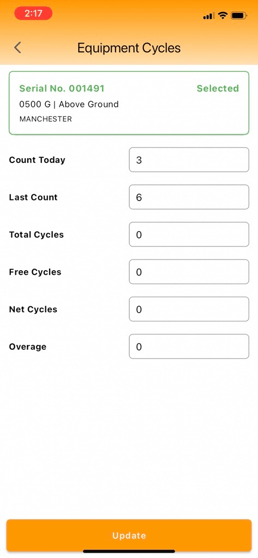
6. Enter Required Fields:
Fill out the following fields with the appropriate data:
- Count Today: Enter the count for the current day.
- Last Count: Record the count from the previous cycle.
- Total Cycles: Input the total number of cycles completed to date.
- Free Cycles: Enter the number of free cycles available.
- Net Cycles: Calculate and input the net cycles (total cycles minus free cycles).
- Overage: Record any overage cycles that exceed the allotted amount.
Double-check the entered data for accuracy before proceeding.
7. Update Cycle Data:
- Select "Update" to save the entered data.
- Ensure that the system confirms the successful update of the cycle data.
8. Review and Confirm Data:
- Review the updated data to ensure accuracy and completeness.
- If necessary, make any additional adjustments or corrections.
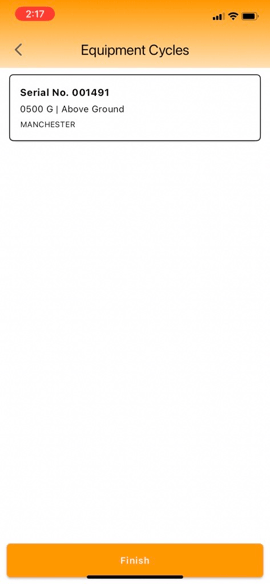
9. Complete the Equipment Cycle:
- After verifying the data, select "Finish" to complete the equipment cycle process.
Invoice
Below is what your invoice will look like from the handheld.
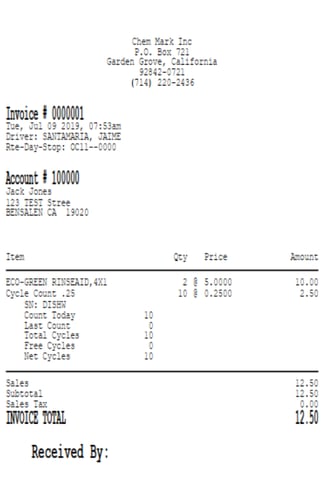
Listed in your Products List will be:
- Product Charge Code from your Cycle Counted Equipment
- The serial number of the Counted piece of Equipment
- The current cycle count
- The last cycle count
- The total cycle count
- The amount of free cycles
- The net amount of cycles
Note: This invoice can be viewed from the customer account but will not update the piece of equipment until the invoice is posted.
Adjust Equipment Cycle Count Invoices After UploadRMA Adjustment
If for any reason you need to make an adjustment to an invoice after upload you would be able to do so by following the process below
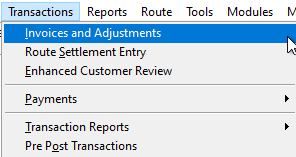
- Navigate to Invoices and Adjustments
2. Select the invoice that was needs to be adjusted
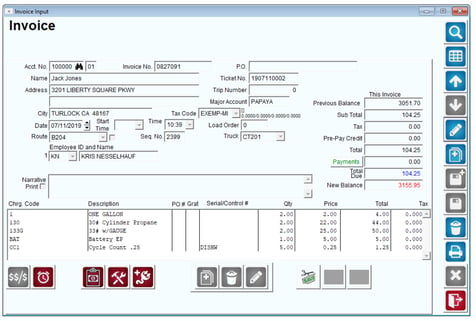
3. Select modify to make adjustments
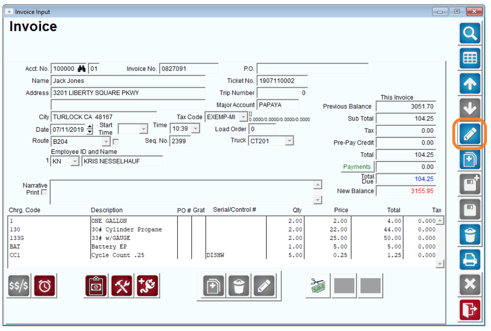
4. Select the product that needs an adjustment. In this case we are adjusting the equipment part product, CODE: BAT
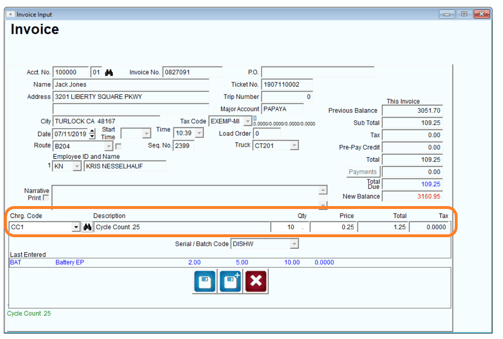
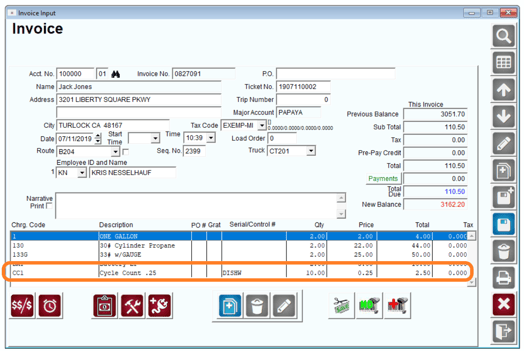
5. After all of your adjustments are saved your new quantity or price will be adjusted like below.
MDM Adjustment
In MDM you will be able to modify your invoice by following the steps below
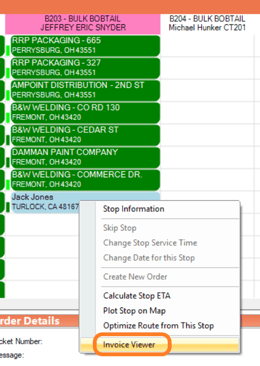
1. Right click on the stop and select Invoice Viewer
2. Select Edit Invoice
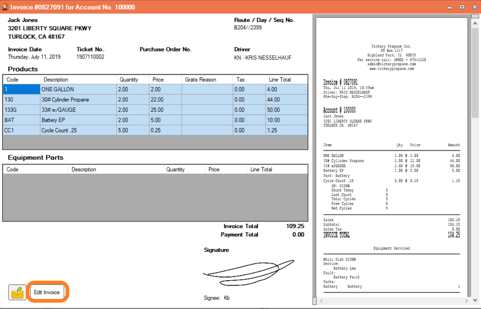
3. Selecting Edit Invoice will bring you into RMA and pull up the invoice to modify
4. Select modify to make adjustments
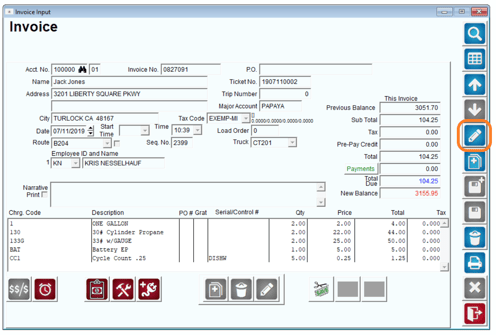
5. Select the product that needs an adjustment. In this case we are adjusting the equipment part product, CODE: BAT
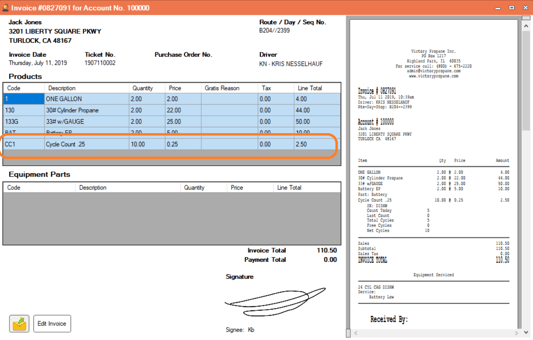
6.After all of your adjustments are saved your new quantity or price will be adjusted like below.
7. You can view the changes in MDM
Equipment After Posting
Once your invoices are posted for the day you can see the updated cycle count amount on the piece of installed equipment.