Introduction
One of the features in Route Manager is the ability to print alternate company headers on your customer’s handheld receipts. This is helpful for companies that carry more than one company name. Now you will have the ability to select the header that should print, per customer.
Dynamic Heading Setup
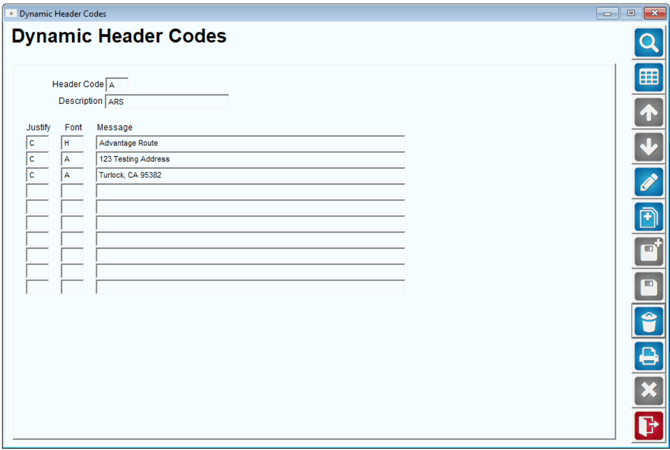
Navigate to Lists > Customer Setup Codes > Dynamic Header Codes, and follow the steps below to create an alternate header code.
- Choose the Add key.
- Enter the new header information. You can use up to ten lines for each header.
- Choose Save or More and repeat these steps for each header that you will use.
Fields:
Header Code: Enter a single character code that will be assigned to each customer that will use the alternate header.
Description: Enter a description for the alternate header.
Justify: This field controls the format of the alternate header, enter one of the following codes in this field:
- C = Centers the text on the header.
- L = Aligns the text on the left side of the receipt.
- R = Aligns the text on the right side of the receipt.
- I = Allows you to attach a custom logo to the receipt.This option requires additional setup.Refer to the Handheld User Guide for further information.
Font: the Font field controls the size of the text. The maximum numbers of characters varies per printer (Advantage BT-4 settings are shown below).
| Style Identifier | Max. characters / line | Style Identifier | Max. characters / line |
| A | 69 | I | 69 |
| B | 69 | J | 69 |
| C | 69 | K | 69 |
| D | 69 | L | 69 |
| E | 34 | M | 34 |
| F | 34 | N | 34 |
| G | 34 | O | 34 |
| H | 34 | P | 34 |
Customer Setup
After you have created your alternate headings, they will need to be assigned to each customer.
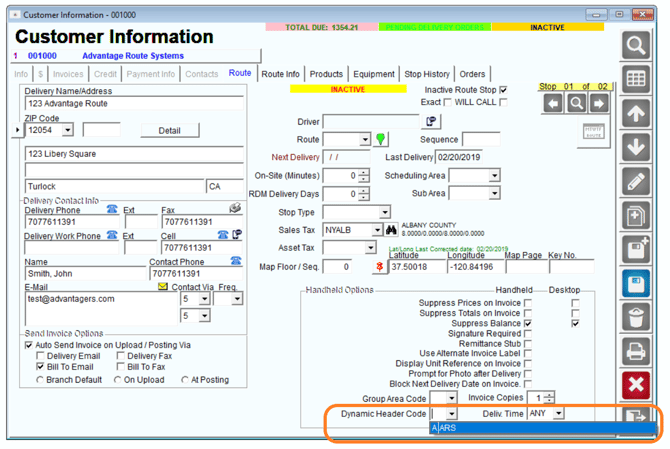
Browse to Lists > Customer Information, and select the Route tab.
- Click the Modify key.
- In the Handheld Options section in the lower right side of the window locate the Dynamic Header Code.
- Assign the alternate header to the customer from within this field.
- Save your changes and repeat this step on each account that will use an alternate heading.