
In 2023, ARS added a new feature to its RMA products called Delivery Vehicle Assignments. The purpose is to add restrictions to delivery vehicles so customers are delivered by an appropriate vehicle. Here are two use cases for setting this up in your system.
- In Europe and other places in the world, you may be restricted by law or street size where you cannot take a 10 truck into certain parts of the city. You may be weight or size-restricted to use a smaller one. By setting this up correctly, you will not attempt to dispatch a large truck to an area that must use a small one.
- If you deliver petroleum or propane products, you may have certain trucks that are metered and others that are designed to a full drop of its products at a single location. In this example, you may have restrictions for the type of truck that can be used.
In either situation, using DVA will help you manage this process better.
To make all of this happen, there are several things that you will need to configure ahead of time so you can see these restrictions in the Mango Dispatch Manager [MDM] and on our mapping tools.
Here is a list of things that you will need to do [in order] to set this up:
- Create a list of DVA codes to distinguish what you want to identify.
- Set the correct DVA on each Truck Class.
- Assign the DVA code to the Customer Route [stop] location so you know what customer has what limitations.
With this completed, you are then ready to use this feature. The balance of this article will give you practical examples of its use.
Setting up DVASetting up the DVA Codes
Setting up the DVA Codes is where you initiate the setup process for DVAs in the RMA system. To set up DVA, navigate through Lists > Routes > Delivery Vehicle Assignment in RMA. Delivery Vehicle Assignment is set up across multiple screens on RMA. The following lists the various areas which need to be setup:
Adding a new record allows you to define specific parameters for each Delivery Vehicle Assignment. Select the 'Add' icon to add a new record.
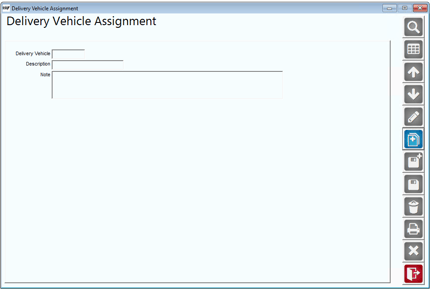
Fields:
Delivery Vehicle: Enter up to 5 characters for the Vehicles' name.
Description: Enter a description for the Delivery Vehicle.
Note: Enter any notes here.
Note: You can set up multiple DVAs to cater to various scenarios or restrictions.
Configure Truck Classes
Access Lists > Truck Information > Truck Class and assign the relevant DVA to each Truck Class. This is where you manage the characteristics and properties of different truck classes.
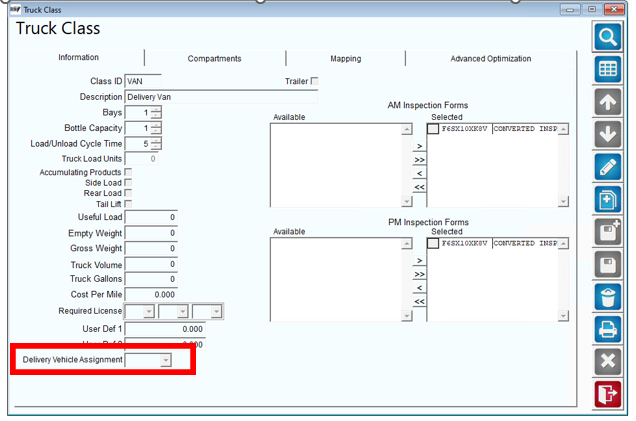
Linking each truck class with a specific DVA ensures that the right restrictions are applied to each type of vehicle.
Assign the DVA to each Customer Location
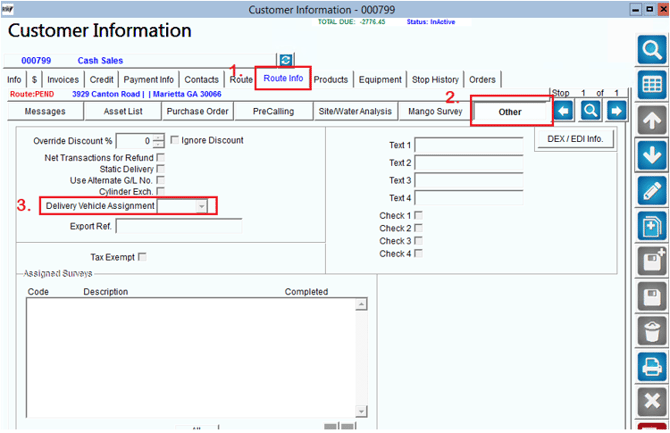
To assign the DVA to the customer account, navigate to Lists > Customer Information. Customer Information is where you manage details related to your customers.
Go to Route Info > Other. This section allows you to specify additional information related to the customer's route.
Select the DVA from the drop-down list to assign to the customer. Assigning DVAs to customer locations ensures that delivery restrictions are aligned with specific customer needs or geographical constraints.
DVA Codes
With your codes and locations set up, you can now start using the DVA codes as you do your route building. This section will show you how.
- To view stops with assigned DVAs on a route, go to MDM > Tools > Mango Mapping > Route by Map > Settings > Pin Label > Delivery Vehicle Assignment:
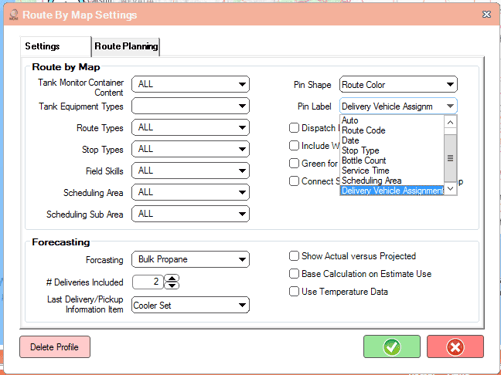
2. Choose the route you want to plot and click “Plot.” Plotting the route enables you to see how DVAs are distributed across different stops.
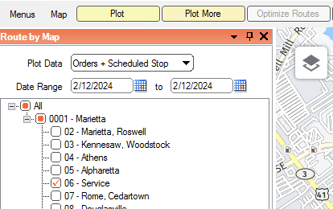
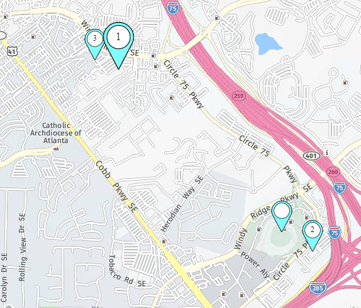
This visual representation helps in quickly identifying which delivery vehicles are suitable for each location. The plotted stops should now show the DVA code assigned to those stops:
Scenarios Triggering Warnings with DVA
Be aware of the following scenarios to avoid warnings and ensure smooth operations. The following scenarios will prompt a WARNING when using DVA:
The three areas that you will be notified are:
- Moving a stop on MDM
- Moving a stop on Route by Map
- Downloading a route
This section will explain how each of these will be shown.
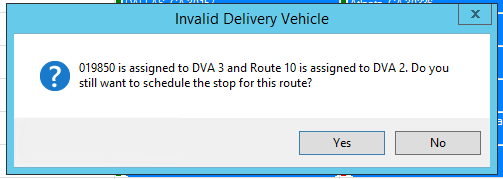
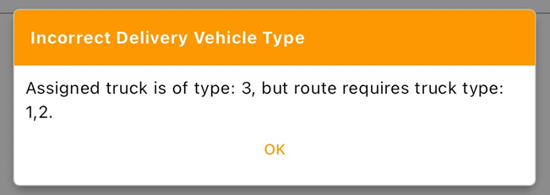
- Moving a stop to a route that has a truck assigned with a DVA that does not match the stop in MDM. This helps prevent mismatches between the assigned vehicle and the delivery location restrictions.
2. Moving a stop to a route that has a truck assigned with a DVA that does not match the stop in Mango Mapping > Route by Map. Consistency between MDM and Mango Mapping ensures accurate route planning.
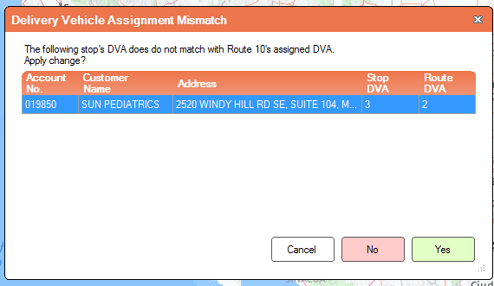
3. Downloading a route that contains a stop that has a DVA that doesn’t match the truck DVA. Avoiding such mismatches in downloaded routes ensures adherence to delivery restrictions and regulations.
Delivery Vehicle Assignments (DVA) in the RMA system optimize delivery logistics by allowing businesses to set specific restrictions for vehicles based on legal, geographic, or product-related factors. This ensures that each customer is serviced by an appropriate vehicle, promoting compliance and efficiency in the delivery process.