
Introduction
This report includes all of the Delivery Orders entered and scheduled by your employees. The Delivery Order report can be found under Reports > Communication Reports > Delivery Orders.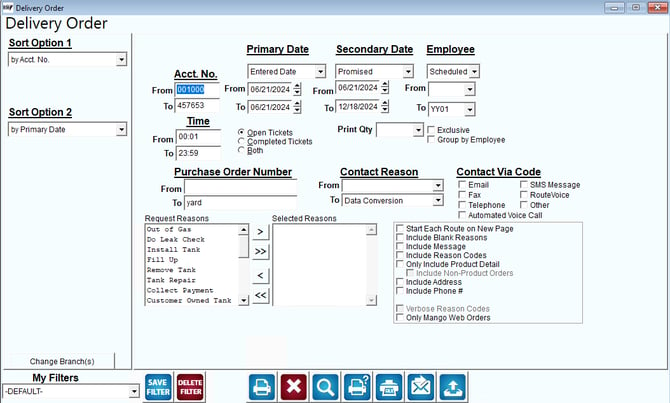
Fields:
Sort Option 1 & 2:The primary and secondary fields to sort by. You can choose from the following categories:
- Account Number
- Primary Date
- Secondary Date
- Employee
- Route
Change Branch: If you are logged into multiple branches, this option may be shown and allows you to re-select the branches to include in the report instead of having to completely exit the report.
Acct No: Enter the range of account numbers to include in the report.
Time: When selecting entered orders you can specify the hour range the order was taken. This can be helpful, for example, if you only want the new orders for the next two hours.
Primary & Secondary Date: Select the criteria for the primary and secondary date. Then, enter the range of primary and secondary dates to include in the report.
Employee: Select the criteria for the employees. Then, select the range of employees that entered the request to include on the report.
Open Tickets: Select this option to view all delivery orders that have not yet been filled.
Completed Tickets: Select this option to view all delivery orders that have been completed.
Both: Select this option to view both open and completed delivery orders.
Print Qty: Products available in this drop-down are assigned to any pending orders on the delivery tickets. Only one product can be selected to print on the report.
Exclusive: Choose this option when assigning a product to the ‘Print Qty’ drop-down to filter out all orders that do not include the product in a Pending Order.
Group by Employee Dropdown Filter: Check this box to print the report by the established Employee Groups.
Purchase Order Number: Enter the Purchase Order Number range.
Contact Reason: Select the Contact Reason range to include in the report.
Reasons: A list of delivery orders that have been entered into the system under Lists, Delivery Orders.
 Click this button to move the selected delivery order from the list of Reasons to Selected Reasons.
 Click this button to move all of the delivery orders in Reasons to Selected Reasons.
 Click this button to move the selected delivery order from Selected Reasons to Reasons.
 Click this button to move all of the delivery orders in Selected Reasons to Reasons.
Selected Reasons: This list shows which delivery orders you are including on the report.
Include Blank Reasons: Select this option to include pending orders that were not assigned a Delivery Order Reason.
Include Message: Select this option to include messages in the report.
Include Reason Codes: Select this option to include reason codes in the report.
Include Address: Select this option to include customer’s address in the report.
Include Phone Number: Select this option to include customer’s phone number in the report.
Verbose Reason Codes: Select this option to include Verbose Reason Codes in the report.
Only eStoreFront Orders: