
Introduction
The Daily Cash Recording feature in RMA allows you to manually record cash collected per route after the data has been uploaded to the desktop. This can be used to verify payment amounts collected from drivers in the office, versus the payment amounts entered on the handheld. If the amount entered into the Daily Cash Recording Entry program does not match the amount uploaded, an invoice can be created to charge the driver for any discrepancies.
Daily Cash Recording Setup
To input the monetary values accepted within the Daily Cash Recording screen, navigate to Lists > Accounting Setup > Daily Cash Recording Setup.
Choose Modify and enter a Description and value (Multiplier) for each monetary unit accepted. Sample monetary units have been entered below:
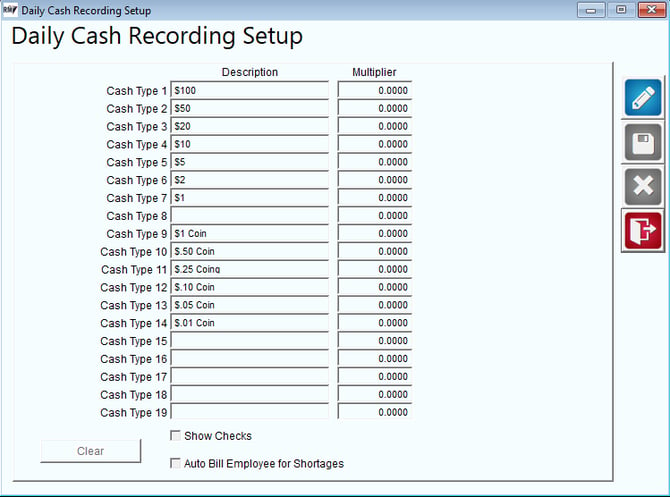
NOTE: Choose the ‘Clear’ button on the screen to erase any information previously entered. To load default U.S. currency information, choose the ‘Use U.S. Defaults’ option (only available when Clear is selected).
If you would like to view and verify checks collected on route from within the Daily Cash Recording screen, select the Show Checks option on the screen.
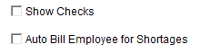
In addition, select the Auto Bill Employee for Shortages option to automatically create an invoice once the Lock button is selected within the Daily Cash Recording screen. Once you have entered and selected all of the desired options, choose Save.
New Product Charge Code
A new Product Charge Code will need to be created to bill the driver’s for any cash shortages. We recommend using a charge code number that is out of the range of current products (i.e., 900, 999, etc.). Additionally, you may opt to create a new Product Class with your new product code, but it is not required.
NOTE: A separate Product Charge Code can be created per driver, if necessary.
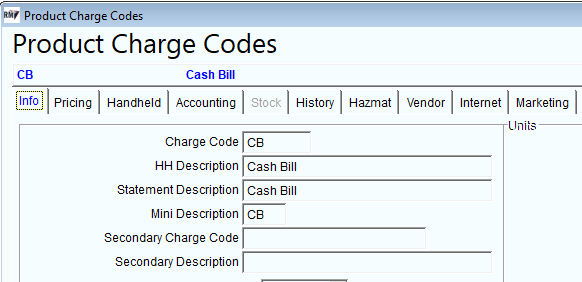
Create a new Product Charge Code by going to Lists > Product Codes > Product Charge Codes. The product code does not require a price, is non-taxable, and will not need to be sent to the handheld.
NOTE: If you are not familiar with creating Product Charge Codes, please refer to the Getting Started Guide or contact Advantage Route Systems.
In this example, product code ‘CB’ has been created.
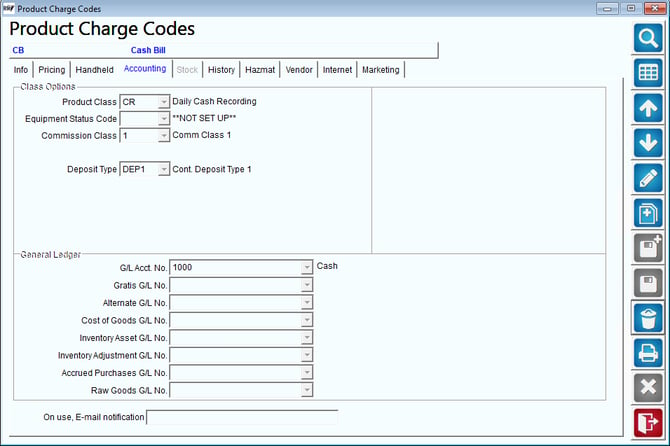
Optionally, the product code used in this example has been assigned to a new Product Class created for Daily Cash Recording:
Once you have successfully added the new product codes(s) to Route Manager, continue to the next section.
New Account
In order to successfully charge cash shortages to your employees, you must create a unique customer account number for each driver within Route Manager.
Create a new customer account by going to Lists > Wizards > New Customer W/ Order.
NOTE: If you are not familiar with the New Customer Wizard, refer to the Getting Started Guide or contact Advantage Route Systems.
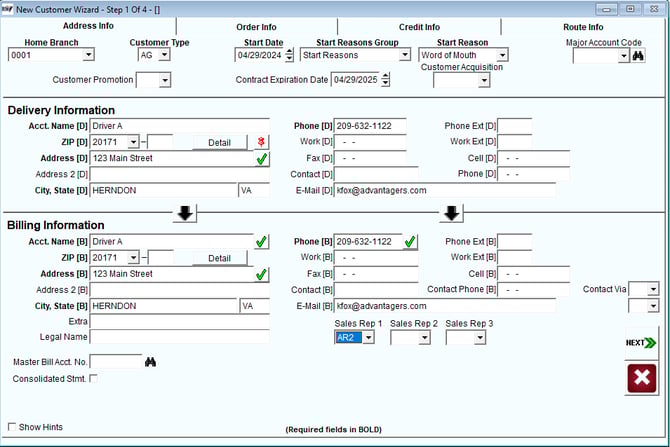
Select "Next" to follow through with Steps 1 through 4.
Create a ‘generic’ (basic info on driver) customer account using the driver’s information. After you have clicked Save in Step 4, do not use the next available account number; instead, replace the number with something out of the current account range (i.e., an account that begins with 999) — this will ensure that these types of accounts are easily filtered out of your reports in Route Manager.
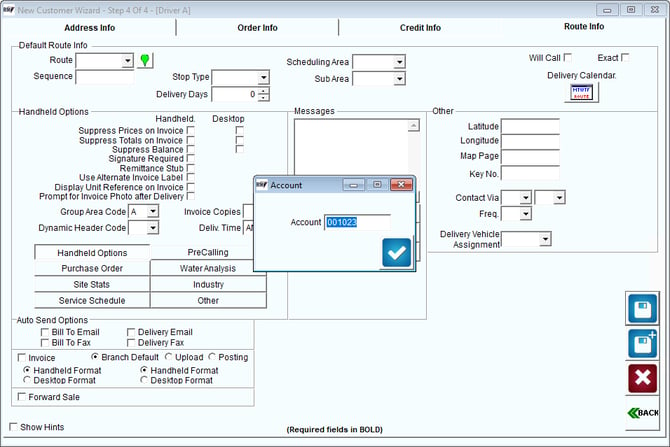
Click OK to create the new account.
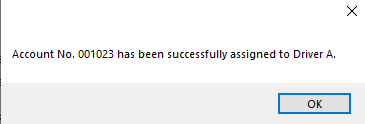
Employee Setup
The account number and product code established previously will need to be assigned to each driver from within the Employee Setup screen found under Lists > Employee Setup > Employees.
Select a driver and choose the Modify button on the Driver tab.
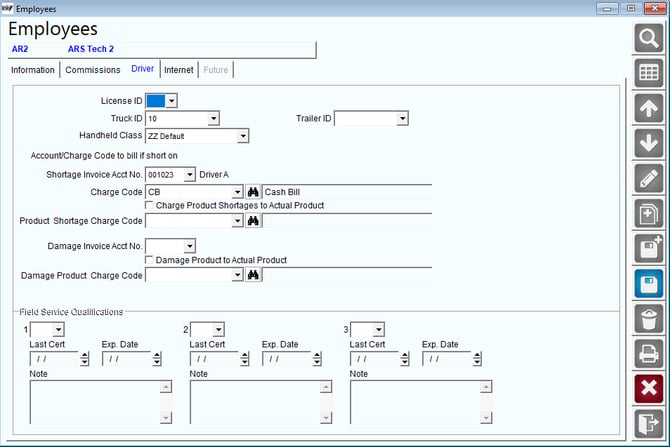
Select the Account Number and Charge Code that will be used from each drop-down list.
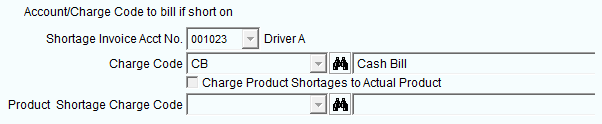
Save your changes to complete the setup process.
In the next section, you will be guided through the daily process of Daily Cash Recording.
Daily Processing
The Daily Cash Recording process takes place after your driver’s have already uploaded their route data for the day. The money collected from each driver will be counted and input into the Route Settlement Entry screen below.
Route Settlement Entry
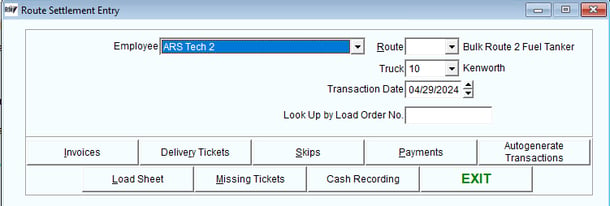
Daily Cash Recording can be found under Transactions > Route Settlement Entry.
Enter the Driver, Route, and Date that you are processing, and select the Cash Recording option.
Daily Cash Recording Entry
The Daily Cash Recording Entry screen will automatically reflect payment totals previously uploaded into Route Manager for the current route. Follow the steps listed on the next page to properly complete the process.
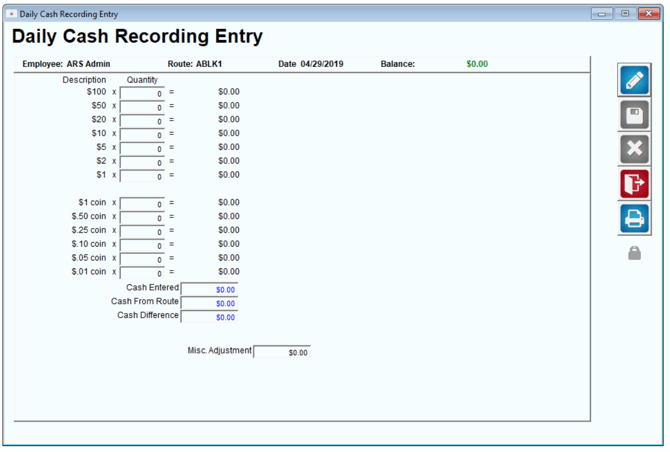
1. Click the Modify icon.
.png?width=670&height=452&name=1556555049581%20(1).png)
2. Enter the quantity of each monetary unit you have received from the driver in the Quantity field.
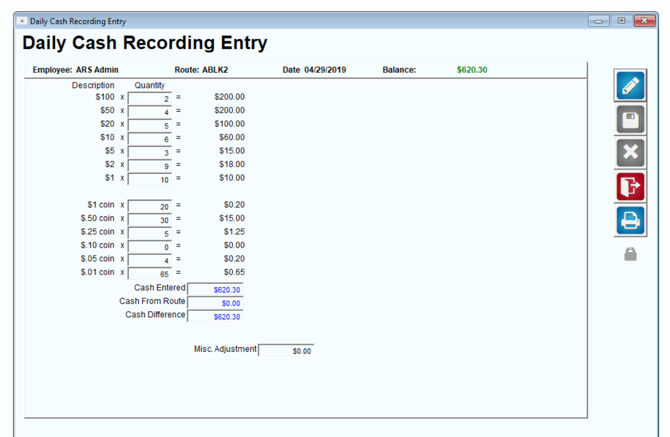
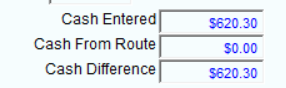
As the quantities are entered, the Cash Entered amount is automatically adjusted on the screen. If there are any differences between this amount and the Cash From Route amount (the total previously uploaded), it will be displayed within the Cash Difference field. This is the amount that will be billed to the driver upon completion.
NOTE: "Cash From Route" auto fills in when an invoice has a cash payment input and will clear once the invoices are posted. The "Cash entered" and "Cash Difference" fields will not clear when an invoice is posted even if the screen was locked before posting.
3. Additionally, if you have enabled the ‘Show Checks’ option within the Daily Cash Recording Setup screen, you will be required to double-click on each check listed, to verify the information displayed.
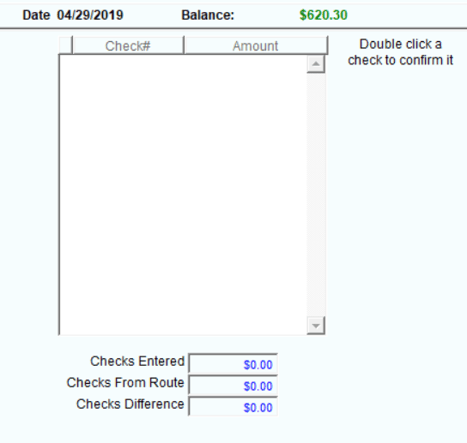
An asterisk symbol (*) will appear next to each check that has been verified. Any differences between Checks Entered and Checks From Route (the total previously uploaded) will be displayed within the Checks Difference field. This is the amount that will be billed to the driver upon completion.
4. Once all of the payment information has been entered and verified, you have two choices:
Select the Save button: to save your current progress and edit the batch later.
Select the Lock button: to complete the current batch and bill the driver for any differences, if necessary.
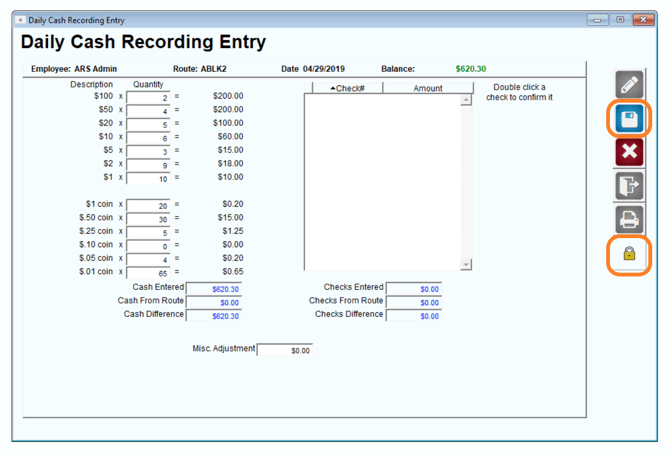
NOTE: In some cases, an offset may need to be entered to adjust for toll booth expenses, food, etc. Refer to the Additional Options section for detailed instructions on created an adjustment.
5. Choose the Lock button to create a transaction and bill the driver.
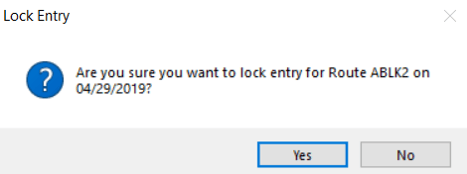
NOTE: A warning message will be displayed if you have not established the driver’s account and product code within the Employee Setup screen.
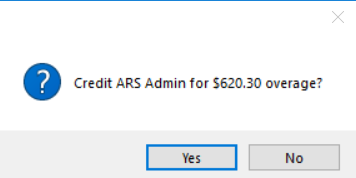
6. Once the Lock button has been selected, click Yes to the confirmation message to proceed.
7. Repeat these steps for all routes and post the invoice transactions to complete the process.
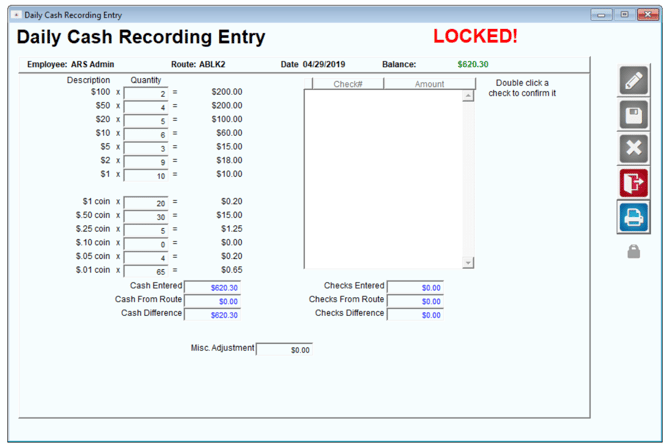
NOTE: If you need to edit a batch after it has been locked, double-click directly on the label that appears on the screen. If the invoice generated with the batch has not been posted, it will be deleted when a locked batch is edited.
Reports
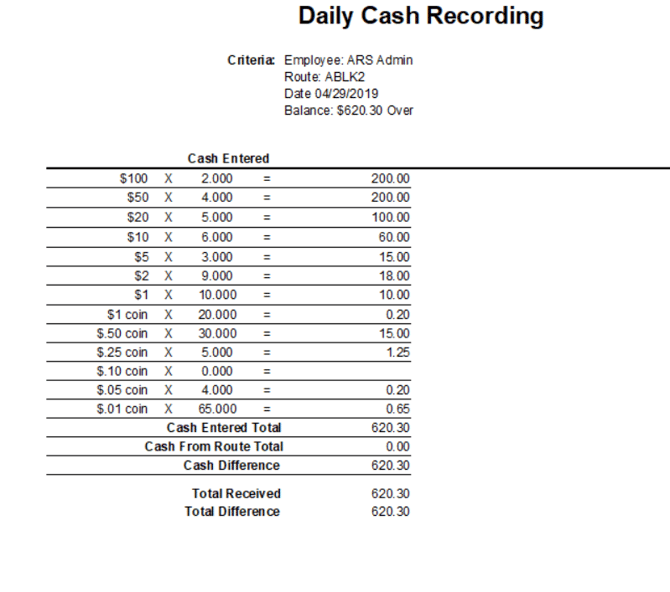
The Cash Recording Entry program contains a single report that can be used for reference after a route has been verified. This report is available from within the Daily Cash Recording Entry screen.
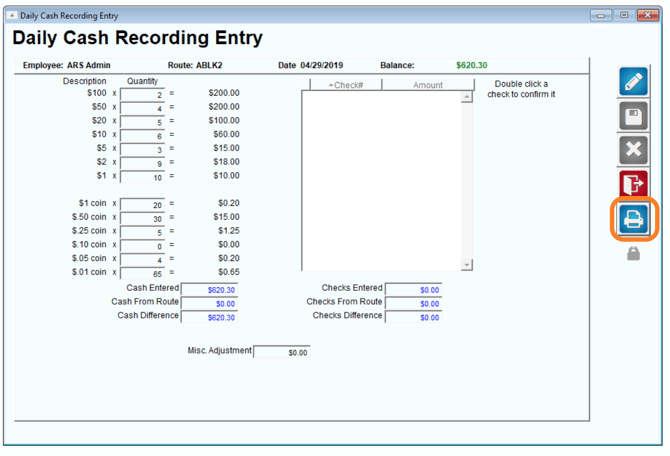
The report can be generated at any time and will reflect the current route information loaded.
This section contains miscellaneous options available while processing Daily Cash Recordings.
Deleted Check Payments
Deleted Check payments will be listed with an ‘X’ next to them if they have been deleted in RMA.
In order for deleted Check payments to be verified, they must be un-deleted to proceed.
Cash Recording Adjustments
In some cases, it may be necessary to ‘offset’ the driver’s cash for the day to adjust for toll booth charges, lunch expenses, etc. Use the Misc. Adjustment field to enter any necessary adjustments.
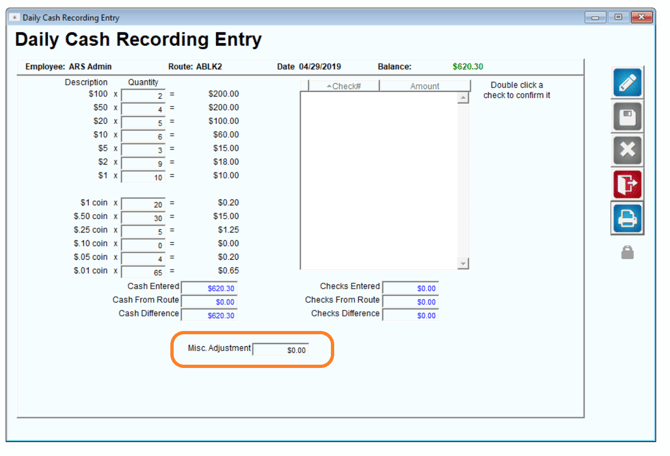
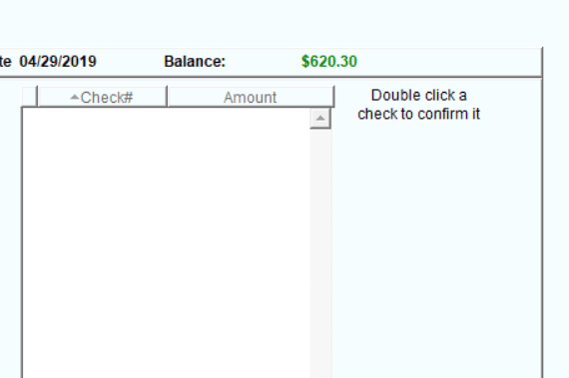
As an adjustment is entered, you will notice that the Balance listed will be adjusted on the top right portion of the entry screen.
NOTE: The offset information will also be noted on the Daily Cash Recording Report.