
Overview
This article outlines the process of how to setup and process cylinder exchanges on handled devices. There are two setup items in RMA that you will need to check before your driver downloads their route. This is a simplified process for cylinder drop off and exchanges through the quick sale screen of the customers account in Mango Mobile.
1. Setup Product Charge Code for Cylinder
2. Equipment Type Codes
RMA Setup Process
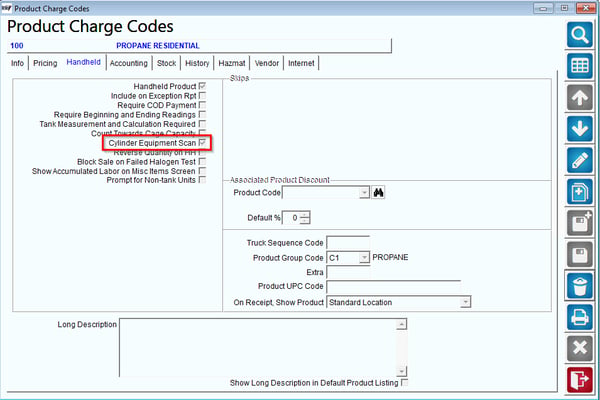
1. Navigate to Lists > Product Codes > Product Charge Codes. Create a new charge code that you would like to use for your Cylinder Exchanges/Dropoffs. When creating your charge code enable the options 'Handheld Product' and 'Cylinder Equipment Scan' on the handheld tab.
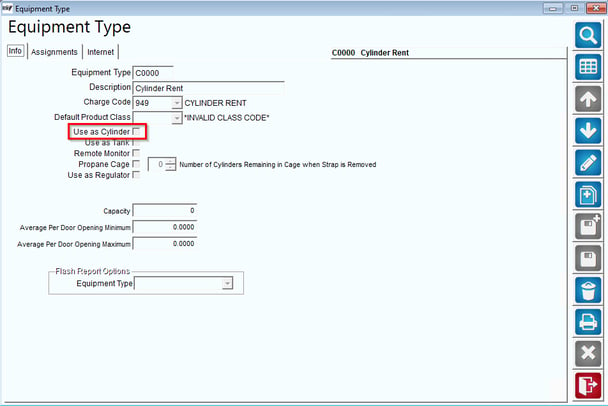
2. Navigate to Lists > Equipment > Equipment Type and select 'Use as Cylinder' for each cylinder equipment type code.
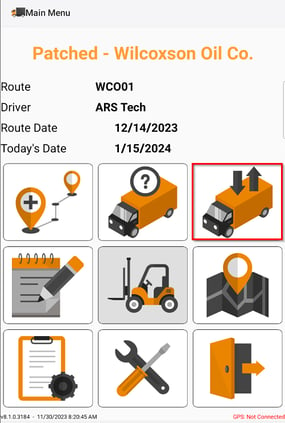
3. Once your driver has downloaded their route they will need to load their truck. To do this please select the Truck Transfer button highlighted below.
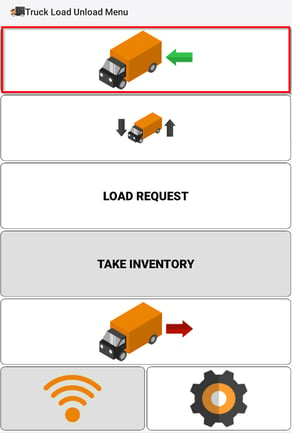
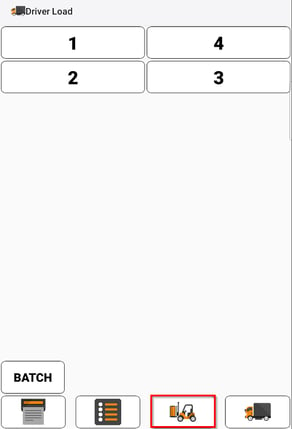
4. Select the Truck Load Icon.
5. Select the Loader Icon.
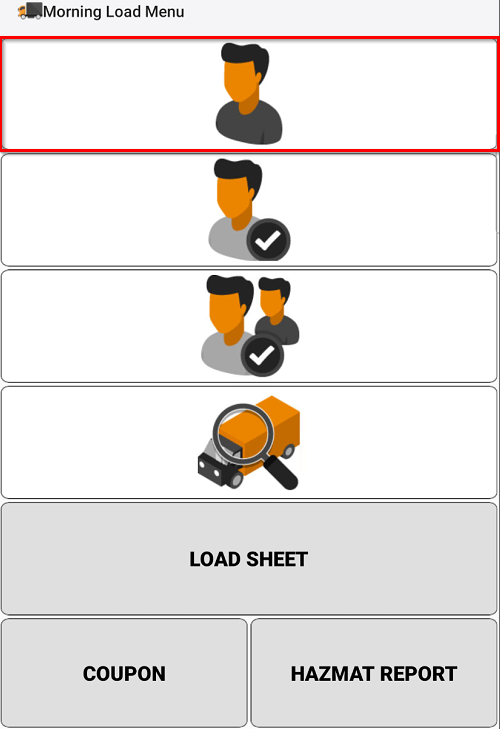
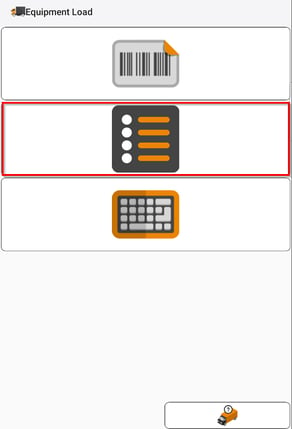
6.Select the Equipment Load Icon.
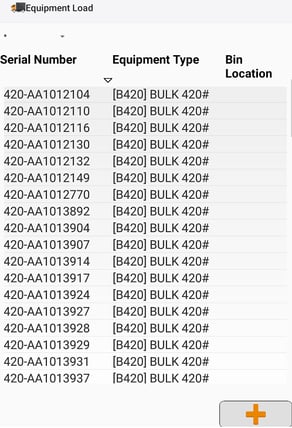
7. Select your preferred Equipment Load process. You can select from the following: Scan, List, or Hand entering.
8. Select all pieces of equipment to load.
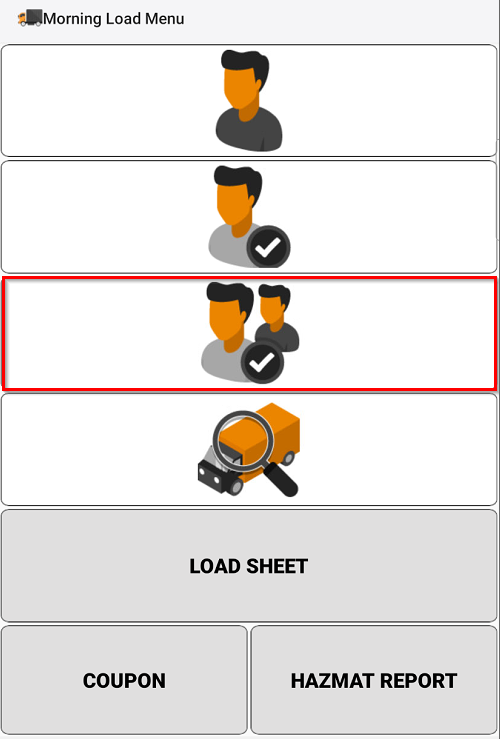
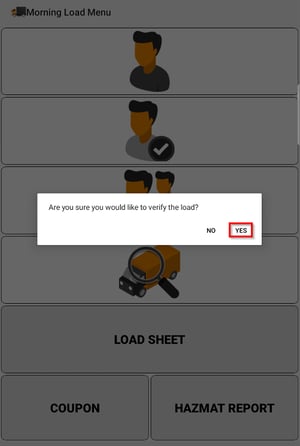
9. Once all equipment is loaded navigate back to the Morning Load Menu and select the Checker Icon, then confirm your load.
10. Once your Load is confirmed you will navigate back to your route list and pull up your customer to service. From the Customer's Quick Entry screen you can access your New Cylinder Product Charge Code through default products if it is attached to the customers account, or through miscellaneous products.
Example: Default Products
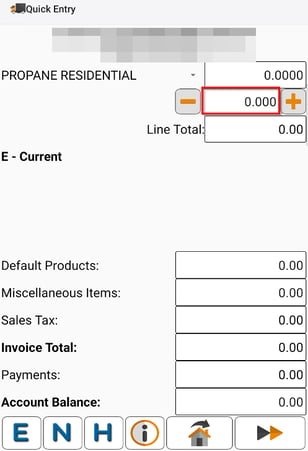
Example: Miscellaneous Products.
.png?width=308&height=454&name=1705341681970%20(1).png)
Select your cylinder product charge code through misc. products.
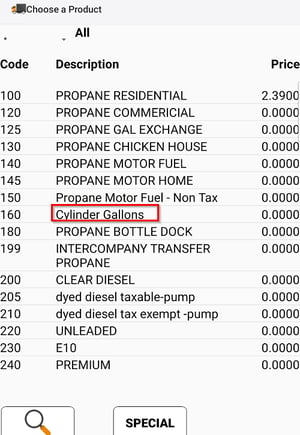
11. Once you have selected your Cylinder Charge Code the below screen will appear. On the top you will be able to view all installed cylinders on the customers account, as well as the cylinders available on the truck that you had loaded in previous steps.
12. You can select a cylinder by the list above or by selecting the scanner icon in the bottom left hand corner. This will open your camera and allow you to scan cylinders.
13. Select Cylinders to Install.
13 A. If you have cylinders installed and you would like to exchange cylinders. Select the installed cylinder and the cylinder you would like to replace it with. Then select the green arrow to complete this process. Complete your customer service as normal. Once you have completed your stops for the day you will upload as normal.
After Upload
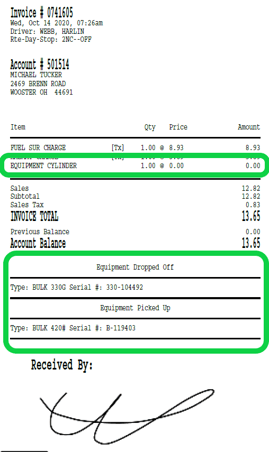
14. Once uploaded your route you can view the invoices in RMA. The cylinder product will be listed on the products portion of the invoice, and any cylinder drop offs or pickups will be listed below:
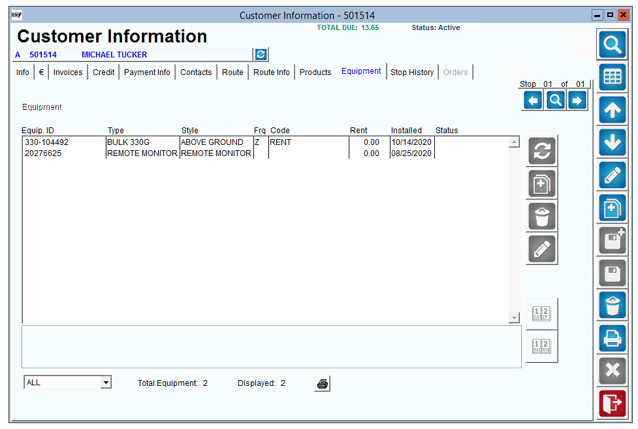
15. Once the office has posted you will see the exchanges on the customer account.
Support
For additional help please contact support@advantageRS.com or call at 209-632-1122