
Introduction
In order to set up customers in Route Manager, many of the items listed within this section will need to be established.
Customer Status Codes
Customer Status Codes are used to designate the account’s current status and to allow for uniform changes as an account is moved from one status to another.
Common status codes used are Free Trial, Active, Waiting for pick up, and Terminated.
Location it is applied on the customer's account: Lists > Customer Information > Credit > Status/Contract.
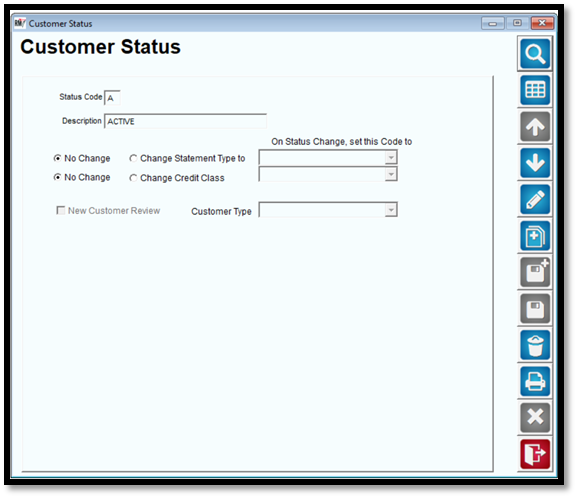
Fields:
Status Code: A single character code to identify the account’s status.
Description: The description of the status code.
On Status Change, set this Code to: Select the ‘Change Statement Type to’ or ‘Change Credit Class’ options to indicate which Statement Type and Credit Class to assign customers to upon status change.
New Customer Review: This option is part of the Handheld Customer Setup feature; refer to Chapter 4.11 of the Supplemental Guide for further information.
Customer Type: This option allows for a Customer Type to be automatically assigned when the customer status is changed to this code.
Customer Type Codes
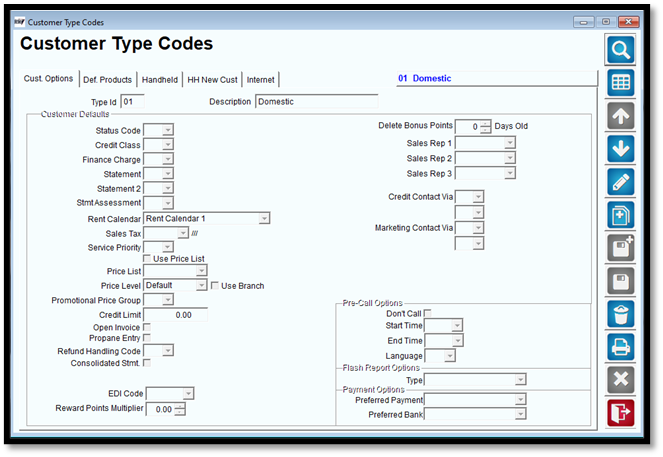
Customer Type Codes are the primary option to categorize customers into groups, and to assign a series of default customer settings from within the New Customer W/ Order Wizard. Customer Type Codes are used as filters on many reports in Route Manager.
Common Customer Types used are Residential, Commercial, COD. You may also establish types for school districts, store chains, etc.
To setup Customer Type Codes, navigate to Lists > Customer Setup Codes > Customer Type Codes.
Location it is applied on the Customer's Account: Lists > Customer Information > Info.
Cust Options
These options will allow you to set default customer type codes across new accounts.
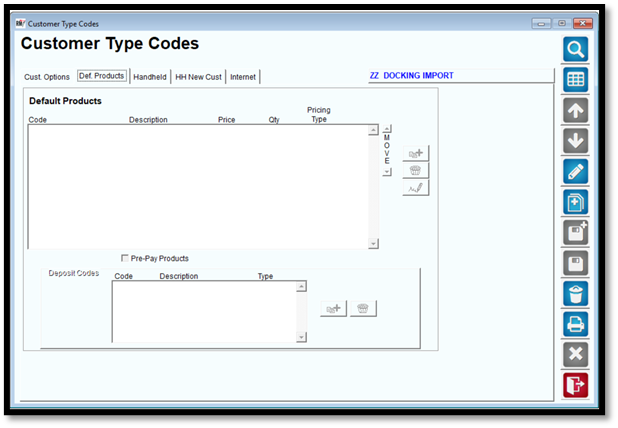
Default Products
Establish Default Products that will be assigned to each customer’s account automatically.
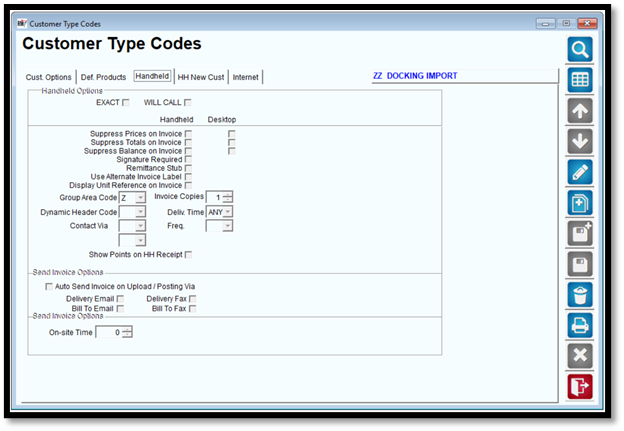
Handheld
Establish default handheld settings that will be assigned to each customer’s account automatically.
HH New Customer
The Handheld New Customer tab is part of the Enhanced Customer Setup option available on the handheld.
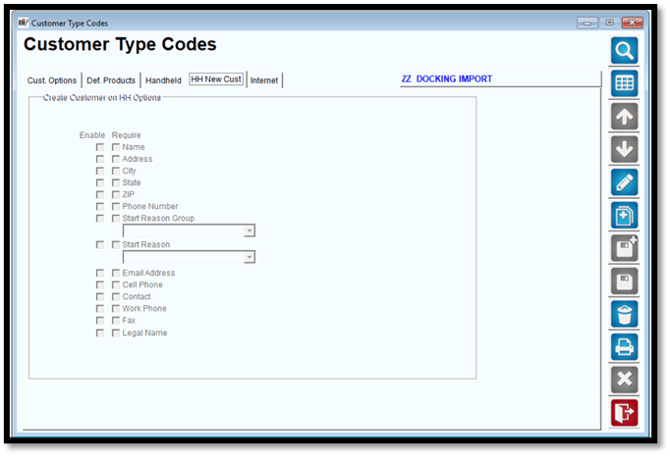
- Name
- Address
- City
- State
- Zip
- Phone Number
- Email Address
- Cell Phone
- Contact
- Work Phone
- Fax
- Legal Name
Internet Tab
The Internet tab is part of the eStoreFront module available from Advantage Route Systems. This useful tool allows your customers to manage their accounts online, place orders, and even sign up for service.
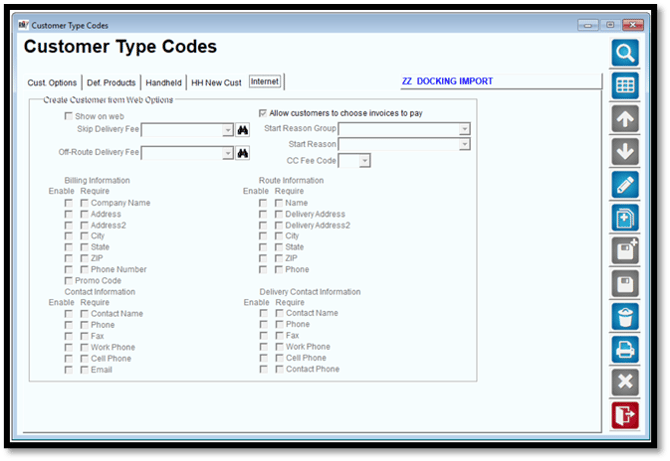
- Company Name
- Address
- Address 2
- City
- State
- Zip
- Phone Number
- Promo Code
- Contact Name
- Phone
- Fax
- Work Phone
- Cell Phone
- Name
- Delivery Address
- Delivery Address 2
- City
- State
- Zip
- Phone
- Contact Name
- Phone
- Fax
- Work Phone
- Cell Phone
- Contact Phone
Credit Class Codes
For information on Credit Class and managing AR, refer to Managing Credit Classes and Accts Receivable.
Location it is applied on the Customer's Account: Lists > Customer Information > Credit > Credit Terms.
Credit Terms
Credit Terms are used to identify payment terms extended to customers. This option is only used for reference on the desktop (unless SAGE Export is used).
Location it is applied on the Customer's Account: Lists > Customer Information > Credit > Credit Terms.
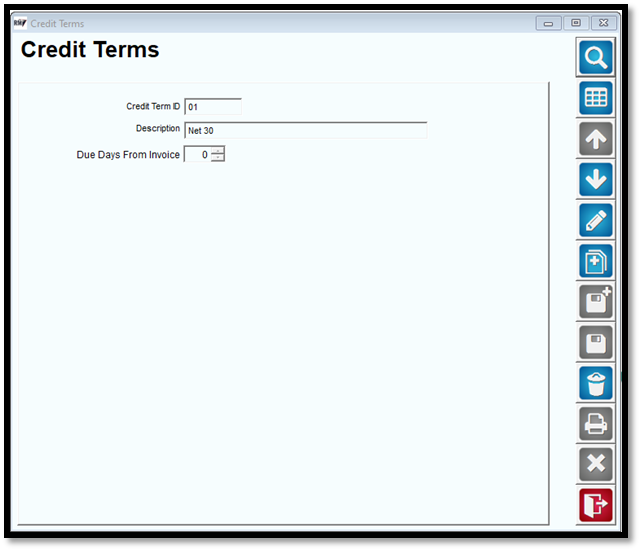
Fields:
Credit Term ID: Enter a single character that will represent the Credit Term.
Description: Enter the description of the Credit Term.
Due Days From Invoice:
Dunning Messages
Dunning Messages are past due messages that can be distributed to your customers on statements and handheld invoices automatically. Each Dunning Message is controlled by the customer’s assigned Credit Class.
.png?width=670&height=449&name=1594160827464%20(1).png)
 Show Grid: This places a grid over the message field. It should be used as a character guide.
Dunning Letters
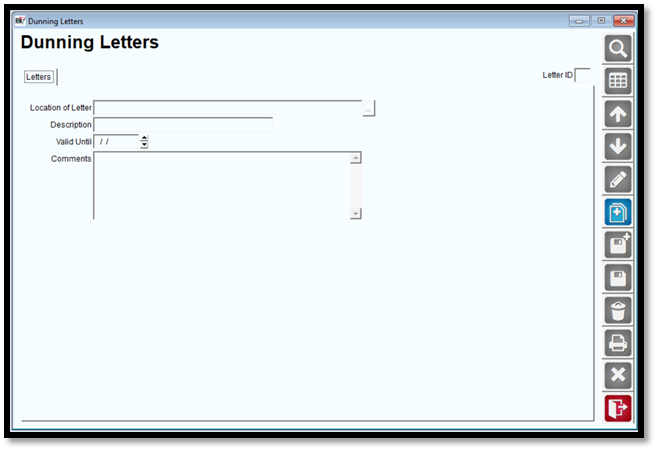
Dunning Letters are past due messages that can be distributed to your customers through the mail. Each Dunning Letter is controlled by the customer’s assigned Credit Class. The Statements and Handhelds tab both display the same message format.
Administrative Charge Codes
Administrative Charge Codes are used to assess ‘handling’ fees on large accounts that demand a high level of resources and time in the office. Multiple rates may be used, but only one code may be applied to each customer.
Location it is applied on the Customer's Account: Lists > Customer Information > Credit > Credit Terms.
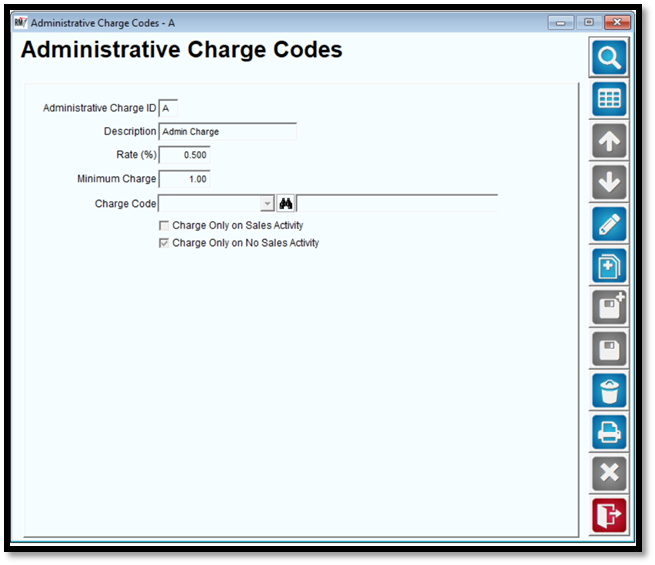
Fields:
Administrative Charge ID: Enter a single character that will represent the Administrative Charge Code.
Description: The description of the Administrative Charge Code.Rate: The percentage applied to each account as an administrative fee.
Minimum Charge: The minimum charge applied to each account.
Charge Code: Select the Product Charge Code that will be used to apply administrative fees to each account.
Charge Only on Sales Activity: Select this option to only bill customers if they have purchased items for the month.
Charge Only on No Sales Activity: Select this option to only bill customers if they have not purchased items for the month.
Start/Stop Groups
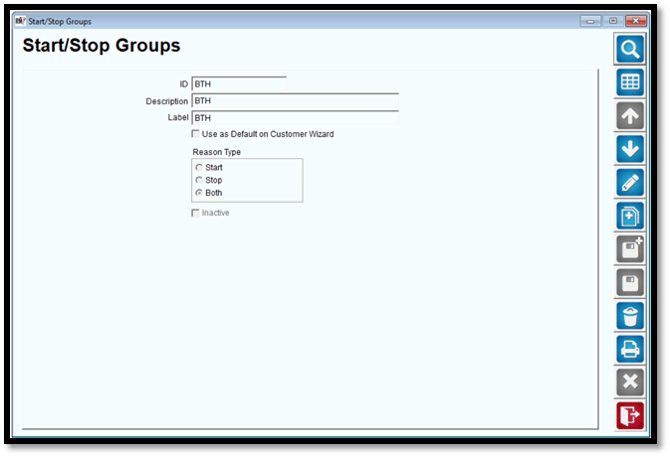
Start/Stop Groups are used to group together Start/Stop Reasons by type. These items are used to specify why customers start or stop service with your company.
Location it is applied on the Customer's Account: Lists > Customer Information > Credit > Status/Contract.
Start/Stop Reasons
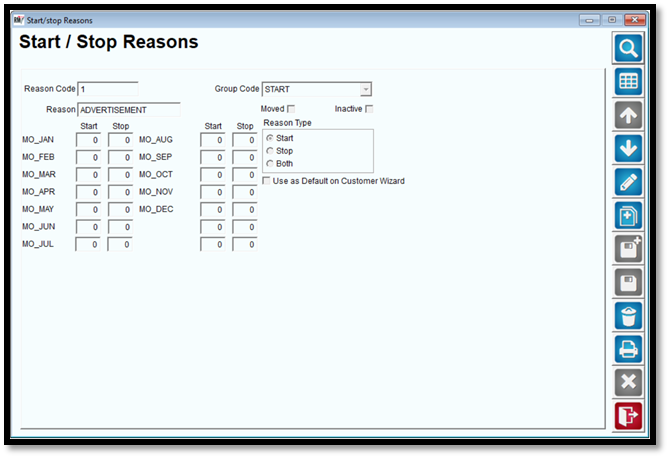
Start/Stop Reasons are used to specify why customers start or stop service with your company. Each reason will also be assigned to a Start/Stop Group to categorize them by type.
Location it is applied on the Customer's Account: Lists > Customer Information > Credit > Status/Contract.
Note: Stop Reason will be in the End Reason field under Status/Contract.
Customer Acquisition Codes
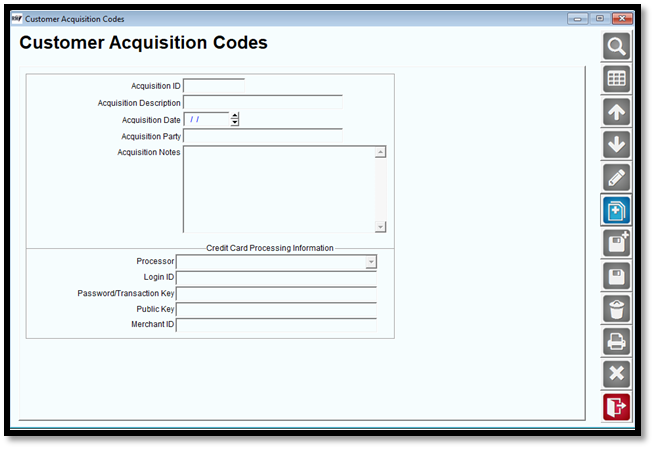
Often times we find ourselves with existing customers that pursue growth and will buy smaller companies. To help you track the sales and activity of these customers you can set up a list of company names. Then you can use this list to apply to your customer in customer information. This gives you the ability to track what the original source of the company of your new customers.
Location it is applied on the Customer's Account: Lists > Customer Information > Credit > Status/Contract.
Customer Promotions
The Customer Promotions option allows you to configure marketing programs that can offer your customers additional savings, promotional items, etc. Items can be assigned to each promotion created, and will be added to the customer’s First Order during the New Customer W/Order entry process. The promotion will also be permanently referenced within the customer’s account, on the Credit tab.
Location it is applied on the Customer's Account: Lists>Customer Information>Credit>Status/Contract.
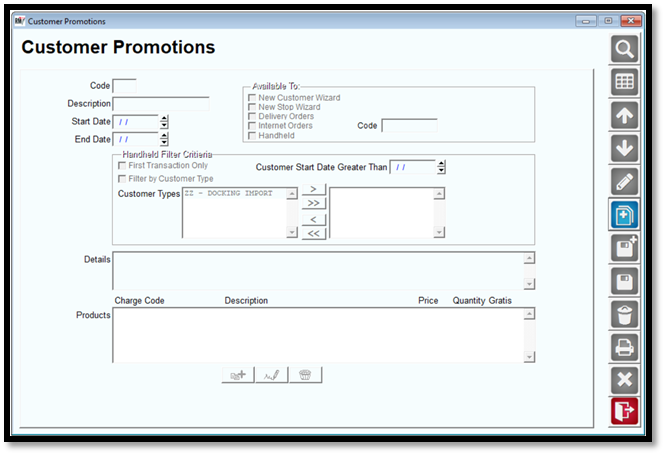
- New Customer Wizard
- New Stop Wizard
- Delivery Orders
- Internet Orders – Code to be entered when Customer places order including the promotion
- Handheld
- First Transaction Only: Select this option to apply the promotion only to the customer’s first transaction on the handheld.
- Filter by Customer Type: Select this option to apply the promotion to specific Customer Types.
- Customer Start Date Greater Than: Enter a minimum customer start date that will qualify for the promotion.
- Customer Types: Select the types of Customers selected for the promotion by clicking on the directional buttons
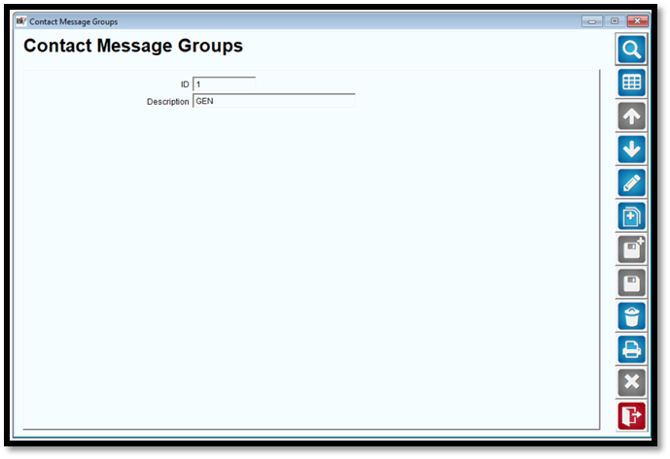
Contact Message Groups
Contact Message Groups are used to group together Contact Reasons by type. These items are used when contacting customers for payment, complaints, follow-up, etc.
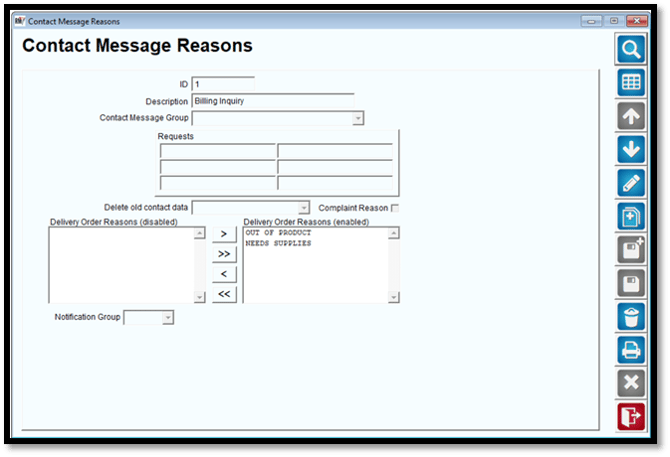
Contact Message Reasons
Contact Message Reasons are used to identify why a customer was contacted by an employee. Each reason will also be assigned to a Contact Message Group to categorize each by type.
Location it is applied on the Customer's Account: Lists > Customer Information > Contacts > Modify button > Modify Messages button > Contact Reasons.
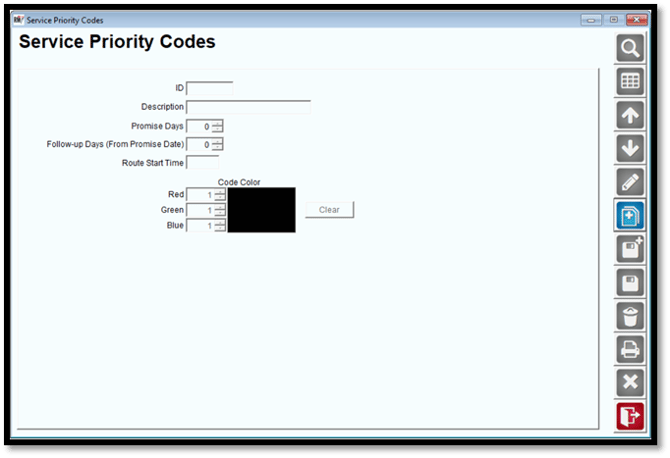
Service Priority Codes
Service Priority Codes are used to calculate promise dates, follow-up dates, and service priority on each of your accounts within the Delivery Order and Customer Information screens.
Location it is applied on the Customer's Account: Lists > Customer Information > Credit > Status/Contract.
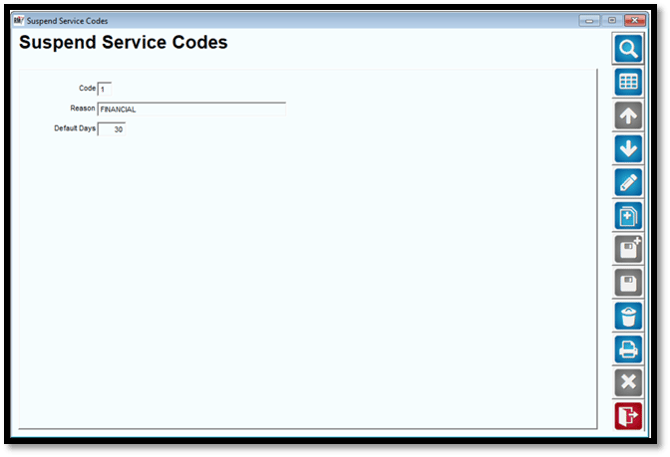
Suspend Service Codes
Suspend Service Codes are used to temporarily remove customers from route for a given period of time.
Location it is applied on the Customer's Account: Lists > Customer Information > Credit > Status/Contract.
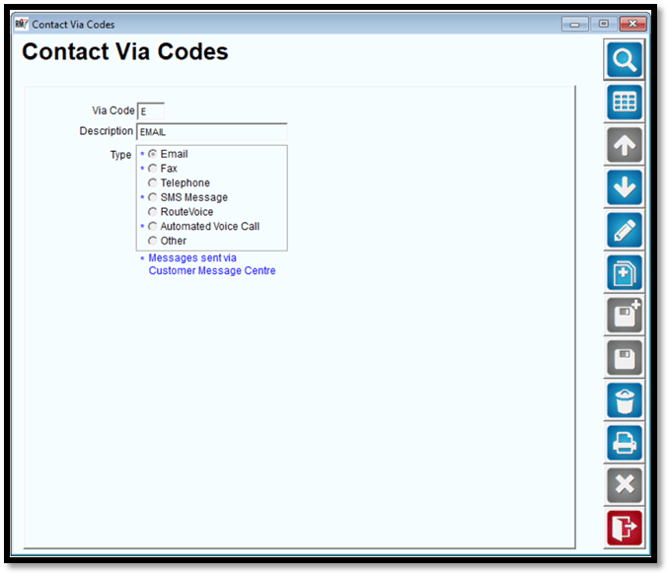
Contact Via Codes
Contact Via Codes are used to establish contact methods that should be used per customer during the Route Pre-Sale process.
NOTE: Route Pre-Sale is used to secure orders prior to delivery, and can be found under the Route menu.
Location it is applied on the Customer's Account:
There are 3 different tabs to assign up to 2 different Via Codes per customer.
- Lists>Customer Information>Info.
- Lists>Customer Information>Credit>CMC Settings.
- Lists>Customer Information>Route.
-
*E-Mail-This will use a CMC template created in the Template Manager to email the customer;
-
*Fax-This will use a CMC template created in the Template Manager to fax the customer.
-
Telephone-This option is used if the customer wants to receive a call from a physical person in the office instead of robotically.
-
*SMS Message-This will use a CMC template created in the Template Manager to send an SMS message to the customer.
-
Route Voice-
-
*Automated Voice Call-This will use a CMC template created in the Template Manager to send out an automated voice call robotically.
-
Other:-This option is used if the customer has a different means of contact like a mailed letter or Teams etc.
Contact Frequency Codes
Contact Frequency Codes are used to determine how often a customer should be contacted during the Route Pre-Sale process.
NOTE: Route Pre-Sale is used to secure orders prior to delivery, and can be found under the Route menu.
Location it is applied on the Customer's Account: Lists > Customer Information > Route.
.png?width=670&height=459&name=1594161291093%20(1).png)
Major Account Codes
Major Account Codes are used for special and/or multi-branch customers that require a high level of management. Using a Major Account Code also allows you to enter a single payment across multiple customer accounts assigned to the Major Account Code.
Location it is applied on the Customer's Account: Lists > Customer Information > Info.
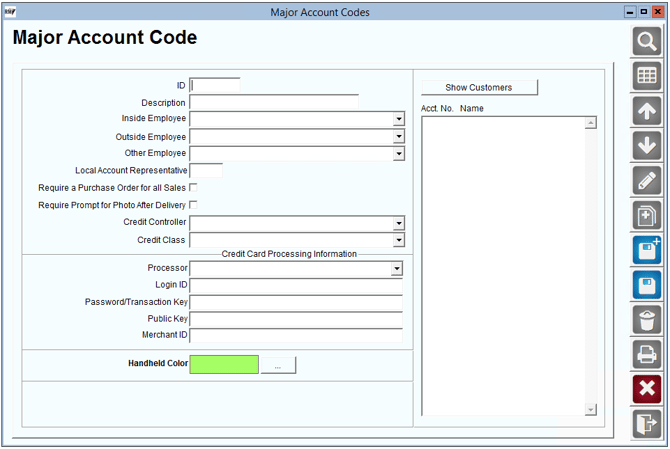
Fields:
ID: Enter up to six characters that will represent the Major Account Code.
Description: Enter the description for this Major Account Code.
Inside Employee: Select an employee that will manage this account within the office.
Outside Employee: Select an employee that will manage this account externally.
Other Employee: Select an employee that that will manage the account for any other reason.
Local Account Representative: Enter the primary contact for this account.
Require a Purchase Order for all Sales: Select this option if a purchase order is required with each invoice for this account.
Require Prompt to Photo After Delivery: Select this option if you want to require your driver to take a photo after every delivery
Credit Controller: Select the employee responsible for managing balance related information on the account.
Credit Class: Select the default Credit Class that should be assigned to this account.
Credit Card Processing Information:
Depending on your 3rd party merchant processing program, choose the appropriate program from the drop-down list and enter the Login ID and Password/Transaction Key. If you receive this information from the merchant, you will be able to process transactions automatically, and will not be required to install the merchant’s processing program.
NOTE: If this information is left blank, you can export transactions from Route Manager and import them into the 3rd party application.
Login ID: Enter the merchant ID provided by the processing company.
Password/Transaction Key: Enter the Password/Transaction Key provided by the processing company.
Public Key: Enter the Public Key if required by your processing vendor.
Merchant ID: Enter the Merchant ID if required by your processing vendor.
Handheld Color: Select a handheld color identifier for major account code accounts.
Contract Type Codes
Contract Type Codes are used to keep track of the different contracts that may be used by your company.
Location it is applied on the Customer's Account: Lists > Customer Information > Credit > Status/Contract > Click on (Add New) under the Contracts section > Customer Contracts window will populate for you to input a type.
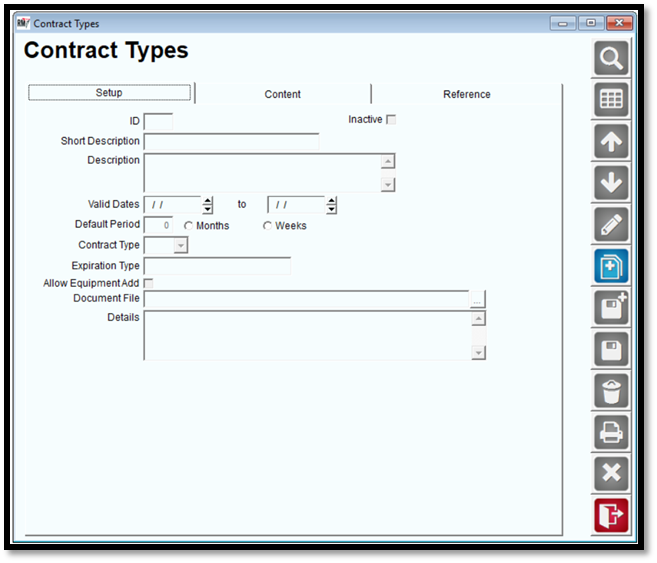
Fields:
ID: Enter up to three characters that will represent the Contract Type Code.
Inactive: Select this option when a contract should be made inactive.
Short Description: Enter a short description of the Contract Type Code.
Description: Enter a detailed description of the Contract Type Code.
Valid Dates: Enter the dates that this contract will be valid.
Default Period: Enter the length of the contract in months or weeks (based on your selection).
Contract Type: Select the type of contract, Live or Trial (for reference).
Expiration Type: Enter the type of expiration (e.g., Standard).
Allow Equipment Add: Select this option to allow installed equipment to be added to the contract.
Document File: Browse for, or enter the location of the original contract on your PC or network (optional).
Details: Enter specific details regarding the contract, if desired.
Content Tab
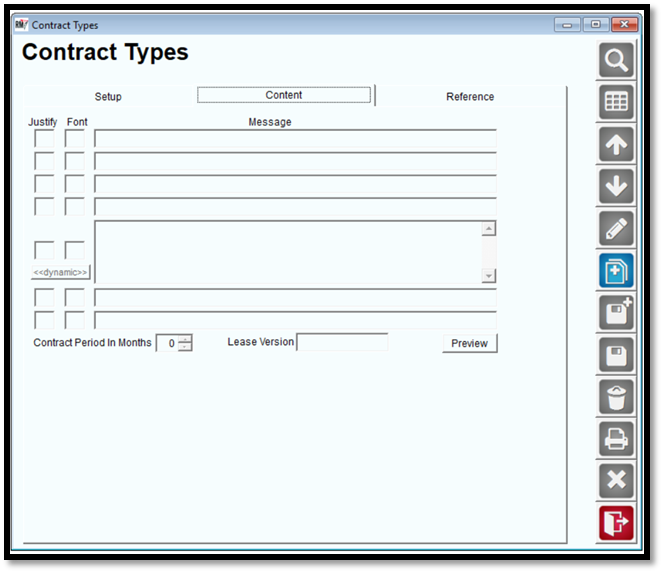
The Content tab includes messages that can be included on printed contract related content.
Fields:
Justify: Enter an L (left), R (right), or C (centered) that corresponds to how you would like the text to be aligned on the printed receipt.
Font: Enter a letter corresponding to the font size you would like to use on the printed receipt.
NOTE: Refer to Appendix B of the Handheld User Guide for examples of font sizes.
Message: Enter the information that you would like to print on each line.
Dynamic: Select this button to view dynamic information that can be inserted into the custom contract message.
Contract Period in Months: Use the arrow keys to establish the length of the contract in months.
Lease Version: Enter version information that can be included on the contract.
Preview: Select this button to preview the contract on the screen.
Reference Tab
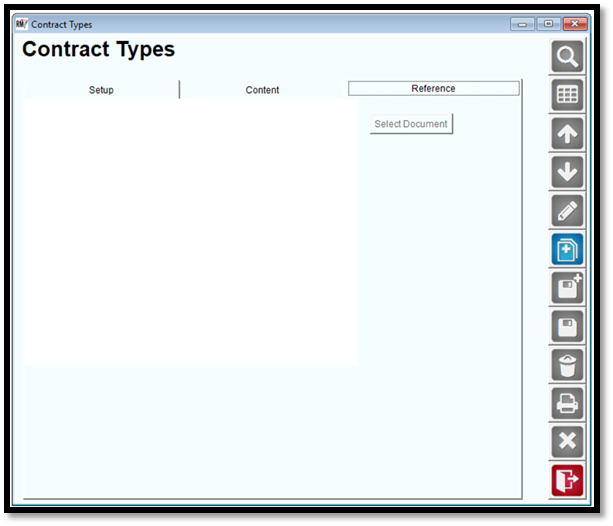
The Reference tab allows you to attach a document to the Contract Type Code that can be used for reference in the future.
Fields:
Select Document: Select this button to attach the document to the Contract Type Code.
Dynamic Header Codes
For information on Dynamic Header Codes, refer to Dynamic Receipt Headings.