
Introduction
This report shows all of the products purchased by customers according to the criteria entered. It can be helpful in evaluating customer product requirements in planning for route deliveries. The Customer Purchases Report can be found under Reports > Route Reports > Sales > Customer Purchases Report.
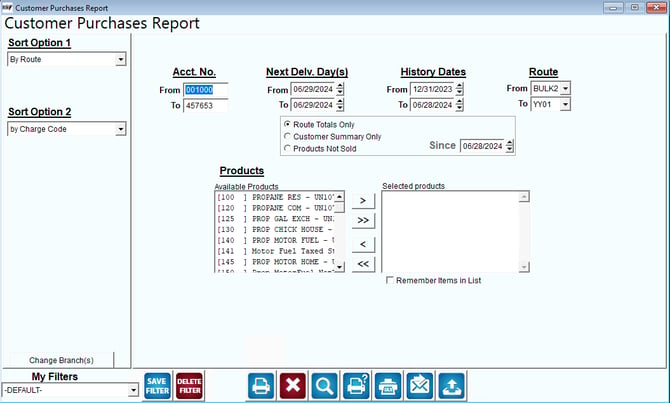
Fields:
Sort Option 1 & 2:The primary and secondary fields to sort by. You can choose from the following categories:
- Route
- Charge Code
- Account Number
Change Branch: If you are logged into multiple branches, this option may be shown and allows you to re-select the branches to include in the report instead of having to completely exit the report.
Acct No: Enter the range of account numbers to include in the report.
Next Delv Day(s): Enter the range of delivery dates to include in the report. The date range entered will determine the customers that show up on the report based on next delivery dates.
History Dates: Enter the range of history dates to include in the report.
Route: Enter the routes to be included in the report.
Route Totals Only: Select this option to view only the route totals for the criteria selected. Otherwise the report will list each customer and the individual products purchased.
Customer Summary Only: Check this box to have only the Customer Summary displayed and not entire Customer Detail.
Products Not Sold/Since: Check this box to display the list of customers who have not received any of the products you have under the ‘included’ section. Along with this, you will need to enter a date in the ‘Since’ field. This date will must be within the range of the History Date above. Using this option will show you which customers have not received products since a certain date.
Products: A list of products that have been entered under List, Product Codes, Product Charge Codes.
Available Products: This list shows all products that can be included on the report.
 Click this button to move the selected product from the list of Available Products to Selected Products.
 Click this button to move all of the products in Available Products to Selected Products.
 Click this button to move the selected product from Selected Products to Available Products.
 Click this button to move all of the products in Selected Products to Available Products.
Selected Products: This list shows which products you are including on the report.
Remember Items In List: Select this option to keep the products placed in Selected Products section next time you return to this report.