Introduction
In order to keep accurate and detailed records of important information on your customers’ accounts, the Route Manager program offers a variety of fields that allow different types of messages to be entered and stored.
The messages are divided into two categories:
- Desktop messages
- Handheld messages
Desktop Messages
Desktop messages are used to store, or display, information about each customer individually.
Customer Information Note
This information box is used to record permanent notes about the customer. Messages such as “Never pays on time,” or “Always speak with Linda to confirm special orders” should be recorded in this area.
The ‘Note’ option can be found under Lists > Customer Information,on the Info tab.
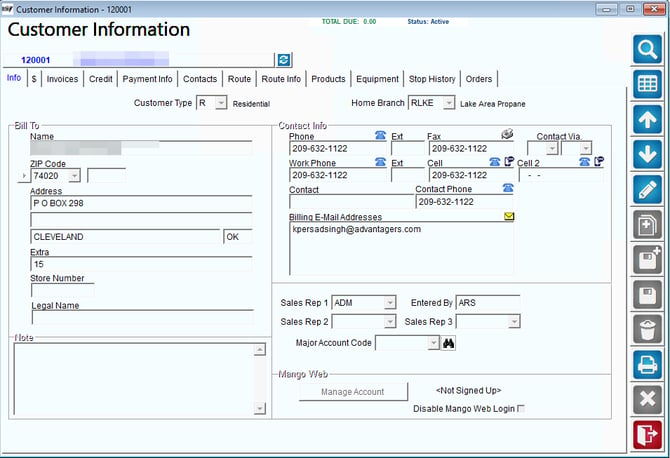
NOTE: The Note field is not to be used as a history of contact with the customer. History is stored under Contact Messages, described after Statement Message within this chapter.
Statement Message
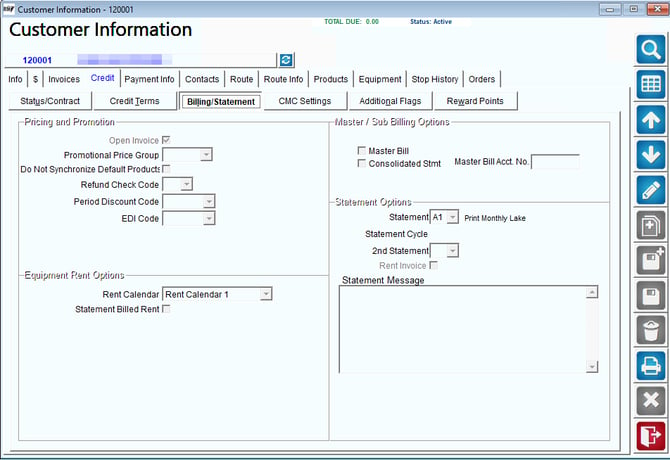
You can print a customized message, specific to the customer, on each statement generated.
This message can be entered under Lists > Customer Information > Credit, on the Billing/Statement screen.
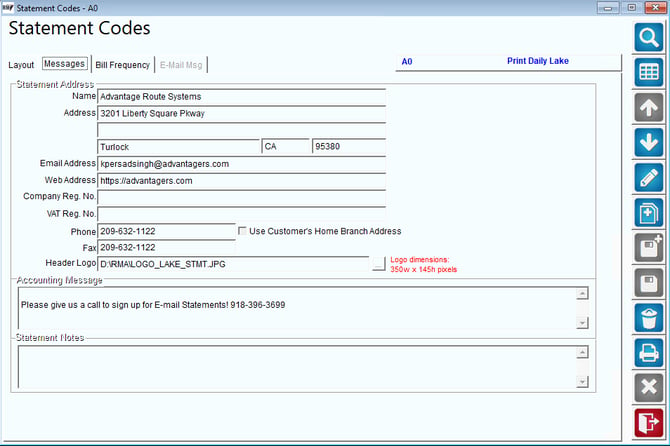
If you would like a message to appear on every customer’s statement, enter an ‘Accounting Message’ or ‘Statement Note’ under Lists > Customer Setup Codes > Statement Codes on the Messages tab.
Contact Messages
The Contacts tab allows you to record an ongoing history of events that have transpired between you and the customer.
These messages can be entered under Lists > Customer Information, on the Contacts tab.
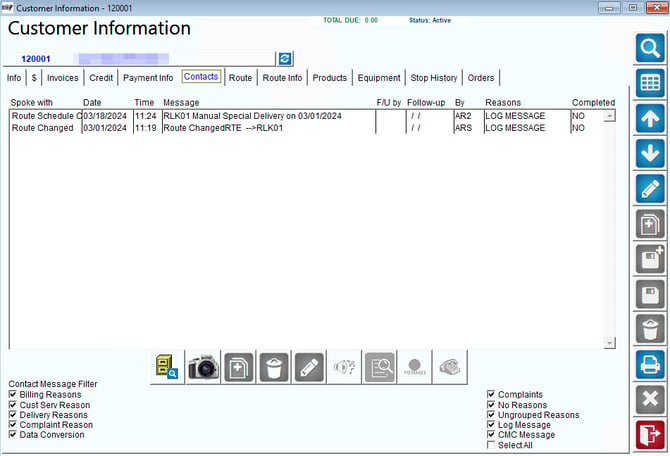
Each desktop user should make this their primary way of documenting conversations with each customer. Many different types of messages can be stored on the Contacts tab, including:
Automatic Messages: These messages are added automatically to the Contacts tab each time an event occurs. This will include credit card processing approval, equipment transfers, Telephone Requests, route driver messages, returned checks, and more.
Manual Messages: Any system user can enter a short message describing their contact with a customer. This can include phone conversations, promises by the customer to pay an invoice, a request to change an address, etc. You can record the date and time of the contact and note who you spoke with, along with a message of up to 120 characters. Additionally, you can enter a follow-up date that allows the system to remind you to call a customer, or take some other action at a future date.
Message Entry (Desktop)
The Message Entry option (located under File > Messaging) allows you to pop-up messages for users based on the following criteria:
Route Message: These messages will pop-up within Customer Information on any customer assigned to the route selected.
Branch Message: These messages will pop-up on any customer assigned to the branch selected.
Employee Group Message: These messages will pop-up for any employee (when accessing Customer Information) that is assigned to the Employee Group selected — refer to the User Guide for Employee Group setup.
Customer Message: These messages will pop-up within Customer Information when the account number entered is accessed.
NOTE: For information on the remaining two messaging options, refer to the Handheld Messages section.
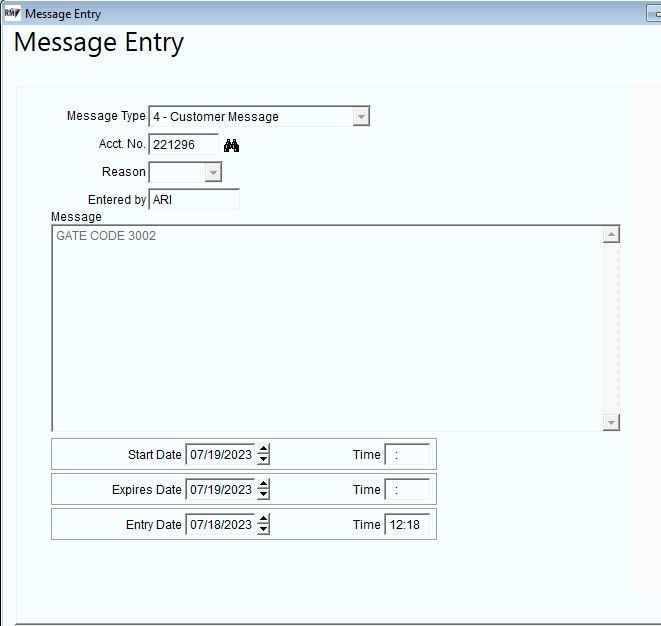
NOTE: Message Entry Reasons need to be established before using this option, under File > Messaging > Message Reasons.
Select the Add option to create a new message, and enter the required information; for example, the message below displays a ‘Customer Message’ that will be active for five days (Start Date 05/19, Expires Date 05/24).
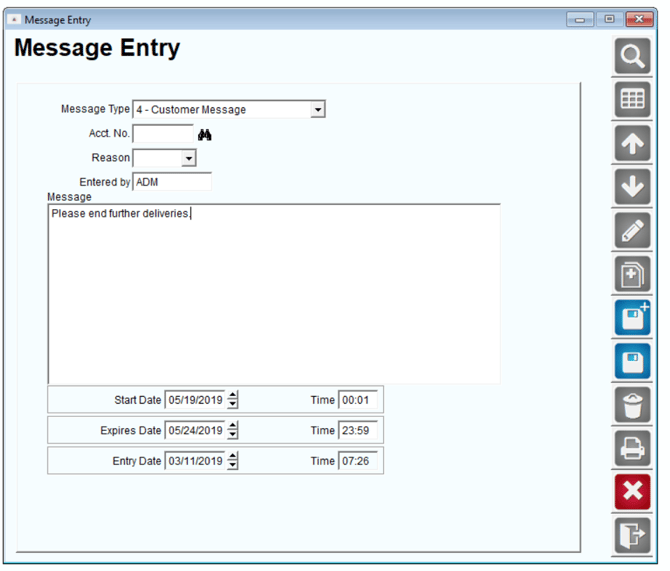
Once you have entered all of the information, click Save. All active messages will display as ‘Active’ on the screen:
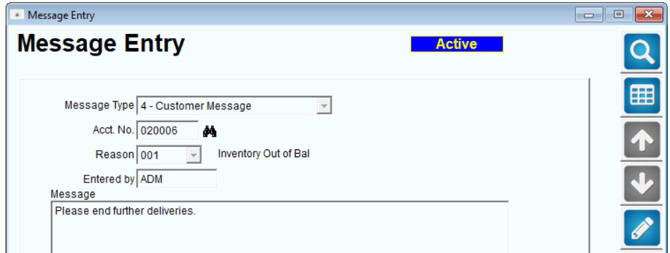
When employees access this account on the desktop, a message similar to the following will be displayed automatically:
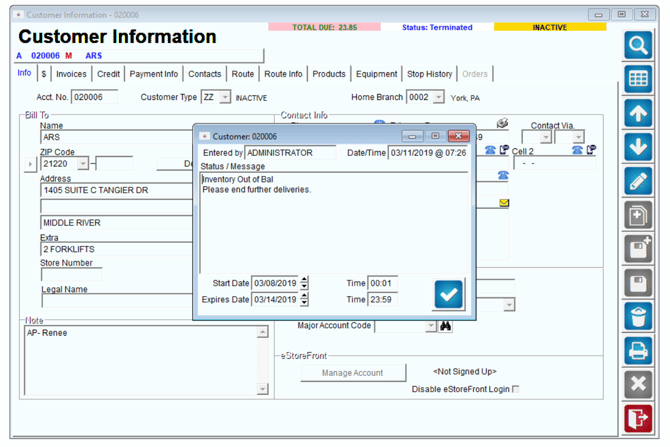
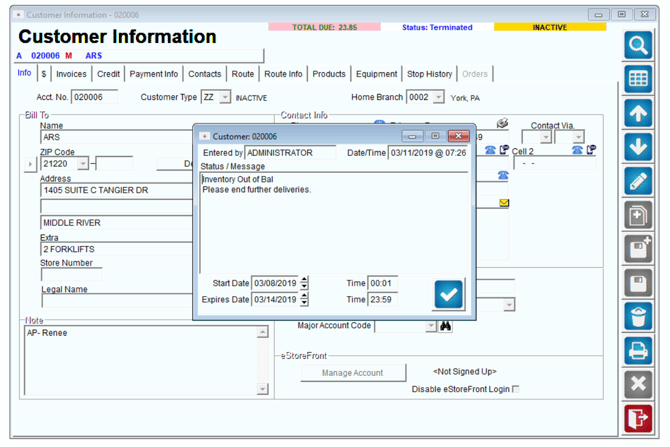
The Message Entry options allow managers and administrators to easily convey information to their users without much data entry.
Handheld Messages
Handheld messaging options allow you to relay important information to your drivers while they are in the field. The types of messages vary, from simple reminders, to onsite instructions.
Messages (Customer Information)
The Messages option allows you to define messages that will pop-up on each driver’s handheld.
This option can be found under Lists > Customer Information, on the Route Info tab.
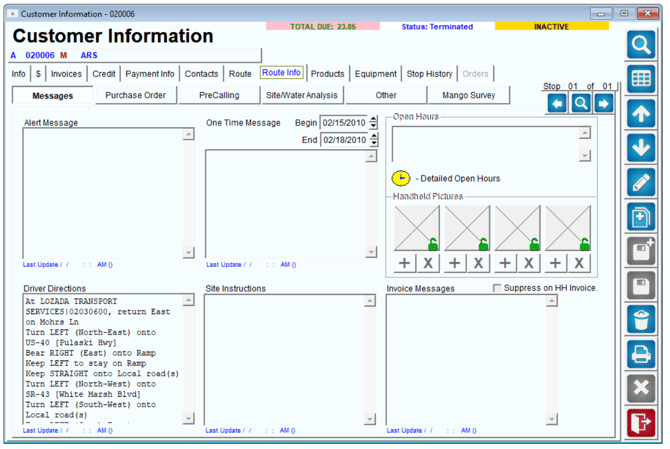
Once the Messages option is selected, the following screen appears:

Alert Message: This message will pop-up on the handheld as the route driver selects the stop.
One Time Message: This message is similar to the Alert Message, except it will only appear on the handheld for the period of time defined in the Begin and End date fields. This is useful to remind a route driver when a customer may be on vacation, and will not require a delivery.
Driver Directions: To help the route driver locate a customer, instructions can be entered into this message area. Typically, this should include street names or landmarks such as “Last house on the left before the creek,” or “Go three lights east on Meridian before turning right onto Maple Street.”
Site Instructions: This message provides customer delivery instructions such as “Bottles are located in garage,” or “Place a full bottle on the cooler each time.” While it could include “Beware of big dog,” it is better to include such a message in the Alert Messages field.
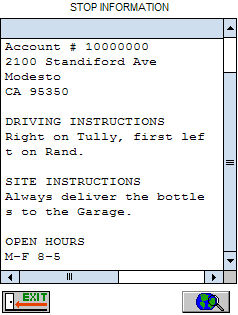
Open Hours: Enter the open hours of operation on the account. The driver can view this information before delivering to the account by tapping-and-holding the customer’s name on the route screen (below).
Invoice Messages: Use this option to print a special message on the handheld receipt for the customer. This might include a purchase order number, or special instructions such as “Accounts Payable will require one copy as well as the signing party,” or “This invoice must be paid under agreement 45-8384 which requires payment in five days.”
Message Entry (Handheld)
The Message Entry option (File > Messaging) allows you to pop-up messages for users based on the following criteria:
Handheld by Route: These messages will pop-up on any handheld running the route selected.
Handheld by Area: These messages will pop-up on any handheld running the Group Area Codes selected (only when using Group Area Codes).
Select the Add option to create a new message. Choose your ‘Message Type’ and enter the required information. The example below shows a ‘Handheld by Route’ message that will be displayed for four days (Start Date 05/19, Expires Date 05/23).
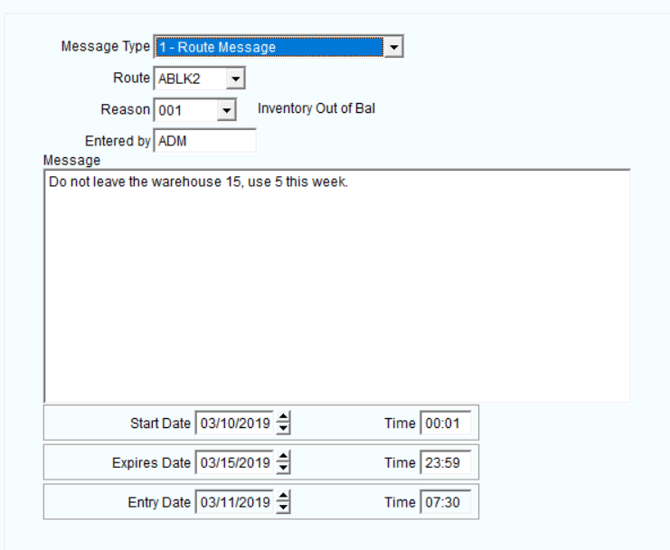
Once you have entered all of the information, click Save. Once you have entered all of the information, click Save.
All active messages will display as ‘Active’ on the screen:
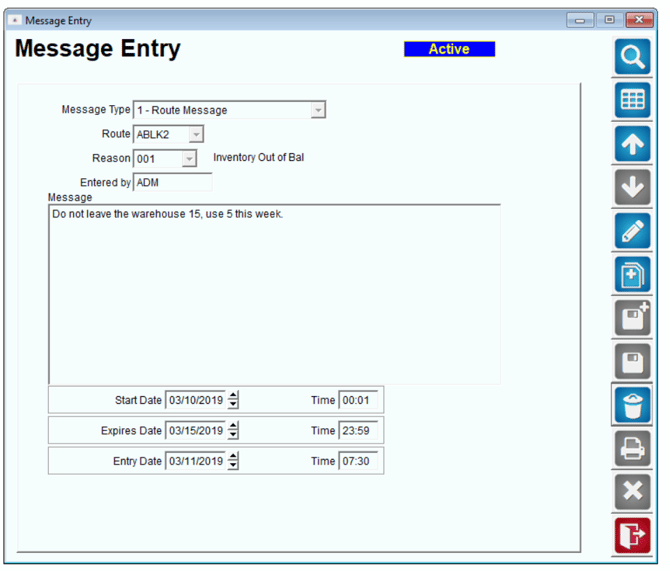
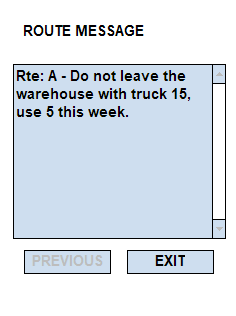
When the driver logs into the handheld, the message will be displayed automatically: