
Introduction
Imagine you're managing a delivery service. You've got lots of customers with different delivery schedules, and you want to make sure they know when to expect their deliveries. This feature helps you do just that.
For individual customers, you can easily print or email their personalized delivery calendar right from their profile in RMA. This way, they'll always know when to expect their deliveries without having to keep calling to check.
If you've got a bunch of calendars to send out, no worries! You can do a mass print or email for all your customers' calendars in one go. It's a real time-saver and helps keep everything organized.
Ultimately, the goal here is to streamline your delivery process, avoid missed deliveries, and keep your customers happy. Because when they know when to expect their deliveries, everyone's day goes a little smoother.
Print/Email Individual Calendars
Process
To begin this process, navigate to Lists > Customer Information > Route Tab. Print and email an individual Customer Delivery Calendar here.
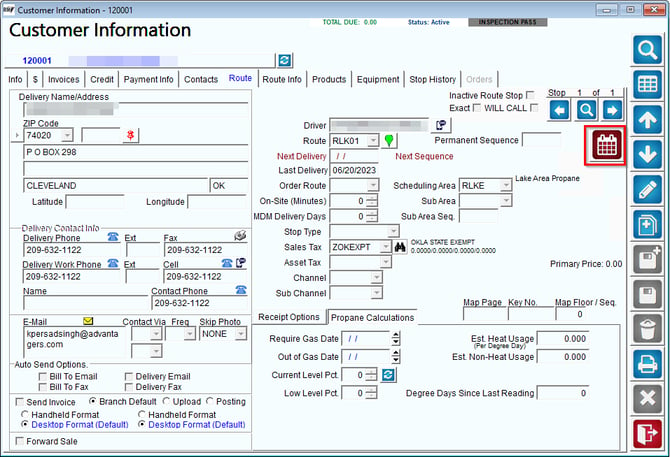
Most customers use this calendar button to schedule a customer’s route; however, by right clicking on the calendar it will give you a full year’s schedule.
Choose an option at the bottom to either Print, Email, or Fax this Calendar to your customers.
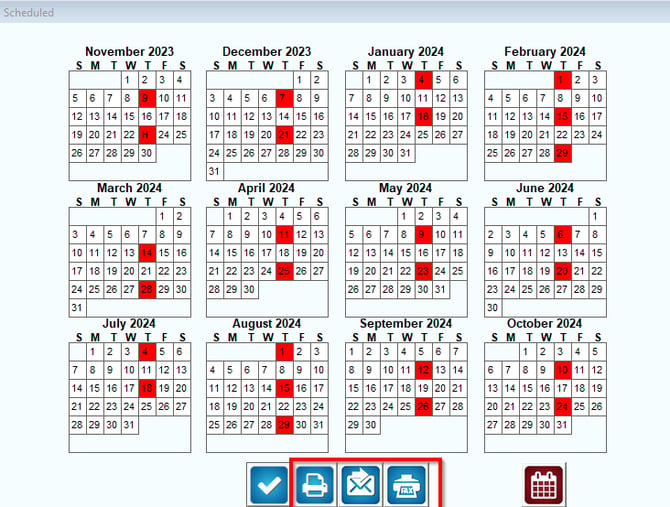
Note: If you wish to Mass Send delivery calendars, follow the steps below!
Mass Print/Email Delivery CalendarsProcess
Print out delivery schedule calendars for your customers. These reminders can prevent wasted trips on forgotten delivery days. The Customer Delivery Calendar report can be found under Reports > Route Reports > Other > Customer Delivery Calendars.
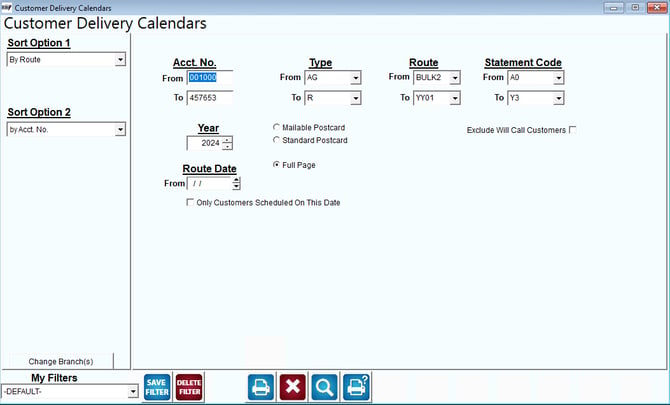
Fields:
Sort Option 1 & 2: The primary and secondary fields to sort by. You can choose from the following categories:
- Route
- Account Number
- ZIP Code
- Sequence
Change Branch: If you are logged into multiple branches, this option may be shown and allows you to re-select the branches to include in the report instead of having to completely exit the report.
Acct No: Enter the range of accounts to include.
Type: Enter the range of account types to be included on the report.
Route: Enter the range of routes to be included on the report.
Route Date: Enter the route dates you wish to include in the report.
Year: Select the current year to print the Customer Delivery calendar. All calendars are printed for one calendar year.
Print Style: Choose one calendar format. You can choose between:
- Mailable Postcard
- Standard Postcard
- Full Page
- Custom
Exclude Will Call Customers: Select this option if you would like to exclude will call customers from this report.
NOTE: Mailable Postcards use Avery 5389 or 8389 laser postcards.
NOTE: Email addresses listed on the Info tab (Lists > Customer Information) are used when emailing delivery schedules.