
Introduction
The Customer Consumption Report includes various information on rate of product consumption. This report can be found under Reports > Management Reports > Customer Consumption Summary.
NOTE: This report can only be viewed within Microsoft Excel.
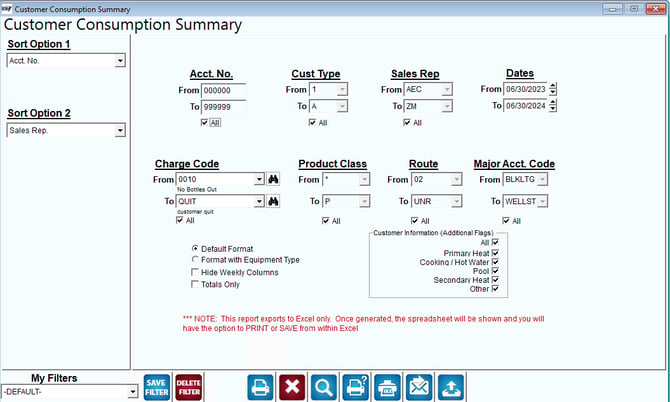
Fields:
Sort Option 1 & 2: The primary and secondary fields to sort by. You can choose from the following categories:
- Account Number
- Sales Rep
- Start Date
- Current Price
- Customer Type
- Route
- Major Account Code
Account No: Enter the range of accounts to include in the report.
All: Select this option to show All accounts on report.
Cust Type: Select the range of Customer Types to include in the report.
All: Select this option to show All customer types on report.
Sales Rep: Select the range of Sales Representatives to include in the report.
All: Select this option to show All sales reps on report.
Dates: Enter the range of activity dates to include in the report.
Charge Code: Enter the range of Charge Codes to include in the report.
All: Select this option to show All charge codes on report.
Product Class: Select the range of Product Classes to include in the report.
All: Select this option to show All product classes on report.
Route: Select the range of routes to include in the report.
All: Select this option to show All routes on report.
Major Acct Code: Select the range of Major Account Codes to include in the report.
All: Select this option to show All major account codes on the report.
Customer Information (Additional Flags):
All: Select this option to select all flags (listed below).
Primary Heat: Select this option to include customers who have the Check 1 box selected under their Customer Information > Credit Tab > Additional Flags screen.
Cooking/Hot:Select this option to include customers who have the Check 2 box selected under their Customer Information > Credit Tab > Additional Flags screen.
Pool:Select this option to include customers who have the Check 3 box selected under their Customer Information > Credit Tab > Additional Flags screen.
Secondary Heat:Select this option to include customers who have the Check 4 box selected under their Customer Information > Credit Tab > Additional Flags screen.
Other:Select this option to include customers who have the Check 5 box selected under their Customer Information > Credit Tab > Additional Flags screen.
Default Format: Leave this option selected to print the default report.
Format with Equipment Type: Select this option to print the modified report with Equipment Types.