
Skip to content
English
  • There are no suggestions because the search field is empty.

Creating a Route using Route Master V8

Introduction


Each customer receiving a regular delivery will need to be assigned to a route in RMA. The Route Master option allows you to create route ID’s, assign drivers, and much more. To set up your Routes, go to Lists > Routes > Route Master.

  1.     To add a new route to the program, click Add.
  2.     Enter the Description and Home Branch for the route.
  3.     Assign a Driver to the route from the drop-down menu (ensure you have added all of your route drivers to the program under Lists > Employees > Employee Setup prior to creating routes).
  4.     On the Invoices tab, choose the Invoice Pool option if you would like the program to reserve invoice numbers from the BranchInvoice Pool daily. (found under Branch Setup > Setup tab) OR, enter StartingCurrent, and Invoice Rollover invoice criteria for this individual route.
  5. Enter an Off-Route Inv. Qty: this number determines how many off-route deliveries the driver will be able to process daily.
  6. Click Save or More to add more routes to the program.


Information Tab


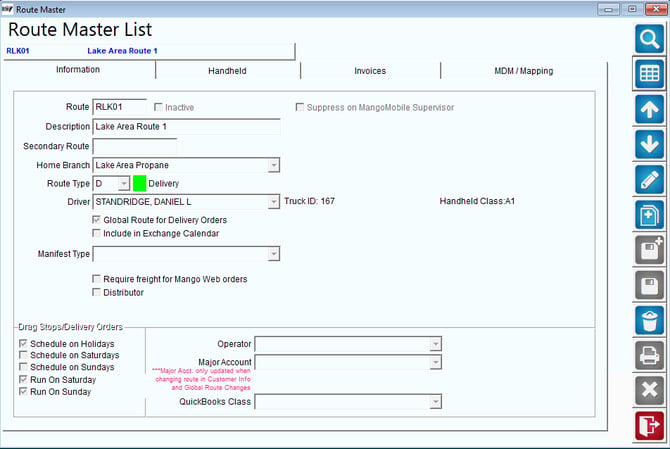
The Information tab includes information related to the route and driver.
 1714419972047

Fields:
Route: Enter up to five characters that will represent the route.
Inactive: Select this option to disable the route in the program.
Suppress on Mango Mobile Supervisor: Select this option to not show this route in Mango Mobile Supervisor.
Description: Enter a description for the route.
Secondary Route:
Home Branch: Select the branch that this route is assigned to.
Route Type: Select the route type that applies to this route (e.g., Delivery, Service).
NOTE: Route Types can be established under Lists > Routes in RMA.  A color code can be created per route type, which is especially helpful when using the Route Dispatch Manager under the Route menu.
Driver: Select the driver that will run the route.
Global Route for Delivery Orders: Select this option if you would like the current route to be accessible by any user scheduling Delivery Orders, regardless of Branch.
Include in Exchange Calendar: Select this option to include this route in the Exchange Calendar integration feature.
Manifest Type: Select a Driver Manifest Code to assign to the current route.
NOTE: Driver Manifest Codes are located under the Tools menu.  Contact ARS for further information on this topic.
Require freight for eStoreFront orders: Select this option to require purchases made via eStoreFront to choose a shipping method.
Distributor: If this route is delivered by a distributor (not one of your employees) then tick this box.  Only used in a select situation.
Drag Stop/Delivery Orders:
Schedule on Holidays: Select this option to allow ‘Drag’ stops to be scheduled on holidays established within the Holiday Calendar.
Schedule on Saturdays: Select this option to allow ‘Drag’ stops to be scheduled on Saturdays.
Schedule on Sundays: Select this option to allow ‘Drag’ stops to be scheduled on Sundays.  
Run on Saturday: Select this option to run stops on Sundays.  
Run On Sunday: Select this option to run stops to on Sundays.  
Other:
Operator: Select the employee in charge of ‘pre-calling’ each customer assigned to this route.
Major Account: Select a Major Account Code to assign to the current route entry.
NOTE: This option will automatically assign the Major Account Code to all customers assigned to the current route when changes are made within Customer Information or when using the Global Changes screen to assign customers to the current route.
QuickBooks Class: Enter the corresponding QuickBooks Class code for use with QuickBooks Integration.


Handheld Tab


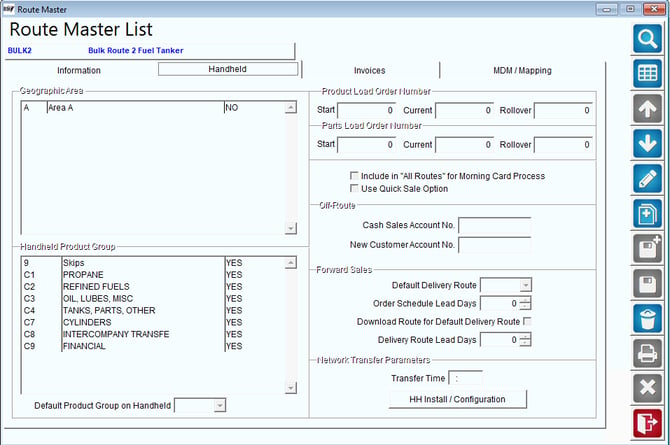
The Handheld tab contains information related to filtering data on the handheld, and more.
1714421949580

Geographic Area: Select each Group Area Code that this route services.
NOTE: Group Area Codes are used as customer filters on each route based on the option selected under Lists > Routes > Handheld Class, on the Off Route tab. Additionally, Group Area Codes can be added under to RMA under Lists > Routes.
Handheld Product Group: Select each Handheld Product Group that this route services.
NOTE: Product Group Codes are used as product filters on the handheld and can be added to RMA under Lists > Product Codes > Product Group Codes. In order to successfully use this option, every product will need to be assigned to a group.  Additionally, you can use the group codes to easily filter products directly within the Misc. Items screen of the handheld program by selecting the option ‘Use Product Categories in Miscellaneous Sales’ under File > Branch Setup, on the Handheld tab.
Default Product Group on Handheld:  Select a specific group from the list to be the default group shown on the handheld when going into the Misc. Items screen.
Load Order Number Range: Modify this section to have load orders identified by a unique number that runs in sequence and continues from one day to the next. If this field is filled in, it will then override load order numbers and use the new range for that route.
  • Start
  • Current
  • Rollover
Other:
Include in “All Routes” for Morning Card Process: Select this option to include this route in the ‘All Routes’ process during a Morning Card transfer.
NOTE: The ‘All Routes’ feature allows you to prepare each route for the drivers to download at a later time.  
Use Quick Sale Option: Select this option to use a modified version of the Quick Entry screen on the handheld that has been formatted for rapid entry.  
NOTE: This will also disable certain features available on the standard Quick Entry screen and may not be suitable for all users.
Off Route:
Cash Sales Account No.: If this route requires its own custom Cash Sales account number, rather than the one assigned in Handheld Class, enter that account number here.
New Customer Account No.: If this route requires its own custom New Customer account number, rather than the one assigned in Handheld Class, enter that account number here.
Forward Sales:
Default Route: Enter a default route for any Forward Sales created on the handheld.
Order Schedule Lead Days: The default number of days in advance a Forward Sale will be scheduled from the handheld.
Download Route for Default Delivery Route: Check this box if the Default Delivery Route should be downloaded when Forward Sales are entered.
Delivery Route Lead Days: Enter the number of days lead time the delivery route should have for all Forward Sales.
Network Transfer Parameters:
Transfer Time (Advanced Communications Module Only): Enter the time (in military format) that wireless data transfers should take place.
Run On Saturday: Select option to allow the handheld to download routes on Saturday when using the auto download transfer time feature.
Run On Sunday: Select option to allow the handheld to download routes on Sunday when using the auto download transfer time feature.


Invoices Tab


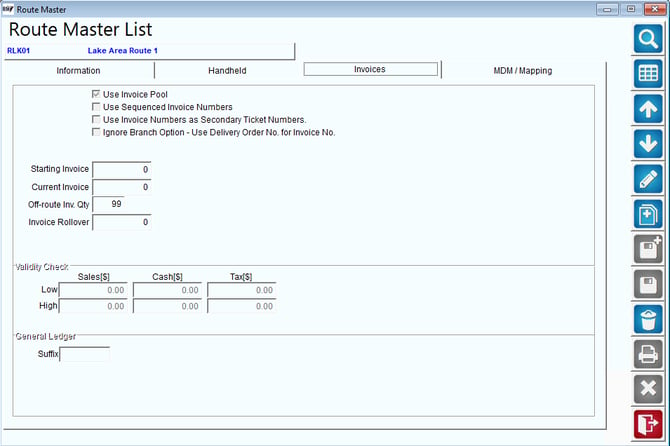
The Invoices tab contains information related to the invoice numbers used on route.
1714420291995

Fields:
Use Invoice Pool: Check this box to use the invoice pool established under File > Branch Setup, on the Setup tab.
Use Sequenced Invoice Numbers (Used in Argentina): Select this option to only allow sequenced invoice numbers.   This will modify certain features on the handheld.
Starting Invoice: Enter up to fourteen digits as the starting invoice number to use on this route.
Use Invoice Numbers as Secondary Ticket Numbers: If you would like the invoice number to the same as the Secondary Ticket number, check this box. Helpful when every delivery is through an order.
NOTE: The invoice number length accepted is controlled under File > Branch Setup, on the Desktop tab. Enter a number up to ‘14’ within the Invoice No. Mask field. Each route should contain a unique invoice ‘pool’ to prevent duplicate numbers. Alternatively, you may opt to select the ‘Use Invoice Pool’ option to automatically retrieve available invoice numbers from a companywide invoice pool available under File > Branch Setup, on the Setup tab.
Current Invoice: Enter up to fourteen digits as the current invoice number being used on this route. After this option is initially established, it will be automatically updated each day.
Off-Route Invoice Quantity: Enter the number of invoices that should be added to the route in addition to the number allocated to scheduled stops (i.e., ‘20’ additional invoices for call-ins not scheduled).
Invoice RolloverEnter up to fourteen digits as the ending invoice number to use on this route. After this number has been reached, the system will revert back to the Starting Invoice number established.
NOTE: Selecting ‘Use Invoice Pool’ will ignore the invoice pool established within the Route Master screen.
Validity Check: Enter criteria in the following fields to enable low/high sales, cash, and tax alert figures on the Transaction Detail report during the upload process.
  • Sales
  • Cash
  • Tax
NOTE: This option can be helpful for quickly identifying sales related issues on route.
General Ledger:
Suffix: When posting income to the General Ledger, you can have a suffix to your GL account for every route and this will be added automatically.


RDM / Mapping Tab


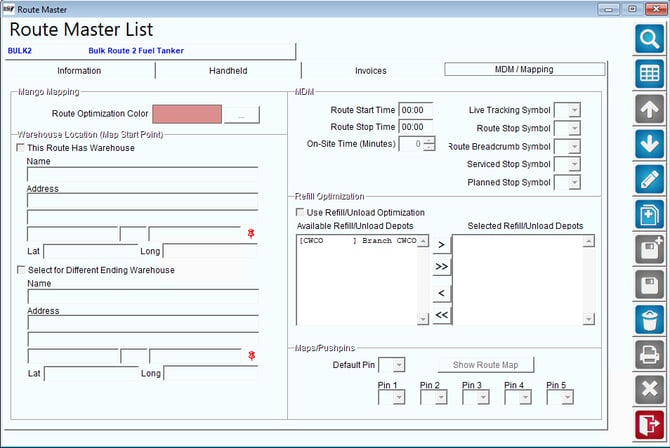
The RDM / Mapping tab contains information related to mapping modules and route management utilities available in RMA.  Refer to the RDM manual or contact ARS for further information on these items.
1714422698787


Fields:
Maps/Pushpins
  • Show Route Map:  This will show a route map of your customers.
  • Default Pin:  You may choose a map pin to represent this route when you are doing mapping with multiple routes.
  • Pin 1 – Pin 5:  If you end multiple map pins for multiple days, for example, indicate which pins you would like to use.
Warehouse Location (Map Start Point)
If this route has a different starting point than the default branch warehouse this employee is assigned to, enter it here.
This Route Has Warehouse:  Select this option if this route has a different starting point than what was defined in Branch Setup for this employees branch.
  • Name: Name of Warehouse/Location.
  • Address: Enter the full address of the custom warehouse/starting point location.
  • Lat: If available, enter the Latitude value of this location (more accurate).
  • Long: If available, enter the Longitude value of this location (more accurate).
RDM
  • Route Start Time: Enter the starting time for this route if it is different from the Branch Default. (Branch Setup > GPRS Tab).
  • Route Stop Time: Enter an ending time for this route if it is different from the Branch Default (Branch Setup > GPRS Tab).
  • On-Site Time (Minutes): Enter a default On Site Time for customers of this route. This is used when utilizing the Mango Mapping Route Optimization features.
  • Service Time (Minutes): Enter the default stop service time.
  • Live Tracking Symbol: Select a tracking symbol to be used with Live Truck Tracking in the Route Track 2XI module (coming soon).
  • Route Stop Symbol: Select a route stop symbol to be used with Truck Tracking in the Route Track 2XI module (coming soon).
  • Route Breadcrumb Symbol: Select a route breadcrumb symbol to be used with Truck Tracking in the Route Track 2XI module (coming soon).
  • Serviced Stop Symbol: Select a serviced stop symbol to be used with Truck Tracking in the Route Track 2XI module (coming soon).
  • Planned Stop Symbol: Select a planned stop symbol to be used with Truck Tracking in the Route Track 2XI module (coming soon).


Additional Setup


Route Types

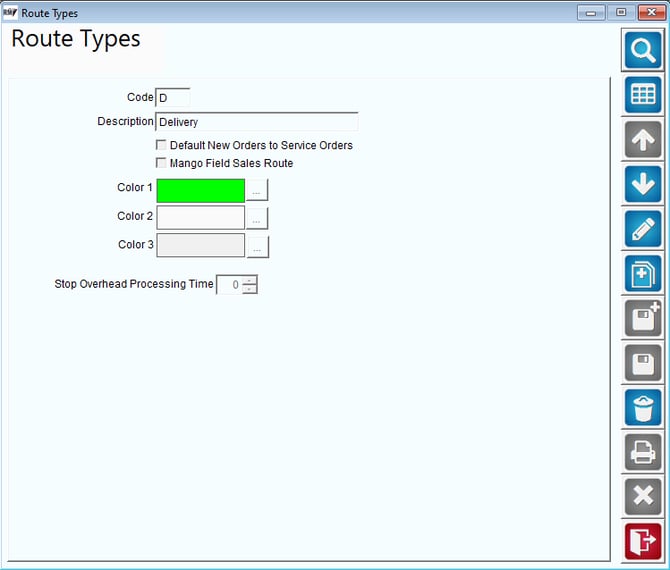
The Route Types option is used within the Mango Dispatch Manger, found under the Route menu in RMA. This option allows you to color-code each route type (e.g., Delivery, Service) to assist you with managing your routes within the dispatch screen.
1714420670788


Fields:
Code: Enter up to two characters that will represent the Route Type.
Description: Enter a description for the Route Type.
Color 1, 2, 3: Use the spinners for RedBlue, and Green to obtain the desired route identification color and shading.  
Stop Overhead Processing Time: Enter the number of minutes that it typically requires to complete a delivery on-site.


Group Area Codes


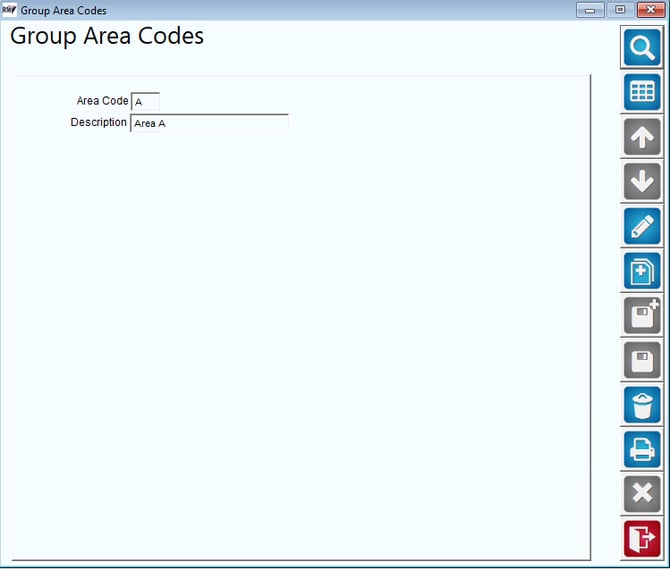
Group Area Codes allow you to separate customers by geographic region for Off-Route customer filtering purposes on the handheld.

NOTE: The Off-Route filtering options available on the handheld can be found under Lists > Routes > Handheld Class, on the Off-Route tab.  If your company database contains less than 5000 customers, it is not necessary to use this feature.
1714420825097


Fields:
Area Code: Enter a single character that will represent the Group Area Code.
Description: Enter a description for the Group Area Code.


Scheduling Area Codes


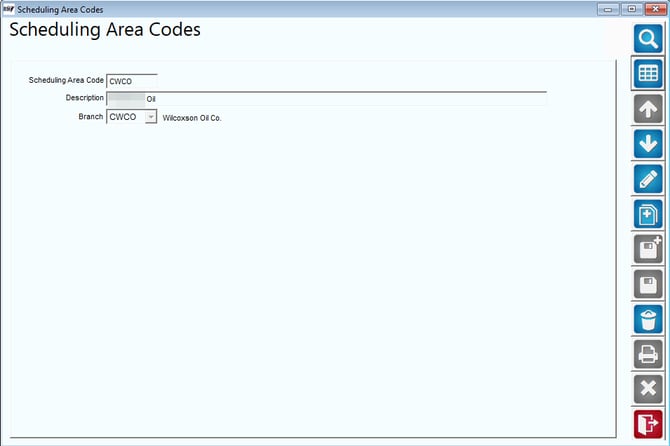
Scheduling Area Codes are used to identify specific areas used for Forecasting and Allocations in the Route Dispatch Manager Advanced feature.
1714421018216


Fields:
Scheduling Area Code:  Enter a code specific for the scheduling area.
Description:  Enter a description for the scheduling area to better clarify the area. 
Branch:  Select a Branch to which this Scheduling Area is assigned (if multiple branches are used). 


Scheduling Sub Area Codes


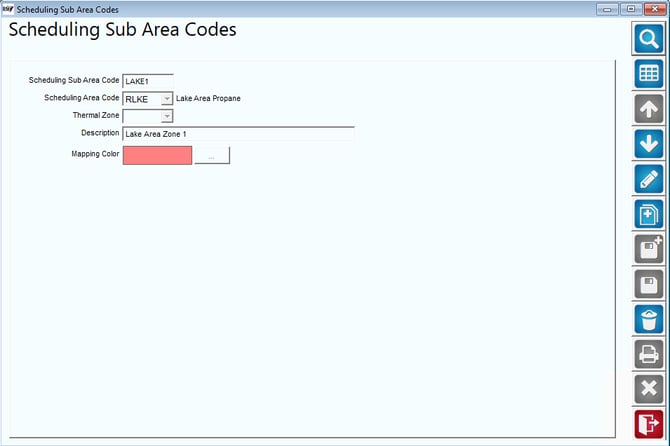
Scheduling Sub Area Codes are used to identify specific areas used for further narrowing down routes and trips in the Route Dispatch Manager Advanced module.
1714422911191

Fields:
Scheduling Sub Area Code:  Enter a code specific for each Sub Area Code.
Scheduling Area Code:  Select the Scheduling Area Code under which this Sub Area belongs.
Thermal Zone:  Select a Thermal Zone from the drop down available (if applicable.)
Description:  Enter a description for the Sub Area Code to better clarify that Sub Area.


Stop Type Codes


Stop Type Codes can be used as an additional identifier on certain reports within RMA, and can be assigned to each account under Lists > Customer Information, on the Route tab.
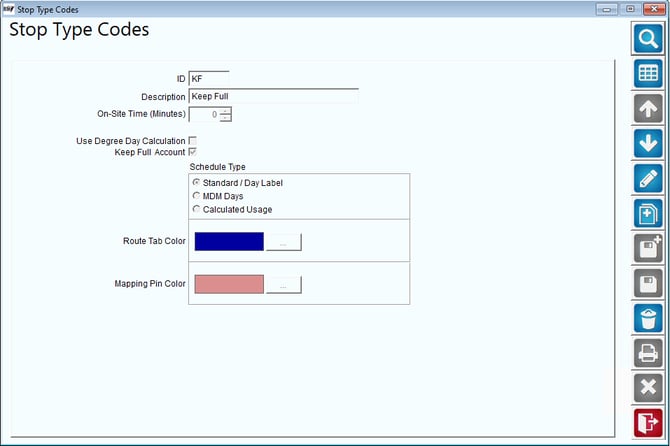
1714422944854


Fields:
ID:  Enter up to two characters that will represent the Stop Type Code.
Description: Enter a description for the Stop Type Code.
Service Time (Minutes): Enter a default Service Time for this type of stop to be used with Route Dispatch Manager.
Schedule Type: Select one of the following options to indicate which type of schedule this stop type is.
  • Standard/Day Label – Standard Stops and Day Label stops are those that are based on an order being placed directly on an order or a specific day when the route is normally serviced.
  • RDM Days – RDM Days are stops that are based on days selected in Route Dispatch Manager.
  • Calculated Usage – Calculated usage takes a formula from the capacity and usage patterns tracked within the Route Dispatch Manager Advanced feature.