
Introduction
The New Customer With Order Wizard allows you to enter all of the information required to create a new customer in RMA. It is recommended you review your Customer Type Codes prior to using the New Customer Wizard, as the Customer Type Codes contain default information for setting up new accounts in Route Manager and will help make the process faster.
New Customer Wizard
To access the New Customer Wizard, go to Lists > Wizards > New Customer With Order.
Step 1 of 4 – Customer Address Info
This tab contains all of the customer’s billing and delivery contact information.

Delivery Information:
 Check Address: Select this option to verify address information using the Mango Mapping Module.
Billing Information:
 Duplicate Check: Select this option to check if the customer has been added to RMA already.Check Address: Select this option to verify address information using the Mango Mapping Module.
Step 2 of 4– Customer Order Info
This tab contains the customer’s product and equipment information.
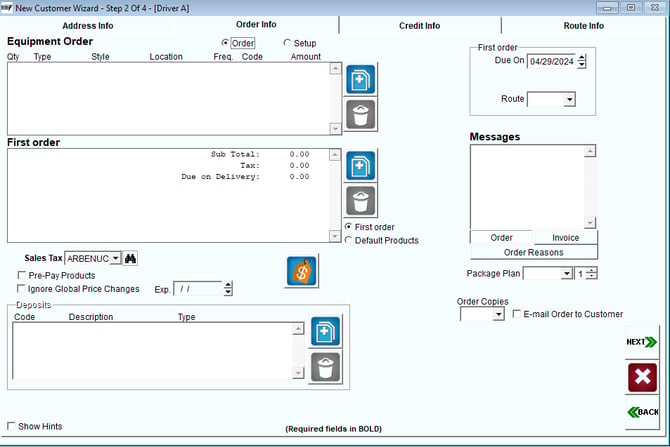
Equipment (Order or Setup):
First Order (Products): Select the products to be delivered on the first order (Delivery Order will be created).
Other
Bottle Deposits: Add all of the container deposits that apply to the account.
Due On & Route: If an initial Delivery Order is being scheduled, enter the date and route desired.
Messages: Select from the following message types to enter messages on the account:
Order: This message will apply to the current Delivery Order and be displayed on the handheld (if scheduled).
Invoice: This permanent message will be printed on the customer’s handheld invoice.
Order Reasons (Only displayed if Order is selected): Select this option to choose a Delivery Order Reason — if a Delivery Order is being scheduled.
Package Plan (Package Plan Module Only): Choose the Package Plan Code to apply to the account.
Order Copies: Select the printed Delivery Order format to use — when scheduling a Delivery Order.
Email Order to Customer: Select this option to email a copy of the order to the customer.
Step 3 of 4– Customer Credit Info
This tab contains the customer’s credit information.
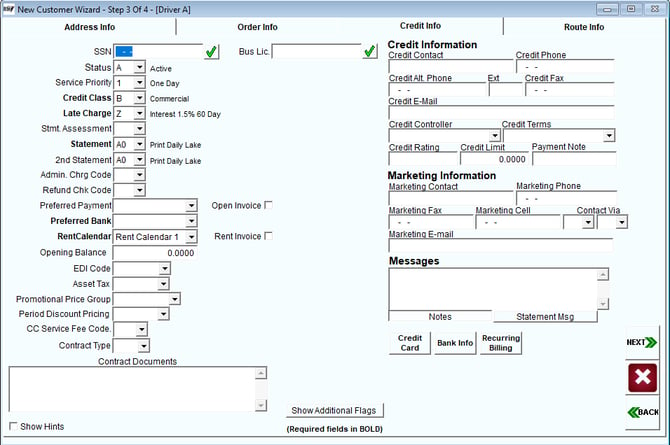
Fields:
SS Number: Enter the customer’s social security number.
Bus. License: Enter the business license for this customer.
Status: Select the customer’s Account Status Code.
Service Priority: Select the customer’s Service Priority Code.
Credit Class: Select the customer’s Credit Class Code.
Late Charge: Select the customer’s Late Fee Code.
Statement Assessment: Select the customer’s Statement Assessment Code.
Statement: Select the customer’s Statement Code.
Second Statement: Select a secondary Statement Code for the customer.
Admin. Chrg Code: Select the customer’s Administrative Charge Code.
Refund Chk Code: Select the customer’s Refund Check Code.
Preferred Payment: Select the customer’s preferred payment method.
Open Invoice: Select this option to use the ‘Open Invoice’ option for payments received on the account.
NOTE: Open Invoice allows you to apply payments directly to open invoices on the customer’s account. Alternatively, with this option unchecked, the account will be considered Balance Forward, and payments will only be able to be applied to the balance on the account.
Preferred Bank: Select the preferred bank account for this customer.
Rent Calendar: Select the appropriate rent calendar for this customer.
Rent Invoice (Requires a Statement with Invoices): Select this option if the customer should only receive a Rental Invoice copy with their statement.
Opening Balance: Enter an opening balance on the account.
EDI Code (Optional Module): Select the customer’s EDI Code.
Asset Tax: Select the customer’s equipment Asset Tax Code.
Promotional Price Group (Buy/Gets Module Only): Choose the promotion to apply to the account.
NOTE: The Buy/Gets Module is used to offer free or discounted items to your customers for buying an established quantity of products during a promotion. Contact Advantage Route Systems for further information.
Period Discount Pricing: This unique pricing option allows you to set up discounts or free items for customers that purchase an established quantity of items over a period of time.
Credit Information:
Contact: Enter the credit contact for this account.
Phone: Enter the credit contacts phone number.
Alternate Phone: Enter an alternate phone number for the account.
Ext.: Enter the extension to dial.
Fax: Enter the customer’s credit fax number.
E-mail: Enter the customer’s credit e-mail address.
Credit Controller: Assign an employee to the account that will manage credit or past due inquiries.
Credit Terms: Choose the terms that you would like to assign to this account.
Credit Rating: Enter the customer’s credit rating.
Credit Limit: Specify the credit limit on the account.
NOTE: Leave the number at ‘0.00’ to establish unlimited credit on the account.
Payment Note: A note entered here will be displayed when a new payment is added for this customer.
Messages:
Notes: This permanent message will be logged on the Info tab of the customer’s account.
NOTE: You may elect to popup this message each time the customer’s account is accessed by selecting the ‘Popup Customer Note’ option found under File > Branch Setup, on the Desktop tab.
Statement Msg: This permanent message will be displayed on the customer’s desktop statement each month.
Other:
Credit Card: Select this option to enter credit card details on the account.
Bank Info: Select this option to enter bank details on the account.
Recurring Billing: Select this option to establish Recurring Billing Charges on the account.
Show Additional Flags: Select this button to access optional fields for storing additional data of your choice on the account.
Step 4 of 4 – Customer Route Info
This tab contains the customer’s route information.
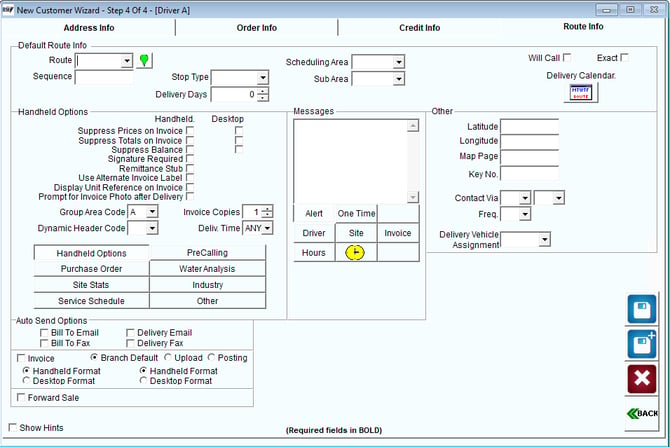
Route
Route: Select the route the customer is to be assigned to.
 Nearby Customers: Select this option to pull up the nearest 10 customers based on this customers coordinates. This may assist with making sure the customer has been assigned to a route and day label that is most efficient for your drivers.
Sequence: Enter the sequence number of the stop on route.
Stop Type: A Stop Type can be assigned to each account and used as an identifier on certain reports within RMA.
Delivery Days: Enter the number of days to calculate the next scheduled stop, when using a Stop Type code established for RDM Days as the Schedule Type.
Delivery Calendar: Select this option to setup the customer’s permanent delivery schedule.
Will Call: Check this box to prevent the current stop from showing up on route, even if a delivery schedule has been established. The stop will only show up on route when either a Delivery Order or Route Pre-Sale has been created.
Exact: Select this option to only allow the current stop to be scheduled on the “exact” Day Label assigned within the deliver calendar when managing routes within the RDM screen.
NOTE: If the stop is assigned to Day Label ‘W01’ within the delivery calendar, then the stop can only be assigned to available ‘W01’ labels within the RDM screen when the Exact option is selected.
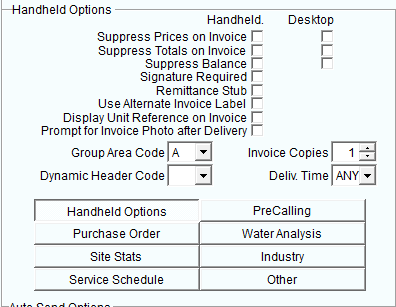
Handheld Options
Signature Required: Select this option to require the customer’s signature with each delivery.
Remittance Stub: Select this option to print a payment remittance stub with the customer’s handheld receipt.
Suppress Prices on Invoice: Select this option to suppress all product prices on the printed handheld receipt.
Desktop Options:
Signature Required: Select this option to require the customer’s signature with each delivery.
Remittance Stub: Select this option to print a payment remittance stub with the customer’s handheld receipt.
Suppress Prices on Invoice: Select this option to suppress all product prices on the printed handheld receipt.
Suppress Totals on Invoice: Select this option to suppress all product price totals on the printed handheld receipt.
Suppress Balance: Select this option to suppress the customer’s balance from printing on the handheld receipt.
Use Alternate Invoice Label: Select this option to replace the standard Invoice Label with the Alternate Invoice Label found under Lists > Routes > Handheld Class, on the Labels tab.
Display Unit Reference on Invoice: Select this option to use the unit Product Reference Label — under Product Charge Codes, on the Info tab — and the Base Qty. (Pricing tab) as the product reference on each invoice.
Group Area Code: This option allows you to separate customers by groups within the Off-Route List of the handheld. The codes can be set up under Lists > Routes > Group Area Codes.
Dynamic Header Code: Select the Dynamic Header Code to use on the account.
NOTE: Dynamic Header Codes allow you to use alternate company headers on handheld invoices for each customer, and can be found under Lists > Customer Setup Codes. This is an alternative to the standard company header found under the Handheld Class screen.
Invoice Copies: Enter the number of handheld invoice copies to print with each delivery.
Deliv. Time: Select the customer’s preferred delivery time, AM or PM.
NOTE: Customers can be sorted by delivery time on the handheld by selecting the ‘Allow Route List Filtering by Delivery Time’ option under Lists > Customer Information > Routes> Handheld Class, on the Screen tab.
Pre-Calling
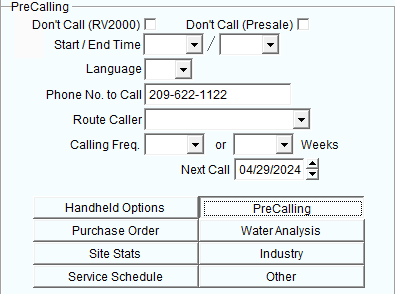
Don’t Call (RV2000): Select this option if the customer should not receive a call prior to delivery.
Don’t Call (Presale): Select this option to exclude the customer from being called when using the Route Pre-Sale option.
Start / End Time: Select the time range that the customer would like to receive a call when using CMC or Route Pre-Sale.
Language: Select the language required when contacting this customer.
Phone No. to Call: Enter the phone number to use when pre-calling this customer.
Route Caller: Select an employee in charge of pre-calling the customer (employee must be type: Route Caller).
Call Freq: Select the Pre-Call Calendar code to assign to the customer.
Next Call: Displays the next pre-call scheduled on the account.
Purchase Order
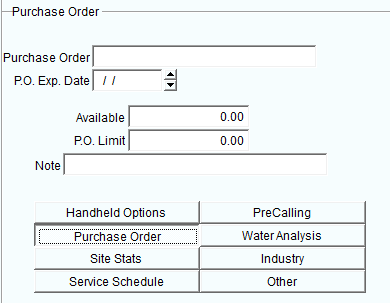
Purchase Order (up to 3): Enter a purchase order up to 30 characters on the account.
P.O. Exp. Date: If you would like this P.O. to expire, enter an expiration date.
NOTE: A report can be run periodically that will list all of the expired, or about to expire, P.O. numbers. This report can be generated under Reports > Management Reports > Expired Purchase Orders.
Product Class (Multiple P.O. Only): This option allows you to choose a specific Product Class that this P.O. will apply to. Products from other classes will not be assigned this P.O.
NOTE: If the Product Class field is empty, all products will apply to the P.O. as normal.
Available: This field is automatically adjusted as sales are made if an amount has been entered within the P.O. Limit field below.
P.O.Limit: Enter the maximum amount that should be billed under the current P.O.
Note: Available for additional text.
Water Analysis
Number Of Occupants: The number of residents in the dwelling or using water from the well or other point source.
Regeneration Cycle: Water treatment equipment such as water softeners need to be regenerated. Enter the number of days or gallons to circulate between cycles.
Gals: The number of gallons of water circulated through the chemical bed of the water softener between re-generation cycles.
Days: The number of days that water is circulated through the chemical bed of the water softener between re-generation cycles.
Hardness: A measure of the calcium and magnesium salts in the water. Hardness is often measured in grains per gallon of water.
Turbidity: Measurement of the cloudiness in water.
Hyd. Sulfate: Amount of Hydrogen Sulfate in water.
Manganese: Amount of Manganese in milligrams/Liter (mg/L.)
Iron Bacteria: Amount of Iron Bacteria in water.
Alkalinity: Amount of sodium present in mg/L.
Tannins: Amount of Tannins in water. Units of measurement vary.
Nitrates: Amount of Nitrates in parts per million.
Chloride: Amount of Chloride in mg/L.
TDS: Amount of Total Dissolved Solids in mg/L.
Iron: Amount of Iron in mg/L.
PH: pH value of the water. This is a number between 6 and 8.
Other: This may include oxygen, organic carbon, ammonia nitrogen, phosphorus, fluoride, aluminum, barium, cadmium, chromium, lead, zinc, fecal coli-forms, etc.
Site Stats
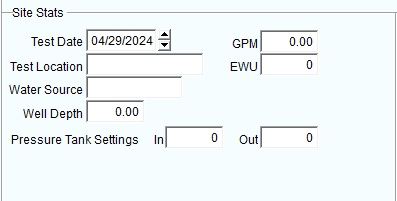
Test Date: Date the water sample(s) were obtained.
Test Location: Enter a description for the location.
Water Source: This may be a well, spring, stream, impounded water, Artesian well, cistern, etc.
Well Depth: The normal depth to water if a well is the water source.
GPM: Gallons per minute.
EWU: Expeditionary Water Unit
Pressure Tank Settings: In/Out: This is the pressure in pound per square inch (PSI) in the water supply tank. The pump may start operating at a Cut In pressure around 20 PSI and turn off or Cut Out at about 40 PSI. These setting vary depending on the location of the pressure tank with respect to plumbing fixtures.
NOTE: The above information is collected by the driver or sales representative to analyze a customer’s needs.
Industry
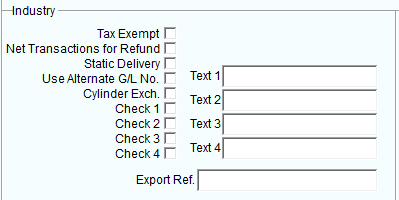
Tax Exempt: Check this box if the customer is exempt from paying sales tax. Additionally, you will be able to enter the customer’s exempt tax code for reference.
Net Transactions for Refund: Selecting this option will refund any balance on the customer’s account if the Net Invoices option is selected while processing refund checks within Transactions > Payments >Print Refund Checks.
Static Delivery: Used with the RDEX Module (Route Scheduling).
Use Alternate G/L No.: Select this option to post all product sales this account to the Alternate G/L account assigned within the Product Charge Codes screen.
NOTE: If the option above is selected and a product posted to the account is not assigned an Alternate G/L, the standard G/L account assigned to the product will be used.
Cylinder Exch (Propane Industry): Switches the account to handheld cylinder exchanges on the handheld.
Check1-Check4: These fields can be renamed and used for options of your choice.
Text 1-4: These fields can be renamed and used for options of your choice.
Export Reference: Not currently in use.
NOTE: For further information on renaming fields in RMA, refer to Chapter 1.04 of the Supplemental Guide.
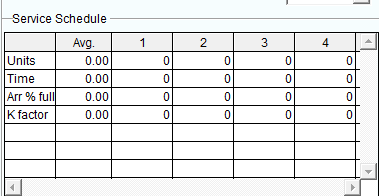
Service Schedule:
The Service Schedule option is part of Degree Day Forecasting. For further information on this topic, refer to Chapter 3.22 within the Supplemental Guide.
Other:
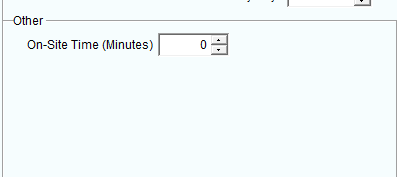
The Other option is used for misc. enhancements to RMA.
Fields :
On-Site Time: Enter the number of minutes needed for a typical delivery stop at this location (used with the RDM Module).
Auto Send Invoice on Upload Via:
This feature will automatically email or fax a copy of each invoice after it has been uploaded / posted (depending on what is selected in Branch Setup) from the handheld. Choose either the customers Delivery or Bill To contact information to send it to.
Delivery Email: Choose this option to automatically email the uploaded or posted invoice to the contact email address on the Route tab.
Bill to Email: Choose this option to automatically email the uploaded or posted invoice to the contact email address on the Info tab.
Delivery Fax: Choose this option to automatically fax the uploaded or posted invoice to the fax number on the Route tab.
Bill to Fax: Choose this option to automatically fax the uploaded or posted invoice to the fax number on the Info tab.
Messages:
Alert: This permanent message will automatically popup on the handheld when the driver selects the customer’s stop.
Driver: This permanent message is used for driving instructions on the handheld.
Hours: This permanent message allows you to enter notes on the hours of operation at a customer’s location.
NOTE: This option requires at least one Time Band, found under File > Branch Setup, on the Handheld tab.
One Time: This message will allow you to select a range of dates to display a temporary message on the handheld.
Site: This permanent message is used for special instructions for the driver at the customer’s location.
Hours: This permanent message allows you to enter the hours of operation at a customer’s location.
NOTE: This option requires at least one Time Band, found under File > Branch Setup, on the Handheld tab.
Invoice: This permanent message will be printed on the customer’s handheld invoice.
Other :
Latitude: Enter the latitude coordinate of the stop.
Longitude: Enter the longitude coordinate of the stop.
Map Page: Enter the map page this stop can be found on within a Thomas Guide or similar.
Key No.: This field can be used to store a key code, and is displayed within the Driver Instructions field on the handheld.
Contact Via (Route Pre-Sale): The method of contact that should be used for this customer.
Frequency (Route Pre-Sale): The frequency that the customer should be contacted.
Videos
A Power Hour webinar on the New Customer Wizard. Originally aired 3/24/2017.