
Introduction
Daily Cost Recording allows you to automatically adjust each customer’s retail price based on the wholesale cost of each product. This feature is typically used if you sell commodities with fixed prices over wholesale. This option is typically used within, but not limited to, the propane industry.
Setting up the Base Cost Code
The first step in establishing Cost Plus Pricing is to create the Product Code that will be used for providing the ‘base’ cost.
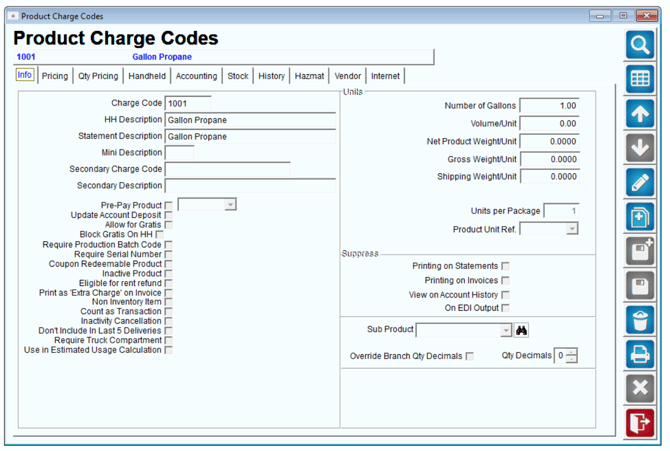
In the example below, the Product Code being used is 1001 for Gallon Propane — this base product must exist even if the district does not sell one gallon propane products.
NOTE: Ensure that the ‘Number of Gallons’ field is set to 1.00, as shown in the graphic below.
Enter all of the default information required to enter a new product code (leave price information at 0.00) and click Save.
Continue to the next section to assign the new Base Product to an item.
Assigning the Base Cost Code
Browse to one of the products that will utilize Cost Plus Pricing and ensure that the ‘Number of Gallons’ field accurately represents the number of gallons included in the container (substitute Gallons for Pounds, Units, etc., if necessary); for example, the product below contains 7.09 gallons.
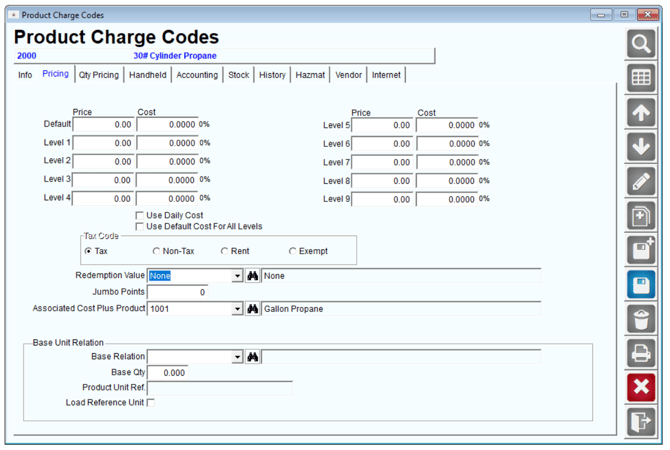
Next, click on the Pricing tab and select the Base Code created earlier within the ‘Associated Cost Plus Product’ drop-down list. Repeat this step for all of the products that will use Cost Plus Pricing.
NOTE: When using Cost Plus Pricing, all price levels will be ignored.
Daily Cost Recording
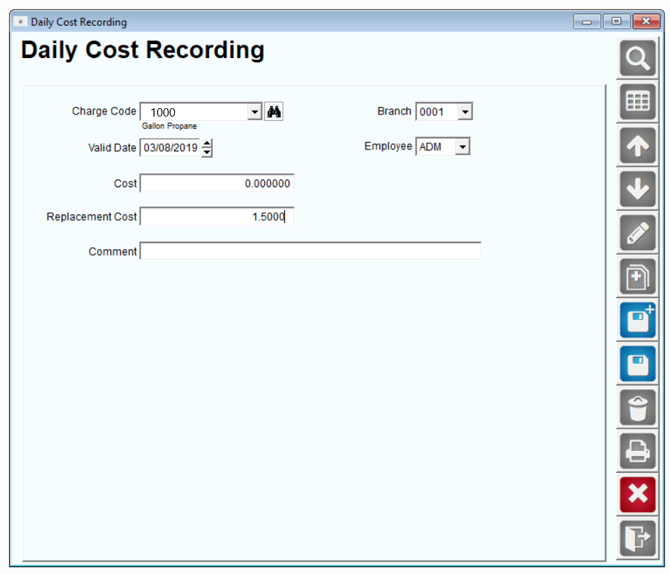
To update the cost from day-to-day, you will use the ‘Daily Cost Recording’ option under Lists > Product Codes.
- Choose the Add option to create a new entry within the Daily Cost Recording screen.
- In the Charge Code field, select the ‘Base Cost Code’ assigned to the products in the previous section.
- Enter a ‘Valid Date’ (when this cost will be used).
- Enter an amount in the Cost field. This is what was paid for the item and is used for reporting only. Will not be used on any pricing or customer accounts (also gets used if the Replacement Cost field is blank).
- Enter an amount in the Replacement Cost field. This is the field that will be used when calculating the Cost Plus amount for the customers pricing. Save the changes made.
NOTE: The current cost and date will continue to be used until a new date and price are entered.
Adding Cost Plus Pricing to Customers
Browse to Lists > Customer Information, and click on the Products tab.
Click Modify and add all of the Cost Plus items that this account will use to the Default Products section of the screen.
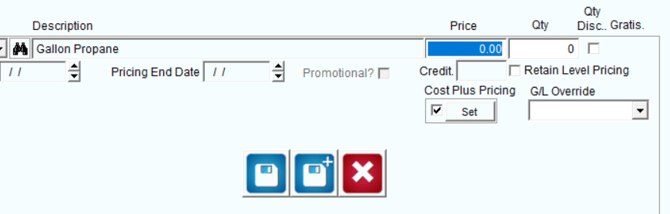
Select the Set button under the ‘Cost Plus Pricing’ label on the screen (shown below).
Enter the amount over cost that this customer will be charged. In this example, a 20 % mark-up will be used (below).
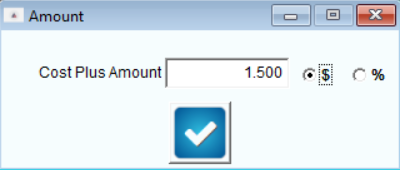
Click OK and Save to close the dialog screen. Note: The cost plus price may not take effect until you hit Save on the right hand toolbar.
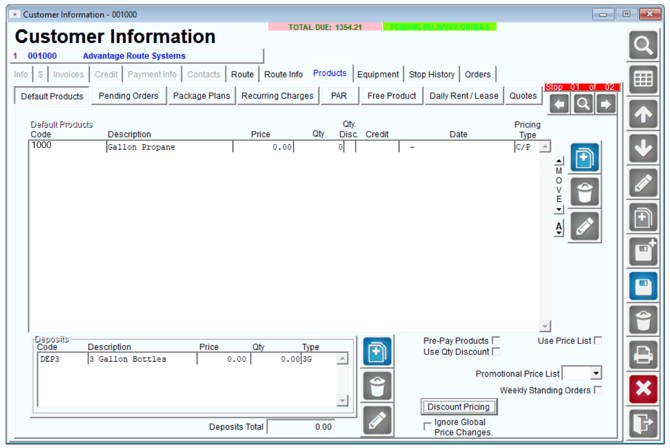
Repeat these steps for each Cost Plus product.
Based on the entry made within the Daily Cost Recording screen and the price over cost entered, this customer’s price will be 85.72. Repeat all of the steps above on each account that will utilize the Cost Plus Pricing option. Once the accounts have been set up properly, you can simply update the cost within the Daily Cost Recording screen to update the prices on each account globally.