
Introduction
This report allows you to print a summary of contact messages entered by your staff for the selected search criteria. The flexible format allows you to see a report by a variety of parameters including dates, operators, and reasons. This will allow you to maintain a high degree of control over customer service personnel so that quality service can be given to your customers. The Contact History Messages report can be found under Reports > Communication Reports > Contact History Messages.
NOTE: Contact history messages are originally entered on the Contacts tab in the Customer Information screen.
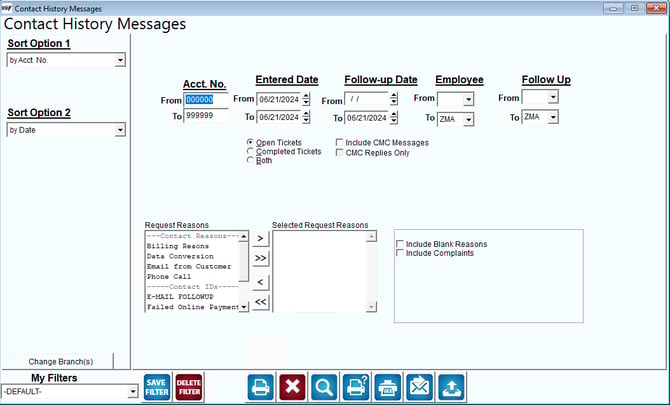
Fields:
Sort Option 1 & 2:The primary and secondary fields to sort by. You can choose from the following categories:
- Account Number
- Date
- Employee
Change Branch: If you are logged into multiple branches, this option may be shown and allows you to re-select the branches to include in the report instead of having to completely exit the report.
Acct No: Enter the range of account numbers to include in the report.
Entered Date: Input a range of dates that the message was entered to include on the report.
Follow-Up Date: Enter a range of follow up dates to include on the report. This allows you to use the report for future items that may be coming due.
Employee: Select the range of employee initials that originally entered the request for this report.
Follow Up: Select the range of employee initials that followed up on the request.
Open Tickets: Will only include the Open Tickets on the report.
Completed Tickets: Will only include the Completed Tickets on the report.
Both: Will include both Open and Completed Tickets on the generated report.
Include CMC Messages: Check this box to have CMC Messages included on the report.
CMC Replies Only: Check this box to have only the CMC replies included on the report.
Request Reasons You may choose the contact message reasons that you would like to include on the report.
 Click this button to move the selected contact message reason from available Reasons to Selected Reasons.
 Click this button to move all of the available contact messages from Reasons to Selected Reasons.
 Click this button to move the selected contact message reason from Selected Reasons to Reasons.
 Click this button to move all contact message reasons from the Selected Reasons to Reasons.
Selected Reasons: This list shows which contact message reasons you are including on the report.
NOTE: You may also double-click on a selected item to move it from one area to the other.
Include Blank Reasons: Select this box to include blank reasons on the report.
Include Complaints: Select this box to include contact notes under the Complaints group.