
When you create an order on Mango Web, an email is automatically sent to the customer. This email contains links or attachments as configured in the Mango Web Settings. These links allow customers to access additional details or documents related to their order. This article will go over how to configure this set up in RMA and Mango Web.
SetupTo configure Mango Web settings:
- Navigate to RMA.
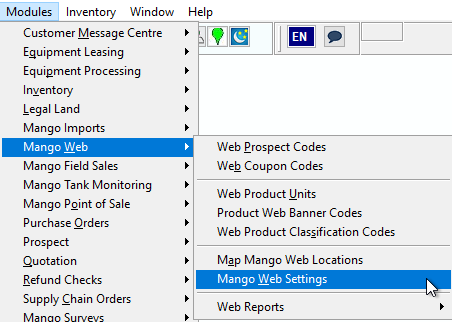
- Go to Modules > Mango Web > Mango Web Settings.
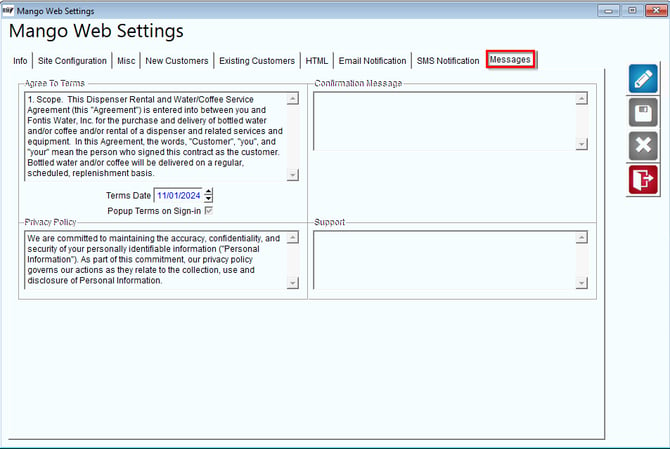
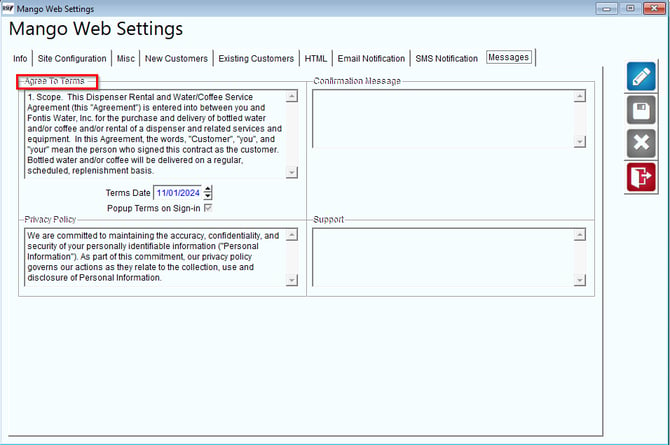
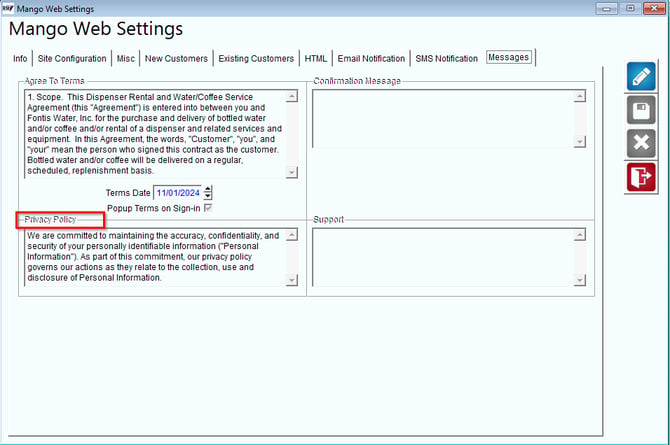
3. Select the Messages tab. Here, you can configure and view settings for:
- Agree to Terms
- Privacy Policy
- Confirmation Message
- Support
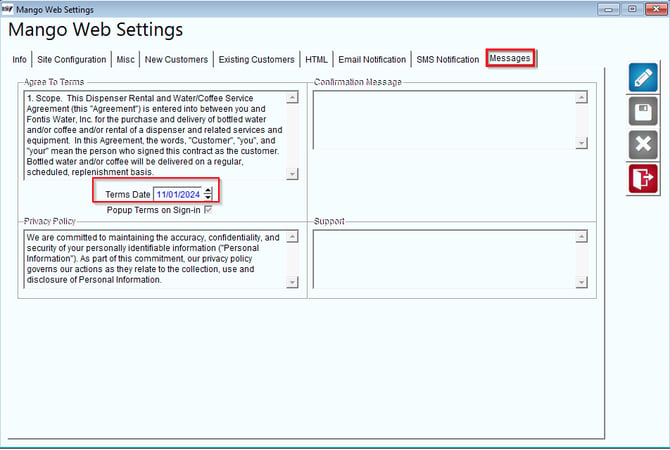
Terms Date
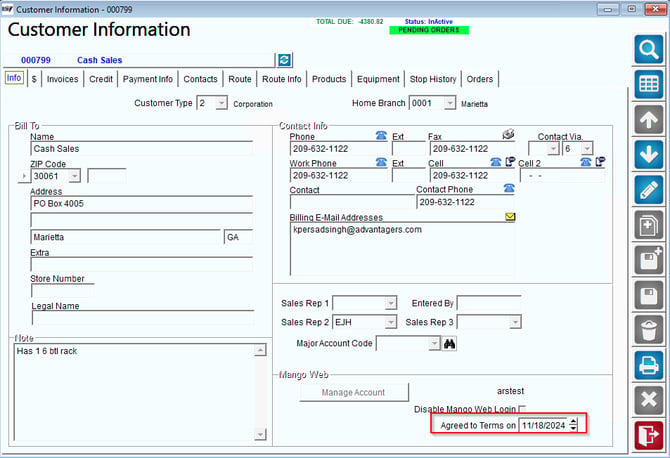
Confirm that the Terms Date on the customer account is correct:
- Navigate to Lists > Customer Information.
- Go to the Info tab and check the bottom-right corner to find the "Agreed to Terms" date.
- Ensure this date falls within the parameters of the Terms Date configured in Mango Web Settings.
Here is the Terms Date as configured in Mango Web Settings:
Here is the Agreed to Terms Date under Customer Information:
Process
Once you have configured the settings in the Messages tab:
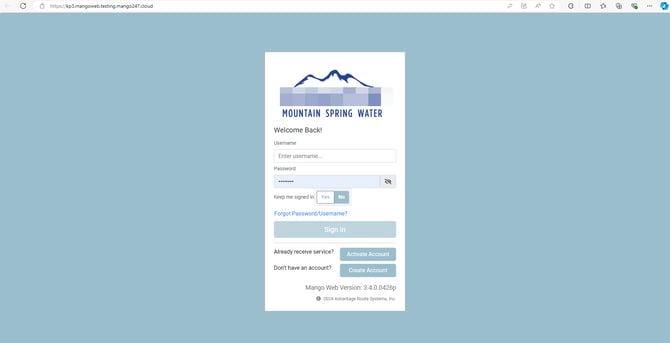
- Log in to Mango Web
- Open Mango Web and log in using your credentials.
2. Agree to Terms
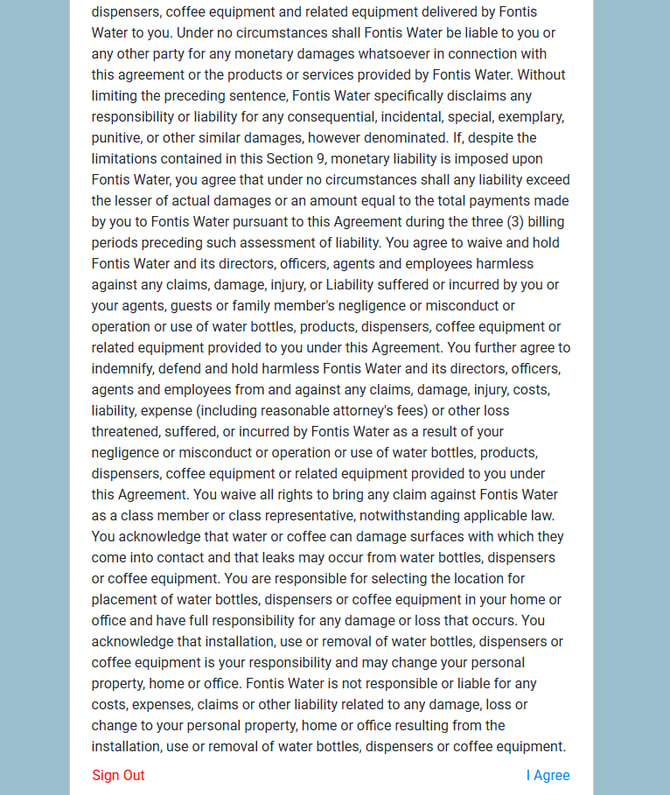
- Upon logging in, the Agree to Terms page will appear.
- Select I Agree to accept the terms and proceed.
- If you do not agree to the terms, select Sign Out, which will redirect you to the login page. You will not be able to proceed further without agreeing.
3. Access Mango Web
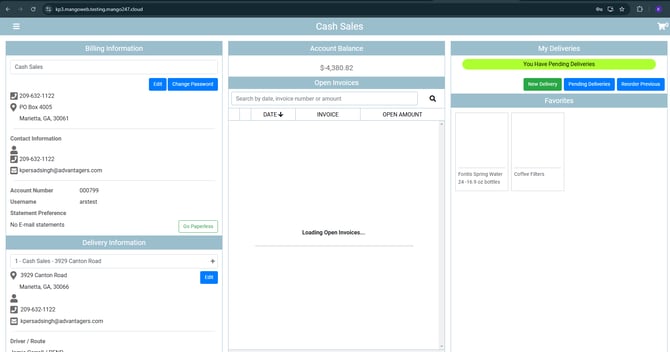
- After agreeing to the terms, you can proceed to use Mango Web as needed.
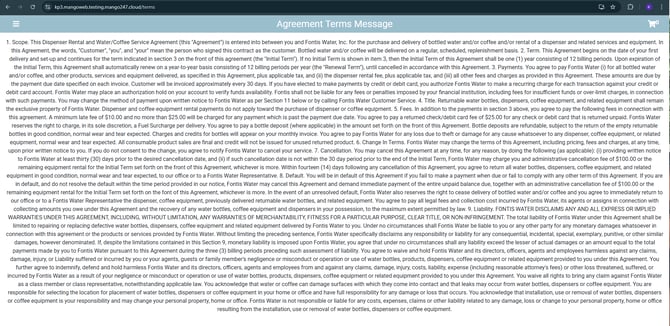
Agree To Terms
To configure and view the Agree to Terms message in Mango Web:
- Navigate to your Mango Web URL.
- Add "/terms" to the URL (e.g.,
example.com/terms).

3. This will take you to the Agreement Terms Message page, where the entire message can be viewed.
Privacy Policy
To configure and view the Privacy Policy in Mango Web:
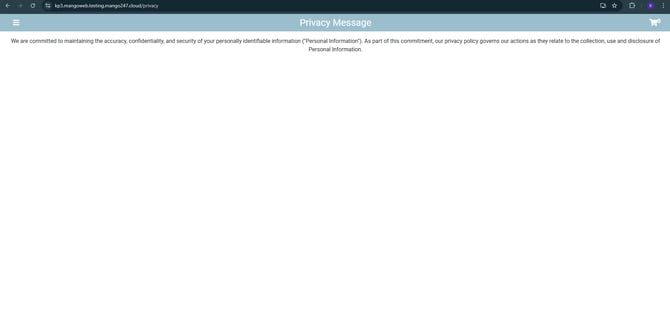
- Navigate to your Mango Web URL.
- Add "/privacy" to the URL (e.g.,
example.com/privacy).

3. This will take you to the Privacy Policy Message page, where the entire message can be viewed.
Support
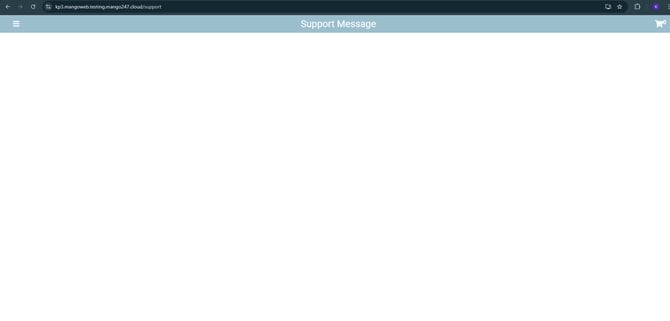
To configure and view the Support message in Mango Web:
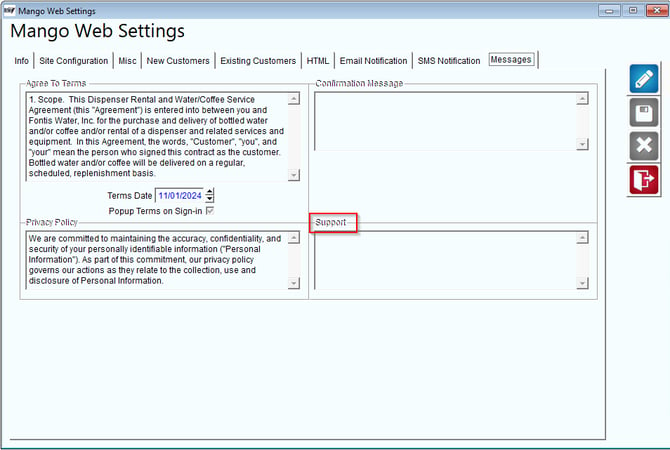
- Navigate to your Mango Web URL.
- Add "/support" to the URL (e.g.,
example.com/support).

3. If configured, this will take you to the Support Message page, where the entire message can be viewed
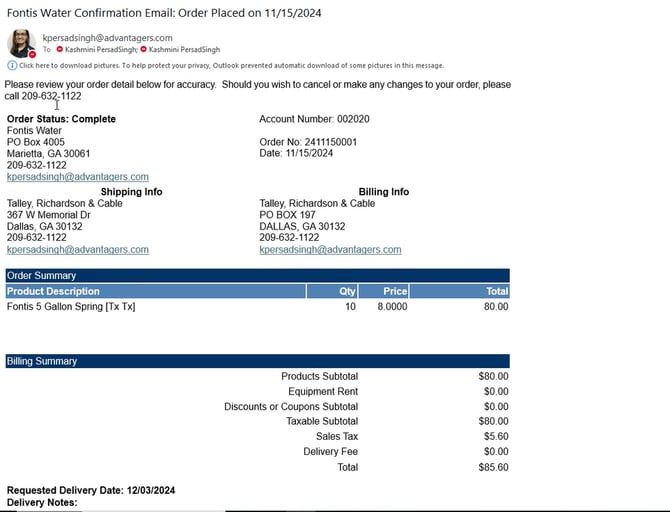
Email Receipt Example
Here is an example of the email receipt sent to the customer. Ensure the email includes links to the following pages for easy access:
- Terms of Service:
url/terms - Privacy Policy:
url/privacy - Support:
url/support
This article explains how to set up and manage email messages in Mango Web, including configuring terms, privacy policies, and support messages in the Mango Web Settings. It outlines the process for logging in, agreeing to terms, and accessing Mango Web, as well as how to view specific messages by appending URLs for terms, privacy policies, and support.