

Setup
Creating Audio Codes
Audio Codes are an automated call communication method. You can setup multiple codes depending on your needs.
You are free to use any method to record audio codes, your audio codes must be in one of the following formats:
.wav
.mp3
.aiff
.gsm
.ulaw
Note: Although the file size isn’t restricted, we recommended a length of 45 seconds or less to accommodate all standard/transcribed voicemail providers. Messages in excess of three minutes may cause your customers voicemail to be incomplete.
1. In Route Manager, navigate to the Modules > Customer Message Centre > Audio Codes screen.
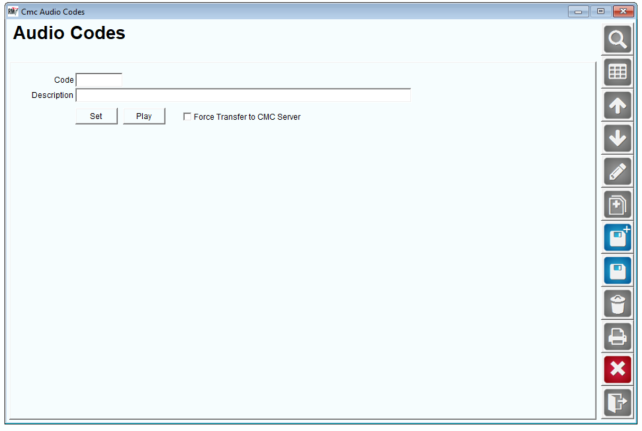
2. Once in the Audio Codes screen, select the Add button to create your new Audio Code.
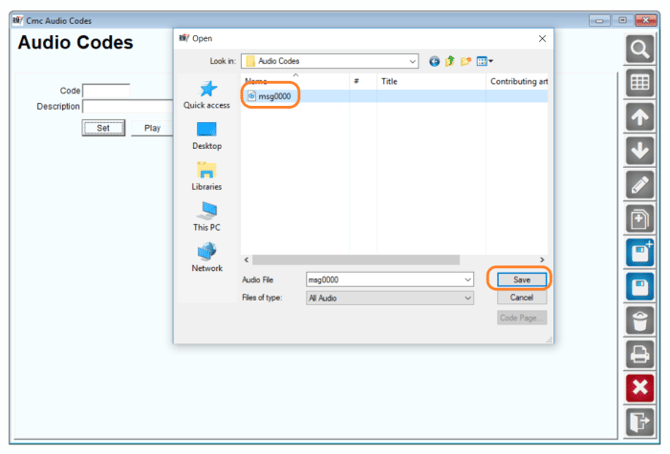
3. Enter an alphanumeric (0-9 or A-Z) for the Audio Code, a Description and then select a Set to select your audio file.
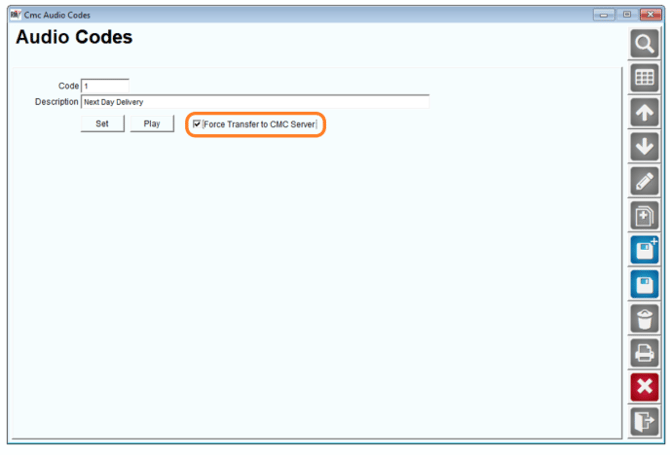
4. Once you have saved your audio file you will select Force Transfer to CMC Server, selecting this will force update your new audio file. If you are updating or changing an existing audio file you will want this to be selected as well.
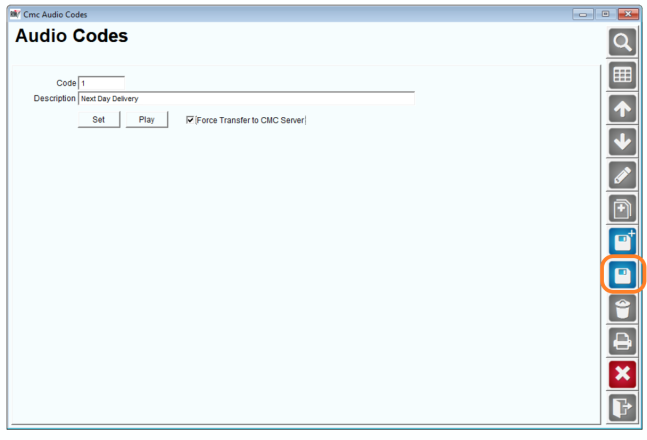
5. When all of the following steps have been complete you will save your Audio Code.
6. To Use your Audio Code your customer must have a Contact Via Code that is set to an Automated Voice Call.
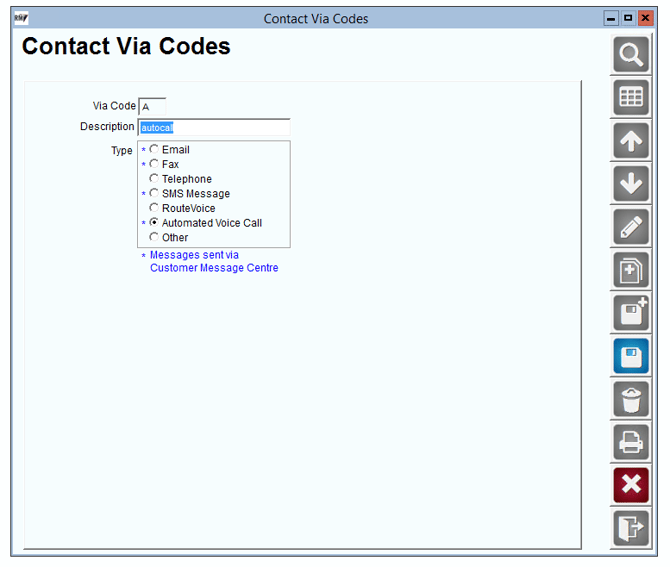
Creating Contact Via CodeNavigate to Lists> Customer Setup Codes> Contact Via Codes, select ADD. Enter a Via Code, Description and select Automated Voice Call. This will allow your customers to receive your automated voice call whether it is an audio code or a text to voice CMC message.
After you have created the Contact Via Codes, you’ll need to assign them to each customer you wish to contact. This can be easily done from within the Route Information tab in Customer Information.
1. Locate the Lists > Customer Information screen, and navigate to the Route tab.
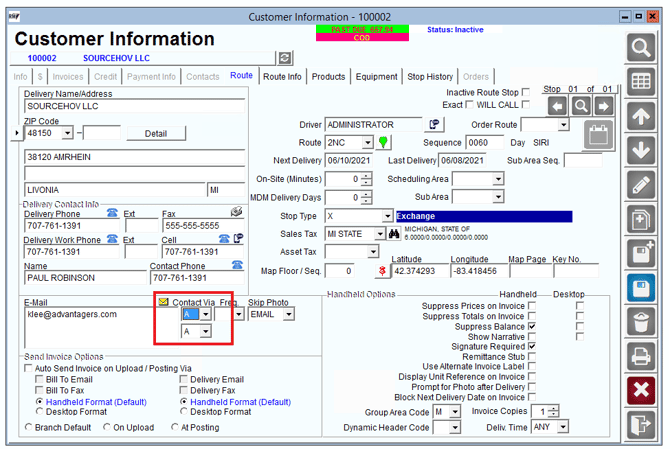
2. Locate the Contact Via items on the screen (RMA example shown):
3. Select the Modify button on your menu.
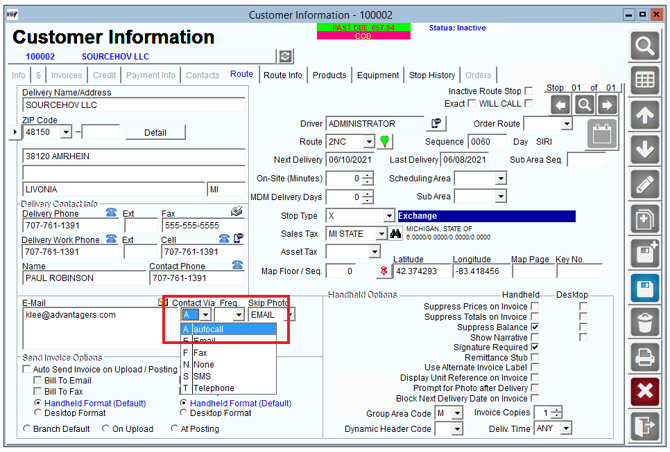
4. Press the drop down button located next to the Contact Via code fields. Choose an available Contact Via code from the list. Both Contact Via codes are not required, you may choose to only use one code at a time. This depends on how many ways a customer wishes to be contacted by your company.
5. After the Contact Via codes are selected, select the Save button to save this stops settings.
6. Repeat for each additional customer.
Sending Audio Codes1. If you would like to generate a message with your Audio Code, you will simply navigate to Modules>Customer Message Centre> Generate Messages. Fill out the criteria for whom you would like to receive this message, and select Use Audio Code to the right of the Automated Call Template portion. When you select this option, you will be given a dropdown list of all of your available audio codes.
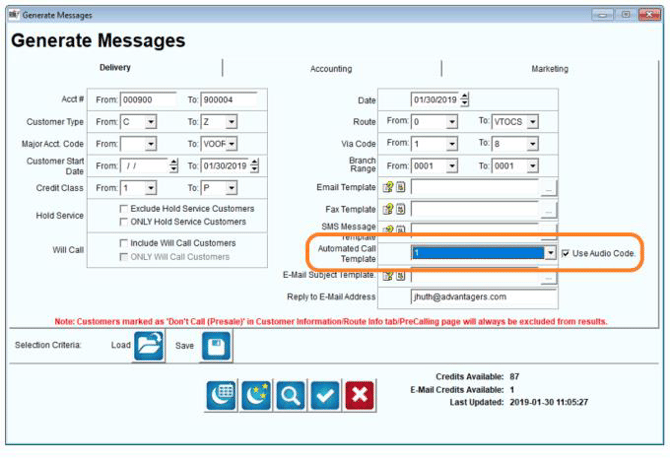
2. Once selected it will generate all customers who fall within the criteria outlined. They will all receive their Audio Call.
Choose a Language, Voice, & Caller ID for Message CentreBy default, the Customer Message Centre system uses the English language as well as a Male voice. You can override these defaults by following these instructions.
You can also set the Caller ID feature to show your business phone number. This feature is ONLY compatible with Automated Voice Calling at this time and will not work for SMS Text Messaging.
1. Navigate to the Modules > Customer Message Centre > Setup screen.
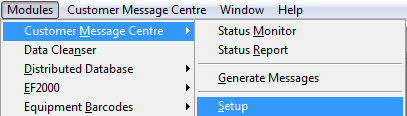
2. Select a Voice option from the Voice dropdown
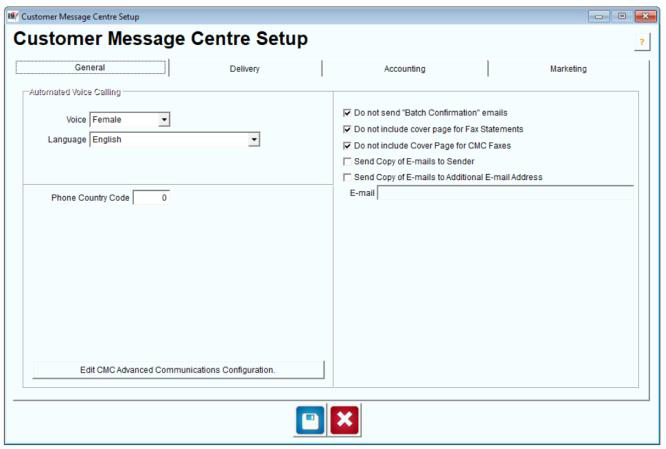
3. Choose a Language from the dropdown.
Note: Language is simply the accent used when using the Automated Voice Calls. Your template will also need to be written in the language(s) you prefer.
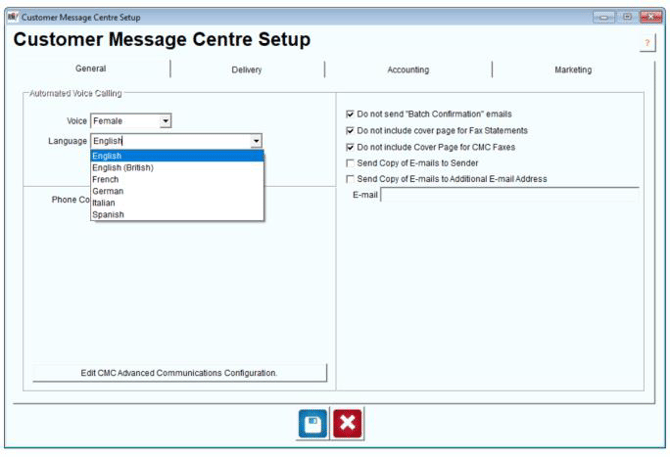
4. Select Edit CMC Advanced Communications Configuration to set your Caller ID phone number.
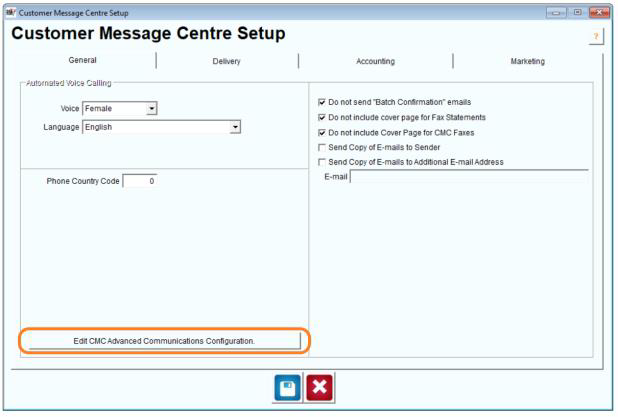
5. At the bottom of this screen, input the Phone Number you would like to use.
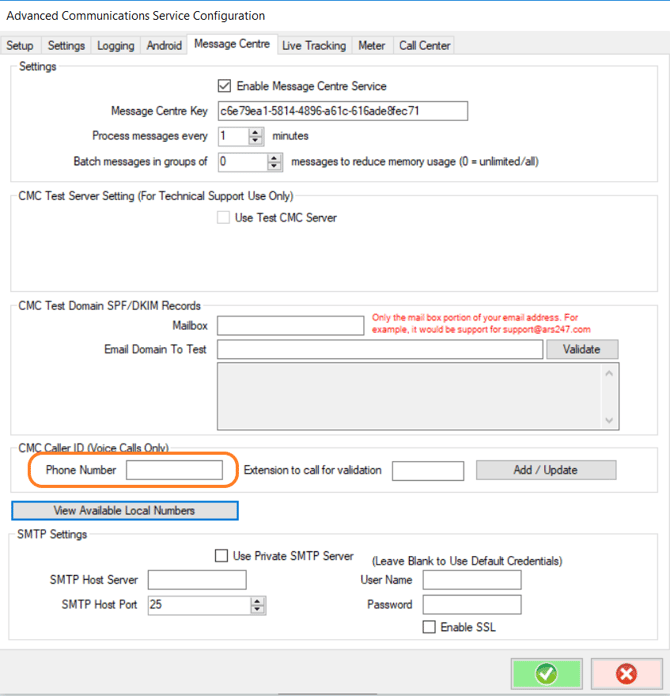
6. Select Add/Update button. You will see a pop-up box, giving you a Verification Code. You will immediately receive an automated call to this phone number and you will be required to input this Verification Code to verify your Caller ID phone number. Click OK when finished.
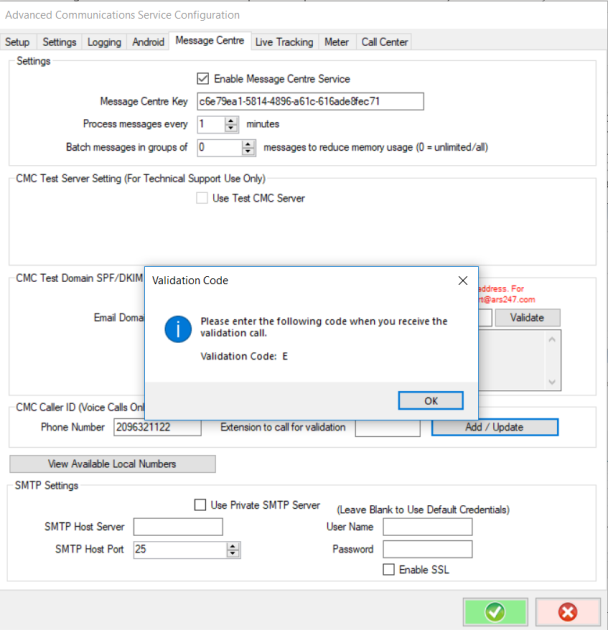
7. Select the OK button to save the changes.
Automated Voice Call Template ExamplesAutomated Voice Messages can be used to call a customer and deliver a message to them. The system will automatically convert the text to a voice phone call. Voice templates will be indicated by the “.AVT” file type.
NOTE: A maximum of 1500 Characters (including spaces) is allowed per Automated Voice Notification messages. That roughly equates to about a one and a half minute call. If more than 1500 characters are found, the call will be marked in the Status screen and in the Confirmation Email that the maximum character limit has been exceeded.
Navigate to Modules> Customer Message Centre> Manage my CMC Templates> Voice Template Type.
Enter the text that you would like your customer to receive for their reminder. When creating text to voice message be aware that since it is an automated voice pronunciation can be tricky. Be sure to spell more difficult words phonetically so that the translated message is well received and clear to your customer.
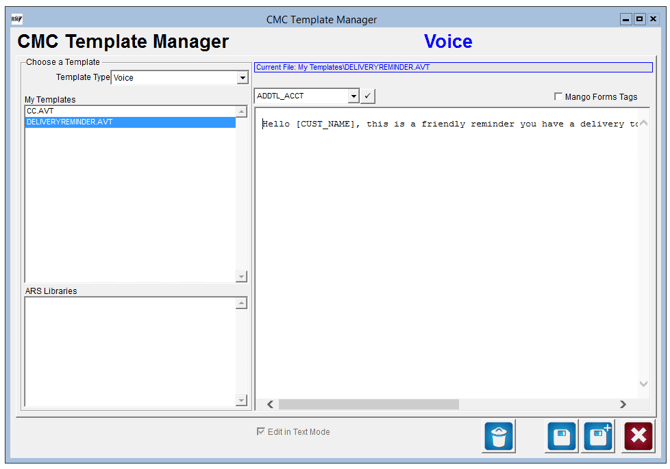
Example Template for reminding a customer of their upcoming delivery:
Hello [CUST_NAME], this is a friendly reminder you have a delivery tomorrow morning from Luh Blue Water Company. See you soon!
The customer would then receive a normal telephone call from the automated system. If the customer doesn’t answer and they have a Voice Mail Box or Answering Machine, the message will be left for them.
Example of what the Customer would receive:
Hello John Smith, this is a friendly reminder you have a delivery tomorrow morning from Le Bleu Water Company. See you soon!