
Introduction
This article provides a step-by-step guide for using the new Export Option on the Status Report window within the Customer Message Centre (CMC) module. This feature allows users to easily download status reports as CSV files, providing flexibility for data export and review.
Steps to Use the Export Option
- Navigate to the Customer's CMC Status Report:
- In RMA, go to Modules > Customer Message Centre > Status Report.
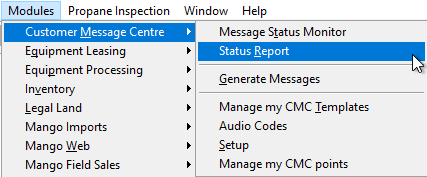
- In RMA, go to Modules > Customer Message Centre > Status Report.
- Set Filters:
- Once the Status Report window opens, apply the desired filters to narrow down the data displayed in the report.
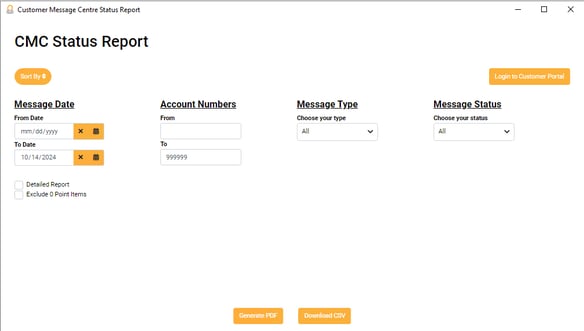
- Common filters might include Message Date, Account Numbers, Message Type, and Message Status.
- Once the Status Report window opens, apply the desired filters to narrow down the data displayed in the report.
- Export the Status Report:
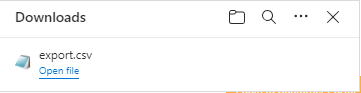
- After setting the filters, press the Download CSV button.
- The system will generate a CSV file containing the filtered report data.
- Verify Exported Data:
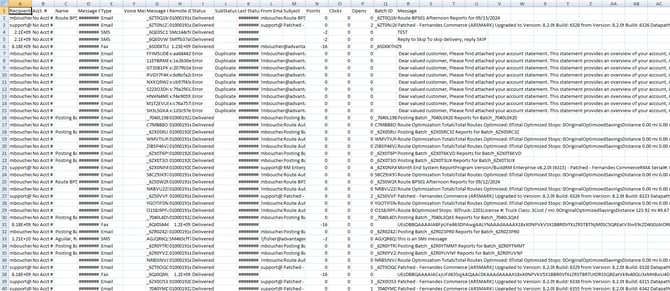
- Open the downloaded CSV file and verify that the data matches the filters you applied and the report details you expect.
- Ensure all fields and data points are correctly formatted and displayed in the CSV file.
Summary
The addition of the Export Option on the Status Report window streamlines the data extraction process in the Customer Message Centre, allowing users to download filtered data directly as CSV files.