
Overview
Need a way to send all contacts in your customer base an email/sms/voice blast, well we have a feature that will allow you to do just that! In this article we will review how to generate your template and generate your message in CMC. To have this feature you must be on RMA version : 710 R4 (4433) or newer.
Note: This article will go over the process of creating the different message types and using them in a one time Blast email. If you would like to setup automated messaging, refer to this article: https://advantageulibrary.knowledgeowl.com/help/cmc-nap-process-through-generate-messages
For any Voice Calls, Faxes or SMS Blasts, you will need to make sure points have been purchased to generate the message.
Steps/ProcedureBlocked Message Settings
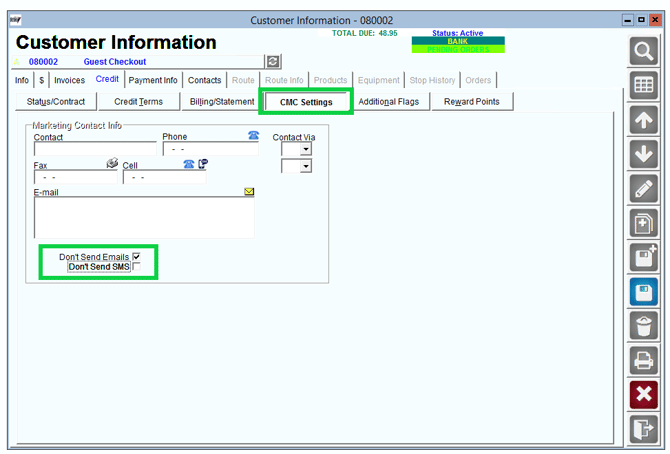
First you will want to make sure that your customer accounts are not set to block any marketing emails. You can check this by going to the Customer's Account>Credit Tab>CMC Settings.
There are two different setting options, 1 to block the Emails and another to block the SMS messages. You will want to make sure that neither of them are checked for the accounts you want to notify.
Next you will need to create the actual message template that you will be sending out to your customers.
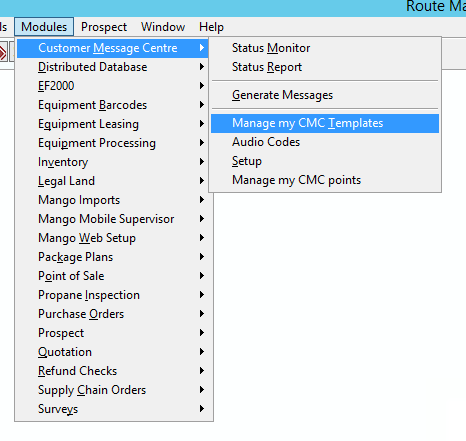
To create your message, please navigate to Modules> Customer Message Centre> Manage my CMC Templates
You will need to select the proper Template Type for the message you are wanting to create/send out.
- SMS
- Automated Voice Call
- Fax
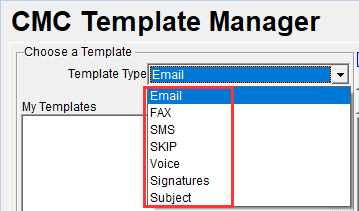
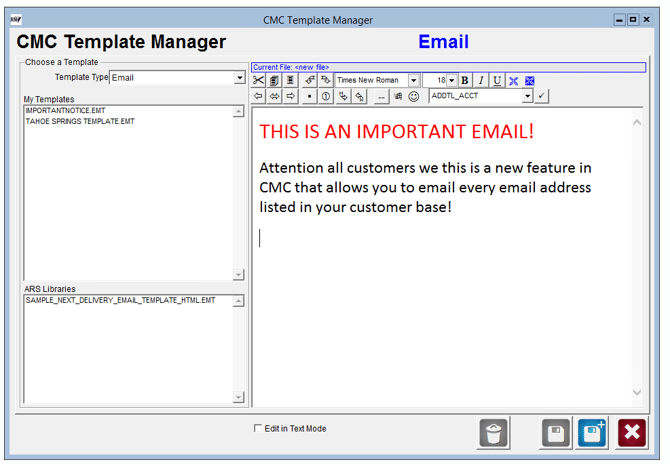
Make sure your template type is set to 'Email' and begin to enter the body of your email in the box to the right.
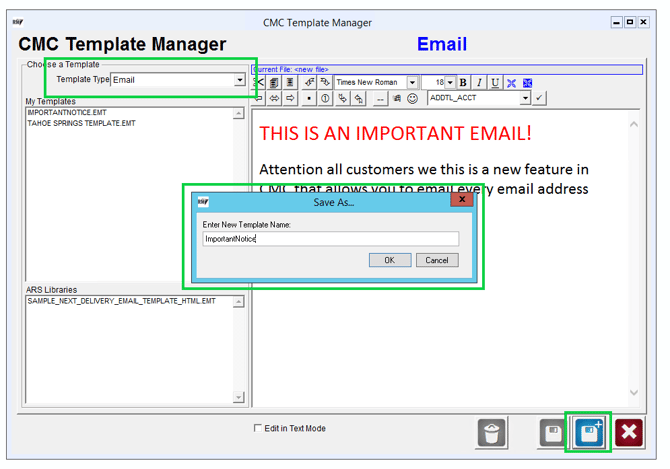
After you have your email formatted, you will need to select the save button and enter a template name.
NOTE: The system does not allow spaces so you will need to input a dash or underline to separate the words.
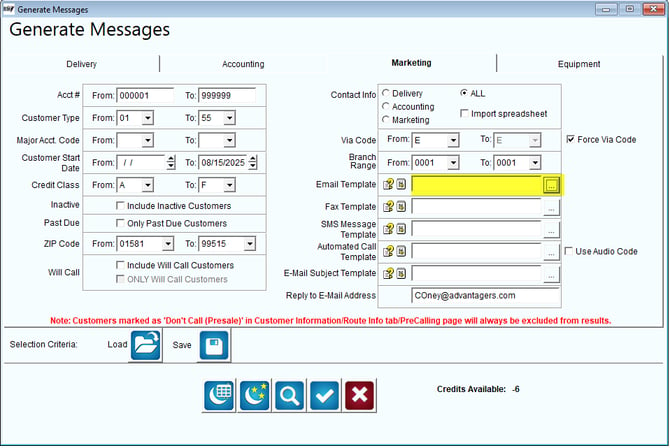
Once saved, the message will now be available for you to use in the Generate Messages window for your email blast.
SMS
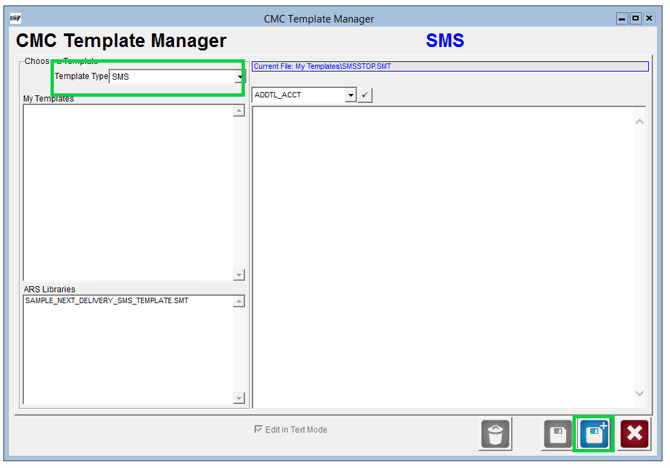
If you are sending out an SMS message please choose the 'SMS' template type then enter your message for your SMS message.
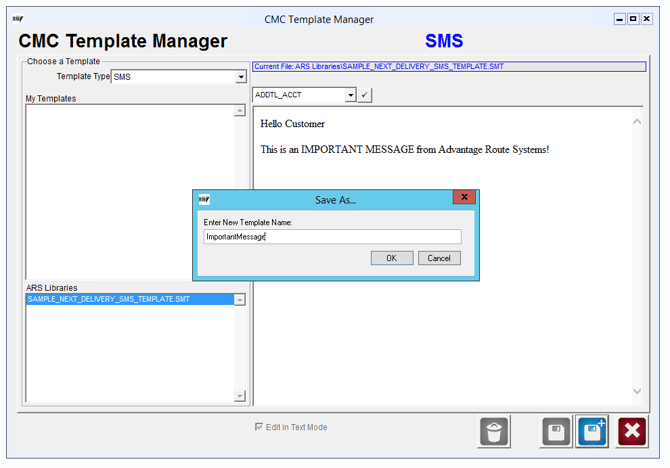
After you have your SMS formatted, you will need to select the save button and enter a template name.
NOTE: The system does not allow spaces so you will need to input a dash or underline to separate the words.
Once saved, the message will now be available for you to use in the Generate Messages window for you SMS blast.
Automated Voice Call
If you are sending out an Automated Voice message please choose the 'Voice' template type then enter your message for your Voice Message.
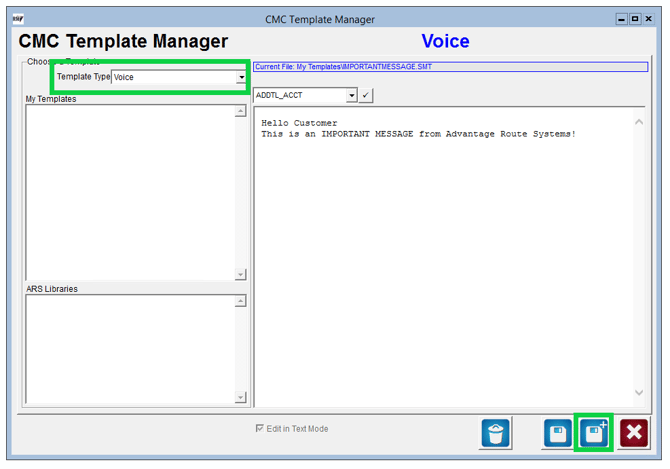
After you have your Voice Call formatted, you will need to select the save button and enter a template name.
NOTE: The system does not allow spaces so you will need to input a dash or underline to separate the words.
Once saved, the message will now be available for you to use in the Generate Messages window for your Voice Call blast.
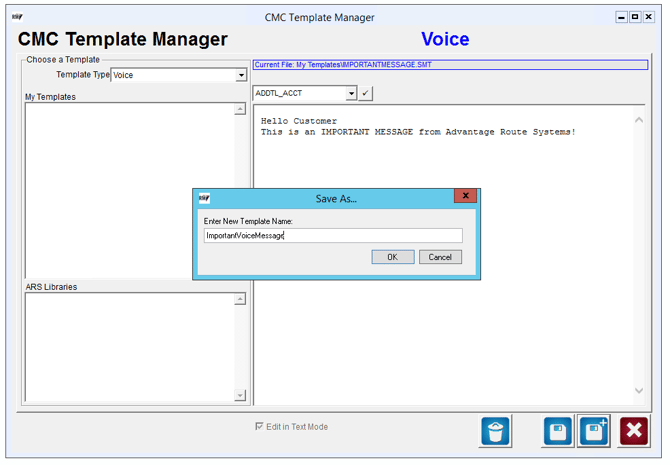
Note: If you need assistance setting up an elaborate CMC Template to send out to your customer base please feel free to contact our tech support staff at support@AdvantageRoute.com
Creating/Using Audio Codes
Audio Codes are an automated call communication method. Where you can created your own audio recording to send out to your customers.
You are free to use any method to record audio codes, your audio codes must be in one of the following formats:
• .wav
• .mp3
• .aiff
• .gsm
• .ulaw
Note: Although the file size isn’t restricted, we recommended a length of 45 seconds or less to accommodate all standard/transcribed voicemail providers. Messages in excess of three minutes may cause your customers voicemail to be incomplete.
1. In Route Manager, navigate to the Modules > Customer Message Centre > Audio Codes screen.
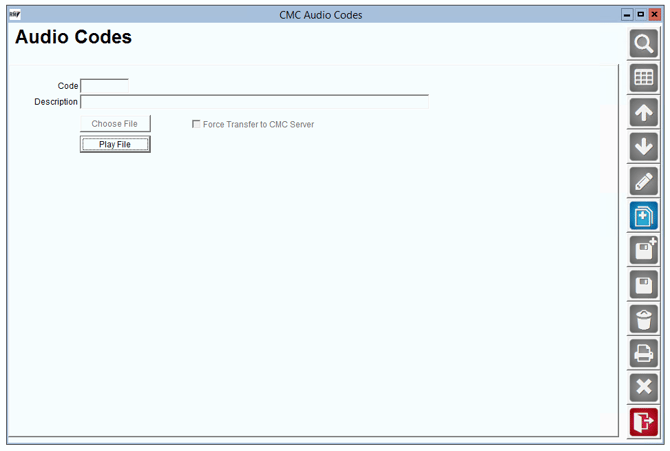
2. Once in the Audio Codes screen, select the Add button to create your new Audio Code.
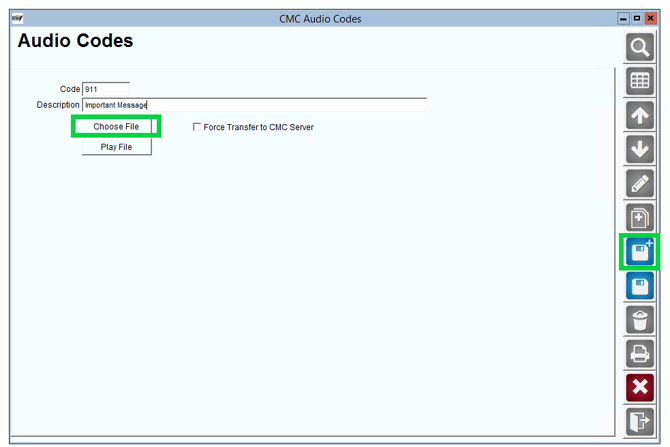
3. Enter an alphanumeric (0-9 or A-Z) for the Audio Code, a Description and then select a Set to select your audio file.
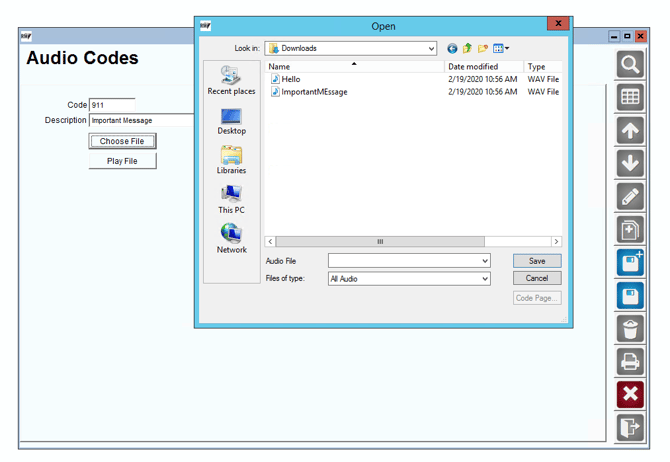
4. Once you have saved your audio file you will select Force Transfer to CMC Server, selecting this will force update your new audio file. If you are updating or changing an existing audio file you will want this to be selected as well.
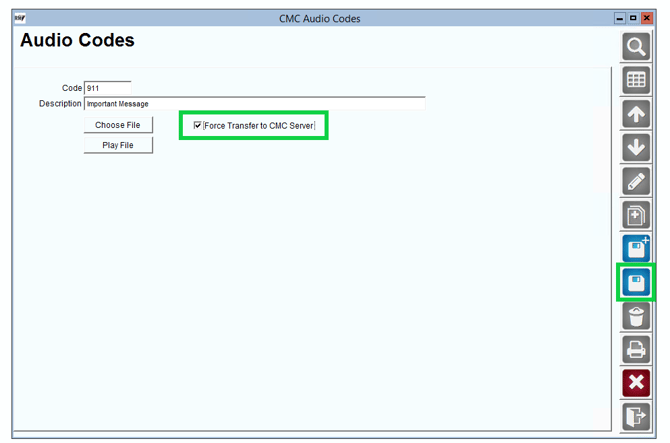
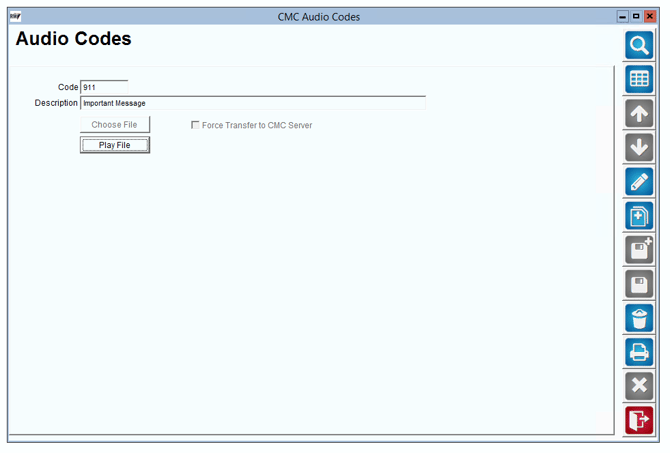
5. When all of the following steps have been complete you will save your Audio Code.
Once your template is saved, please navigate to Modules> Customer Message Centre> Generate Messages
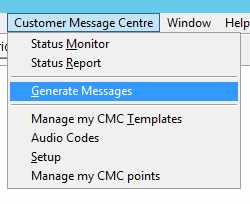
In Generate Messages, navigate to the 'Marketing' tab.
Fill in each field for the required information the customer has to have in order to receive the message.
Note: If this is going out to all customers for all branches, you can leave the field ranges as the default so it picks up everything.
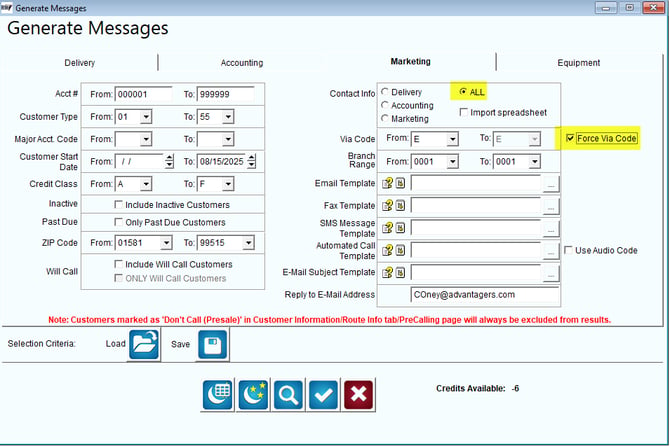
There are 3 important options you will want to review when sending out your mass email.
1. On this tab you have a new setting under contact info labeled 'ALL' , this will allow you to only send ONE copy of the message to each address in RMA. This prevents you from sending a duplicate email to customers who have their email address entered in multiple locations on a customer account. This will also work for SMS Messages.
2. The second setting is the 'Force Via Code' flag. This allows you to send an email blast to all emails regardless if they have an email contact via code on their account.
Preview- Email
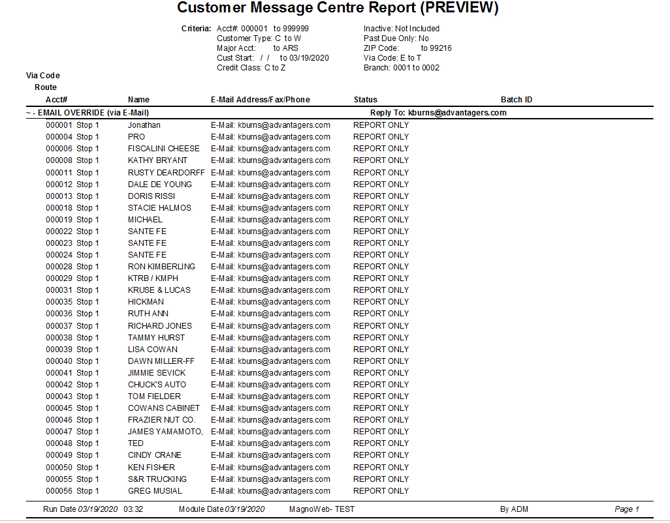
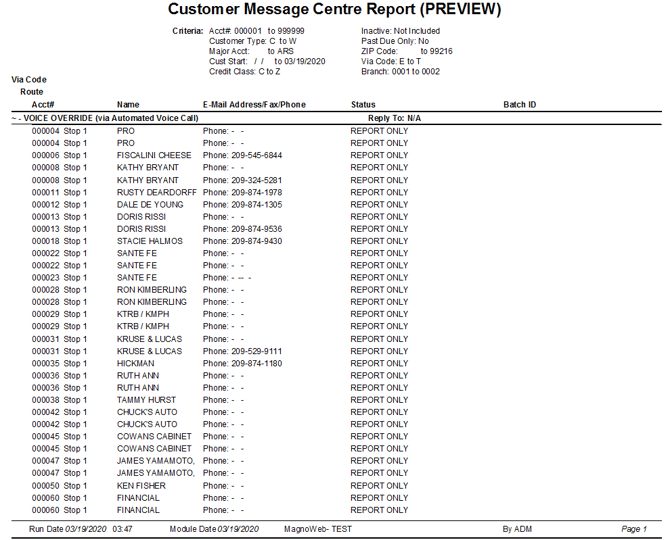
You can select the magnifying glass to preview all the accounts that will be notified. The below image is an example of that report preview:
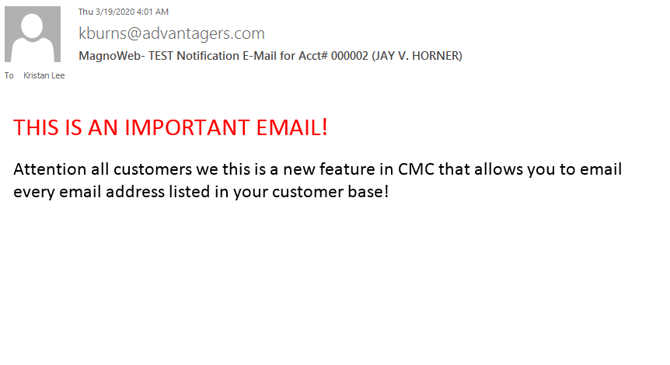
 Example Message:
 Where to enter your SMS Template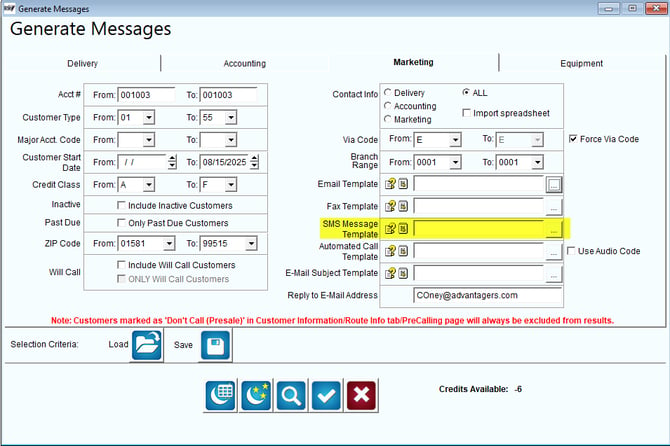
Preview-SMS
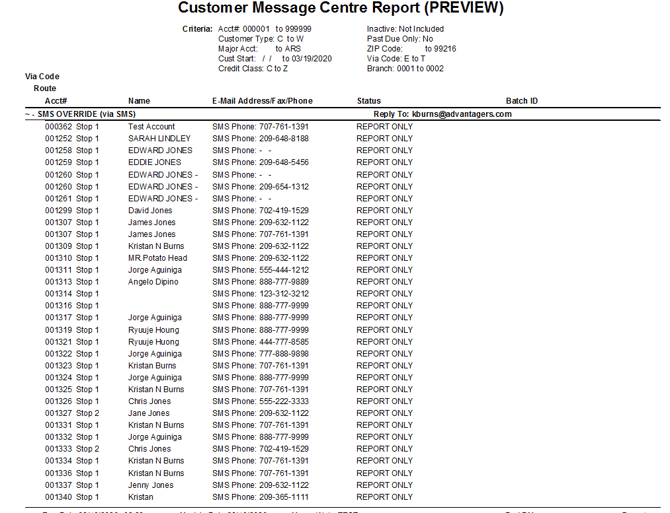
You can select the magnifying glass to preview all the accounts that will be notified. The below image is an example of that report preview:
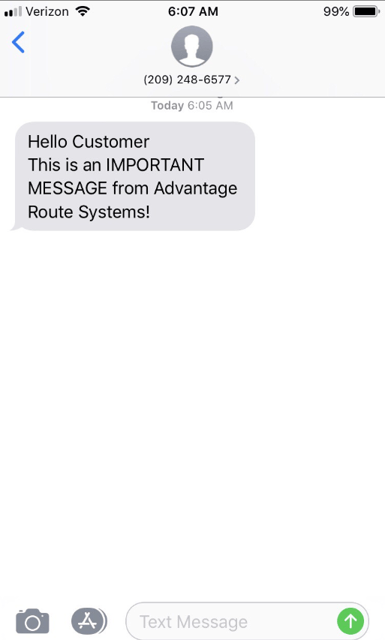
Example Message:
 Where to enter your Voice Template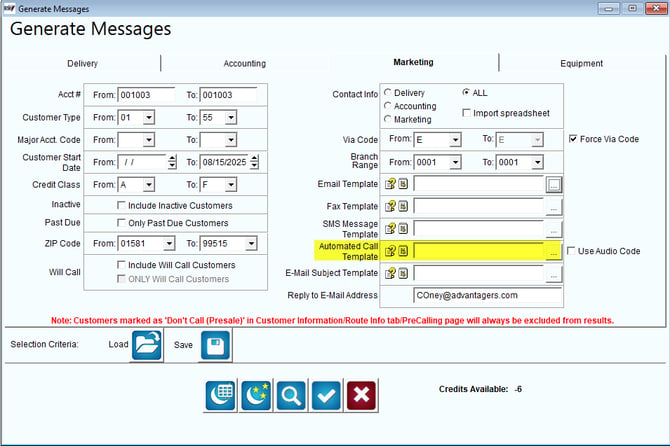
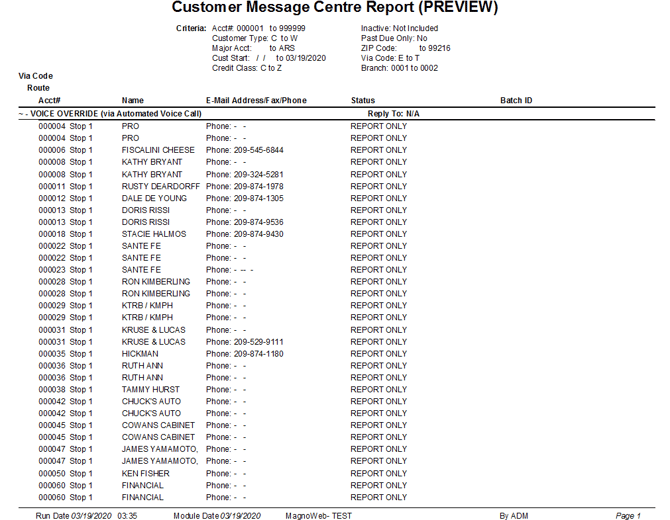
Preview- Voice
You can select the magnifying glass to preview all the accounts that will be notified. The below image is an example of that report preview:
Where to enter your Audio Code
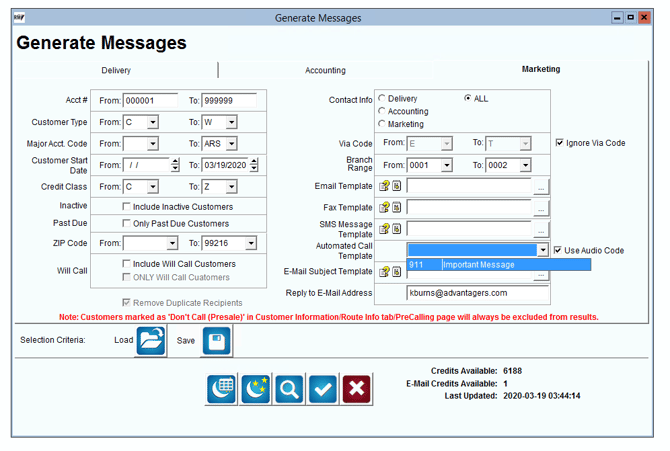
Preview- Audio Codes
You can select the magnifying glass to preview all the accounts that will be notified. The below image is an example of that report preview:
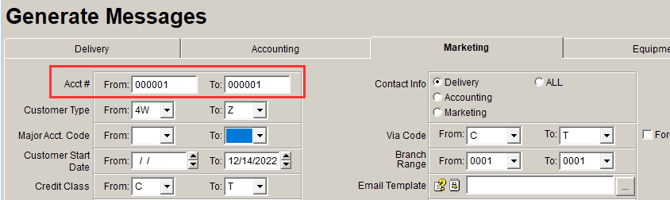
It is highly recommended that you send yourself a test message with the same criteria you would use for the customers. You can do this by inputting the criteria and templates, then changing the account range field to one specific test account.
Send the test email out so you can confirm there are no additional attachments in the "Presale" folder that you do not want going out.
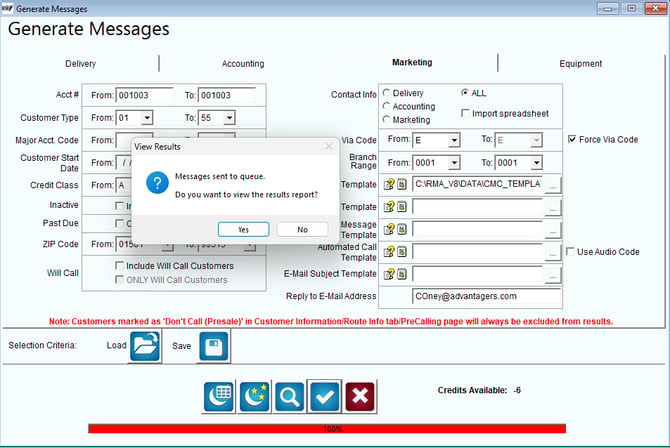
Sending out the Blast MessageOnce you have confirmed that all information is correct and you have sent a test message to your account, click the Blue Checkmark to send out your messages.
Where the Email/Phone Number Pulls From
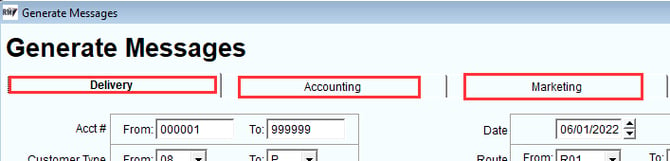
There are 3 locations that are used to pull the customers Email address.
Delivery: Will pull from the Route tab.
Accounting: Will pull from the Info tab.
Marketing: Will pull from the Credit/CMC Settings Tab.
More InformationIf you have any questions about setup please contact our tech support staff at support@AdvantageRoute.com
For More information on Customer Message Centre here is a link to the manual: https://advantageulibrary.knowledgeowl.com/help/customer-message-centre