

The purpose of this article is to walk you through the steps of adding an image to your Email CMC Templates.
Setup1. The image must be web hosted. Web hosting is when a hosting provider allocates space on a web server for a website to store its files, they are hosting a website. Web hosting makes the files that comprise a website (code, images, etc.) available for viewing online.
Note: Image size should not exceed 100 KB. The smaller the image the better.
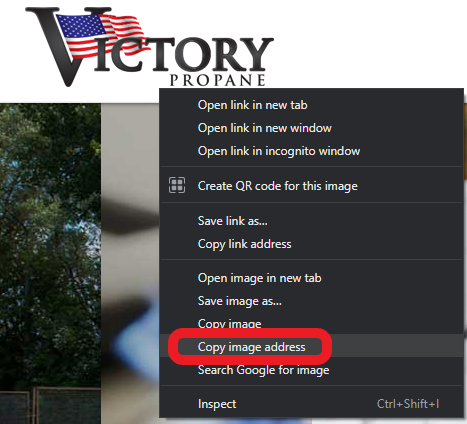
2.When you locate your web based image you will right click on the image and select "Copy Image Address" This will allow you to copy the image's web address, or "image URL". This simple means that this URL (Web Address) will lead you to the images own webpage.
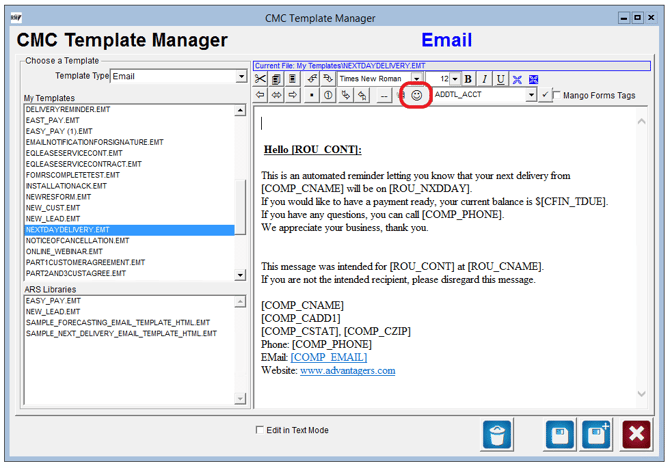
3. To add the image to your template navigate to Modules> Customer Message Centre> Manage my CMC Templates. Select your email CMC Template, select the Add Image Icon (smiley face).
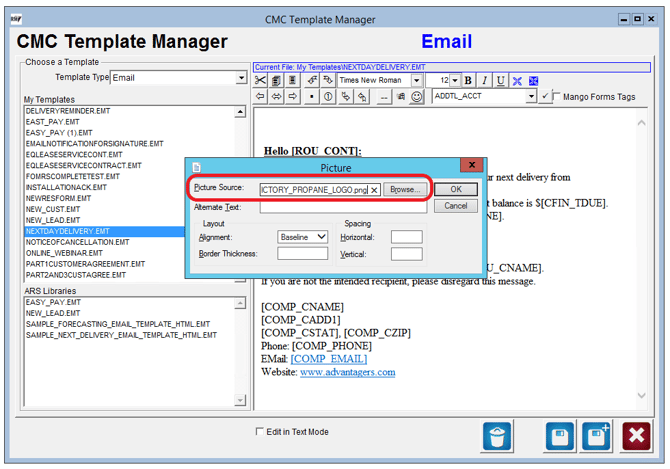
4. Once selected you will enter your image URL into the Picture Source field.
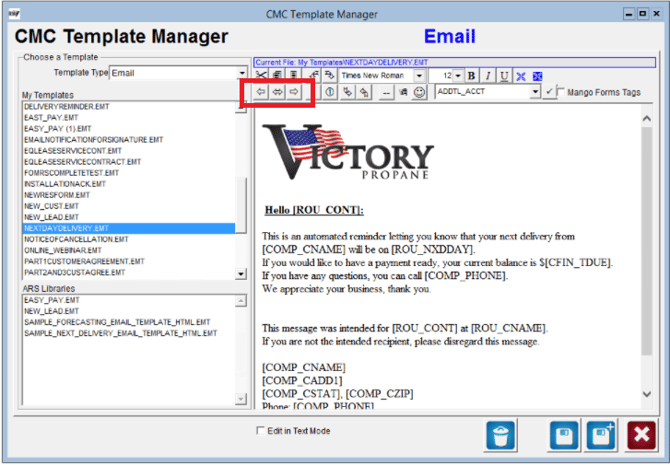
5. Select OK to see your image on your CMC Template. If you would like to manipulate the positioning of the image select the right, left, or centered arrows
6. If your image is not hosted on the web or if you tried to copy and paste your image into your cmc template you will see the icon below OR you will be able to view the image in the template but not in the customers actual email.
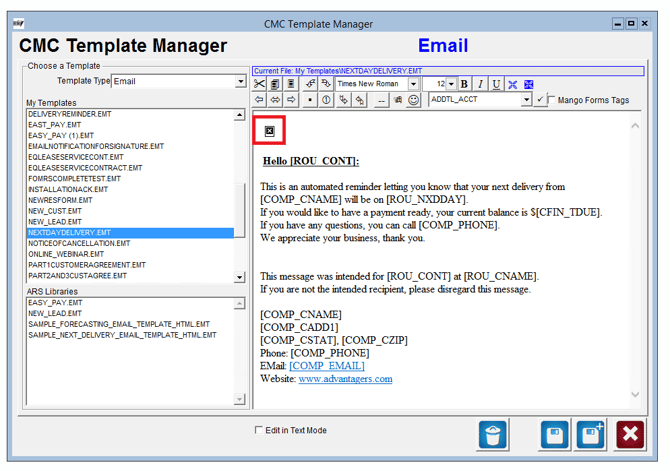
NOTE: The image size CANNOT be manipulated through the CMC Template editor. The size of the image that is hosted on the web will be the size that is displayed in your customers email.
Need More Help?If you need further assistance please contact ARS Support at suppport@advantageRS.com or 209-632-1122