Introduction
In Route Manger, you are able to predict, calculate, and track truck load and truck capacity in real time. This is useful in scenarios such as:
- Understanding whether you have enough room on a truck to operate safely as you set up routes
- Keeping an eye on drivers in Mango Dispatch Manager to determine how much product they're using during the day
- Doing route reorganizations and other route evaluations
Without these vital statistics, you can find yourself operating unsafely and inefficiently. Don't be taken by surprise or left to guess! Set up your system today so that you know exactly what your trucks and routes are doing.
Choosing the Proper Measurement
Before we begin to set up the proper capacity measurement, we must first define what these measurements are so that you can determine which one will be most relevant to you.
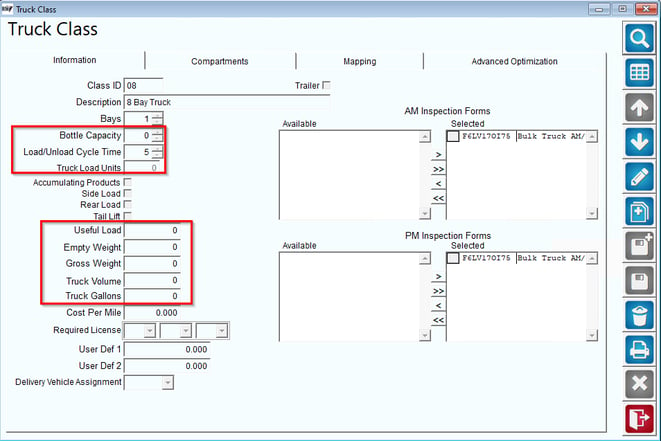
- Useful Load - the maximum weight of product trucks assigned to a truck class can carry.
- Empty Weight - the weight of empty trucks assigned to a truck class.
- Gross Weight - the maximum weight of trucks assigned to a truck class filled to capacity.
- Truck Volume - the total volume of items added to trucks in a truck class.
- Truck Gallons - the total gallons of liquid added to trucks in a truck class.
- Truck Load Units (TLUs) - the total capacity of all products in a truck class.
You must choose the most relevant unit of measurement for your industry or goals within Route Manager. For instance:
- Are you a propane company that delivers bulk or cylinders? You will probably want to use Truck Gallons.
- Are you an ice company? You probably will want to use Truck Volume.
- Are you a water and/or coffee company that delivers dozens of products? You would probably want to choose Truck Load Units (TLUs) unless you're only planning on tracking a few products.
Setup
In order for everything to work together, there are three primary areas you will need to address:
- Truck Class (see existing article)
- Product Information
- Mango Dispatch Manager
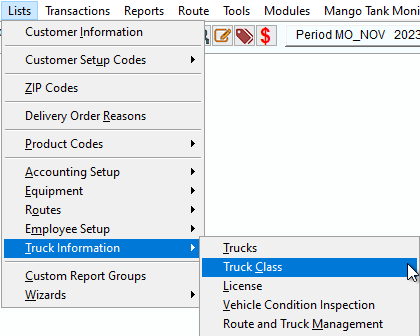
Truck Class - Starting with the Truck Class, enter the relevant unit of measurement that you decided on. You may choose to enter all information instead of a specific unit for your own records and tracking purposes, however, when using some of the other tools, you will be asked to choose one measurement.
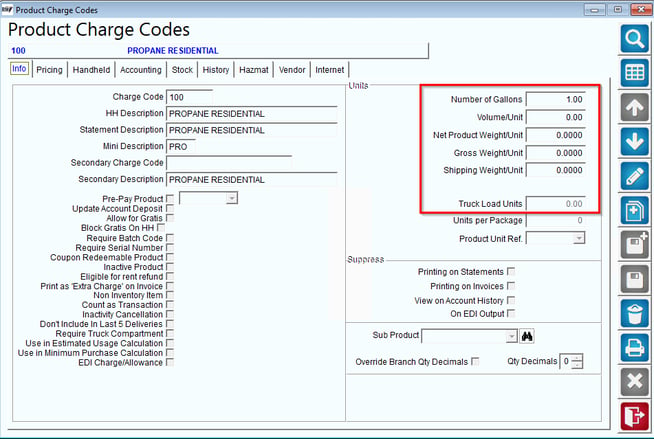
Product Information. Next, you must enter similar information onto each Product Charge Code that you wish to include in your calculations.
To do this, go to Lists > Product Codes > Product Charge Codes > Info Tab.
On the right side, fill in the relevant information. Be sure to make it as accurate as possible so that your results are as close to real-world capacities as you can get. You don't want to get caught by those DOT police being a thousand pounds over capacity!
Mango Dispatch Manager (MDM). The place where this all REALLY comes together is in different aspects of Mango Dispatch Manager, including Mango Mapping.
You will use the Settings area in MDM to configure both MDM and Mapping. There are several places that need to be set properly.
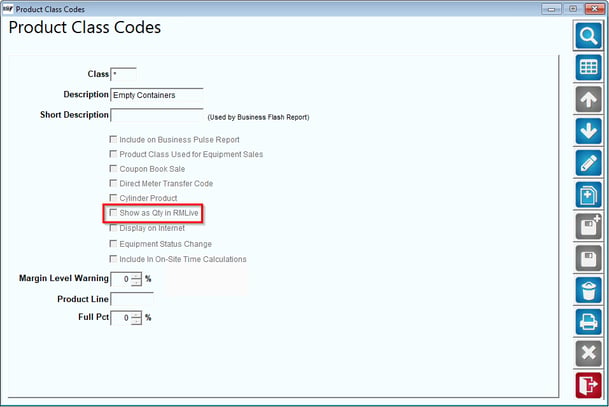
- Product Class Codes (Product Codes > Product Class Codes). For each product that you want to register on the capacity measurements in Mapping, "Show as Qty in RMLive" must be checked.
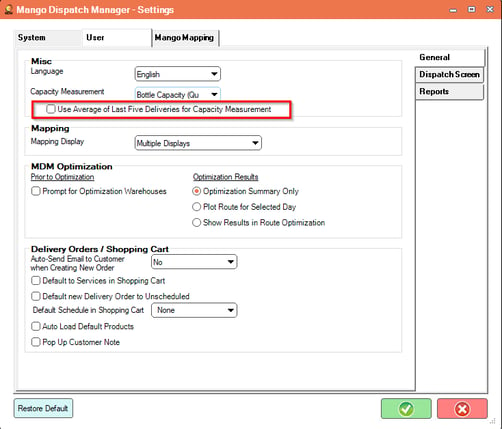
- Within Mango Dispatch Manger Settings (gear icon in top right of Mango Dispatch Manager), navigate to User/General tab. For capacity measurement, choose Gallons, Volume, TLU, or whichever measurement you've chosen.
- Make sure "Use Average of Last Five Deliveries..." is checked, and then pick the corresponding "Capacity Measurement" setting that you're working with.
4. Last, go into Mapping settings, Mango Mapping > General tab and set the "Customer Demand Qty" to "Last 5 Averages".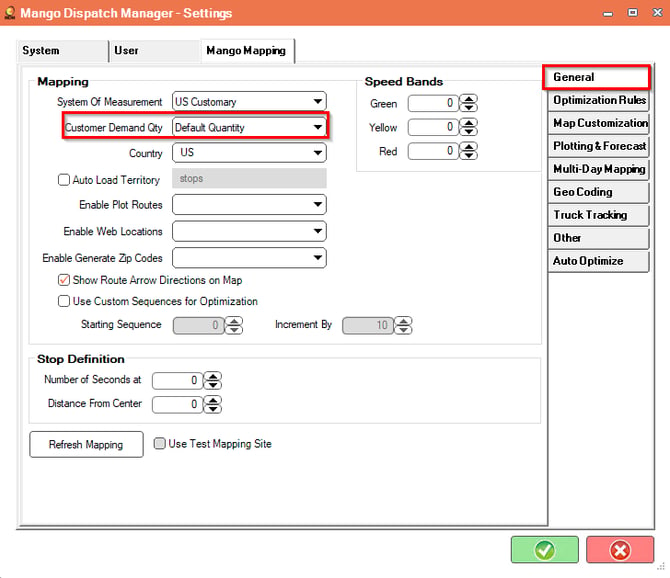
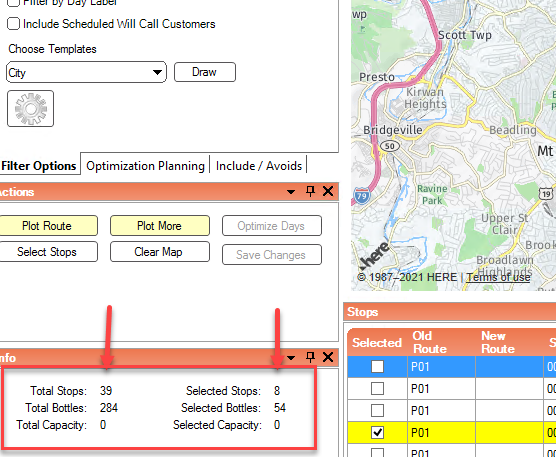
This will allow you to view capacity of total and selected stops in Multi-Day Mapping as you adjust the routes.
As you can see in the screen below, once this is all in place, you will be able to see both total capacity for all stops on the map as well as the total for all SELECTED stops, which becomes very important when doing things such as reorganizing routes.