Skip to content
English
  • There are no suggestions because the search field is empty.

Branch Setup V8

Introduction


The Branch Setup option is used to capture default company information.  If your company has multiple locations, you will add separate branch information for each location. When setting up multiple branches, one branch will be designated as a Master Branch.

Info Tab


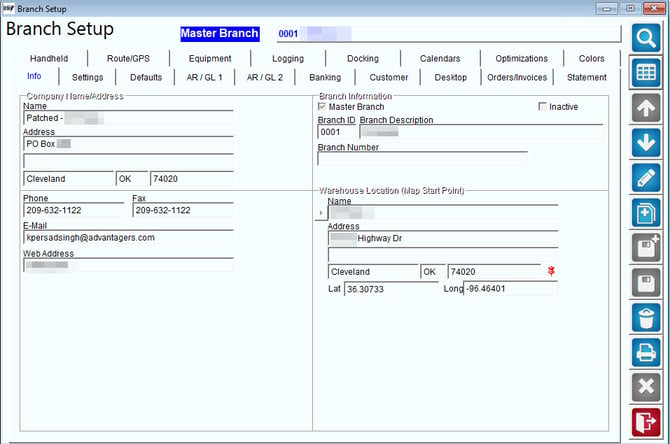
The Info tab is used to input general company information and invoice defaults.
1711991021092


Company Name/Address:
Name: The name of the company.
Address: The address of the company.
Phone: The phone number of the company.
Fax: The fax number of the company.
E-mailThe primary E-Mail address of the company.
Web Address: The company website address.
Branch Number: This is a reference point for the specific Branch.
Master Branch: Check this box to identify this branch as the Master Branch. The Master Branch has access to information in all other branches.
Inactive: If checkbox is selected, this branch is no longer active.
Branch ID: A four-digit identification code for this branch.  It can be letters or numbers.
Branch Description: Enter a description (or name) for this branch.
Branch Number:
Warehouse Location (Map Start Point): This information is used with the Advanced Mapping module.  It is used to establish the starting and ending points of a route.
Name: Enter a name for the starting/ending point facility.
Address: Enter the starting/ending point address.
Lat/Long: Enter the latitude and longitude coordinates for the starting/ending point.  
1594321548115Push Pin: Click here to locate the correct address and map coordinates for this warehouse location.


Settings Tab

1711991211871


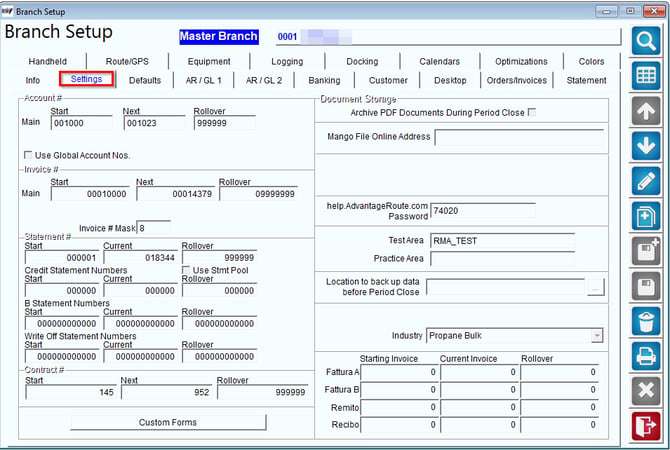
Starting Acct No. (Main): Enter the first account number to use prior to setting up your first customer, up to six digits in length.  The account numbers will be automatically incremented.
Next Acct No.: This field displays the account number assigned to the next customer added, up to six characters.  This is automatically incremented.
Acct Rollover: Enter the highest account number to reach before reverting back to the Starting Account Number.
Use Global Account No’s: Check this box to use the Master Branch account number pool on all branches.
Starting Acct No. (Offline): Enter the first account number to use prior to setting up your first customer, up to six digits in length.  The account numbers will be automatically incremented.
Next Acct No. (Offline): This field displays the account number that will be assigned to the next customer added, up to six characters.  This is automatically incremented.
Acct Rollover (Offline): Enter the highest account number to reach before reverting to the Starting Account Number.
NOTE: The Offline pool is only used with the Distributed Database feature, which allows companies with multiple locations to work independently of each other, and only sync databases during an allotted time.  Contact Advantage Route Systems for further information.
Main/Start Invoice No: Enter the lowest (or starting) invoice number to be used.
Next Invoice No.: This field displays the next available invoice number that will be used.
Invoice RolloverEnter the highest (or ending) invoice number to be used prior to reverting to the Starting Invoice Number.
Invoice # Mask: Enter the Invoice number limit.
Offline/Start Invoice No: Enter the lowest (or starting) invoice number to be used.
Offline/Next Invoice No.: This field displays the next available invoice number that will be used.
Offline/Invoice RolloverEnter the highest (or ending) invoice number to be used prior to reverting to the Starting Invoice Number.
NOTE: The Offline pool is only used with the Distributed Database feature. This allows companies with multiple locations to work independently of each other, and only sync databases during an allotted time. Contact Advantage Route Systems for further information.
Document Storage
Archive PDF Documents During Period Close: Moves All of you period close data files into your data history
Help.AdvantageRoute.com Password: Enter your password for the Help.AdvantageRoute.com website. Contact Support for assistance with this.
Test Area: Enter the directory of the Route Manager test area.
Practice Area: Enter the directory of the Route Manager practice area.
NOTE: If the current Route Manager program is set up as a test or practice area, enter the directory here.  This will update the company name to reflect ‘Test Area’ or ‘Practice Area’ for clarification when using the data.
Location to back up data before period close: Enter a file directory where you want your data backups to be stored 
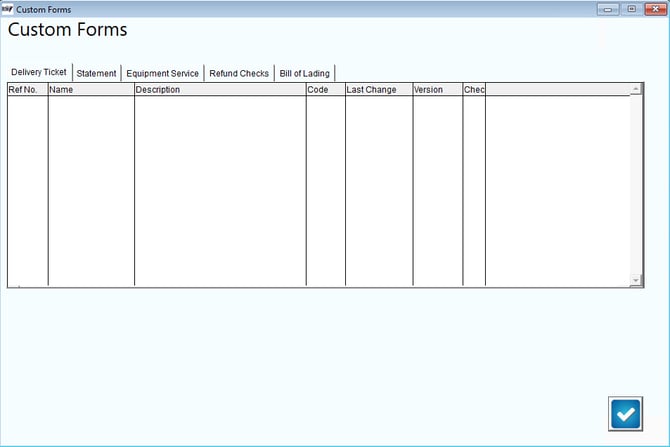
Custom Forms: If you have purchased any custom form enhancements from our company, they will be stored in this screen.

1711991315653


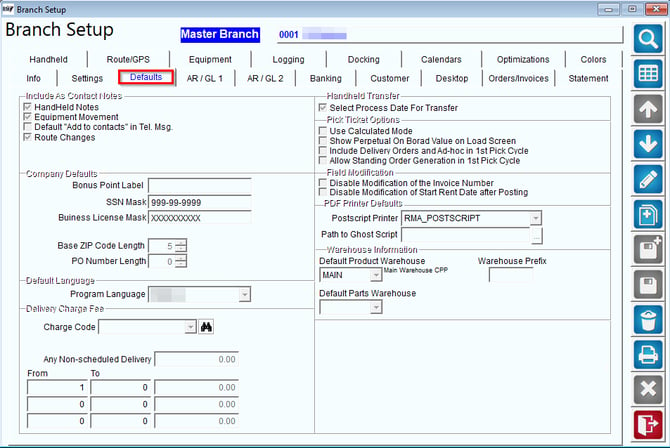
Defaults Tab

1711992033000

Include As Contact Notes:
Select any of the following to be automatically logged within each customer’s Contacts tab within Customer Information.
Handheld NotesSelect this option to log any notes entered by drivers on the handheld.
Equipment MovementSelect this option to log any equipment transfers, pickups, drop-offs, etc., from the handheld and desktop.
Default Add to Contacts in Tel: Select this option to automatically log any Delivery Orders created on the desktop.
Route Changes: Select this option to log any changes to the customer’s route, route schedule, and equipment service day.
Company Defaults:
Bonus Point Label: Enter the label you wish to display throughout the program when using the Reward Point or Customer Retention Program.  
NOTE: For further information on the Customer Retention Program, refer to Chapter 4.04 of the Supplemental Guide.
SSN Mask: Enter numeric data here in a predefined format to force data consistency when filling in the Social Security Number field in Customer Information and Employee Setup (i.e., 999-99-9999 will always follow this format).
Business License Mask: Enter characters and numeric data here (up to ten) to force data consistency when filling in this field in Customer Information (i.e.,9-a-999-a-999 will always follow this format).
NOTE: For both options above, the dash marks are added by the system and alpha characters are transferred to capital letters.  
Character symbols that can be used:
  • !:  Forces upper Alpha
  • A or a:   Alpha only
  • X:  Any (Alphanumeric)
  • 9:   Numbers and signs (+/-)
Payment Mask: Enter characters and numeric data here (up to fifteen) to force data consistency when filling in this field in Customer Information. Refer to the chart above for character symbols that can be used.
Base ZIP Code Length: Enter the number of characters needed for the ZIP or Postal Code in your country (e.g., ‘5’ in the United States and ‘3’ in Canada).
PO Number Length: Enter the maximum number of characters you will allow on a P.O. number.
Select Process Date for Transfer: Select this option to allow handheld users to select a process date to transfer information in your RMA.
Pick Ticket Options:
Use Calculated Mode: This option enables Calculated Mode within the Generate Pick Tickets screen. Calculated Mode allows you to review product totals with a higher level of detail within the Generate Pick Tickets screen.
NOTE: The Route Manager Pick Processing feature allows you to create a series of load orders that can be printed and distributed to your warehouse employees for order picking.  Each load order will contain all Delivery OrdersStanding Orders, and Load Requests per route.  The Pick Processing feature is especially helpful for companies that have a high volume of orders daily.  Refer to Chapter 4.13 of the Supplemental Guide for further information.
Show Perpetual on Board Value on Load Screen: Select this option to include Perpetual Inventory totals in the Calculated Pick Quantities screen.
Include Delivery Orders and Ad-hoc in 1st Pick Cycle: Select this option to include quantity information for Ad-hoc Stock and Tele-sales Orders on the Generate Pick Tickets screen during Cycle 1.
Allow Standing Order Generation in 1st Pick Cycle: Select this option to enable the Generate Standing Order Tele-sales button within the Generate Pick Tickets screen during Cycle 1.
Field Modification:
Disable modification of Acct. no. on Invoices and Adj.: Choose this option to disable the ability to modify account numbers on handheld or previously entered invoices within the Invoices and Adjustments screen.
Disable Modification of Start Rent Date after Posting: Choose this option to disable the ability to modify the Start Rent Date on equipment after rent has been charged.
 
PDF Printer Defaults:
Postscript Printer: Enter the default Postscript Printer to be used by new employees who have not setup their Local Settings.
Path to Ghost Script: Enter the default path to the Ghost Script program to be used by new employees who have not setup their Local Settings.
 
Warehouse Information:
Default warehouse for branch (Enhanced Inventory Only): Select the default warehouse to use for the current branch.
Warehouse Prefix: Enter a prefix that you would like to include in Pallet Identification Codes generated and printed within the Inventory Adjustments screen.
NOTE: A unique Pallet ID can be generated and printed for each inventory item received in Route Manager and can be attached to the pallet that contains the items. The Pallet ID will only be generated on Inventory Adjustment Codes with the option ‘Require Pallet Number’ selected under Lists > Product Codes. An optional Pallet Reference Code (Lists > Product Codes > Warehouse Setup) can be included in the Pallet ID as well.


AR/GL 1 Tab


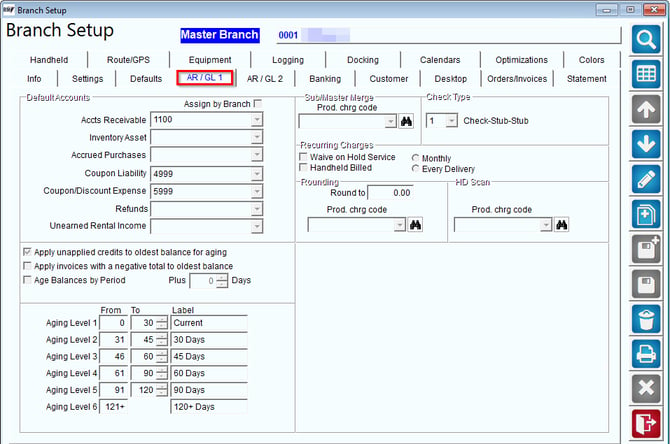
The Accounting tab contains system accounting information, aging labels and external bookkeeping information.
1711992179571 


Default Accounts:
Assign by Branch: Select this option to use unique General Ledger Numbers for each branch.  Leaving this option blank will use the same G/L numbers — assigned to the Master Branch — for all branches.
For each of the fields listed vertically under Default Accounts, select a general ledger (G/L) account number or product code.  
NOTE: This data must be established under the Lists menu before you can select it here.  
Accts ReceivableThis account is used for all sales to customers.
Inventory Asset: This account is used for reporting asset cost information on items—such as products and equipment— on the General Ledger Report.
NOTE: If this account is left empty, the information on the G/L Report will be disabled.
Accrued Purchases: This liability account is used for the accumulation of inventory purchases made throughout the period selected that have not been paid.  
NOTE: RMA is not an Accounts Payable system. This account should be cleared outside of RMA to your vendor.
Coupon Liability: This account is used to track the number of coupons sold but not yet redeemed. Typically, this is a liability account.
Coupon / Discount Expense: This account is used to record the loss (or gain) of a coupon based upon the product. Typically, this is an expense account.
Refunds: Select the Product Charge Code to use when processing customer refunds.  
Unearned Rental Income: This account number is used with Deferred Rent Billing. Most companies will leave this option blank.
Apply unapplied credits to oldest balance for aging: Select this option to automatically apply all credits (payments) to the oldest balance on the Finance ($) tab of the Customer Information screen. This option is for display purposes only; actually, applying any credits will need to be done manually.
Apply invoices with a negative balance to oldest balance: Select this option to automatically apply all negative balance invoices to the oldest balance on the Finance ($) tab of the Customer Information screen. This option is for display purposes only; actually, applying any credits will need to be done manually.
Age by period: Select this option to age your customer balances by the accounting period, and not the date of each invoice.
Other:
Aging Levels: In this section, specify the number of days you would like to use for customer balance aging.  Next to each aging level, enter the desired description in the label’s column.
Slave/Master Merge:
Prod Chrg Code: Select a product charge code that will be used for transferring balances between accounts placed on Master Bill.
Check Type
Check TypeSelect one of the following check formats to use when printing refund checks.
  • Check-stub-stub – Use with laser printers
  • Check-stub – Use with dot-matrix printers
  • Stub-check-stub – Use with laser printers
  • Top-Stub-Check-Stub – Use with laser printers closed.
Recurring Charges: Recurring Charges allow you to charge your customers a recurring fee on a monthly basis or per delivery. Refer to Chapter 6 for further information on this feature.
Waive on Hold Service (Handheld Only): Check this box to waive the Recurring Charge on the handheld when the account is on Hold Service status.
Handheld Billed: Check this box to bill Recurring Charges on the handheld.  If this option is left unchecked, all charges will be generated on the desktop.  
Monthly: Check this option to bill Recurring Charges on the handheld once per month.  For customers that were not billed on the handheld during the month, use the Generate Recurring Charges option on the desktop.
Every Delivery (Handheld Only): Select this option to bill a Recurring Charge with each handheld delivery.
NOTE:  You will not be able to bill multiple Recurring Charges to the same account on the desktop; the Every Delivery option is only available on the handheld.
Rounding:
Round to (Generally left blank)Enter a rounding amount that will apply to each transaction.
NOTE: If .05 is entered, a transaction for 13.03 will be rounded to 13.05.   
Prod Code: Selecta Product Code that will be used for all rounded transactions (this will be used on each invoice rounded).
HD Scan Product:
Charge Code: Select the product code used when scanning hard drives flagged for destruction.
NOTE: Refer to Chapter 4.19 of the Supplemental Guide for further information on hard drive destruction.


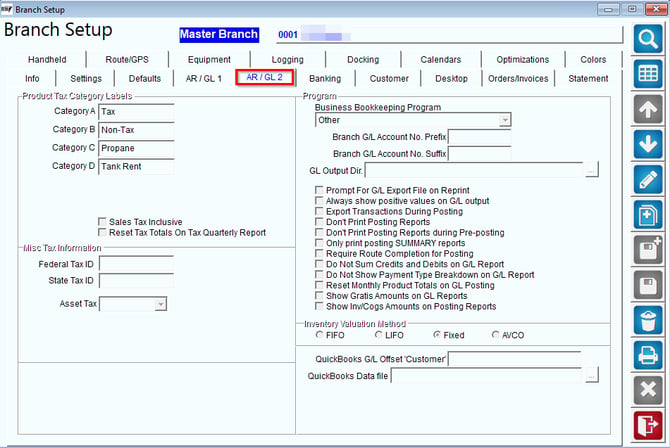
AR/GL 2 Tab


1711992286466


Product Tax Category Labels: This option allows you to assign titles to the four product tax categories in RMA. These labels are used to identify taxable items in the Product Charge Code and Sales Tax Rates screens.
Categories A - D: Assign a tax label up to ten characters to each category.  The example shown on the screen above is commonly used.
NOTE: Each category represents either taxable or non-taxable items.  All of your Product Charge Codes are assigned to one of the four categories entered.
Sales Tax Inclusive: Select this option if your Sales Tax should be included in the sales price for each item individually.   This is an additive tax option (not commonly used).
Reset Tax Totals on Tax Quarterly [Report]: Select this option to enable tax reset dialog screens within the Sales and Tax Report.  This will give you the option to reset tax totals after each report is printed.
Misc. Tax Information:
Federal Tax IDEnter your Federal Tax ID, if desired (reference only).
State Tax IDEnter your State Tax Reseller ID, if desired (reference only).
Asset TaxSelect a default Asset Tax Code to use on equipment that is not installed.
Program:
Business Bookkeeping ProgramSpecify your accounting program that will interface with RMA.
NOTE: We routinely update this list.  Contact ARS if your program is not listed.
G/L Account Number Prefix: Enter a G/L prefix if your external accounting program requires one.
Branch G/L Account No. Suffix: This value represents information that will be added to the end of G/L account numbers (e.g., Branch ID).  
Export during G/L Posting (QuickBooks Only): Select this option to export your posted totals for QuickBooks.
NOTE: Specify the export directory under the G/L Output Directory field within File>Local Settings, on the Directories tab.
Prompt For G/L Export File on Reprint: Select this option to prompt you to export your general ledger to excel when reprinting.
Always show positive values on G/L output: Choose this option to reverse the Credit/Debit options on the G/L output report.
Export transactions during posting (QuickBooks Only): Select this option to export posted totals during the Post Transactions process.
Don’t Print Posting Reports: Select this option if you do not want reports to print when your posting completes.
Note: If you would like to receive emailed posting reports navigate to Branch Setup> Logging Tab and insert an email address.
Don’t Print Reports During Pre-posting: Select this option to suppress printing posting summary reports during the ‘Pre-Post’ process (used in multi-branch environment).
Only print posting SUMMARY reports: Select this option to not print each branch posting report, but only print the Summary posting report of all branches combined.
Require Route Completion for Post by Route: Choose this option to require each route be marked as completed before it can be posted (when using the Post By Route option).
Do Not Sum Credits and Debits on G/L Report: Select this option if you do not want your credits and debits to sum at the end of your general ledger report
Do Not Show Payment Type Breakdown on G/L Report: Select this option to not show payment type breakdown on G/L Reports.
Reset Monthly Product Totals on GL [Posting]: Select this option to reset monthly sales totals when the G/L Posting Report is posted.  Typically, this happens when the accounting period is
Show Gratis Amounts on GL Reports: Select this option to display gratis totals on the G/L Posting Report (separate from other expenses).  This is recommended for companies that want to more accurately control free product giveaways.
Show Inv/Cogs Amounts on Posting Reports: Select this option to display the Inventory Cost of Goods amount on the Posting Reports.
Inventory Valuation Method
The following options are used with the Inventory Valuation option available in Route Manager.  This allows you to instantly view your inventory values based on established cost information input into the system.  Refer to Chapter 3.20 of the Supplemental Guide for further information.
  • FIFO (First-in, First-out): Inventory valuation is calculated based on an accumulation of the costs entered when receiving inventory.  Inventory will be removed from the oldest batch first.
  • LIFO (Last-in, First-out): Inventory valuation is calculated based on an accumulation of the costs entered when receiving inventory. Inventory will be removed from the latest batch first.
  • Fixed Cost: Inventory valuation is calculated based on the cost entered within the Product Charge Code screen for each product.  Inventory will not be separated by batch.


Banking Tab


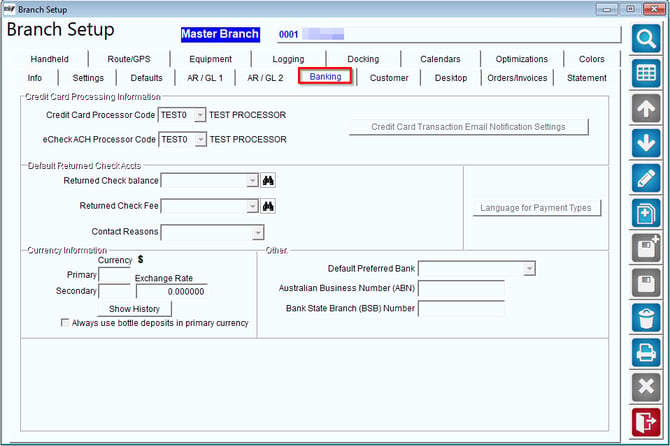
The Banking tab contains optional company and customer related bank information.
1711992502994


Bank Information:
The following information must be provided by your bank when using the optional Electronic Funds Module (EFT):
Transmitter ID: Enter your Transmitter ID supplied by your Bank or Credit Card Processor, if necessary.
Public Key: Enter your Public Key supplied by your Bank or Credit Card Processor, if necessary.
Merchant ID: Enter your Merchant ID supplied by your Bank or Credit Card Processor, if necessary.
Legal Name: If the name you use for banking is different than the name you use on the Branch Setup name, then enter the name to be used for banking in this field.
Address: If the address you use for banking is different than the address you use on the Branch Setup name, then enter the address to be used for banking in this field.
Credit Card Processing Information:
Depending on your 3rd party merchant processing program, choose the appropriate program from the drop-down list and enter the Login ID and Password/Transaction Key. If you receive this information from the merchant, you will be able to process transactions automatically, and will not be required to install the merchant’s processing program.
NOTE: If this information is left blank, you can export transactions from Route Manager and import them into the 3rd party application.
Login ID: Enter the merchant ID provided by the processing company.  
Password/Transaction Key: Enter the Password/Transaction Key provided by the processing company.
Do Not Auto-Apply Automated Credit Card Payment: Select this option to prevent credit card payments from being automatically applied to the oldest open items during processing.
Do Not Auto-Apply ESF CC Payments: Select this option to prevent credit card payments (from eStoreFront) from being automatically applied to the oldest open items during processing.
Show Processor Status in Toolbar: Select this option if you would like your credit card processor status to appear on your toolbar, when green icon appears CC processing is working properly.   When red CC processing is not working.
Credit Card Transaction Email Notification Settings:  Select this button to configure the return address, and template settings for Approved and Declined credit card transactions.
NOTE: This applies to payments processed via the Export Credit Cards and Charge Now screens.
Customer Bank Information:
The following information will be used by the optional Electronic Funds Module (EFT) when processing ACH direct debit transactions.
Require Bank Account Number: Checking this option will force the input of a bank account number on each customer’s account during new customer entry.
Require Account Type: Checking this button will force input of a bank account type during new customer entry.
Require Routing Information: Checking this button will force input of a bank routing number during new customer entry.
Require Bank Name:  Checking this button will force input of a bank name during new customer entry.
Require Bank Branch: Checking this button will force input of a bank branch during new customer entry.
No Default Bank Account during Payment Entry: Check this option to disable the Bank Account field when entering payments.
Do Not Mask Credit Card Numbers: Check this box to display unmasked credit card numbers on the credit card preview box of the Credit tab within Customer Information.
NOTE: Selecting this option will allow all employees with access to the Credit tab to view a customer’s credit card number.
Default Returned Check Accts:
The following options are used during Returned Check Processing within Route Manager.
Returned Check Balance: Select the product code that will be used to reverse dishonored funds posted to the customer’s account.
Returned Check Fee: Select the product code that will be used to charge the customer a penalty fee for dishonored funds.
Contact Reasons: Select the Contact Reason that you would like to use as a default for logging returned check information within the customer’s Contacts tab.
Currency Information:
Currency: Displays the form of currency your customers use.
Primary (Leave blank in US): Enter the symbol or text to indicate the currency your customers will use most often when keeping track of accounting balances within the Route Manager software.
Secondary: Enter the symbol or text to indicate a secondary currency that customers will use.  
NOTE: With the above options enabled, you will be able to choose the currency type used by each account within Customer Information.
Exchange Rate: Enter the rate of exchange when viewing Secondary Currency as you look at account balances or payments.
Show History: This will display a list of Exchange Rate changes entered.
Always use bottle deposits in primary currency: Select this option to use the primary currency for container deposits, regardless of the currency selection within Customer Information.
Coding Information:
The following options determine how you would like to display credit card and bank numbers on the Credit tab of the Customer Information screen. Enter the number of digits that will be displayed on the right and left sides of the number (i.e., Right = 2 and Left = 4).
Credit Card: Enter the number of beginning (Left) and ending (Right) digits to display — up to 6 characters.
Bank: Enter the number of beginning (Left) and ending (Right) digits to display — up to 6 characters.
Language for Payment Types: Select this option to change language descriptions for payment types displayed throughout the Route Manager program.
CC Receipt Format: Select a format for your CC receipt.
CC Decline Format: Select a format for your CC decline notification.
Expired CC Letter Format: Select a format for your expired CC Letter notification.
Expired ACH Letter Format: Select a format for your expired ACH Letter notification.


Customer Tab


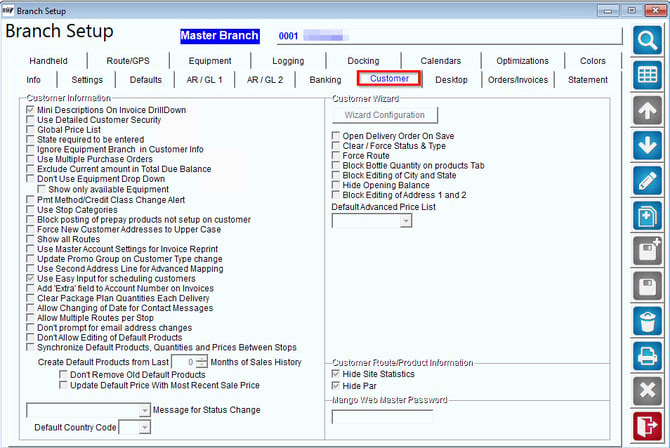
The Customer tab contains various customer related options within Route Manager.
1711993004091

Customer Information:
Mini Descriptions on Invoice DrilldownCheck this option to view mini- descriptions per invoice on the Invoice Drilldown screen within Customer Information > Finance Tab > Invoice Lookup.  
NOTE: Mini-descriptions are assigned to each product on the Info tab of the Product Charge Code screen.
Use Detailed Customer Security: Selecting this option allows you to control access to each field within the Customer Information screen. Once this option has been enabled, there will be a series of new items available within Lists > Employee Setup > Security Level Codes.   
Global Price List: Checking this box will allow all branches in Route Manager to use the same Price Lists; they will not be separated by branch.
State Required to be Entered: Select this option to require that a State is entered when adding new ZIP or Postal Codes to the program.
Ignore Equipment Branch in Customer: Select this option to allow any piece of equipment to be assigned to a customer, regardless of branch.
Use Multiple Purchase OrdersChoose this option to enable up to three standing Purchase Orders on a single account at one time.  The Purchase Order options will be available on each customer’s Route tab.
NOTE: This option cannot be enabled if you are currently using Customer Level P. O’s (on the Credit tab of Customer Information).
Exclude Current Amount in Total Due Balance: Check this box to exclude the customer’s current amount due from the Total Due column of the Customer Information screen (used in European markets).
Don’t use Equipment Drop Down in Customer Screen: Select this checkbox to disable the equipment drop-down list within the Products tab of Customer Information. With this option enabled, equipment serial numbers will need to be manually entered using your keyboard.
Show only available Equipment: Check this box to filter out all equipment currently assigned to other accounts from the equipment entry drop-down list.
PMT Method/Credit Class Change Alert: Select this option to create an Alert Message on the account when the customer’s Credit Class or Preferred Payment Method is changed.
Use Stop Categories: This option is used during the route scheduling process to inform users if the customer needs to be contacted prior to delivery.
Block Posting of Prepay Products not Setup on Customer: Select this option to prevent the posting of prepaid products on customers that are not assigned to the Prepay Products feature.
Force Address to Upper Case: Checking this option will force capital letters in the address fields of the new customer wizard and Customer Information screens.
Show Routes from all Branches: Select this option if you would like to use global routing.  With this option enabled, routes will not be separated by branch.
Use Master Account Settings for Invoice Reprint: Select this option to print Master Account details on an invoice printed for a Sub-Account.
Auto change Promo Group Code and Price Level on Customer Type Code Change: Choose this option to update the Promotional Group Code and Price Level on the customer’s account to reflect the settings established within the assigned Customer Type.
Use Second Address Line for Advanced Mapping: Check this box to export the second address line for MapPoint.
Message for Status Change: Select the default Contact Message Reason to assign to accounts when the customer’s Account Status Code is changed.
Use Easy Input for Scheduling Customers: Select this option to replace the standard Schedule by Day Label option within the customer’s route calendar with new buttons that represent the frequency of your existing labels (e.g., Schedule Every 1 WeekSchedule Every 2 Weeks).
Add ‘Extra’ field to Account Number on Invoices: Choose this option to display information entered in the Extra field — within Customer Information — on invoices printed from the desktop. This is helpful if you would like to add additional reference information to the invoice.
Clear Package Plan Quantities Each Delivery: Resets Package Plan Available Quantities after each invoice is posted
Allow Changing of Date for Contact Messages: Select this option to allow users to change the primary date and time on a contact message added to the Contacts screen within Customer Information.
Allow Multiple Routes Per Stop: Determines whether a customer can be scheduled on more than one route in Customer
Message for Status Change: Contact Message Reason to use when logging a customer status change
Default Country Code: Select the default Country Identification code from the dropdown list.
Create Default Products from Last (x) Months of Sales History: To automatically create default products based on sales history, enter the number of months in this field to review when auto adding default products.  This will add/remove default products automatically if they are sold (or not sold) in the time frame given.
Reset Package Plan Available Quantities Each Delivery: Select this option to reset all available Package Plan quantities back to the initial quantity available with each posted invoice.
NOTE: This option should not be enabled for most companies, contact Advantage Route Systems for further information.
Customer Wizard:
Open Delivery Order on Save: Select this option to automatically popup the Delivery Order screen after Save is selected within the New Customer Wizard.
Clear / Force Status & Type: Select this option to force the user to select a Customer Type and Customer Status Code from within the New Customer Wizard.
NOTE: Leaving this option unchecked will automatically populate each field based on the default Customer Type already displayed.
Force Route: Checking this box will require the user to assign each account to a Route within the New Customer Wizard.
Block Bottle Quantity on Products Tab: Choose this option to block the ability to manually enter empty container quantities within Step 2 of the New Customer Wizard.
Block Editing of City and State: Select this option to disable the ability to edit the City and State fields within the New Customer Wizard.
Hide Opening Balance: Check this box to disable the Opening Balance field within the New Customer Wizard.
Block Editing of Address 1 and 2: Select this option to disable the address fields within the New Customer Wizard.
Default Price Level: Choose this option to establish a Default Price Level to use within the New Customer Wizard.
Customer Route/Product Information:
Hide Site Statistics: Check this box to remove the Site Stats option within Customer Information, on the Route tab.
Hide Par: Check this box to remove the Par option within Customer Information, on the Products tab.
eStoreFront Master Password: Enter the eStoreFront Master Password.  This is used to override all other passwords.  The access to this password should be limited to protect the confidentiality of your customer records.
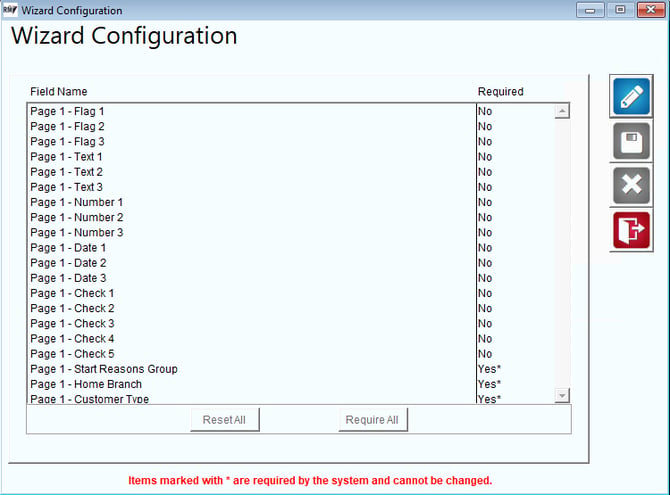
Wizard Configuration:
Select this box to define field requirements within the New Customer W/ Order Wizard.  Each item displayed within each screen (page) of the wizard can be controlled.
NOTE: Items marked with an * symbol is required and cannot be changed.  

1711993102855

Fields:
Reset All: Select this option to reset the field requirements to default selections.
Require All: Select this option to require that all fields within the wizard are used.
NOTE: Select Modify prior to choosing an option above.  To enable/disable items individually, simply double-click on the desired option.
Additional Fields:
Start Contract Number: Enter the starting number that will be used in the Contract Number Pool.
Current Contract Number: The current number generally updates automatically, enter the starting number if it is blank.
Contract Rollover: The highest number the Contract Pool should reach before rolling back to the Starting Contract Number.
NOTE: Contract numbers are part of the Equipment Contract option in Route Manager.  Contact Advantage Route Systems for further information.
 
Customer Route/Product Information:
Hide Site Statistics: Select this option if you would like to hide your site statistics in customer information         
Hide Par: Select this option if you would like to hide your par statistics in customer information


Desktop Tab


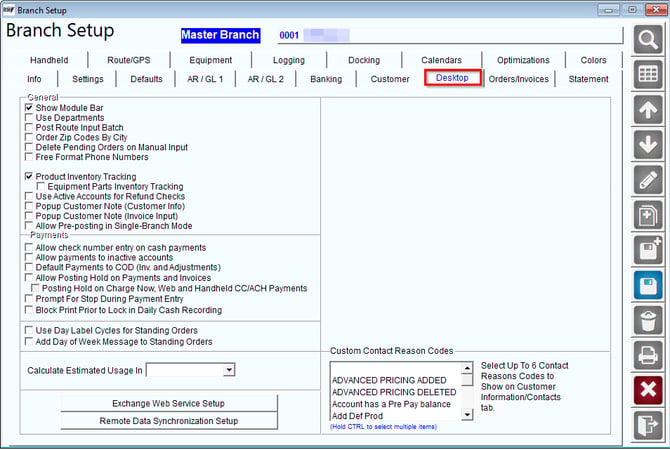
The Desktop tab includes invoice entry defaults and various customer options.
1711993421613

General Information:
Show Module Bar (Recommended): Check this box to use the modular toolbar when running Route Manager.
NOTE: The toolbar controls important features in Route Manager, it is not recommended to disable this option.
Use DepartmentsSelecting this option enables you to set up a list of departments that group transactions and isolate sales for specific areas of business (Vending only).
Post Route Input Batch: Select this option to prompt the user to select each customer’s pre-assigned invoice number in the Route Settlement Entry screen (requires Route Tickets to be printed prior to route).
Order ZIP Codes by City: Select this option to sort ZIP Codes (Postal Codes) by City within the ZIP code drop-down lists throughout Route Manager.
Delete Pending Orders on Manual Input: Check this box to automatically delete any Pending Orders on an account when a manual invoice is created.
Free Format Phone Numbers: This turns off the hyphenated format within the phone number fields in Route Manager.
Use Messaging:  Checking this box enables the instant messages feature available within Route Manager — available on the Module Bar.
Use Enhanced Inventory Tracking: Checking this option enables additional features for managing inventory within Route Manager.  Refer to Chapter 3.10 of the Supplemental Guide for further information.
Use Active Accounts for Refund Checks: Select this option to automatically include ‘active’ customers when using the Print Refund Checks option.
Popup Customer Note: Select this option to popup the Note dialog box when entering a customer’s account.  The note will only popup if there is an entry made within the Note field of the Info tab.
Popup Customer Note (Invoice Input): Select this option to pop up the accounts Customer Note during Invoice Input.
Allow Pre-posting in Single Branch Mode: Select this option to require that a ‘pre-posting’ is performed prior to permanently posting transactions in Route Manager — this function is generally used for multiple branch configurations, allowing a single user to review all of the pre-posted data.  
Payments:
Allow check # entry on cash/barter/direct deposit: Check this box to allow the entry of a reference number in the Check# field of the payment screen (for reference).
Allow Payments to Inactive Accounts: Select this box to allow payments to be entered on Inactive Accounts.
Default Payments to COD (Inv. and Adjustments): When this box is selected, all payments entered and associated with an invoice will be marked as COD.
Allow Posting Hold on Payments: Select this option to enable the Posting Hold payment features on the desktop and handheld.
Prompt for Stop During Payment Entry: Forces selecting a stop if there are more than one
Use Day Label Cycles for Standing Orders: This option allows you set up products to be delivered on different frequencies - i.e. every delivery, every other delivery, every 3rd delivery, etc.  
 Add Day of Week Message to Standing Orders: Select this option to add the Day of the Week to the Standing Orders.
NOTE: To use this option you must also enable the Use Weekly Standing Orders flag.
Calculate Estimated Usage in: Select the month of the year to recalculate the Estimated Usage values on the Customer Stop History tab. Also requires a product to be setup to be used for this feature.
Exchange Web Service Setup: Enter the Microsoft Exchange Server details for Calendar integration.
Remote Data Synchronization Setup: Synchronization server setup for the Distributed and Disconnected Database module.
The following options are used with the Disconnected and Distributed Database feature, which allows satellite locations with sporadic internet connections to transfer and sync their Route Manager data with a remote location.
NOTE: This option also requires a custom data transfer program outside of Route Manager, contact Advantage Route Systems for further information.
Remote Data Synchronization Folder: Select the local directory used for importing and exporting DDD data.
Server IP/Name: Enter the IP or host name of the FTP server.  
PASV Mode: Select this option if your FTP server and firewall are set up for PASV mode transfers.
Login ID: Enter the login ID used for FTP transfers.
Login Password.: Enter the password used for FTP transfers.
Ticket Prefix: Enter a prefix to add to invoices imported using the DDD synchronization option.
Port Number (21): Enter the port number used for FTP transfer (Port 21 will be used if left blank).   
Import Confirmation Timeout: Enter the number of seconds the system should wait for data confirmation.
Number of History Months to Export: Enter the number of months of history to include with exported data.


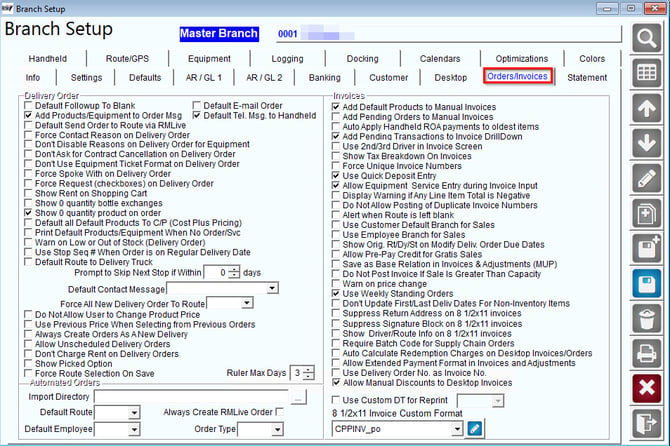
Orders/Invoices Tab


1711993539247


Order Entry:
The following items control options within the Delivery Order screen.
Default Follow-up to Blank: Select this option to remove the Follow-Up Date from the Delivery Order on Save.
Default Delivery Order [Message] to Handheld: Select this option to automatically select the Handheld Message option prior to saving the Delivery Order.
Default Send Order to Route via RMLive (Optional Module): Select this option to automatically transfer the Delivery Order to the RMLive Dispatch screen.
Default Email Order: Select this option to automatically choose the option to E-Mail the Delivery Order to the Customer.
Force Contact Reason on Delivery Message: Select this option to force the user to select a Contact Reason prior to saving the Delivery Order.
Don’t disable Reasons on Delivery Order for Equipment: Select this option to require a Contact Reason on an equipment service Delivery Order.
Don’t ask for Contract Cancellation on Delivery Order: Select this option to disable the ‘Contract Violation’ message that can appear when selecting certain Delivery Order Reasons within the Delivery Orders screen.
Don’t use Equipment Ticket format on Delivery Order: This option is currently not in use.
Force ‘Spoke With’ on Delivery Order: Select this option to force the user to input a name in the Spoke With field prior to saving the Delivery Order.
Force Request (checkboxes) on Delivery Order: Select this option to force the user to choose a Delivery Order Reason prior to saving the Delivery Order.
Show Rent on Shopping Cart (On Delivery Order): Select this option to include any rental amount established — added to the Delivery Order under the Equipment Install option — within the Shopping Cart button on the order.
Show 0 Quantity bottle exchanges: Choose this option to report zero quantity container exchanges on the handheld receipt.
Show 0 Quantity Product on Order: Select this option if you would like products with zero quantity on the handheld reciept
Default all Default Products to C/P (Cost Plus) Pricing: Select this option to use Cost Plus Pricing as the default pricing method within the Default Products screen.
Print Default Products/Equipment When No Order/Svc: Select this option to include the customer’s Default Products and Equipment on Delivery Order tickets printed without any assigned items.
Warn on Low or Out of Stock (Delivery Order): Select this option to warn the users during Delivery Order entry if a product inventory is low or out of stock.
Use Stop Seq # When Order is on Regular Deliver Date: Select this option to use the customer’s standing sequence number for Delivery Orders scheduled on their regular delivery date.
 
Default Route to Delivery Truck: Select this option to default the Route on handheld Forward Sales to the route defined as the “Default Route” in Route Master.
Prompt to Skip Next Stop if Within (  ) Days: Enter the number of days to monitor for the customer’s next delivery day when scheduling a new Delivery Order. A ‘Skip Delivery’ message will be displayed if the order is scheduled within the established range.  
Default Contact Message: Select a default Contact Message to use when a new Delivery Order is created on the desktop.
Force all new Delivery Order to Route: Select this option to assign all new Delivery Orders to the route selected.
Do Not Allow User to Change Product Price: Select this option to prevent users from changing the price on products when Delivery Orders are created on the desktop.
Use Previous Price When Selection from Previous Order: Select this option to use the previous product price when choosing to select products from a previous order.
Always Create Orders as A New Delivery: Select this option if you would like to create all new orders as a new delivery.
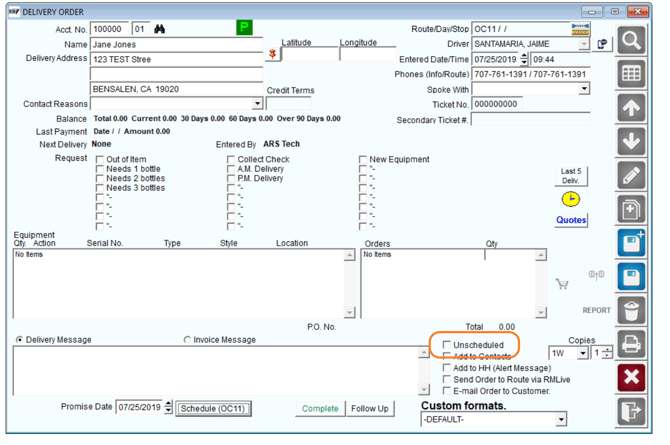
Allow Unscheduled Delivery Orders: Select this option if you would like users to have the ability to create unscheduled delivery orders
Don’t Charge Rent on Delivery Orders: Select this option to not charge customer rent on delivery orders.
Note: If ‘Allow Unscheduled Delivery Orders’ is selected, an option to make it unscheduled will be on the bottom right hand corner of the telephone order.

1594322033068

Automated Orders:
 This feature allows you to import Delivery Order data from an external program.  Contact Advantage Route Systems for further information.
Import Directory: Select the directory used for import.
Default Route: Select the default route to assign to the orders.
Default Emp: Select the default employee to use when creating orders.
Order Type: Select the format of the imported files (ASCII or XML).
Always Create RMLive Order: Select this option to automatically/always assign the imported orders to RMLive.
Invoices:
Add Default Products to Manual Invoices: Check this box to automatically populate the customer’s Default Products when a new invoice is created on the desktop.
Add Pending Orders to Manual Invoices: Check this box to automatically populate any Pending Orders when a new invoice is created on the desktop.
Auto Apply Handheld ROA Payments to Oldest Balance: Checking this box will automatically apply any ROA payments received on route to the oldest invoices on the customer’s account.  
NOTE: This option only applies to Open Invoice accounts.
Add Pending Transactions to Invoice Lookup: Check this box to add pending (unposted) transactions to the invoice drilldown area within Customer Information.  Pending transactions will be flagged with a “P” beside them.  
Use 2nd Driver in Invoice Screen: This option allows two drivers to be assigned to a single invoice from within the Invoices and Adjustments screen. This can be used for commission purposes.
Show Tax Breakdown on Invoices: Select this box to separate sales tax by tax authority on a printed invoice.  Typically, this function is used in Canada to display GST and PST totals.
Force Unique Invoice Numbers: Choose this option to prevent duplicate invoice numbers from being used on transactions.  
NOTE: This option only applies to invoices within the current Accounting Period.
Use Quick Return Entry: Select this option to enable a new icon on the desktop invoice screen used for entering returned containers.  This option simplifies the container swap process on the desktop.
Allow Equipment Service Entry during Invoice Input: Select this option to enable a new icon on the desktop invoice screen used for entering Equipment Service Codes.
Display Warning if Any Line Item Total is Negative: Choose this option to display a warning message when entering a negative quantity or price on a transaction in either the Invoices and Adjustments screen or the Customer Finance Assistant.
Do not Allow Posting of Duplicate Invoice Numbers: Select this option to block the posting of duplicate invoice numbers in the “Current Month” and “Previous Month” accounting periods.
Alert when Route is left blank: Choose this option to remind employees to enter a RouteID on each invoice.
Use Customer Default Branch for Sales: Select this option to appropriate all sales made to a customer to their assigned ‘Home Branch’ and not the branch assigned to the Route ID on their transaction.
NOTE: This option is helpful for companies that frequently deliver to customers across multiple branches.
Use Employee Branch For Sales:
Show Original Route/Day/Stop on Modify Delivery Order Due Dates: Select this option to display the customer’s regularly scheduled Route/Day/Stop within the Modify Delivery Order Due Dates screen (instead of the routing info from the Delivery Order).
Allow Pre-Pay Credit for Gratis Sales: Select this option to credit Pre-Pay quantities for customers that were given ‘Gratis’ items (The customer must be assigned to the Pre-Pay Pricing option).
Save as Base Relation (MUP): This option works with the Multi-Unit Pricing option in Route Manager.  Selecting this box will automatically convert items to their ‘base’ related quantity upon ‘Save’ within the Invoices and Adjustments screen.
NOTE: For further information on Multi-Unit Pricing, refer to Chapter 2.14 of the Supplemental Guide.
Do not Post Invoice if Sale is Greater than Capacity: Select this option to prevent each handheld invoice from being posted if the number of (cage capacity qualifying) items on the invoice exceeds their allotted cage capacity on assigned equipment.
Warn on price change: Check this box to display a confirmation dialog screen when changing any product price on a desktop invoice.  
Invoice No. Mask:  Enter the invoice number length that you would like to use (up to 14).  
NOTE:  Optionally, this field can be used to specify a custom format to use on your invoice numbers. For example, if you would like to use two characters, followed by a hyphen and 6 more characters, enter:   ##-###### (this example is 9 characters in length).
WARNING:  Do not change the Mask length after you have posted invoices in Route Manager.  This will prevent invoices from being found in certain areas of the program.
Use Weekly Standing Orders: Select this option to enable the Weekly Standing Orders feature in Route Manager.
NOTE: Refer to Chapter 4.12 of the Supplemental Guide for further information on Weekly Standing Orders.
Don’t Update First/Last Deliv Dates For Non-Inventory Items:   Select this option to ignore posted transaction dates within the First Delivery (Credit tab) and Last Delivery (Route tab) fields within Customer Information on transactions that only include ‘Non-Inventory’ items.
NOTE: The option ‘Non-Inventory Item’ can be selected within each item under Lists > Product Codes > Product Charge Codes, on the Info tab.  This option is generally selected on items that are not tracked as tangible inventory (e.g., Skip ReasonsRefund CodesLate Charges).
Suppress Return Address on 8 ½ x 11 Invoices: Select this option to prevent the Return Address from printing on 8 ½ x 11 formatted desktop invoice reprints.
Suppress Signature Block on 8 1/2X11 Invoices: Select this option to prevent the Signature Block on 8 ½ X 11 formatted desktop invoice reprints
Show Driver/Route Info on 8 1/2x11 Invoices: Select this option to include the Driver and Route on the invoice copy.
Require Batch Code for Supply Chain Orders: Select this option to require a Batch Code be entered on all Supply Chain Orders.
Use Custom DT for reprint: Select this option to use a custom delivery ticket format when reprinting invoices (requires custom ticket from ARS).
Custom Forms: Select this option to manage custom forms and tickets created for your company by Advantage Route Systems.


Statement Tab


The Statement tab allows you to establish default settings for printing statements in Route Manager.

Statement Options:
Bulk Statement File Prefix: Enter the identification code that will be used on the statement file transferred to your statement processing company.
Matrix: Select this radio button if you will be using Matrix Imaging for statement processing.
Other: Select this radio button if you will be using a statement processing company other than Matrix Imaging.
Statement Number Length: Enter the desired statement number length; up to 10 digits (applies to companies using Statement Numbers).
Product Description Length (22-60): Enter the maximum length that should be used for product descriptions on your statements; up to 60 characters.
Use Statement Numbers: Select this option if your company will be assigning numbers to each statement.   This option is used in various countries around the world.
Use Alpha Prefix on Statements: Check this box if the first letter of your numbered statements is an alpha character.   This only applies to custom statements.
Force Unique Statement Numbers: Select this option to prevent two statements from having the same number during the current Accounting Period.
Use Credit Class Due Dates: Select this option to populate the Due Date on each statement based on information provided from the Credit Class assigned to the customer.
Hide Payment Bar Code on Statement: Check this box to suppress the payment barcodes from printing on statements (requires scanner).
Statement Numbers: The statement numbers used on your statements are controlled by the following fields.
Start: Enter the first (or lowest) Statement Number to use.
Current: This field is updated automatically.  However, the Statement Number can be updated if necessary.
Rollover: Enter the highest Statement Number to be used by the system before reverting to the Start number.
Use Statement Numbers: Allows you to generate Numbered Statements instead of Standard Statements
Use Alpha Prefix on Statements: Allows putting an Alpha prefix on Statement Numbers
Force Unique Statement Numbers: Blocks using duplicate Statement Number
Use Credit Class Due Dates: Calculates the Statement Due Date based on Credit Class settings
Hide Bar Code in Statements: Select this option if you would like barcodes to not appear on statements
Statement Alignment:
Move Statement Down By _ 6th Of : An Inch Allows moving the address blocks on Statements/Invoices Down or to the Right
Address Adjustment:
Company Offset
Top
Left
Statement
Invoice
Address 1 Offset
Address 2 Offset
Suppress Address 2
Credit Cards Accepted:
Select each major credit card type that you will accept:
  • American Express
  • Discover Card
  • Visa
  • Master Card

Handheld Tab

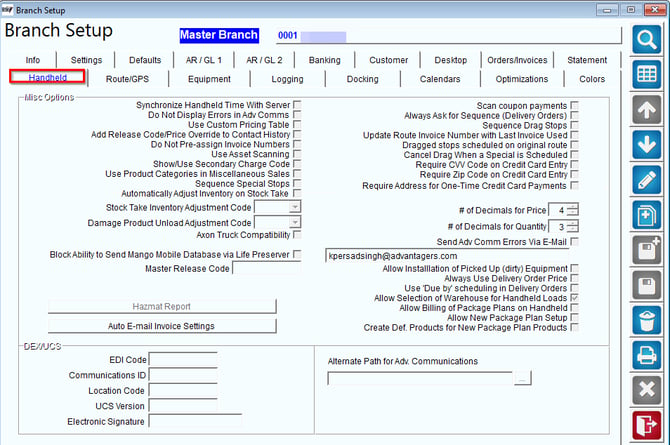
The Handheld tab contains handheld related options that are used within the handheld. This, along with Route and Handheld Class options, allows you to configure your mobile devices to meet the needs of your company.
1712002909065 


Options:
Synchronize Handheld Time With Server: Select this option to automatically update the Handheld Time based on the Server time. Be sure the Handheld is also set in the proper time zone, so it is offset properly after being synced. This happens during Advanced Communication Morning/Afternoon cards.
Do Not Display Errors in Adv. Comm: Select this option to suppress any error messages received within the Advanced Communications screen.
Special Pricing Overrides Quantity Pricing: Checking this box will use Special Pricing instead of Quantity Pricing on the handheld.
Use Custom Pricing Table: This feature allows you to populate customer level pricing for any/all products from an outside program. Requires a custom interface to use.
Add Release Code/Price Override to Contact History: Select this option to log an entry within the Contacts tab when the Release Code or Price Override option is selected on the Credit tab of Customer Information. This will also allow users to type in the reason for performing each function.
Do not Pre-assign Invoice Numbers: Select this option to assign invoice numbers based on the sequence order of the current route.  
NOTE: If not checked, all on-route invoice numbers are assigned and stored during the creation of each Morning Card.
Use Asset Scanning: Select this option to scan bins onsite using the handheld (used in the Paper Shredding industry).
Show/Use Secondary Charge Code: Select this option to enable the Secondary Charge Code option within the Product Charge Codes screen. This is helpful if you need to use codes longer than five characters on invoices.
NOTE: With this option enabled, the Secondary Charge Code can be entered/selected instead of the standard five-character code.
Use Product Categories in Miscellaneous Sales: Check this box to use product category filters on the handheld.  
NOTE: Product Categories can be established under Lists > Product Codes > Primary/Secondary Categories and assigned to each product under Product Charge Codes>Handheld tab.
Sequence Special Stops: Select this option to assign sequence numbers to special stops when they are scheduled.
Automatically Adjust Inventory on Stock Take:
Allow Stock Take: Select this option to allow the driver to perform a complete inventory of the delivery vehicle on the handheld.
NOTE: This option is used with the Perpetual Inventory option found under Lists > Routes > Handheld Class, on the Load/Unload tab.  For further information on Perpetual Inventory, refer to Chapter 3.17 of the Supplemental Guide.
Stock Take Inventory Adjustment Code (Requires ‘Allow Stock Take’ option above): Select the Inventory Adjustment Code that will be used for Stock Take adjustments.
Damage Product Unload Adjustment Code: Select an Inventory Adjustment code to be used for tracking Damaged Products unloaded from the truck.
Axon Truck Compatibility: This is a customized option for use by a single RMA customer and does not apply to all users.
Generate Standing Orders as Priority: Select this option to generate your standing orders as a priority.
Block Ability to Send Mango Mobile Database via Life Preserver: Select this option to remove the lifesaver icon in Mango Mobile.
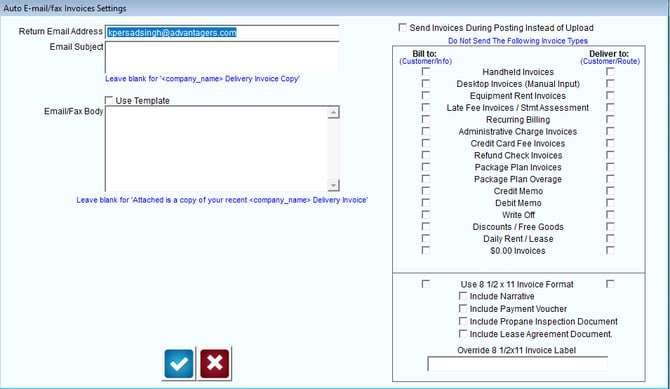
Auto Email SMTP Settings: These settings are used to define parameters when sending invoices to your customers either after upload or after posting.   You can select all of the invoice types you would not like to go out to your customers in this menu.
Note:  Our newest feature of not sending Invoices that are $0.00

1712003021500

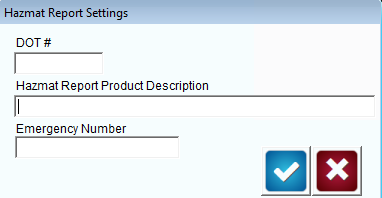
Hazmat Report:  
Select this option to enter information that will be printed on the Hazmat Report from the handheld.
1712003000777

In addition to the items listed above, this report includes details for hazardous materials loaded onto the delivery vehicle, and a complete list of emergency actions to follow if needed.
NOTE:  The Hazmat Report can be printed from the handheld under the Morning Load screen.   Products included on the report are enabled by entering a number other than ‘0’ within the Hazmat Report Product Type field found under Lists> Product Codes > Product Charge Codes, on the Info tab.
Scan Coupon Payments:  This option is currently in development.
Always Ask for Sequence (Telephone Orders):  Choose this option to require a sequence number when creating and scheduling a Delivery Order on the desktop.
Sequence Drag Stops:  Select this option to add a sequence number to a stop dragged from another route.
Update Route Invoice Number with Last Invoice Used:  Select this option to update the next available invoice number based on the invoice numbers used on route (instead of discarding the total number of invoices sent to the handheld).
Schedule dragged stops on original route:  When choosing this option, a stop that was originally scheduled for a Special Route will revert to its standard route when it is dragged.
Cancel Drag When a Special is Scheduled:  Select this option to stop dragging a customer’s delivery if a special stop is made.
No. of Decimals for Price:  Input up to three digits to be displayed after the decimal point for the price of the product.
No. of Decimals for Quantity:  Input up to two digits to be displayed after the decimal point for the quantity of products sold.
Allow Installation of Picked Up (Dirty) Equipment:  Select this option to allow drivers to install equipment previously picked up from another location on the same route day.
Always Use Delivery Order Price:  Select this option to ensure that the Delivery Order price is used on orders scheduled for customers assigned to any special pricing option (i.e., Quantity Discount, Price Lists).
Generate Standing Orders as Priority:  Select this option to mark all Standing Orders as High Priority.
NOTE:  This option will override all special pricing rules.
Use ‘Due By’ Scheduling in Delivery Orders:  Select this option to enable the ‘Due By’ field within the Delivery Orders screen.  This feature allows you to send an order to the handheld beginning on the date entered in the ‘Earliest Delivery Date’ field, and the order will continually be sent to the handheld until it is completed.
NOTE:  Once the order reaches the ‘Due By’ date and the order has not been serviced, it will be treated as a standard Delivery Order.
Allow Selection of Warehouse for Handheld Loads:  Select this option to allow the selection of a Warehouse location when scheduling a Delivery Order.
Allow Billing of Package Plans on Handhelds:  This option allows the driver to assign the Package Plan billing code via the Misc. Items or Default Products screen for monthly billing purposes.  
NOTE:  In order to use this option properly, you must select ‘Reset Package Plan Available Quantities Each Delivery’ under File > Branch Setup > Customer.  Contact ARS prior to enabling this feature to ensure you can use it successfully.
Allow New Package Plans Setup:  This option allows the driver to assign the Package Plan billing code to a handheld invoice via the Misc. Items screen, which will add the Package Plan to the customer’s account (during the posting process).  Additionally, adding the Package Plan to the customer’s invoice will allow the driver to immediately leave the items assigned to the plan with the customer.
Create Def. Products for new Package Plan Products:  This option will add the Package Plan products to the customer’s Default Product list automatically (during the posting process).
NOTE:  The Package Plan options above only apply to companies that bill for Package Plans once per month, do not use these options if your billing schedule varies.   Please contact Advantage Route Systems prior to enabling these features to ensure you can use them successfully.
DEX/UCS:  
DEX/UCS options are part of a future enhancement in Route Manager.  Contact Advantage Route Systems for further information.
Route Defaults:
Hide all price information on quick entry screen:  Select this option to suppress all prices on the Quick Entry screen of the handheld.
Allow for sub routes:  Select this option to allow for sub routes on this branch.
Alternate Path for Adv. Communications:  This option allows you to specify an alternate FTP directory that will be used for route processing when using the Advanced Communications Module.


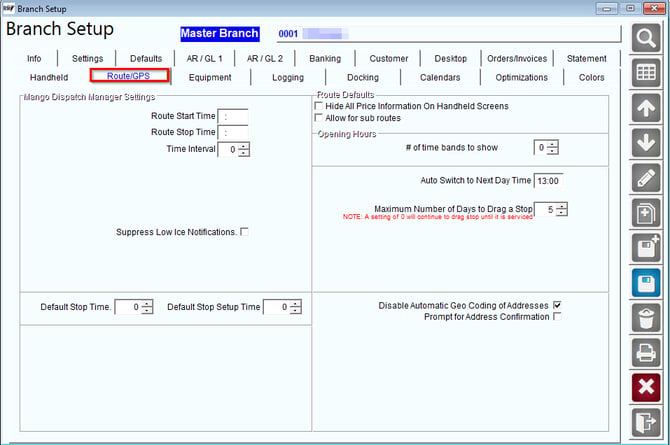
Route/GPS Tab


1712003121142

Route Dispatch Manager Settings:
Route Start Time:  Specify the standard time drivers begin their day.  
Route Stop Time:  Specify the standard time drivers end their day.  
Time Interval:  Specify the time interval generally required per route stop (in minutes).
NOTE:  The Route Dispatch Manager is a unique routing tool that simplifies your daily route management routines.  This option can be found under the Route menu in Route Manager. Contact Advantage Route Systems for further information.
Suppress Low Ice Notifications: Custom Enhancement for one company
GPS:
Default Stop Time:  The default length of time per stop.
MapPoint Country Code:  Choose from the dropdown box if you are using the United States/Canada or European maps.   If blank, it will default to USA / Canada.
Default Maps (Any, Google Maps, Bing Maps):  Choose the default web mapping program to be used in the RMLive Screen.
Map Point:  Uses Microsoft MapPoint.
Mango Mapping: Uses Mango Mapping (with Google Maps integration).
Route Defaults
Hide all price information on quick entry screen: This setting allows you to block all price information on handheld quick entry screen for all routes assigned to this branch.  
Allow for sub routes
Open Hours
No. of time bands to show:  Enter up to three-time bands that can be used on the handheld.  Each time band will include the open hours of operation for each customer’s stop.
NOTE: This information can be established per customer under Customer Information > Route Messages. Select the yellow clock button.
Auto Switch to Next Day Time: By default, the system advances the Route Date to the next day at 9:00 each morning.  This means when you go to do a Morning Card, if the time is after 9:00 then it will automatically advance the date on day forward. By entering a value in this field, you can make the time fit your business requirements.
Maximum Number of Days to Drag a Stop:  Enter the maximum number of days to drag a customer’s stop.
Disable Automatic Geocoding: Select this option to disable automatic geocoding in RMA.  
Prompt for Address Confirmation: Select this option to receive prompts after automatic geocodeing is preformed to confirm new address changes.


Equipment Tab


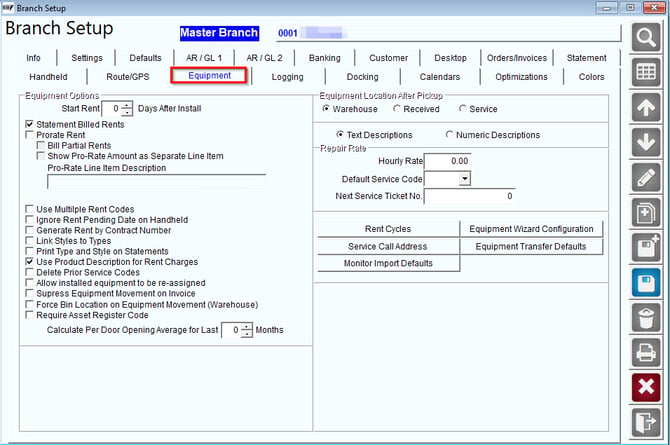
The Equipment tab contains important equipment options available in RMA.
1712003235909

Equipment Options:
Start Rent [] Days After Install:  Enter the default number of days that should be used when calculating the customer’s Start Rent Date during installation; it can be overwritten with each installation.
Default Equipment Wizard to Statement Billed:  Select this option to establish the ‘Statement Billed’ option as a default selection within the Equipment Setup Wizard.
Prorate Rent:   Check this box to prorate rental amounts on equipment.
NOTE:  If a piece of equipment is installed on the 20th of the month, the customer will not be billed until the following month, resulting in a rental for a full month with an additional prorated amount added to it. This is a system setting that cannot be controlled per account.  
NOTE:  Prorate Rent is ignored when billing rent on the handheld.
Bill Partial Rents:   Select this option along with Prorate Rent to establish a prorating system that will bill your customers for partial month rentals.
NOTE:  Selecting this option along with Prorate Rent will result in a true prorated amount.  The system will not wait a full month to bill the customer for their first rental.
Show Pro-Rate Rent Amount as Separate Line Item:  Select this option if you would like the pro-rated rental amount as a separate line item
Pro-Rate Line Item Description:  Select this option if you would like pro-rated line items to have a description
Defer Rent:  Select this option if you defer rental charges.  By using the deferred rents option, you can track how much revenue should be recognized in each period.  For more information on this feature, refer to Chapter 4.07 of the Supplemental Guide.
Use Multiple Rent Codes:  Select this option to establish up to three separate charges per cooler.  This feature is generally used in Europe for rent, sanitization, and other charges.
Ignore Rent Pending Date on Handheld:  Select this option to ignore the rent pending date assigned to each piece of equipment (not generally recommended).
Generate Rent by Contract Number:  If contract numbers are being used, rentals will be generated based on the contract number and not the customer’s account.
Link Styles to Types:  This option allows you to link Equipment Style Codes to Equipment Type Codes from within the Equipment Type Codes screen.  
Print Type and Style on Statements:  Choose this option to print equipment Type/Style information when displaying rentals on statements.  
Use Product Description for Rent:  Choose this option to display rent product descriptions on customer statements and invoices, instead of Rent Calendar descriptions.
Delete Prior Service Calendar Entries:  Select this option to clear equipment service days that have already been performed each month.
Allow installed equipment to be re-assigned:  Select this option to enable the ability to reassign equipment from within the Products tab of Customer Information.
Suppress Equipment Movement on Invoice:  This option is part of a custom enhancement and is generally ignored.
Force Bin Location on Equipment Movement (Warehouse):  Select this option to require the Bin Location field be filled in on equipment movement.
Require Asset Register Code:   Select this option to require the Asset Register Code on equipment.
Equipment Location After Pickup:
Select the default location where a piece of equipment should be placed each time it is returned to the warehouse:
  • Warehouse
  • Received
  • Service
This new location is updated during the Afternoon Card process.
Repair Rate:
Hourly Rate:  Enter the hourly repair rate applied to equipment servicing.  This information will be used during an Equipment Service Entry.
Default Service Code:  Enter a default Equipment Service Code that will be automatically assigned to equipment when performing an unscheduled equipment service.  This entry can be overwritten on the invoice screen if necessary.
Next Service Ticket No:  Enter the starting Equipment Service Ticket Number you would like to use.  This field will be automatically updated as each ticket is generated.

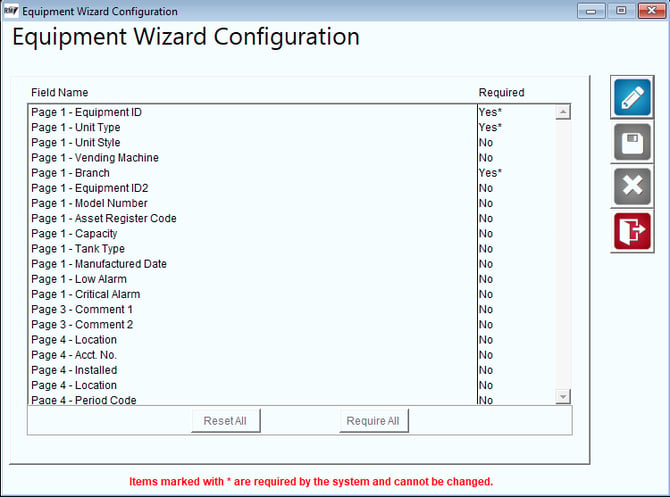
 Equipment Wizard Configuration:  Select this option to open the Equipment Wizard Configuration screen which allows you to define what fields are required on the Equipment Wizard.
 1712012272168
 
Reset All:  Select this option to reset all fields back to their default “Required” setting.
Require All:   Select this option to force all fields to be required on equipment entry.
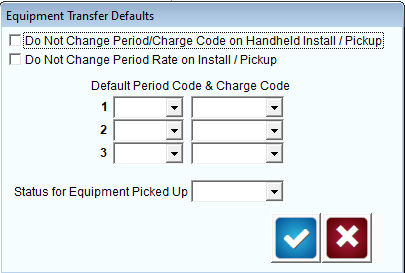
 Equipment Transfer Defaults (Optional):  Establish default settings for equipment as it is checked back into the warehouse from a customer.
 
1712012318474
 
Do not Change Period Code/Charge Code on Handheld Install/PickupSelect this option to use the same Period Code already assigned to the piece of equipment when it is returned to the warehouse.
Do not Change Period Rate on Install/PickupSelect this option to use the same Rental Rate already assigned to the piece of equipment when it is returned to the warehouse.
Default Period Code and Charge CodeEnter up to three default Period Codes and Charge Codes to use when checking equipment back in to the warehouse from a customer.
Status for Equipment Picked Up: Select the default Equipment Status Code to use when equipment is picked up from a customer.
NOTE: Equipment Status Codes can be established under Lists > Equipment.
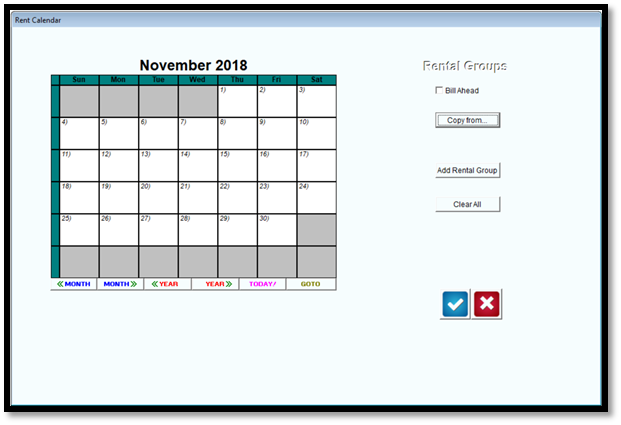
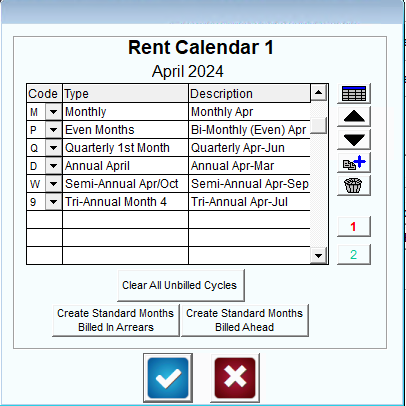
Rent Calendar:
The Rent Billing Calendar contains the settings necessary to generate rent charges within Route Manager.
Code: Enter a cycle code that will be used to bill rentals this month.
Type: Displays the type of Cycle Code selected above (e.g., Monthly, Bi-Monthly).
Description: Enter the rental description that you would like to use on statements and invoices.
Rent Calendar 1594322227622 1 &1594322227721 2: Up to two rent calendars can be defined within Route Manager.   Using more than one calendar is not common.
1594322227820Clear All Unbilled Cycles: Select this option to clear the Rent Calendar.
1594322227919Create Standard Months Billed in Arrears: Select this option to automatically populate the Rent Calendar with the most common Rent Codes used when billing for the current period.
1594322228017Create Standard Months Billed Ahead: Select this option to automatically populate the Rent Calendar with the most common Rent Codes used when billing in advance.
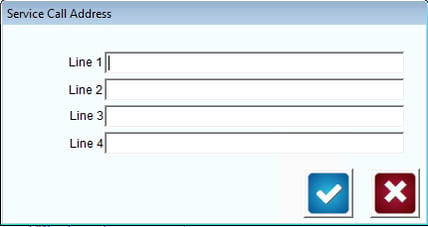
Service Call Address: Enter company address information that will print on Equipment Service Call forms found under Transactions > Equipment Processing.
Text Descriptions: Select this option to use the standard Cycle Descriptions above on statements and invoices.
Numeric Descriptions: Select this option to use rent billing dates as descriptions (e.g., 10/2009-11/2009).

 1712012516291
 
Service Call Address:
Rent Cycles:

1712013378524

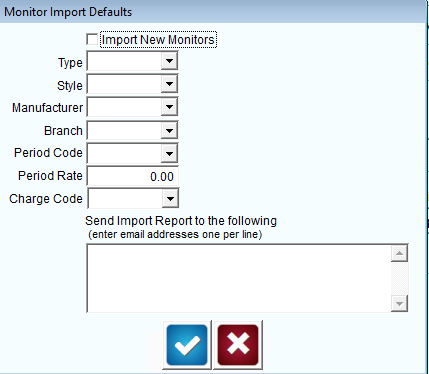
Monitor Import Defaults:

1712013433828


Logging Tab


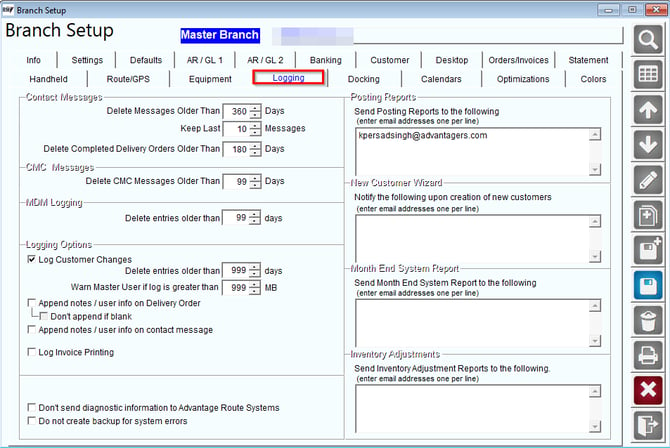
The Logging tab contains tracking and error reporting settings used in Route Manager.
1712013486147

Contact Messages:
Delete Messages Older Than ( )Days: Enter the maximum number of days to retain messages within the Contacts tab of Customer Information.
Keep Last ( ) Messages: Enter the minimum number of messages to retain within the Contacts tab of Customer Information.
Delete Completed Delivery Orders Older than ( ) Days: Enter the maximum number of days to retain completed Delivery Orders in the program.
NOTE: The information established above is processed during the Close Period process.
CMC Messages: Delete CMC Messages Older Than:  Enter the maximum number of days retain Customer Message Centre history. This will happen during period close.
 
MDM Logging: Delete Entries Older Than:  Enter the maximum number of days retain Mango Dispatch Manager history. This will happen during period close.

Logging Options:
Log Customer Changes: Select this option to activate the Route Manager logging feature.  This feature will record certain changes made to each customer’s account, and the employee making the changes.
NOTE: The Log Report can be generated under Transactions > Reports > Communication Reports > Log Report.
Delete Entries Older Than () Days: Enter the maximum number of days to retain logged activity.
Warn Master User if log is greater than () MB: Enter the file size (in megabytes) that should be reached prior to informing a ‘Master User’ that the log file may need to be edited.
Append notes / User Info on Telephone: Select this option to disable the ability to edit a previous Delivery Message or Invoice Message on a saved Delivery Order. The user editing the order will be forced to add a new message if necessary, and both will be displayed on the Delivery Order.
Do not append if blank: Select this option to allow users to edit the original message field only if the field was left blank on the Delivery Order.
Append notes / User Info on Contact: Select this option to disable the ability to edit a previous message entered on a saved Contact Message. The user will be forced to enter a new message if necessary, and both will be displayed on the Contact Message.
Log Invoice Printing: Select this option to log Invoice printing, this will record all previewed/printed invoices in the log report when checked.
Posting Reports:
Send Posting Reports to the following: (enter email addresses one per line):
New Customer Wizard:  Enter an email address for each user that should be notified when a new account is created in Route Manager (one address per line).
NOTE: This option transmits a .PDF attached file via Email and requires additional configuration prior to usage.  Refer to Chapter 2.12 of the Supplemental Guide for further information on setting up .PDF attachment options in Route Manager.
Month End System Report:  When email addresses are entered here, a system summary will be sent to all names listed.  This report has various system data that will allow the recipient to monitor important RMA information.
Don’t Send diagnostic information to Advantage Route Systems:  Choose this option to disable automatic error reporting transmitted to Advantage Route Systems.
Do not create backup for system errors:  Choose this option to prevent Route Manager from creating a backup during the posting process (not recommended).
NOTE:  This is not a complete backup of your data.  Only the files updated during the posting process will be included.


Docking Tab  

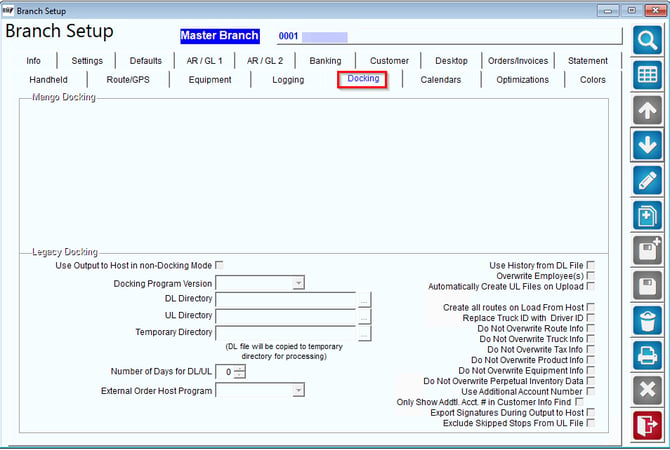
The Docking tab applies to companies using a customized version of RMA that allows the use of handhelds with their existing routing program.

 1712092015106


Fields:
Use Output to Host in Non-Docking Mode: Choose this option to use the ‘Output to Host’ features in non-docking mode.
Docking Program Version: Choose the version of Route Manager Docking being used.
DL Directory: The directory where DL (download) files are located.
UL Directory: The directory where UL (upload) files are located.
Temporary Directory:  The directory where DL (download) files are temporarily located.
Number of Days for DL/UL:  This field displays the number of days to keep or use the files.  When the number of days is reached, the program will delete the files.
Use History from DL File:  If this is checked, history will be used from the DL files to transfer to the handheld.
Overwrite Employee(s):  If this is checked, the employee file in the DL file that is transferred to the desktop will replace the employee file on the desktop.
Automatically Create UL files on Upload:  Checking this box will automatically create a new UL file when routes are uploaded.
Create all routes on Load From Host:  This will load all routes at once.
Replace Truck ID with Driver ID:  This will default to the driver ID.
Do Not Overwrite Route Info:  Check this box to prevent the overwriting of route information.
Do Not Overwrite Truck Info:  Check this box to prevent the overwriting of truck information.
Do Not overwrite Tax Info:  Check this box to prevent the overwriting of tax information.
Do Not Overwrite Products:  Check this box to prevent overwriting product information.
Do Not Overwrite Equipment:  Select this option to prevent overwriting equipment information.
Do Not Overwrite Perpetual Inventory:  Select this option to prevent overwriting perpetual inventory information.
Use Additional Account Number:  Select this option to use alternative account numbers for your customers in your docking files.  The additional account number will be displayed on the top-right corner of the customer’s Route tab within Customer Information.   Selecting this option will also enable a new ‘Additional Account Number’ customer lookup field within RMA and the handheld program.
Only Show Addtl. Acct. # in Customer Info. Find (requires option above):  Select this option to automatically search by the Additional Account Number field when accessing the customer-lookup feature in Route Manager.
Export Signatures During Output to Host:  Choose this option to create signatures when exporting data.  This will put them into the output directory in a sub folder where they can be incorporated by your host program.
Exclude Skipped Stops from UL File:  Choose this option to exclude skipped customer stops from the uploaded data.
External Order Host Program:  Select the external program being used.


Calendars Tab

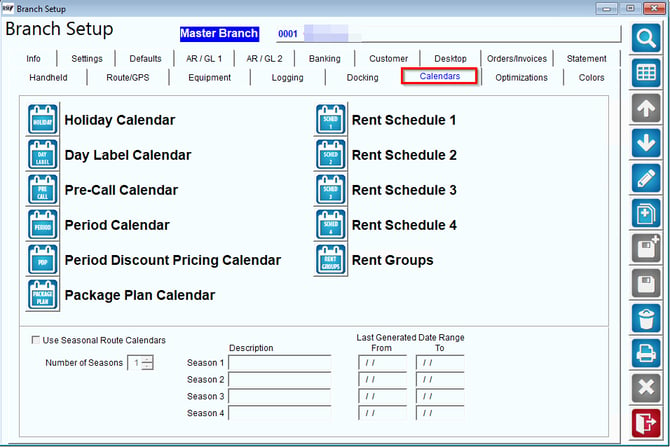
The Calendars tab contains important settings for routing, accounting, and rent options.
1712095049832


Holiday Calendar:
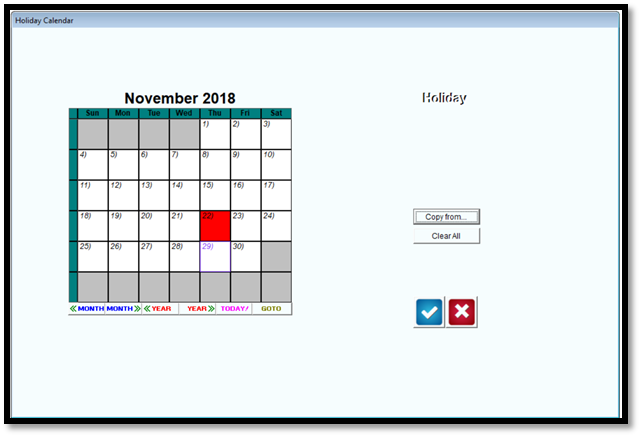
The Holiday Calendar is used to identify all holidays that may, or may not, have an impact on your route schedules.  To add a holiday to the calendar, simply click on top of the desired day.  
NOTE:  Adding a holiday to the calendar does not automatically determine a route schedule.   You will choose to skip, slide, or ignore each holiday added during the Day Label Setup process.
1594322290972

Fields:
Copy From:  Select this option to copy holidays from other branches already configured.
Clear All:  Select this option to clear all the holidays already established.
Day Label Calendar:  
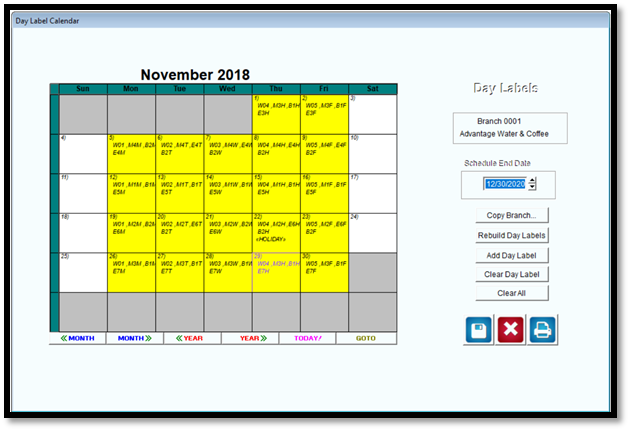
The Day Label Calendar is used to create codes (day labels) that your customers will be assigned to that will determine their route schedule. A common Day Label Calendar is shown below.
NOTE:  For a complete walkthrough on setting up the Day Label Calendar, refer to the Getting Started Guide.

1594322291090

Fields:
Schedule End Date:   This field determines the date that the current route schedule will end.  The date is typically extended for one year in advance.
Copy Branch:   Select this option to copy the day label calendar from an alternate branch to the current branch.
Rebuild Day Labels:  Choose this option to update the day label calendar.  This is typically used when holiday changes have been made after the calendar has already been extended for the year.
Add Day Label:  Choose this option to add a new Day Label to the system.  
Clear Day Label:  Choose this option to clear a single Day Label from the calendar.
Clear All:  Choose this option to clear all Day Labels from the calendar.
Pre-Call Calendar:  
The Pre-Call Calendar is part of the Advanced Pre-Calling feature in Route Manager that allows companies to use a formal calling program to contact customers prior to delivery.  The Pre-Call Calendar is used to create codes (day labels) that will determine each customer’s pre-call schedule.
NOTE:  For further information on the Advanced Pre-Calling option, refer to Chapter 3.23 of the Supplemental Guide.

1594322291216

Fields:
Schedule End Date:   This field determines the date the current route schedule will end.  The date is typically extended for one year in advance.
Copy Branch:   Select this option to copy the pre-call calendar from an alternate branch to the current branch.  
Rebuild Day Labels:  Choose this option to update the pre-call calendar.  This is typically used when holiday changes have been made after the calendar has already been extended for the year.
Add Day Label:  Choose this option to add a new Day Label to the system.  
Clear Day Label:  Choose this option to clear a single Day Label from the calendar.
Clear All:  Choose this option to clear all Day Labels from the calendar.  
Rent Schedule 1-4
The Rent Schedule calendar offers an alternative to using the standard Rent Calendar found on the Equipment tab of Branch Setup.  The Rent Schedule option works on a 7, 14, 28- or 56-day cycle.
To add a new cycle, simply choose one of the cycle buttons and select the day to begin by clicking on the calendar.
NOTE:  You cannot establish more than one cycle on the calendar.  If you require the use of multiple rent cycles, you can create up to four by using Rent Schedules 2-4.  
|
1594322291344

Schedule (1-4):
Slide for Holidays:  Select this option to slide the Rent cycle around all holidays.
Copy from:  This option copies calendar information from another branch.
7 Day Cycle:  Select to indicate a 7-day rent billing cycle.
14 Day Cycle:   Select to indicate a 14-day rent billing cycle.
28 Day Cycle:  Select to indicate a 28-day rent billing cycle.
56 Day Cycle:  Select to indicate a 56-day rent billing cycle.
Clear All:  Select this option to clear all scheduled rents from the calendar.
Rent Groups
Rental Groups allow you to generate rentals at different times during the month.  Instead of generating rentals once per month on the desktop, you will be able to generate rentals throughout the month based on the Rental Groups defined within the calendar.  
To create a new Rental Group, select the Add Rental Group option and choose a beginning and ending date for the new group on the calendar.
NOTE:  You will be prompted to enter a Rent Group Code during this process.  Only numbers 0-9 can be used.

1594322291543

Fields:
Bill Ahead:  Select this option to bill customers a month in advance, if applicable.
Copy From:  Choose this option to copy Rent Groups from another branch.
Add Rental Group:  Choose this option to create a new Rental Group.
Clear All:  Choose this option to clear all the Rental Groups from the calendar.
Period Calendar 
The Period Calendar allows you to define accounting and general ledger periods important for Route Manager to function properly.
  • Accounting Period:  Controls when statements are issued, and other customer related information.  The Close Period function is run on the last day of the Accounting Period.
  • General Ledger Period:  Controls totals on general ledger driven reports in RMA, and generally matches the Accounting Period above.
  • Quarter End:  Allows you to indicate each quarter end of the year.  This is used for quarterly totals within Customer Information and certain reports.
  • Year End:  Allows you to indicate the end of the year on the calendar.  This is used for year-to-date totals within Customer Information and certain reports.
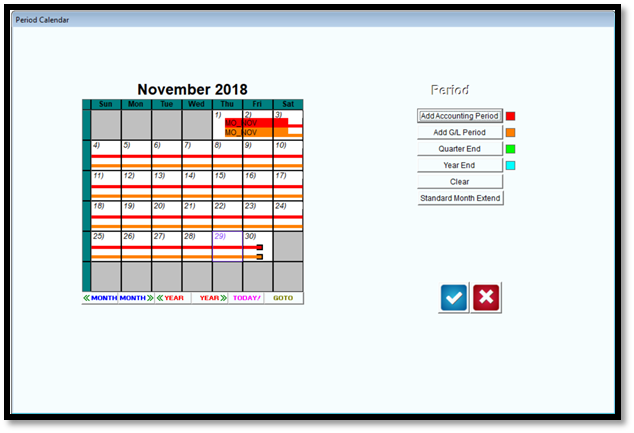
In the example below, the Accounting and G/L Periods mirror each other in period length and description (1st – 31st).  The Quarter and Year End markers have been added to the last day of December as well.

1594322291691

Period:
Add Accounting Period:  Select this button to define a new Accounting Period.  Choose the beginning and ending day of each period and enter a label when prompted. 
Add G/L Period:  Select this button to define a new General Ledger Period.  Choose the beginning and ending day of each period and enter a label when prompted.
Quarter End:  Select this button to define a Quarter-End marker.
Year End:  Select this button to define a Year-End marker.
Clear:  Select this button to clear any of the defined period markers on the screen.   
Standard Month Extend:  Select this button to extend the current calendar configuration after you have defined a full calendar year of periods and markers.
 
 
Period Discount Pricing Calendar
The Period Discount Pricing Calendar allows you to establish a custom cycle that will be used when generating period discounts.  
NOTE:   Refer to Chapter 2.15 of the Supplemental Guide for further information on Period Discount Pricing.

1594322291806

Fields:
Slide for Holidays:  Select this option to slide the discounting cycle around all holidays.
Copy From:  Select this option to copy an existing calendar from an alternate branch.
1 Week Cycle:  Select this button to define the discount schedule on a 1-week cycle.   
2 Week Cycle:  Select this button to define the discount schedule on a 2-week cycle.
3 Week Cycle:  Select this button to define the discount schedule on a 3-week cycle.
4 Week Cycle:  Select this button to define the discount schedule on a 4-week cycle.
X Days Cycle:  Select this button to define a custom discount schedule.
Clear All:  Use this button to clear all discount cycles.
The Package Plan Calendar allows you to establish a custom cycle that will be used when generating Package Plan billing charges.
NOTE:  Standard monthly Package Plan billing is used within Route Manager without creating a billing schedule within this screen; creating a calendar here will override this setting.  For further information on using this option, refer to the Package Plan Manual.

1594322291932

Fields:
Slide for Holidays:  Select this option to slide the package plan calendar around holidays.
Copy From: Select this option to copy an existing calendar from an alternate branch.
1-4 Week Cycle:  Select this option to create a one to four-week billing cycle for Package Plans.
X Days Cycle:  Select this option to create a custom billing cycle for Package Plans.
Clear All:  Select this option to clear the current Package Plan billing cycle.


Optimizations Tab


The Optimizations tab contains options for archiving and deleting data, controlling backup settings, and optimizing memory settings.
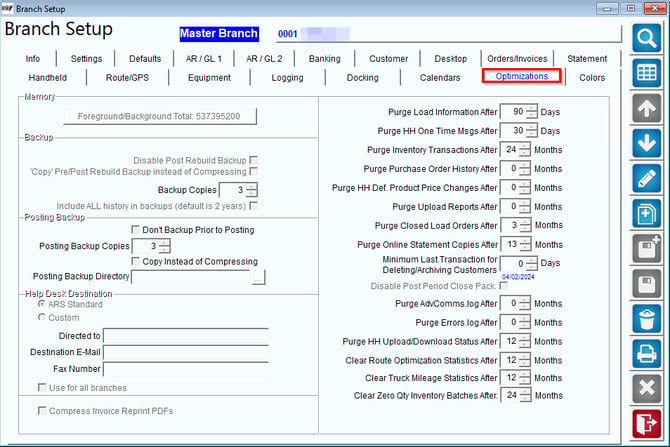
1712098648175


Backup:
Disable Post Rebuild Backup:  Enabling this option will no longer automatically create a backup of the Route Manager data after each rebuild. 
‘Copy’ Pre/Post Rebuild Backup Instead of Compressing:  Enabling this feature will no longer “compress” (place files in a compressed archive) for each rebuild.  This may speed up the rebuild process but will require significantly more hard drive space (at least two times the size of the existing Data folder).
Backup Copies:  Enter the number of backups that should be stored in a single location, prior to overwriting the oldest one (up to 5).
Include ALL history in backups (default is 2 years):   Select this option to include all available historical data.
Posting Backup:
Do not Backup Prior to Posting:   Check this box if you do not want Route Manager to backup your data before closing the current period (not recommended).
Posting Backup Copies:  Select this option to disable the automatic backup routine performed during the posting process (generally not recommended).
Copy Instead of Compressing:  Check this box to create a full copy of the posting data instead of compressing the contents.
Backup Copy Directory:  Enter the storage directly for the copied data files when using the ‘Copy’ option above.
Help Desk Destination:
ARS Standard:  This is the standard option that should be selected.
Custom:  Select this option to direct support requests to a destination of your choice.
Directed to:  Enter the name of the destination recipient.
Destination E-mail:  Enter the e-mail address to forward all inquiries to.
Fax Number:  Enter the fax number for automated fax requests.
Use for all Branches:  Select this option if these settings will apply to all branches in RMA.
Compress Invoice Reprint PDFs:  Enabling this feature to compress the Handheld Invoice copies (PDF’s) as they are being created.  You may notice a slight delay during the PDF creation process, but the PDF copies will take less hard drive space.
Memory:
Foreground Memory:  Enter a ‘1’ in this field to optimize your PC’s foreground memory for RMA.  The displayed information will be updated on Save.
Background Memory:  Enter a ‘1’ in this field to optimize your PC’s background memory for RMA.  The displayed information will be updated on Save.
Other:
Purge Truck Load Qtys After () Days:  Enter the default number of days before truck quantities are reset when using Perpetual Inventory.  For more information on this feature, refer to Chapter 3.17 of the Supplemental Guide.
Purge HH One Time Msgs After () Days:  Enter the default number of days before the system erases One Time Messages within Customer Information.
Purge Inventory Transactions After () Months:   Enter the default number of months the system should wait before purging old inventory entries within the Inventory Adjustments screen.
Purge Purchase Order History After () Months:  Enter the default number of months the system should wait before purging old purchase order entries in RMA.
Purge HH Def. Products Changes After:  Enter the default number of months the system should wait before purging old Handheld Def. Product changes in Route Manager.
Purge Upload Reports After:  Enter the default number of months the system should wait before deleting upload reports from the system.
Purge Closed Load Orders After:  Enter the default number of months the system should wait before deleting Closed Load Orders from the system.
Minimum Last Transaction for Deleting/Archiving Customers:  This date is used during the Archive Customers process.  For more information on this feature, refer to Chapter 3.16 of the Supplemental Guide.
Disable Post Period Close Pack:  Select this option to not pack deleted records during period close (generally not recommended).
Purge AdvCommsLog After: Enter the default number of months the system should wait before deleting the AdvComms.log from the system.
Purge Errorslog After: Enter the default number of months the system should wait before deleting the Errors.log  from the system.


Colors Tab


In the colors tab, you can define various colors a number of data fields. This is separated into the following:

  • Route Information
  • Stop Colors
  • Credit Status
  • Handheld Class
  • Mango Live

Each tab below has various colors that you can set.

Route colors

These route colors are used to determine the status of your routes in Mango Dispatch Manager. There are several colors that you can set for the Route Header in MDM.
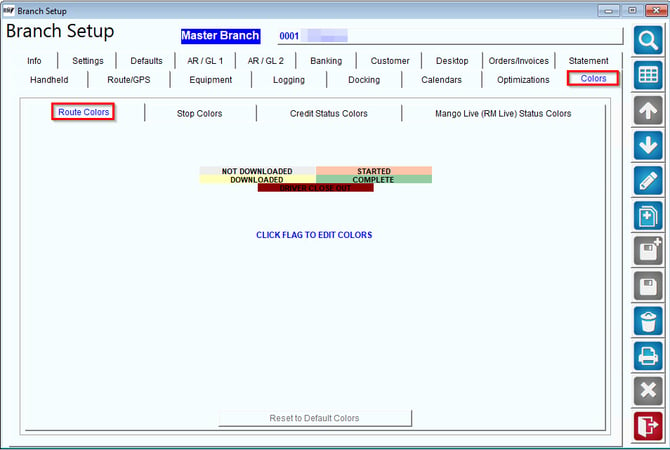
1712099418065

These four indicators are:

  1. Not DownloadedRoute has been created but has not been downloaded to the handheld device.
  2. Route DownloadedThe Route was downloaded to the handheld device.
  3. Started- The route delivery person has begun to service customers on his mobile device.
  4. Complete- All stops have been completed and the day end upload process is complete. Data has been synced with the desktop so the day is completely finished.
  5. Driver Close Out- This option is only available on MDM when the Driver's route has been uploaded to RMA from the handheld, and your driver/route manager has selected the sign out option on the route header in MDM. This option captures and stores 1st log in/last log out time from the handheld on rmrdghndmiles.

Stop Colors 
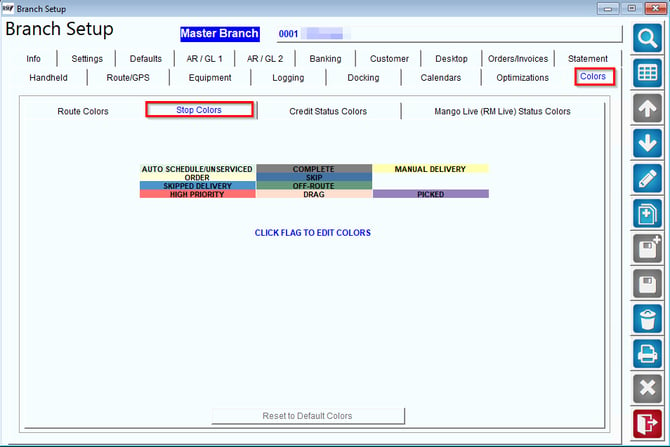
1712099583310

The colors here represent the various types of stop types or the colors of the stop cards we see on MDM. We can set colors for each of the following stop types:

  1. Auto Schedule / Unserviced- These are customers who have been scheduled to be serviced or are unserviced on the route/date
  2. Order- When an order exists on MDM for that customer.
  3. Shipped Delivery- When an order has been shipped to the customer.
  4. High Priority- When an order has been marked as high priority. 
  5. Complete- When a customer stop has been serviced and an invoice exists.
  6. Skip- When a stop has been skipped.
  7. Off-Route- Represents an off-route customer on route that day. 
  8. Drag- Represents a stop that has been moved with a drag code from the handheld.
  9. Manual Delivery- When a customer stop has been moved from one route to another route.
  10. Picked- This status indicates the route has been picked. 


Credit Status Colors
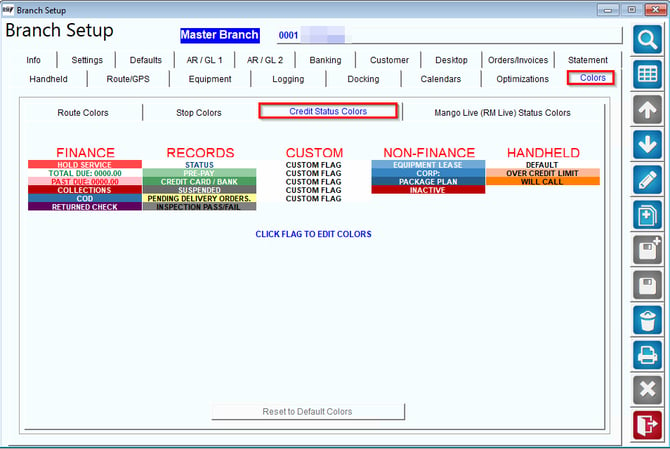
1712099663463

Credit Status Colors allows the user to set colors for the various customer statuses RMA allows you to track:

Finance

  1. Hold Service - set the color for customers who are on Hold Service.
  2. Total Due: 0000.00- set the color to show 'Total Due' and amount for the Customer.
  3. Past Due: 0000.00- Set the color to show 'Past Due' and amount for the Customer.
  4. Collections- Set the color to show that the Customer is in Collections.
  5. COD- Set the color to show that Customer is COD.
  6. Returned Check- Set the color to show that the Customer has returned check.

Records

  1. Status - Set the color to show the Customers Account Status. 
  2. Pre-Pay - Set the color to show if the customer is a Pre-Pay account.
  3. Credit Card / Bank - Set the color to show that the Customer pays by Credit Card/Bank
  4. Suspended - Set the color to show that the Customer is suspended.
  5. Pending Delivery orders - Set the color to show that the Customer has Pending Delivery Orders. 
  6. Inspection Pass / Fail - Set the color to show the status of the Inspection.

Custom

These fields are related to the following fields: Customer > Credit > Additional Flags > Custom Flags. We give you 5 user defined fields which you can set colors for.

Non-Finance

  1. Equipment lease - Set the Color to show the Equipment Lease
  2. Corp:
  3. Package Plan - Set the Color for Package Plans
  4. Inactive - Set the Color for Inactive Customers.

Handheld

  1. Default - Set the color to show default customers on the Handheld.
  2. Over Credit Limit - Set the color to show customers over the credit limit on the Handheld.
  3. Will Call - Set the color to show Will Call customers on the Handheld.


Mango Live (RM Live) Status Colors
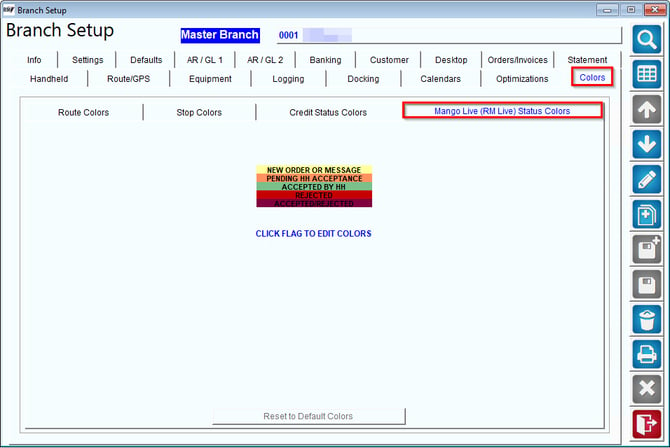
1712099713212

When orders are sent via RMLive, MDM colors can be set to show the user the various statuses represent:

  1. New Order or Message - Set the color for new orders or messages received via RM Live.
  2. Pending HH acceptance - Set the color for orders on MDM which are pending Handheld acceptance
  3. Accepted by HH - Set the color for orders on MDM which are accepted by the Handheld.
  4. Rejected - Set the color for orders on MDM which are rejected by the Handheld.
  5. Accepted/Rejected - Set the color for orders on MDM which are accept/rejected by the Handheld.

How To Edit Colors


To customize flag colors in RMA, follow these efficient steps:

1. Click on "File" and choose "Branch Setup" from the menu.
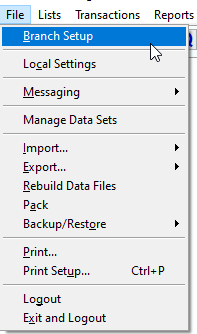
1687904335150

2. In the Branch Setup window, select the "Colors" tab. Here, you will find four tabs:

  •   Route Colors
  •   Stop Colors
  •   Credit Status Colors
  •   Mango Live (RM Live) Status Colors

1687904335206

3. To edit the colors, click on the "Edit" button.

1687904335248

4. Read the instructions under "Click Flag To Edit Colors" and choose one of the flags to modify. Once you've selected a flag, the "Edit Flag" prompt will appear.
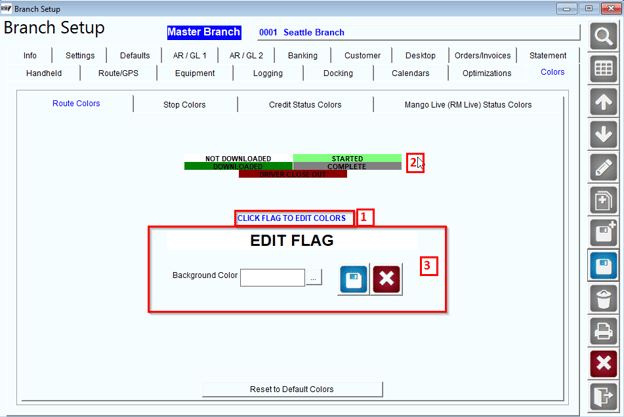
1687904335816

5. In the "Edit Flag" prompt, you can choose a predefined basic color or define a custom color for the flag. Simply click on a color and then click "OK".
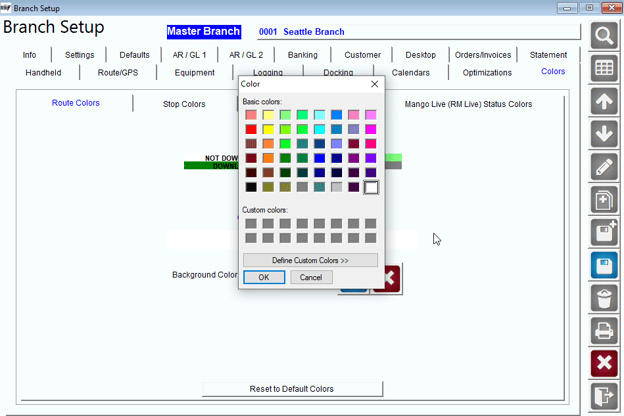
1687904335678

6. After selecting the background color for the flag, click the "Save" button to save the color.
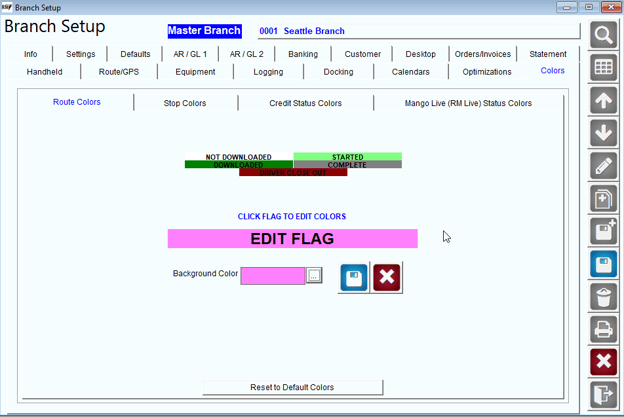
1687904335633

7. To edit colors for other flags, repeat the steps above.
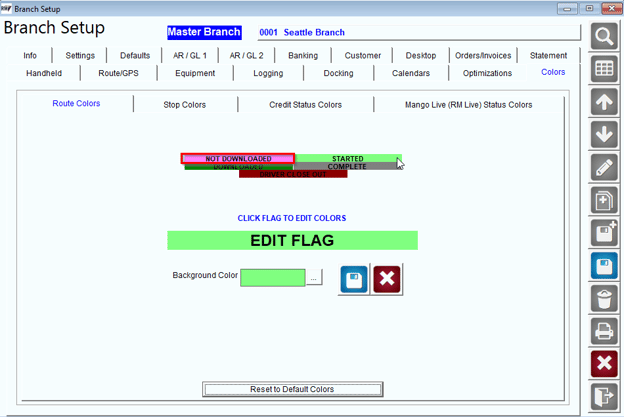
1687904335763

8. Note that the only different flag tab is the "Credit Status Colors" tab. To edit this flag, you need to click on a flag to modify its colors. Select a background color and a text color, then click "Save" to apply the changes. Repeat this process for each flag in the Credit Status Colors tab.
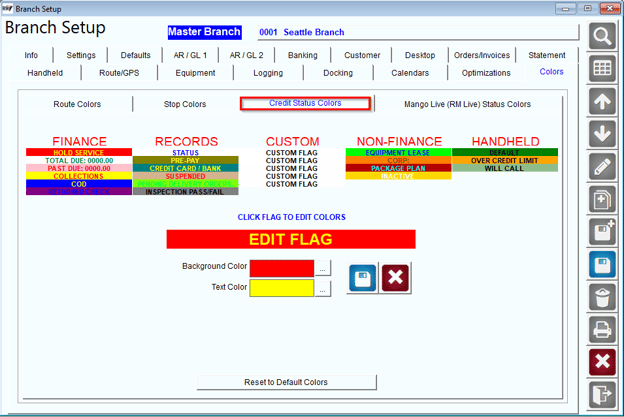
1687904335860

9. After you have finished editing the flag colors, simply click on the "Save" button to apply and save the changes you made.

1687904335860