**** Editing in Progress, please contact Ryan J. if you need any assistance with this article / bottle/recycle tracking *****
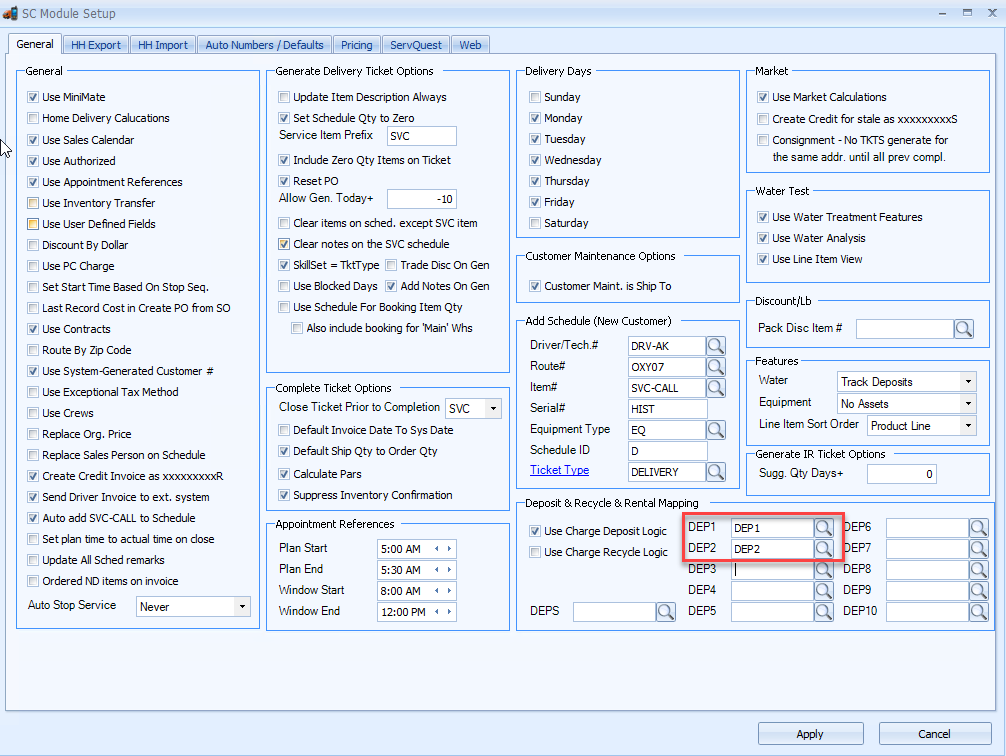
(1). Go to SC Module -> Deposit And Recycle and Rental Mapping:
1 (a). Check use charge deposit logic
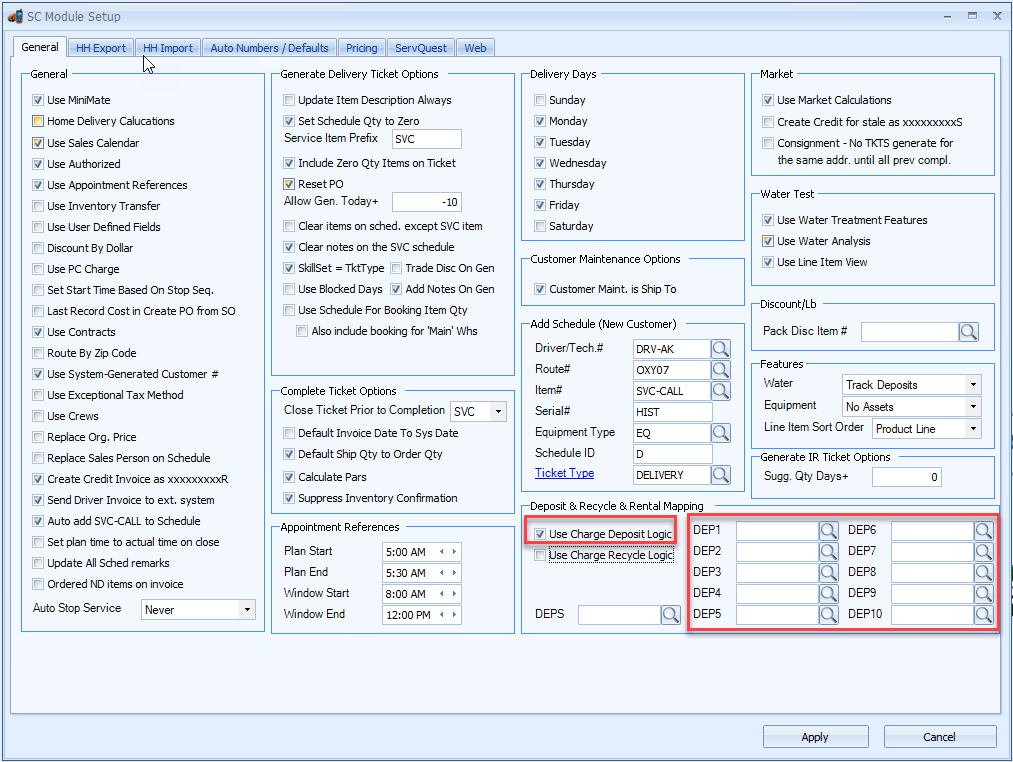
1 (b). Also, enter 'SUR1' into DEP1 field:

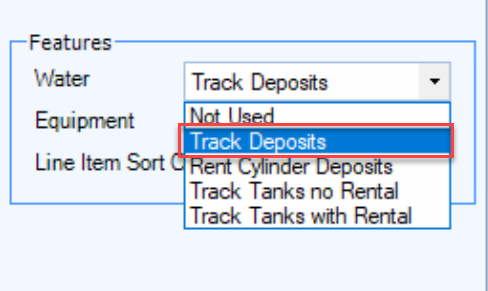
(2). Go to SC Module -> Features -> Equipment: Change it to 'Track Deposits"
(3). Within ServQuest's MiniMate settings (Housekeeping > MiniMate Configuration):
3(a). Search "calc" in the search bar
3(b). In the "calculate_deposists_on" field, put a "1" there to turn it on and "0" to turn it off (settings sync on tablets needed as well)
(4). Create the new item; enter the price and "EACH" into each of the measure fields.
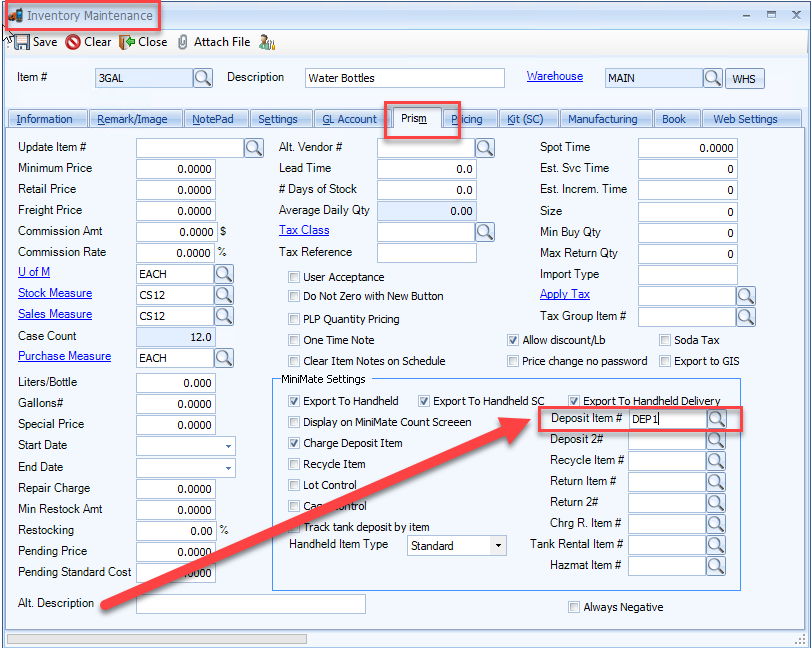
4 (a). Additionally, go to Prism tab -> MiniMate Settings
I. Check the "Charge Deposit Item" box

II. Enter the item ID into the "Deposit Item #" field
OLD VERSION *************************************
ServQuest allows you to track up to 10 different counts of Bottles at a given customer’s address. We like to call these DEP(deposit) “buckets”. Multiple items can be connected to a single bucket. As bottle items are delivered and picked up, the counts in each bucket will reflect the exchanges. Below we will go through the setup.
The example below for XYZ Company will use two buckets for their 3 and 5 gallon bottles
- There are 10 “DEP” items, that must be attached to items that will be used in bottle exchanges. They are what connects bottle delivery/pickups to the buckets
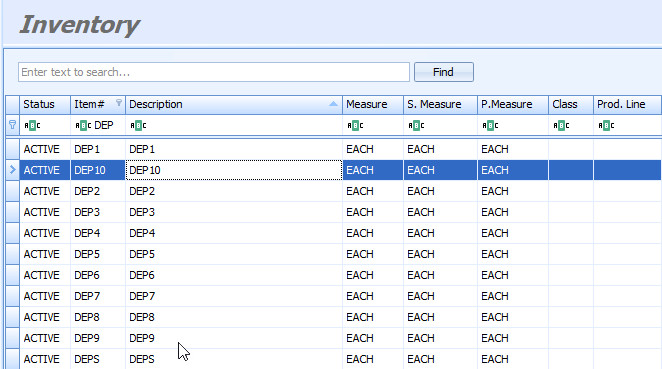
- Attach these to the items you wish to track. This is set in Inventory Maintenance -->Prism --> Deposit Item#
- DEP1
- 3GAL
- 3GAL-P
- DEP2
- 5GAL
- DEP1
- Now you'll need to reveal DEP Maintenance through SQ Admin. See the separate KB article on how to set this and reference the screenshot below:
- https://prismvs-20280902.hs-sites.com/knowledge/servquest-admin
- Next, enter the DEP item#’s name turn on the "Use Charge Deposit Logic" setting into SC MOD --> General
- Also set Features --> Track Deposits
In address setup, for each address that the bottle deposits will show up on for, the address within address maintenance will need to have deposit preference set as 'Seperate Deposit Item'.
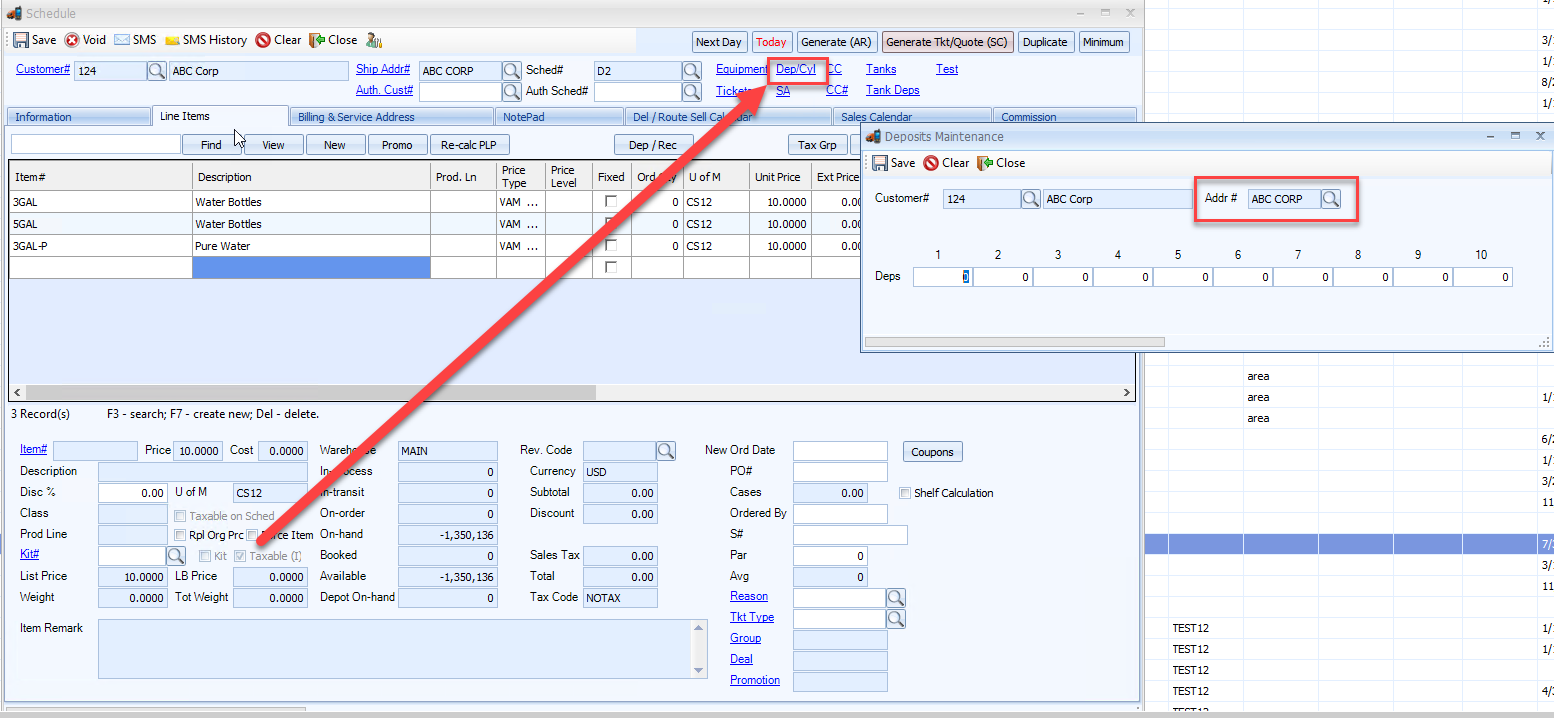
- Now that setup is complete, counts will begin to be tracked. You can find the deposits by looking entering the schedule and clicking on the DEP hyperlink
- It should be noted that starting deposit counts must be manually entered into ServQuest