
Introduction
A Batch Report is a type of business report that provides detailed information about transactions or operations grouped together in a batch. These reports are commonly used in industries such as finance, manufacturing, and logistics to track and analyze data processed in batches. A batch report can include information such as batch codes, dates, account numbers, routes, and more, allowing businesses to efficiently manage and analyze their operations.
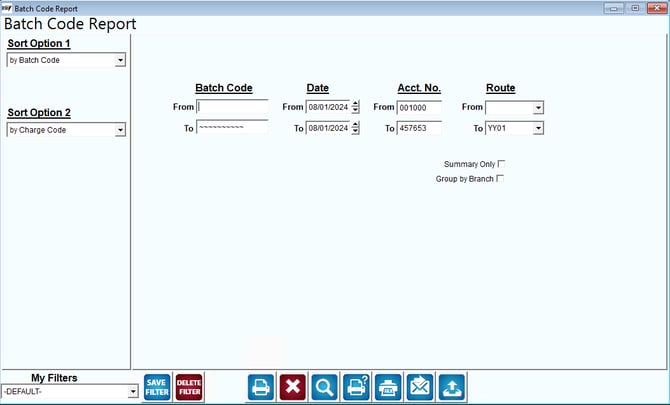
Fields:
Sort Options:
Sort Option 1 and Sort Option 2: These dropdowns allow users to choose how the report data should be sorted. Options like "by Batch Code" and "by Charge Code" indicate that users can organize the report based on different criteria, which can help in analyzing specific aspects of the data.
Batch Code: The "Batch Code" fields let users filter the report based on specific batch codes. Users can specify a range by entering "From" and "To" values, which helps narrow down the report to specific transactions or entries.
Date: This section allows users to filter the report by a date range. Users can enter a start date ("From") and an end date ("To") to view records within a specific time frame.
Acct. No.: The "Acct. No." fields are used to filter the report based on account numbers. Users can specify a range of account numbers to focus on particular accounts.
Route: The "Route" dropdowns let users filter the report based on specific routes. This can be useful for companies that manage logistics, deliveries, or other route-based operations.
Summary Only: Checking this option would generate a condensed version of the report that highlights key figures and omits detailed data, similar to the option in the previous image.
Group by Branch: This checkbox allows users to group the report data by branch. This feature is particularly useful for organizations with multiple locations, as it enables comparison and analysis of branch performance.
My Filters: Similar to the previous interface, users can apply, save, or delete custom filters for generating the report.
Action Buttons: The buttons at the bottom are likely for actions like saving, deleting filters, printing, exporting, and accessing help, similar to the previous interface.