
The Production Batch Codes feature in Route Manager allows you to create and assign unique identification codes used to track batches of items for quality control and recall purposes. These codes can be used to establish traceability for any given item. In RMA V8.1 the Batch Codes process has been overhauled. The purpose of this change is to allow Batch codes to have a streamlined, accurate inventory process.
Batch codes in MOM (Mango One Mobile) are essential for tracking and managing inventory with precision. These codes allow you to assign unique identifiers to batches of products, enabling accurate traceability from production through delivery. By utilizing batch codes in MOM, you can ensure quality control, streamline inventory processes, and simplify product recall procedures if necessary. This functionality is especially valuable in environments where tracking the origin and status of products is critical to operations. Whether you’re handling returns, managing damaged goods, or verifying orders, batch codes in MOM help maintain consistency and accuracy across your inventory management tasks.
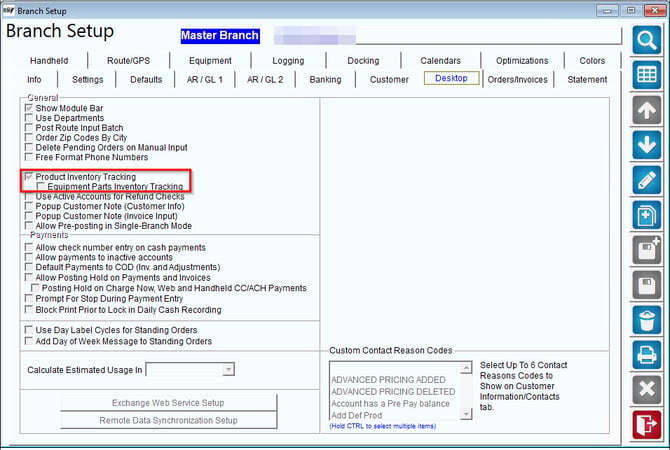
SetupTurn on Inventory Tracking in Branch Setup under the Desktop Tab.
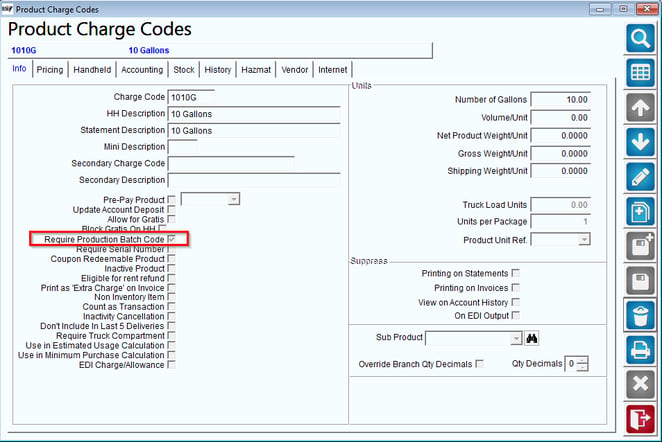
Must enable Require Production Batch Code under Lists > Product Codes > Product Charge Code.
Inventory Adjustments
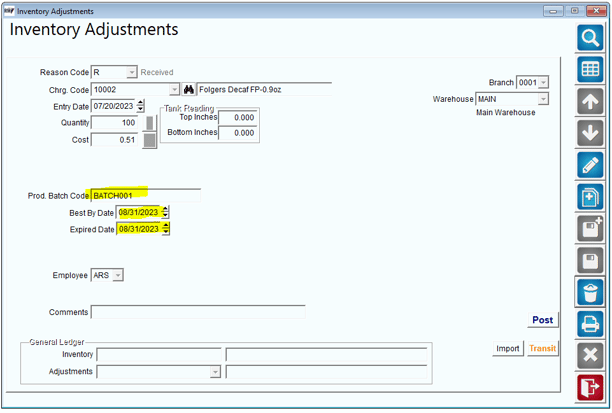
To use Batch codes you must first enter all of your batched into inventory. You can do this by navigating to Modules > Inventory > Inventory Adjustments.
1. You must enter the following information:
- Received reason code
- Charge code
- Entry date
- Qty
- Cost
- Batch Code
- Best by Date
- Expired Date
- Branch
- Warehouse
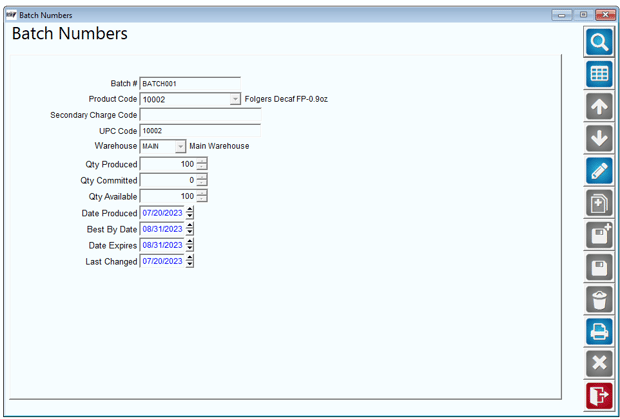
2. All of your Batch Numbers will show under Modules > Inventory > Inventory Batch Codes.
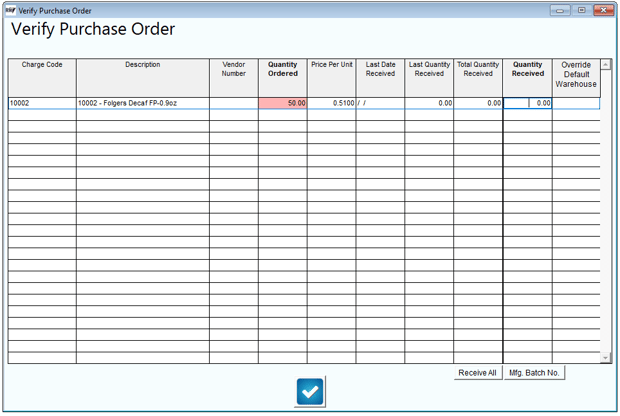
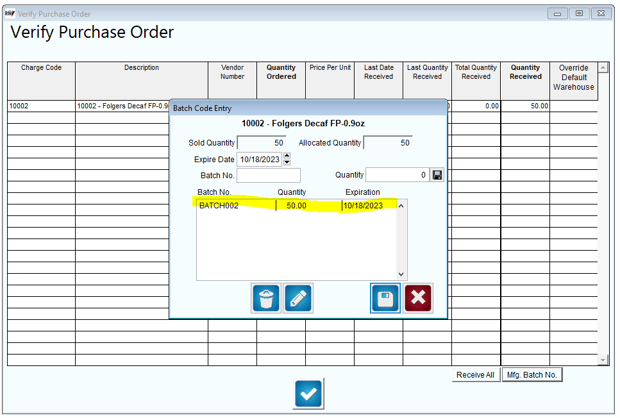
If you are using Purchase Orders the batch numbers will also be required when verifying your PO.
Generating Load Orders
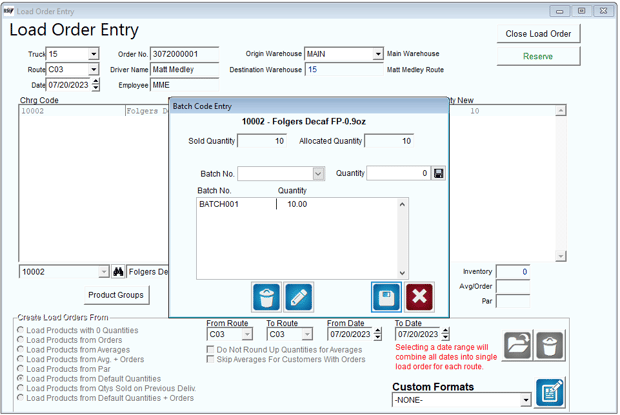
1. Navigate to Route > Load Orders when creating load orders that include products that require a batch code you will have to select the batch code in the screen below.
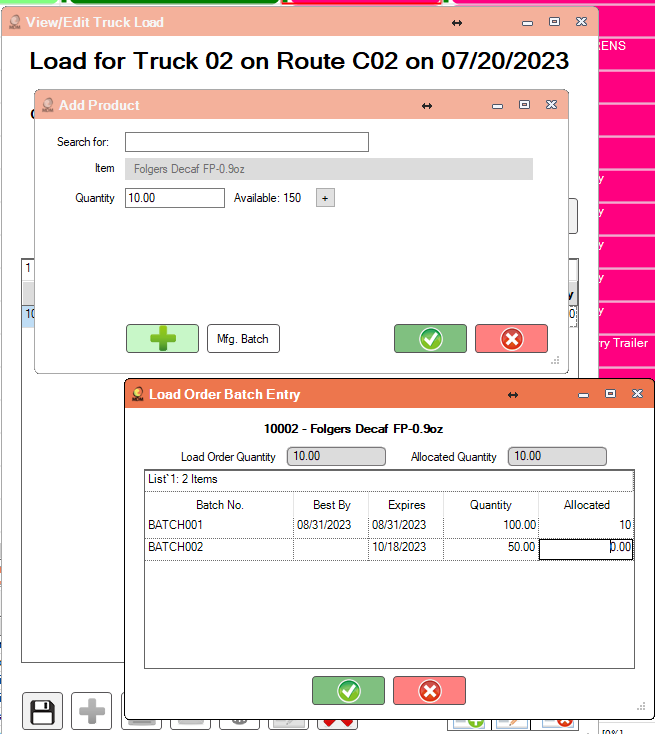
2. Navigate to MDM > Route Header > Load Order when creating load orders that include products that require a batch code you will have to select the batch code in the screen below.
Step 1: Download the Route
1. Open Handheld Device: Power on and unlock your handheld device.
2. Navigate to Route Download: Locate and open the application or section for route management.
3. Select Route: Choose the specific route you need to download from the list.
4. Choose Date: Select the date for the route.
5. Download Route: Tap on the 'Download' button to download the route.
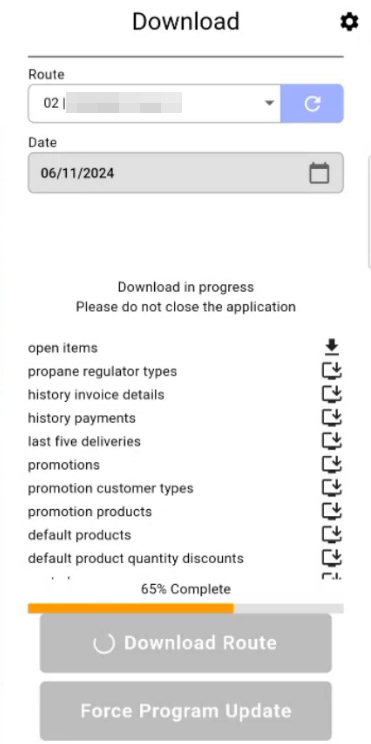
Step 2: Begin Trip Setup/Start My Day
1. Select Truck: From the available list, select the truck you will be using.
2. Enter Beginning Miles: Input the starting mileage of the truck.
3. Select Warehouses:
- Product Warehouse: Select the appropriate product warehouse from the list.
- Parts Warehouse: Select the parts warehouse.
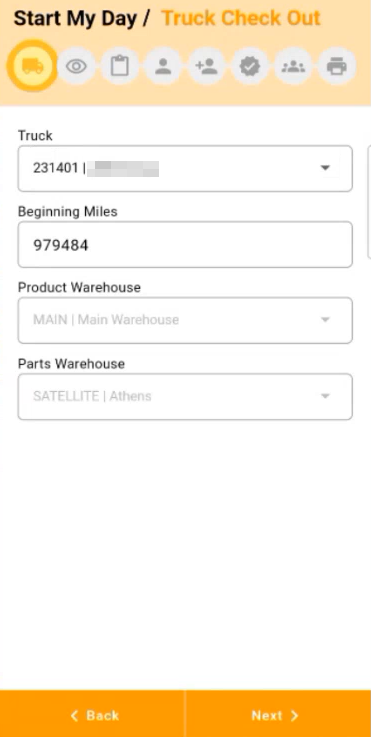
Step 3: Vehicle Inspection
1. Check Engine: Perform a thorough check of the truck's engine.
2. Inspect Tires: Ensure all tires are in good condition and properly inflated.
3. Check Brakes: Test the brakes to make sure they are functioning correctly.
4. Inspect Exterior Lights: Verify that all exterior lights are operational.
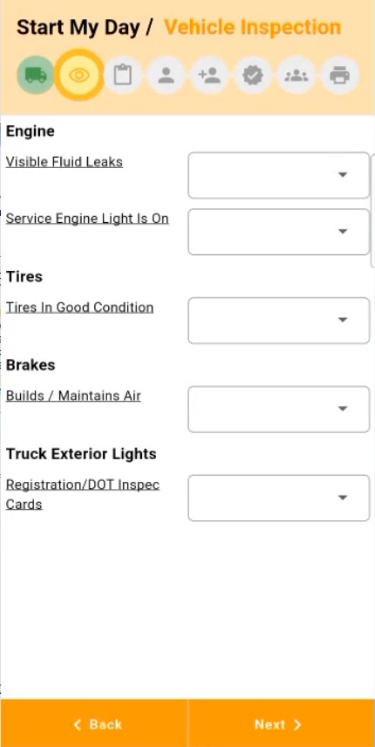
Step 4: Confirm Vehicle Inspection
1. Next: After completing the inspection, tap on 'Next'.
2. Signature: Add your signature in the provided field to confirm the inspection.
3. Confirm: Tap 'Confirm' to complete the vehicle inspection process.
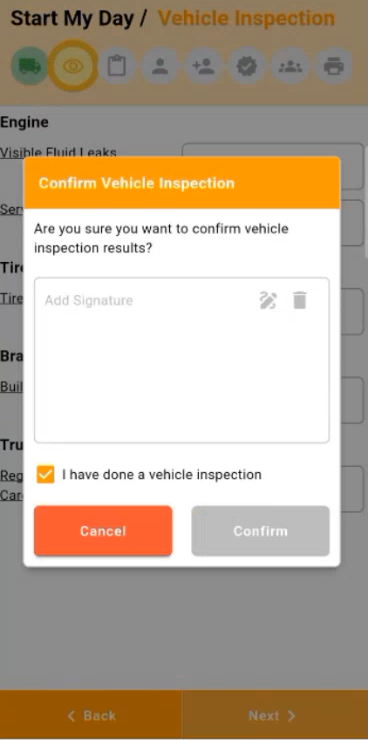
Step 5: Load Order
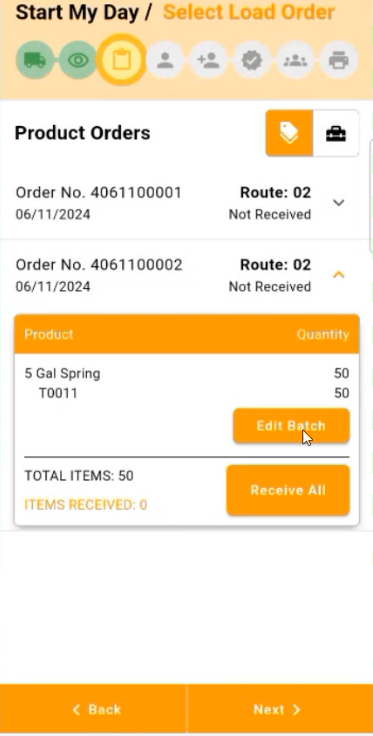
1. Select Load Order: Choose 'Load Order' from the menu.
2. Select Product Order: Pick the specific product order you need to load.
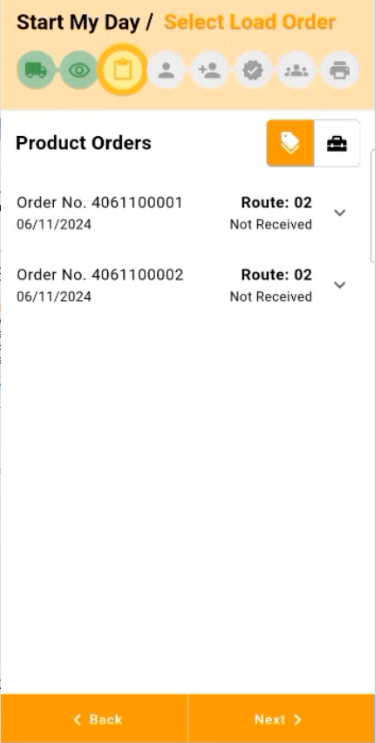
3. Edit Batch or Receive All:
- To edit quantities, select 'Edit Batch'.
- To receive the entire order, select 'Receive All'.
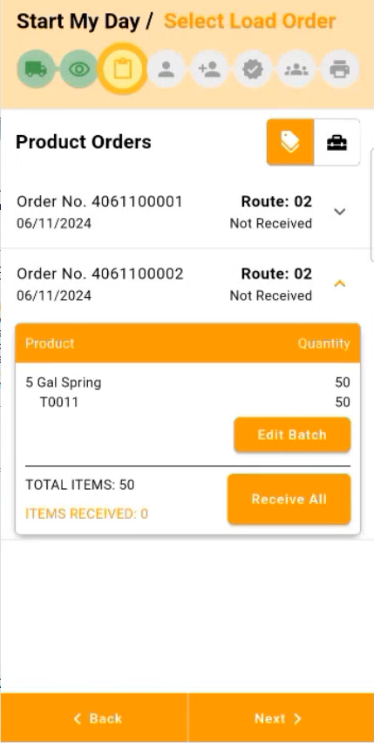
4. Items Received: Confirm that you see 'Items Received' on the screen.
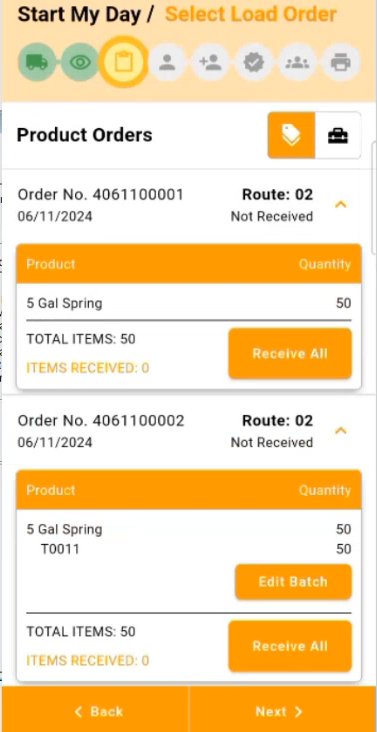
Step 6: MDM Verification
1. MDM Access: In the MDM (Mango Dispatch Manager) application, select 'View/Edit Load Order'.
2. Ensure Orders: Verify that you have orders to load in MOM (Mango One Mobile).
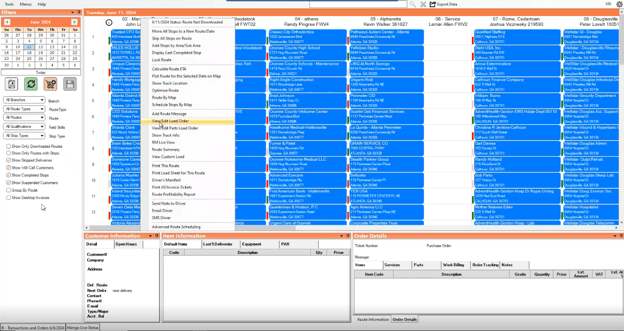
Step 7: Batch Editing in MDM
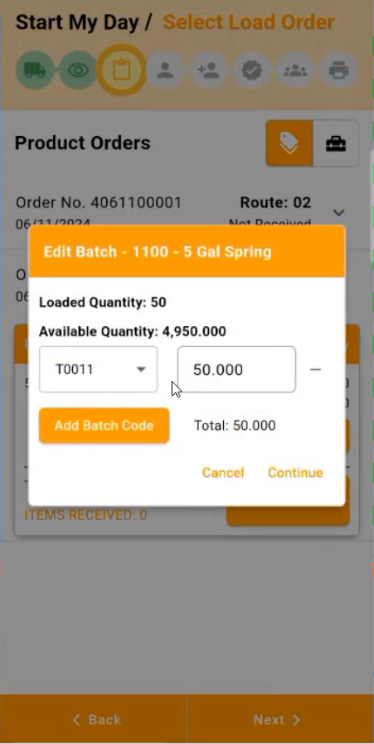
1. Edit Batch:
- Select 'Edit Batch' to modify batch quantities or numbers.
- Optionally, add a batch code.
After selecting "Edit Batch", you will be able to edit the batch quantities/Batch Number. Or, you can add a batch code.
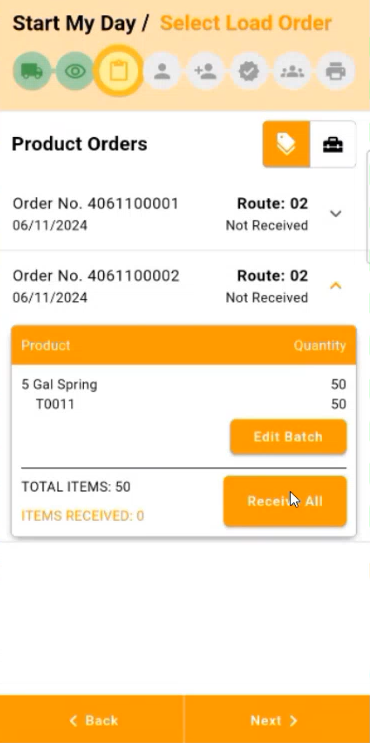
2. Receive All: After making necessary edits, select 'Receive All'.
3. Items Received Confirmation: Ensure you see 'Items Received: (Quantity Amount)' on the screen.
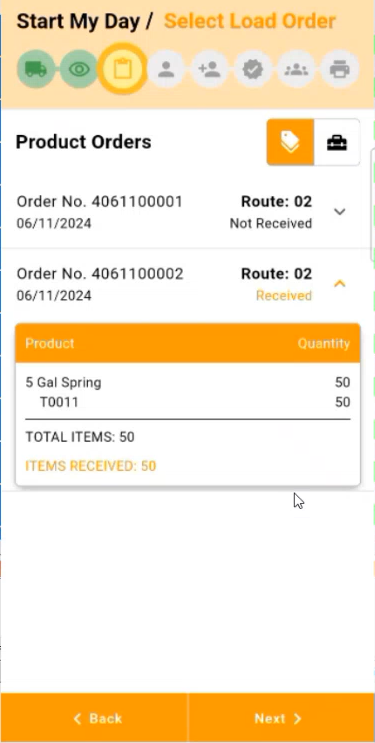
4. Next: Tap 'Next' to proceed.
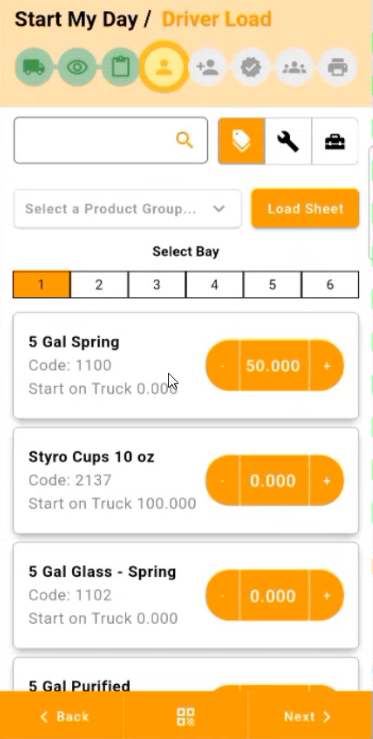
Step 8: Driver Load Screen
1. Edit Quantity: On the driver load screen, adjust the quantity as needed.
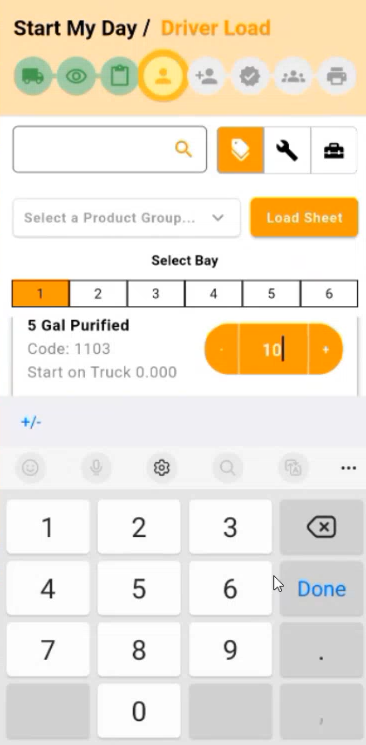
2. Confirm Quantities: Double-check the quantities entered to ensure they are accurate.
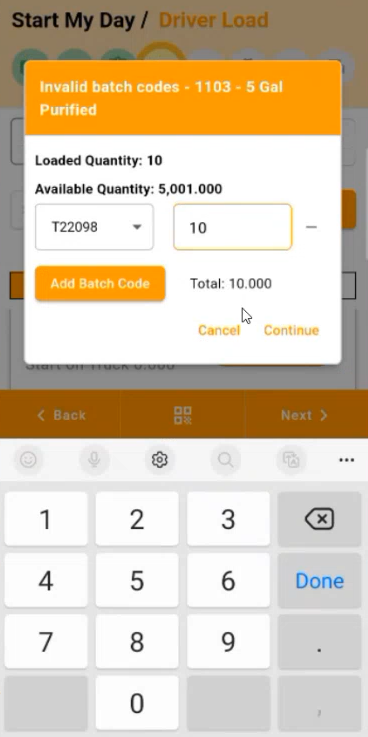
3. Continue: Select Continue to proceed.
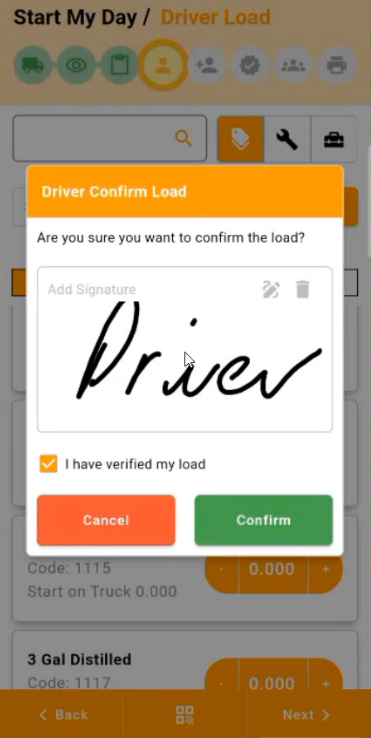
4. Driver Confirm Load: To confirm the load, add the Driver's signature in the field below.
5. Save Changes: Tap on 'Confirm' to save the changes made to the quantities.
6. Checker Verify: Select a Checker to verify the change. Select 'Continue' to proceed.
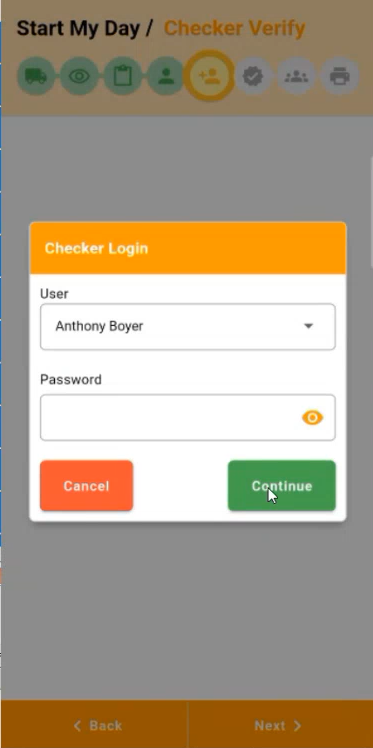
7. Checker Verify: The Checker must confirm the quantities.
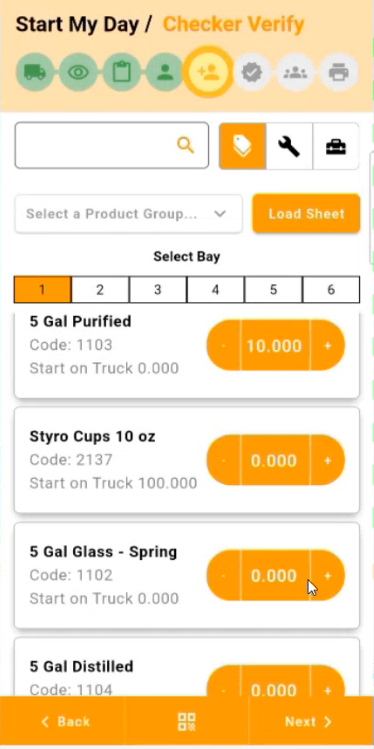
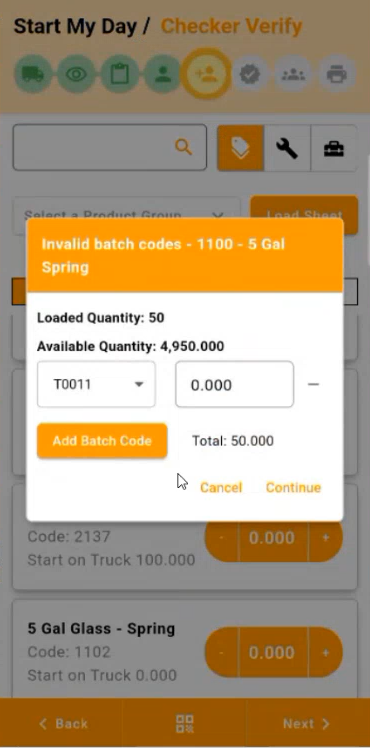
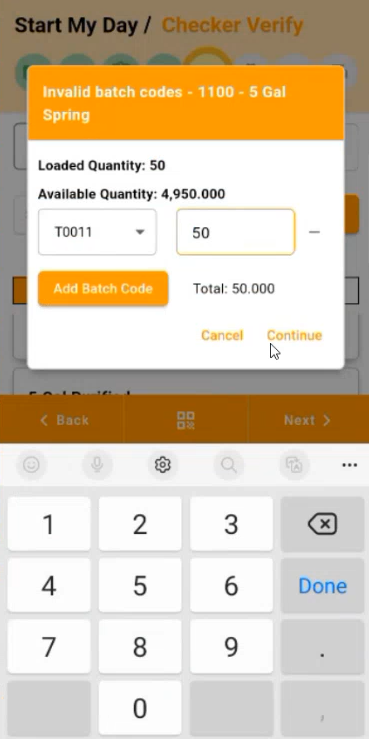
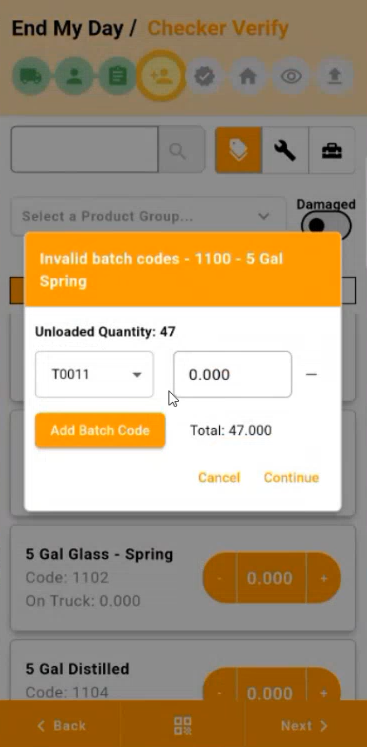
8. Invalid Batch Codes: If there are invalid batch codes, ensure that the loaded quantity is the same as the total quantity.
9. Continue: Select Continue to proceed to the next screen.
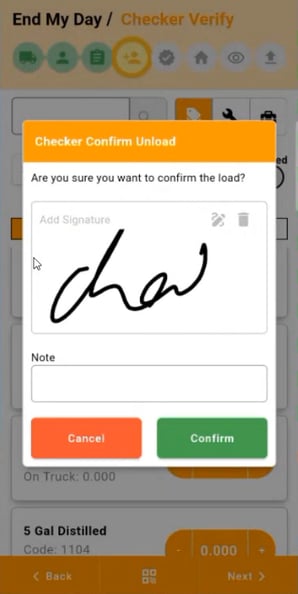
10. Checker Verify: The Checker must add their signature to confirm the load. Select 'Confirm' to continue.
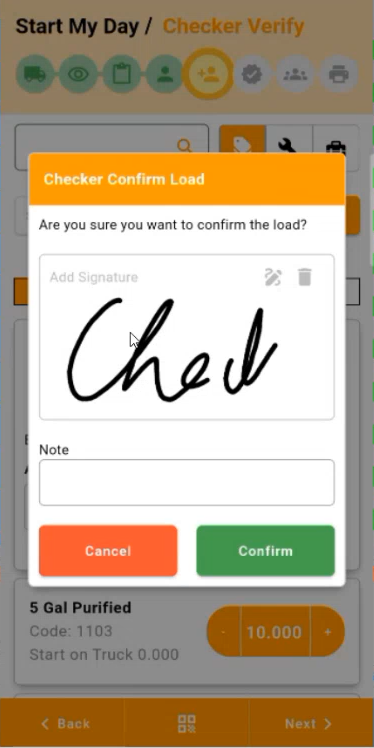
Step 9: Driver Assistants
1. Driver Assistants: Add any driver assistants on this screen. If you do not have any assistants, select 'Next' to continue.
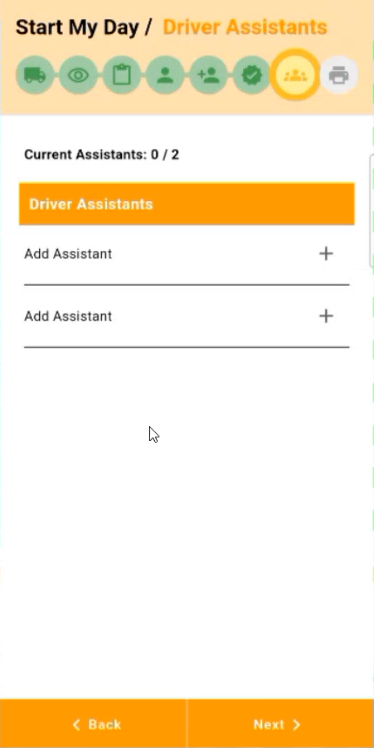
Step 10: Reports
1. Load Reports: Select any of the following reports in Start My Day. Then, select 'Save' to continue.
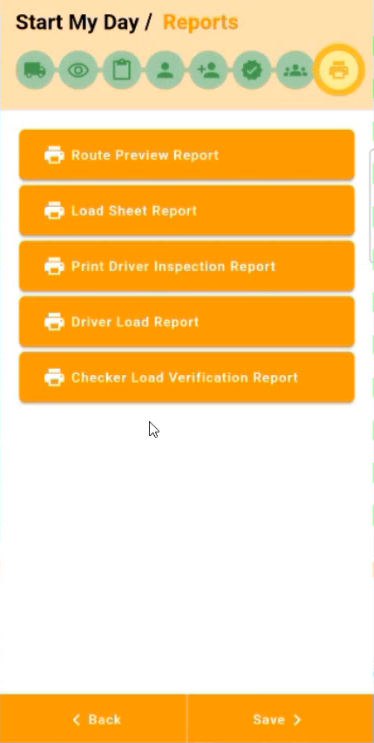
Search for Customer: Use the search bar at the top to find a specific customer by name or address.
Select a Route: Scroll through the list to find the desired route. The list shows customer names, addresses, coordinates, and route numbers.
Tap on Route: Select the route by tapping on the corresponding entry. This action will likely take you to the next step in managing that specific route.
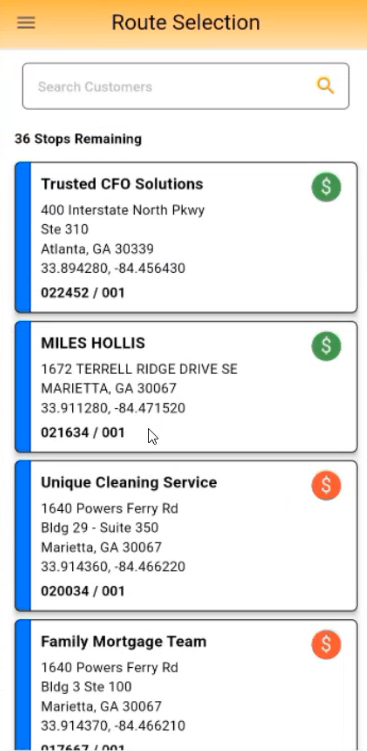
Review Items:
Manage Returns:
Finalize Order:
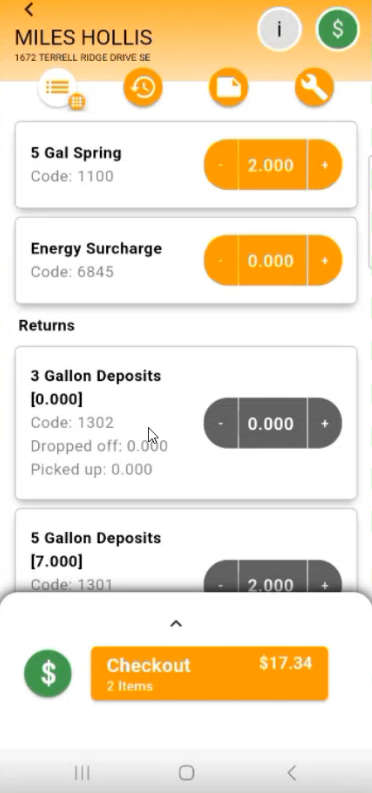
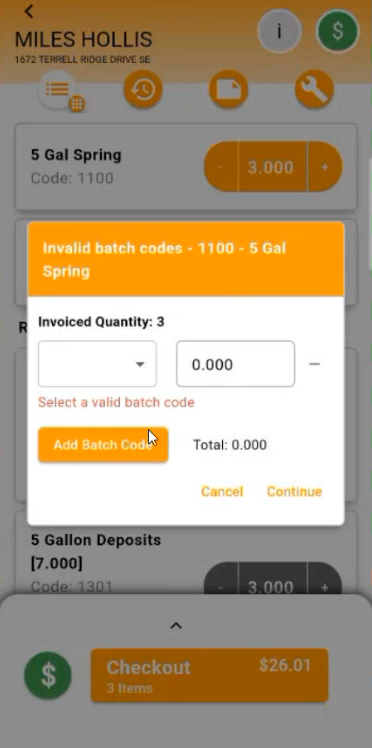
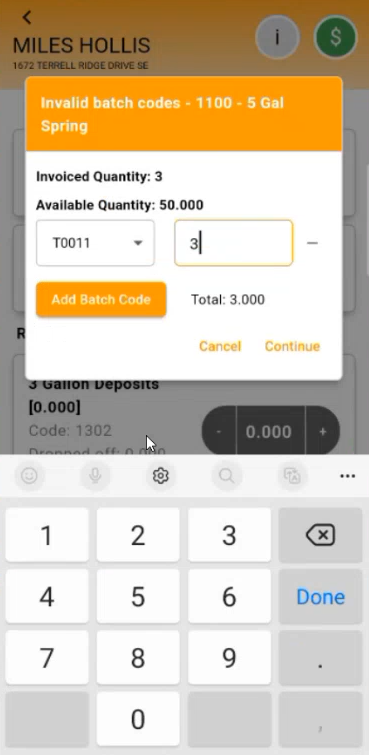
Select 'Continue'.
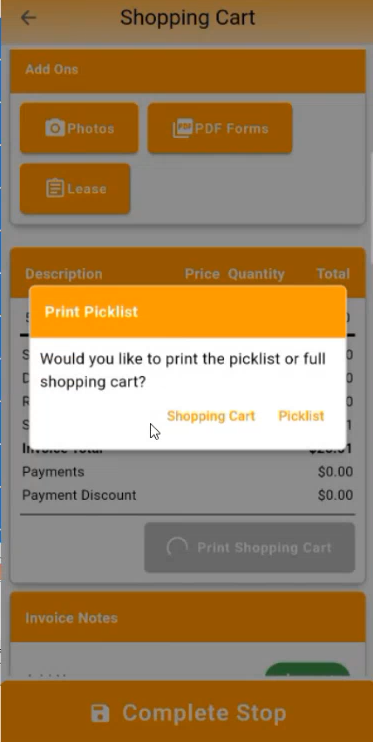
On the shopping cart screen, select "Print Shopping Cart". Select whether you would like to print the picklist or full shopping cart.
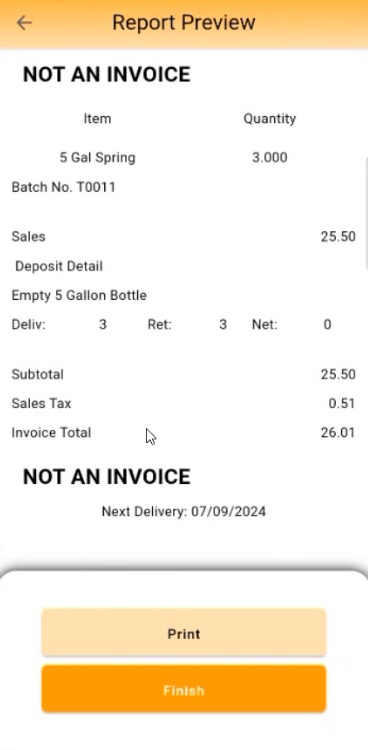
The report will preview on the screen. Print this version, or select "Finish".
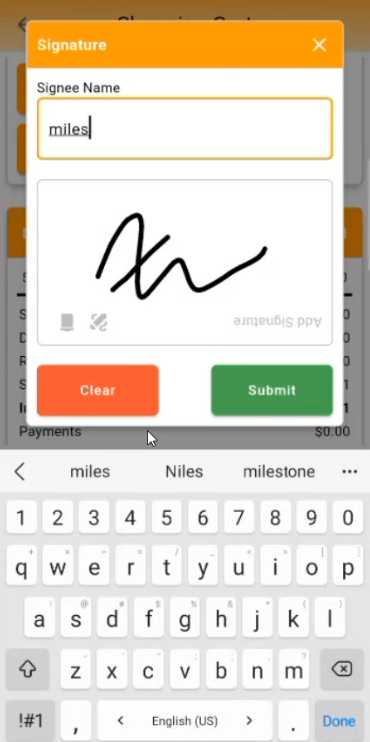
Add the signee name and signature. Then, select 'Submit'.
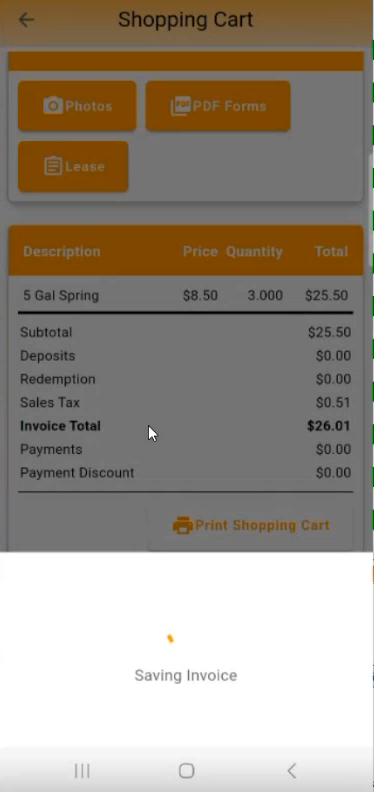
The invoice will save. This is the invoice loading.
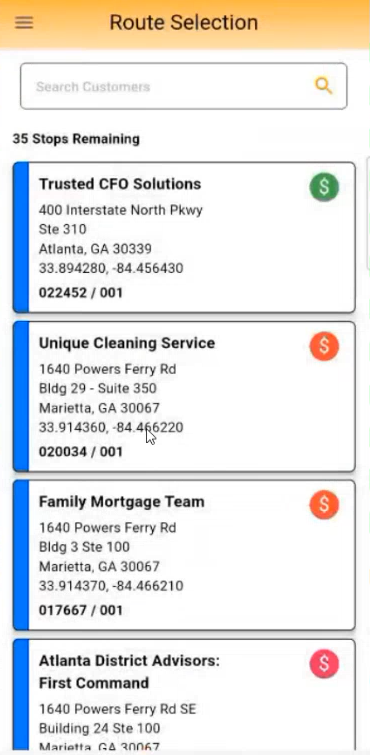
1. Select Stop
On the route selection screen, select a stop.
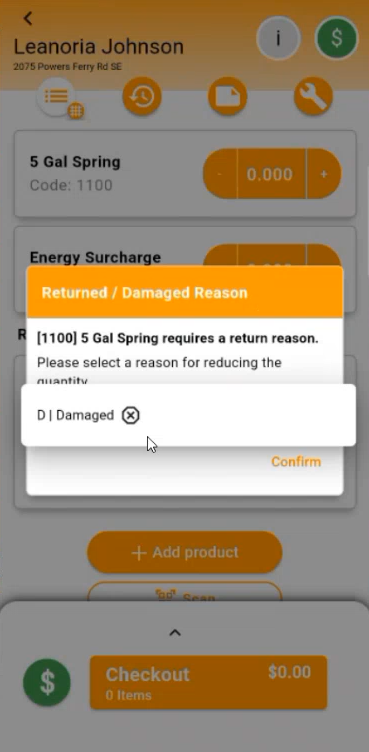
2. Return Damaged Product
Return the damaged product.
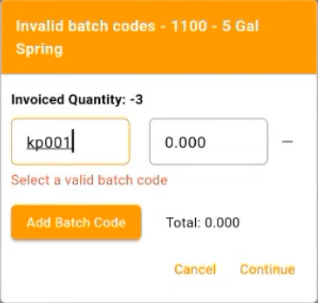
Enter the batch code for the returned products.
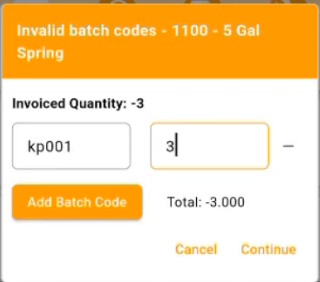
In this example, return 3 products and sell 2 products.
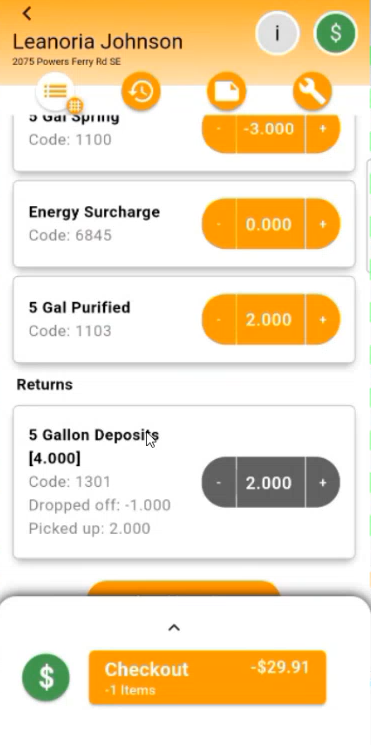
Here, you can see the change in total in the checkout button. Select "Checkout" to continue.
3. Review Shopping Cart
- On the shopping cart screen, verify that 3 products are being returned to the warehouse, and 2 products are being sold.
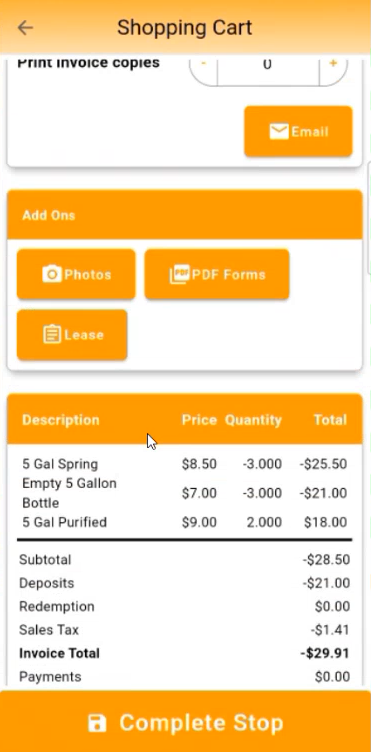
4. Complete Stop
- After selecting "Complete Stop," add the signature and type the printed name.
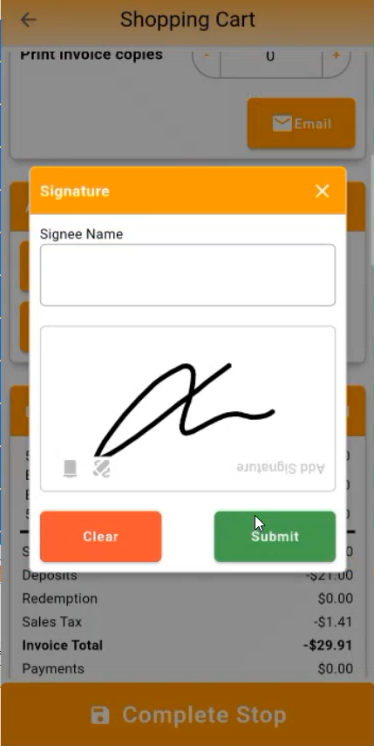
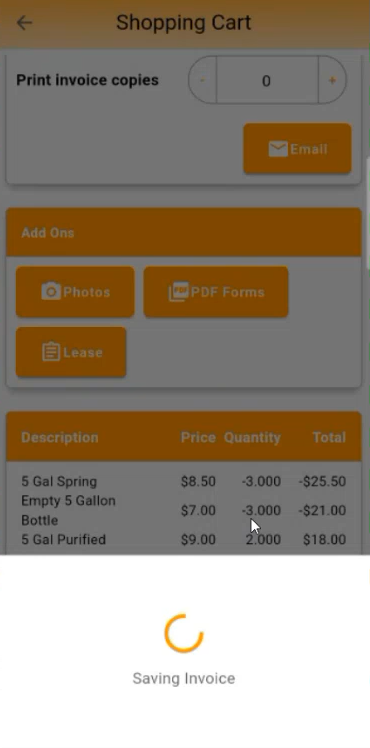
The invoice will save after you select "Submit."

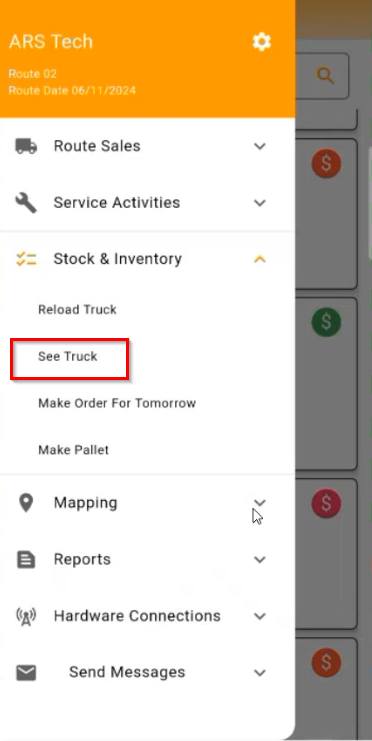
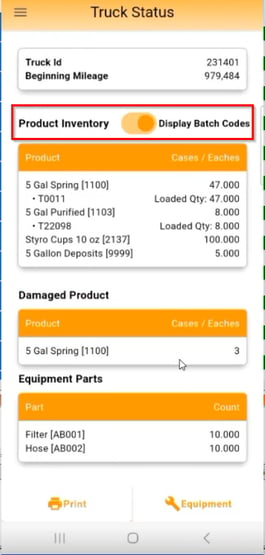
- Go to Stock & Inventory > "See Truck."
Tap the toggle to "Display Batch Codes".
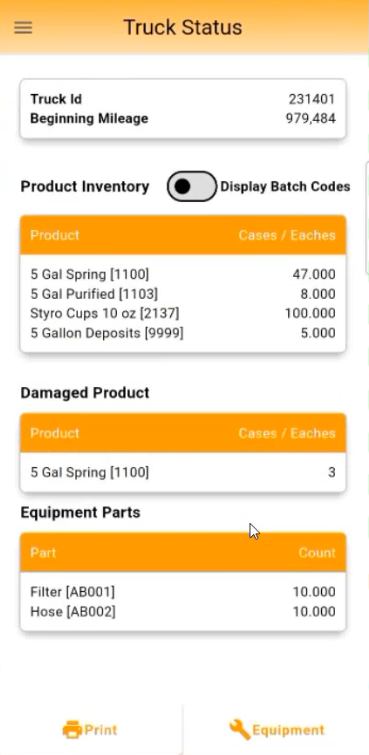
View the details of batch codes, damaged products, and equipment parts loaded onto the truck.
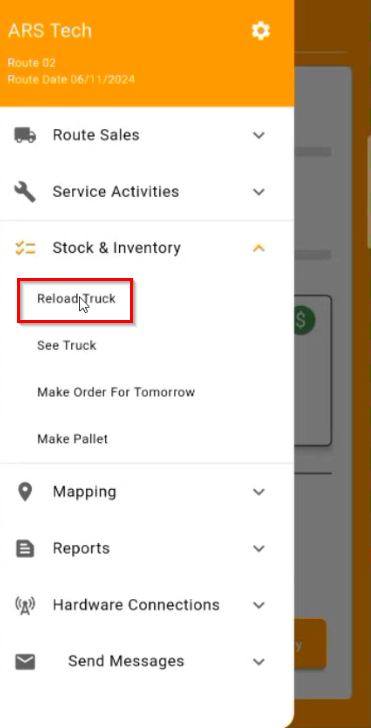
1. Reload Truck
- Navigate to "Stock & Inventory" and select "Reload Truck."
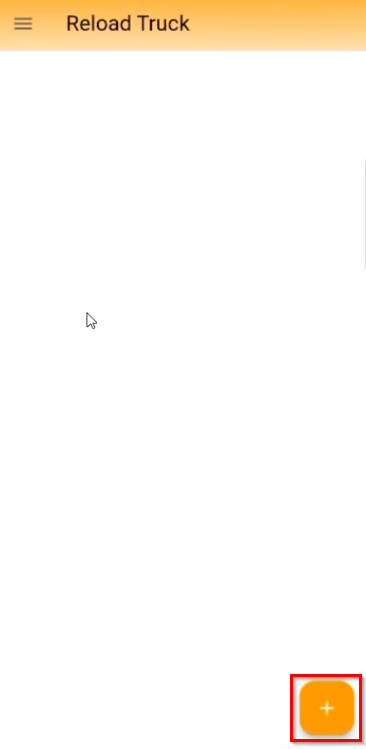
Reload from another truck or from the warehouse, with batch codes handled the same way.
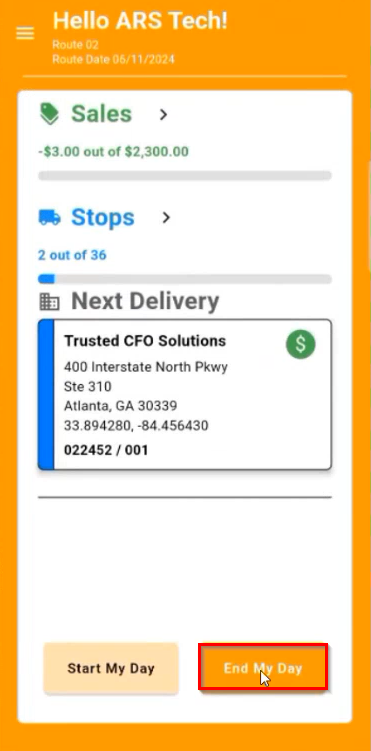
1. Select End My Day
Choose "End My Day."
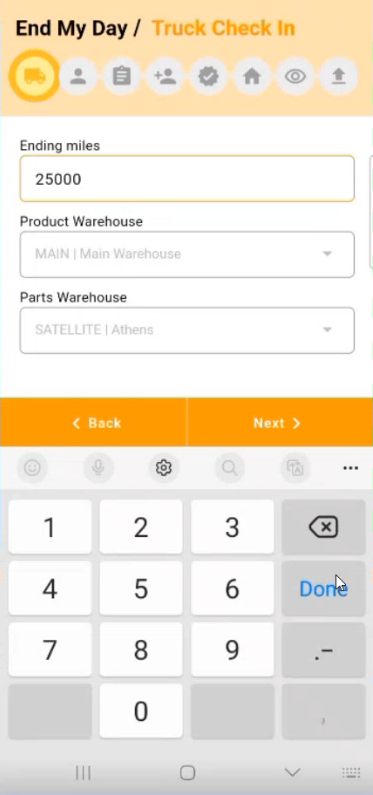
Fill out the End My Day/Truck Check In form as usual.
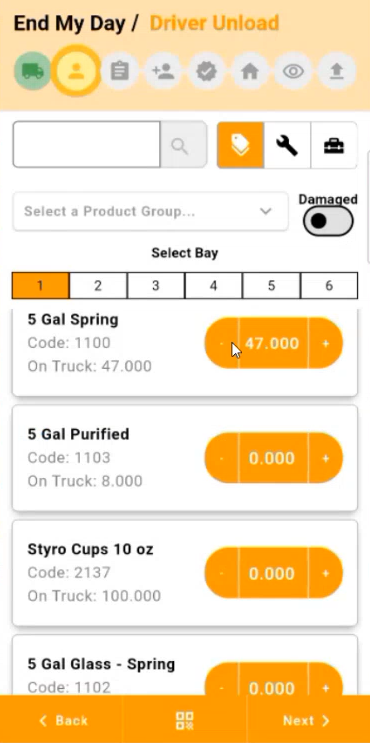
2. Offload Products
Offload products as usual.
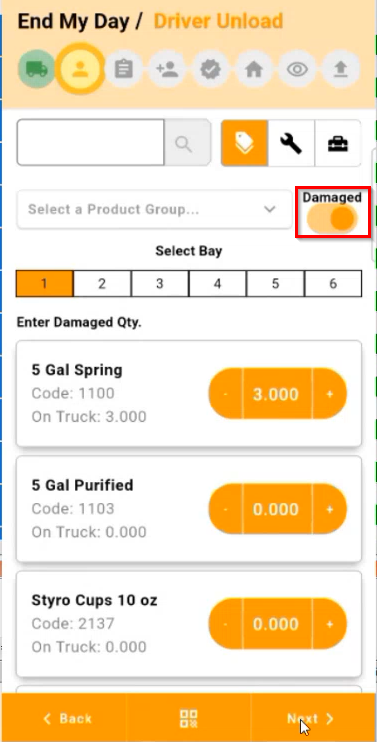
If necessary, toggle "Damaged" to offload damaged products, then select "Next."
3. Confirm Batch Codes
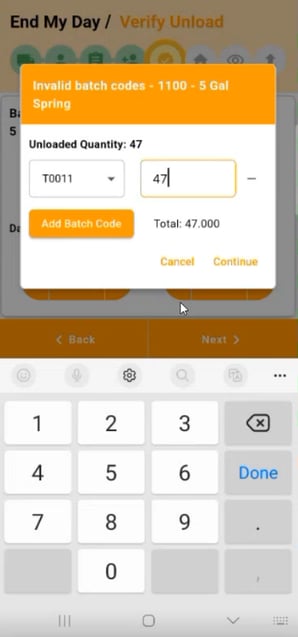
Select the batch code used for loading and continue.
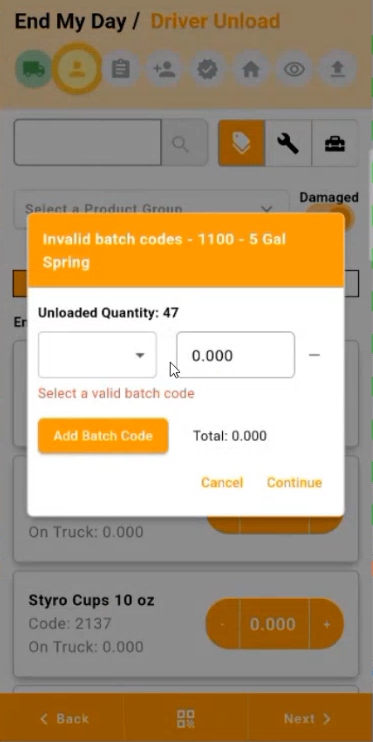
For damaged products, select the batch code, enter the quantity, and continue.
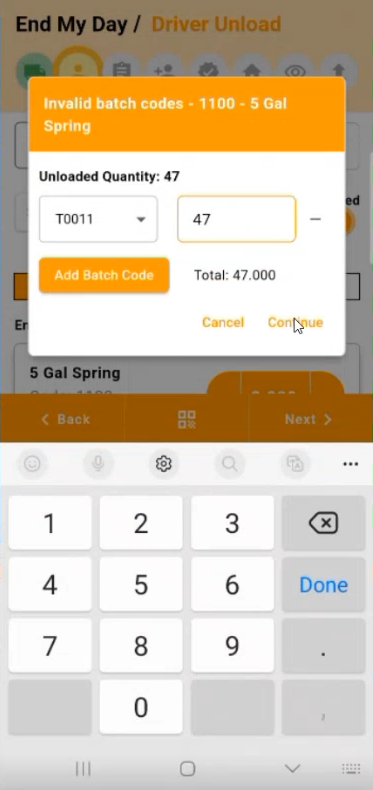
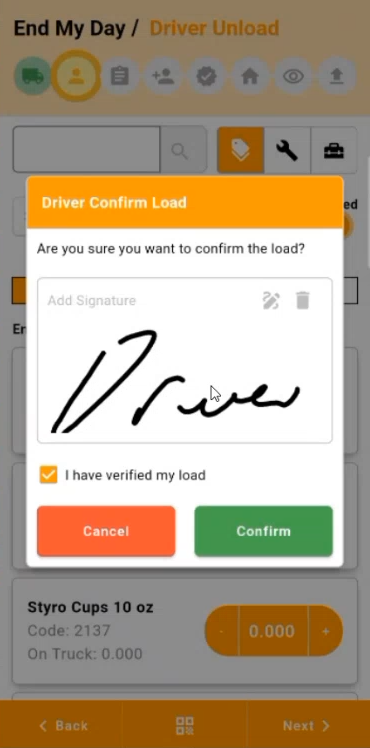
4. Finalize Load
After completing all batch codes, confirm the load by adding a signature and tapping "Confirm."
Select "Next" if not printing the invoice reconciliation or settlement.
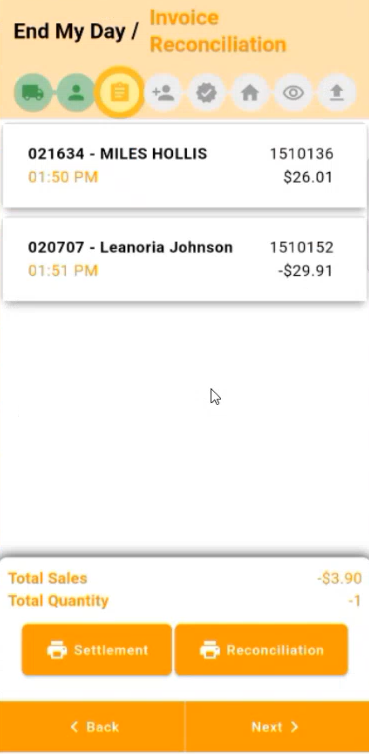
Continue through the remaining steps.
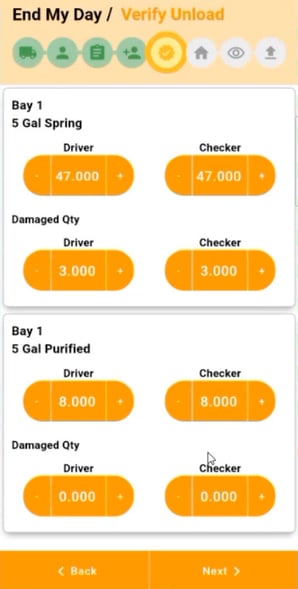
5. Verify Offloaded Quantities
Select "Continue".
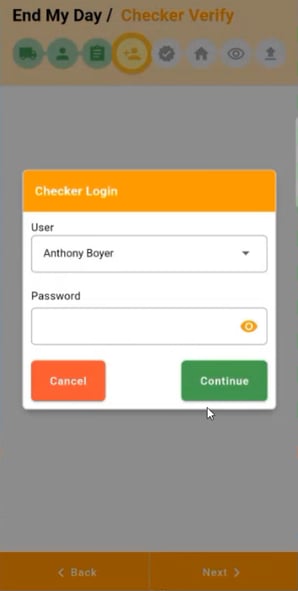
Verify quantities being offloaded, then select "Next."
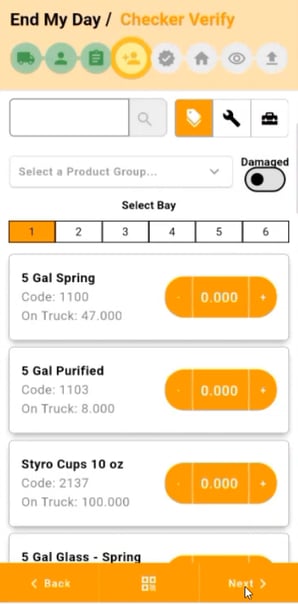
Add batch codes for each product and damaged product, then continue.
Enter in the batch codes and quantities. Then, select "Continue".
Toggle "Damaged," enter the damaged product quantities, and select "Next."
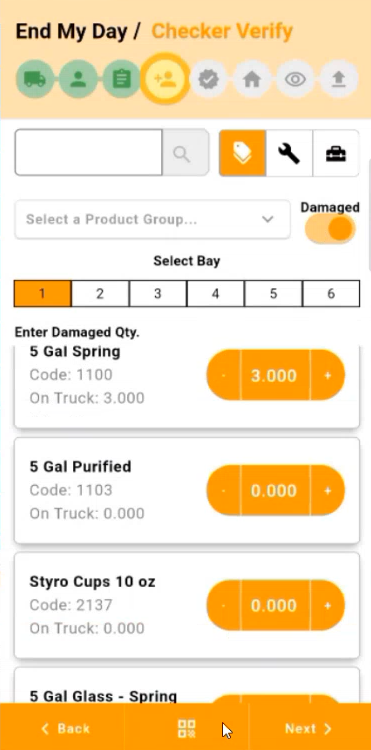
- Add batch codes and quantities, then continue.
Add a signature and press "Confirm," then select "Next."
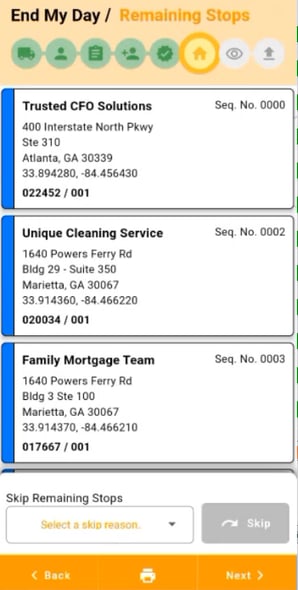
Skip any remaining stops, or select "Next".
Complete the Vehicle Inspection form.
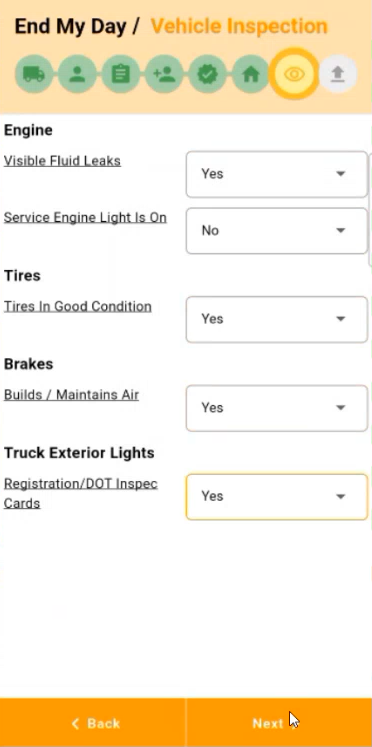
Add a signature, and select "Confirm".
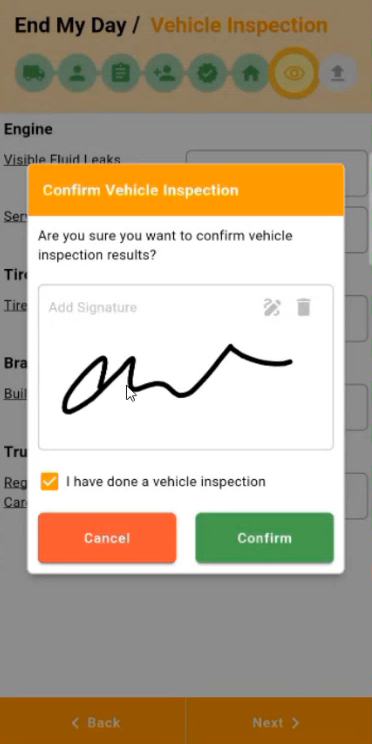
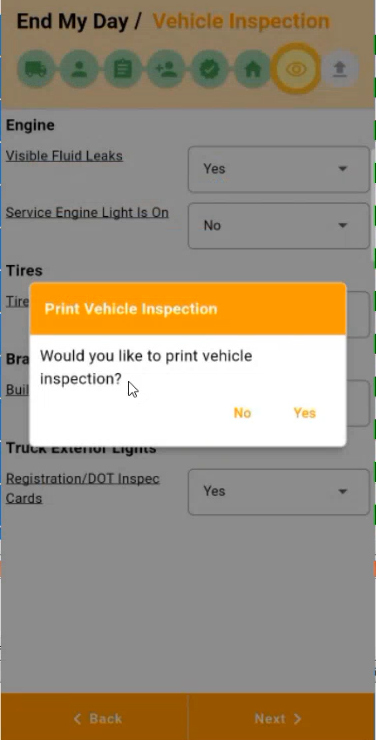
Decide whether to print the vehicle inspection.
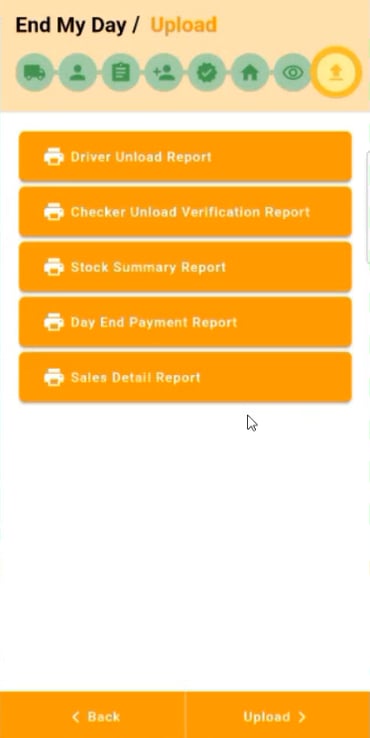
View any batch codes on the Driver Unload Report/Checker Unload Verification Report.
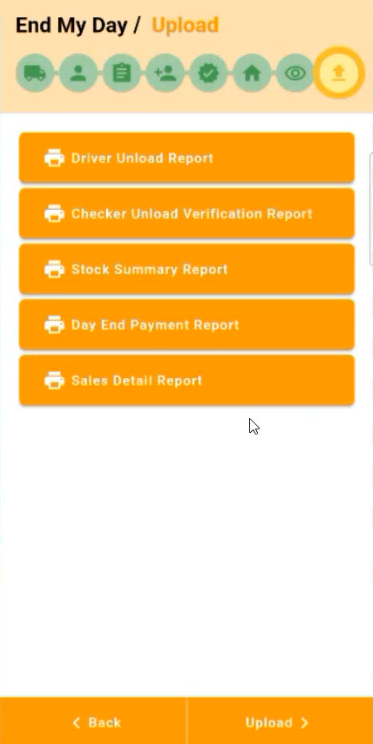
Upload the transactions to RMA.
Reports
Reporting for Production Batch Codes is under Reports > Inventory > Production Batch Report.
.png?width=587&height=394&name=1690467452861%20(1).png)