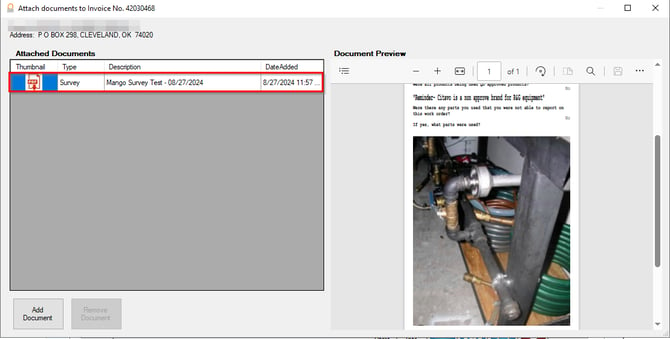
The Attach Post Delivery Photos to PDF feature makes it easy to keep track of delivery photos by automatically adding them to your PDF reports. This way, all your post-delivery visuals are saved in one place, making them simple to access whenever needed. Here’s how you can set it up in RMA to keep your delivery records organized and complete.
Setup
Attach Post Delivery Photos to PDF
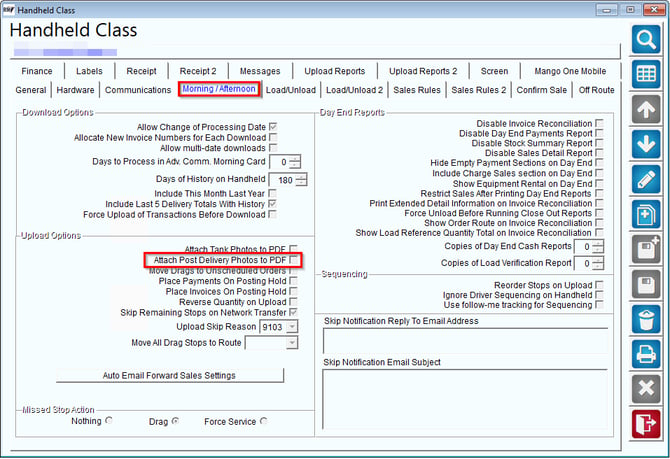
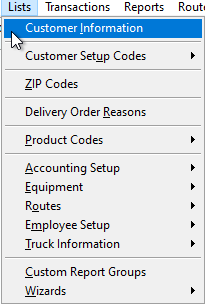
In RMA, go to Lists > Routes > Handheld Class and select the Morning/Afternoon tab. Next, enable the Attach Post Delivery Photos to PDF option. This feature allows you to automatically include any post-delivery photos in the PDF report, ensuring that all visual records are documented and easily accessible.
View Documents from Invoices Tab
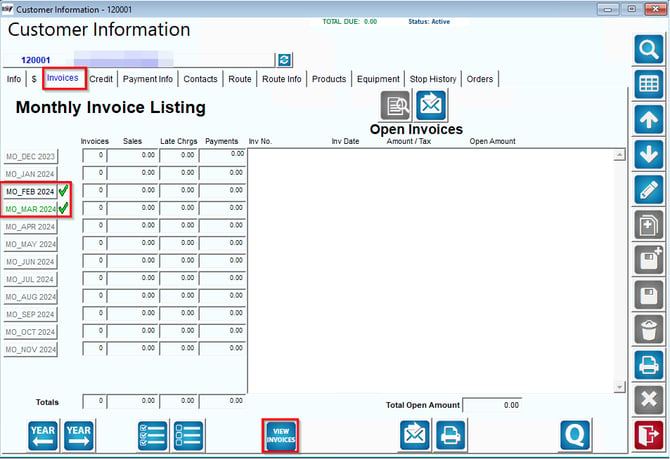
1. Navigate to the Invoices tab under Customer Information.
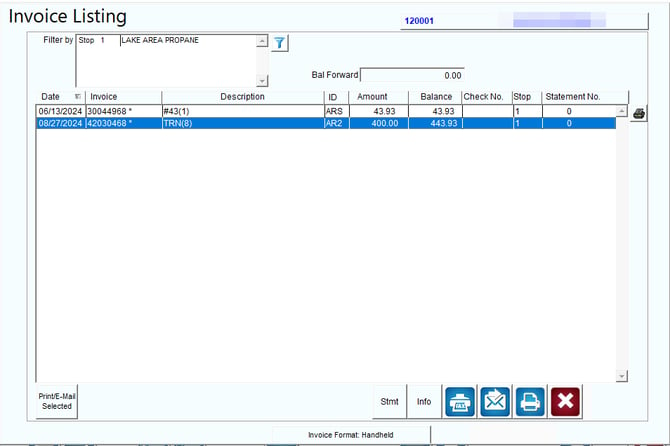
2. Select the monthly invoice listing and then click on View Invoices.
3. On the Invoice Listing screen, double-click the invoice.
4. In the Invoice Viewer, select View Documents.
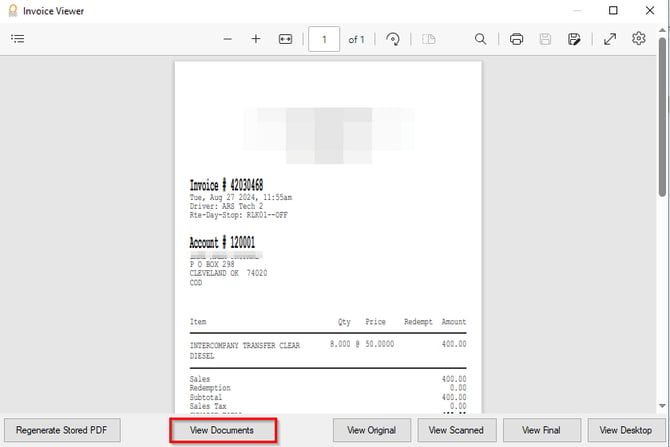
5. Double-click on the survey to view the image.