Introduction
This article will go over the process on how to assign/generate Administrative Charge Codes.
Creating an Admin Charge Code
Administrative Charge Codes are used to assess ‘handling’ fees on large accounts that demand a high level of resources and time in the office. Multiple rates may be used, but only one code may be applied to each customer.
- Go to Lists>Customer Setup Codes>Administrative Charge Codes.
- Fill in the following criteria that you would like applied to the charge code.
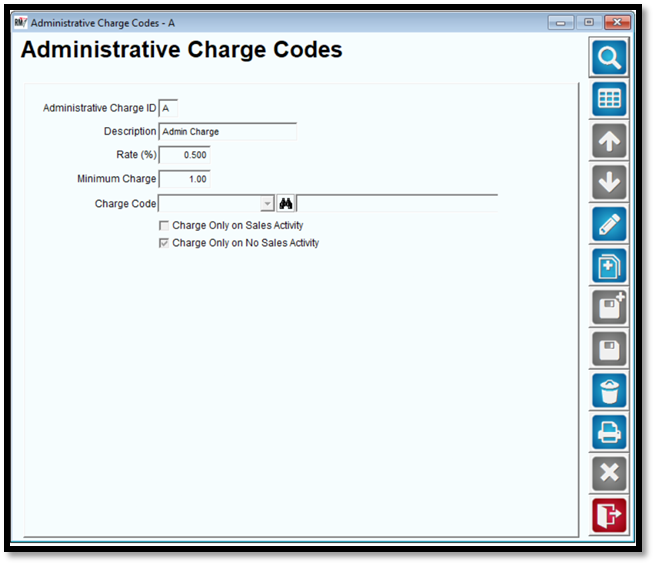
Fields:
Administrative Charge ID: Enter a single character that will represent the Administrative Charge Code.
Description: The description of the Administrative Charge Code.
Rate: The percentage applied to each account as an administrative fee.
Minimum Charge: The minimum charge applied to each account.
Charge Code: Select the Product Charge Code that will be used to apply administrative fees to each account.
Charge Only on Sales Activity: Select this option to only bill customers if they have purchased items for the month.
Charge Only on No Sales Activity: Select this option to only bill customers if they have not purchased items for the month.
Assigning an Admin Charge Code
- Go to Lists > Customer Information.
- Choose the account/s that you would like to assign an Admin. Charge Code to.
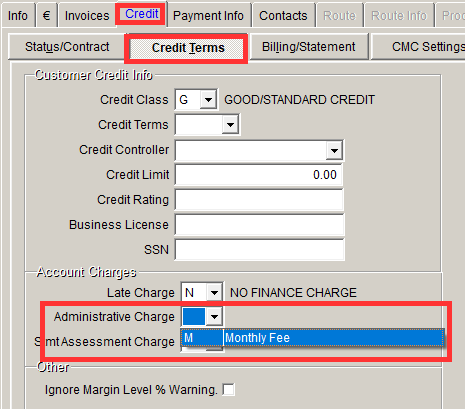
- Go to the Credit > Credit Terms Tab.
- Locate the Administrative Charge field.
- Select your code from the drop down list that you created earlier.
- Select Save once done.
Generating Admin. Charges
Confirm that all customer accounts have been assigned an Admin Charge Code that need to be billed.
Next, go to Transactions > Calculate Administrative Charges.
Fill in the criteria for the accounts that you want to charge during this process.
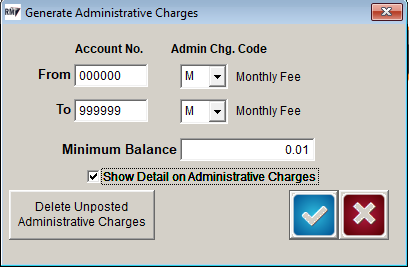
Note: It is recommended to select the "Show Detail on Administrative Charges" option so you can view which accounts will be charged on the report.
A pop up will ask you if you want to review the report for the Admin. Charges.
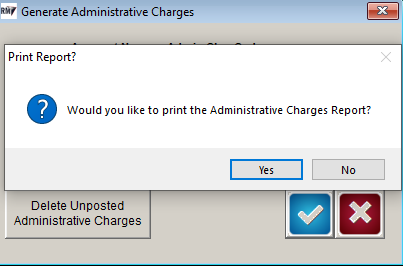
Select "Yes" and the report will populate with the accounts you will charge.
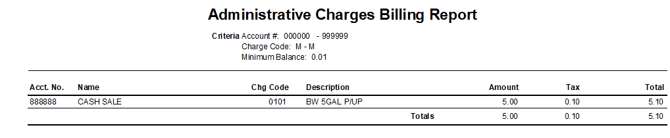
Exit out of the screen and your window will flash.
This has completed the invoice generation for the Admin. Charge.
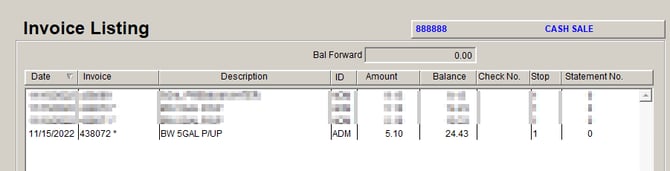
You can then select a customer account and view their invoices to see the charge.