
Introduction
This report displays customer balances by the number of days outstanding and identifies the accounts that have fallen behind in payments. Locate this report under Reports > Accounting Reports > Customer > Aging Analysis.
NOTE: Phone numbers are included on the report for contacting these customers. Additionally, this report functions as an ‘Aged A/R Report’.
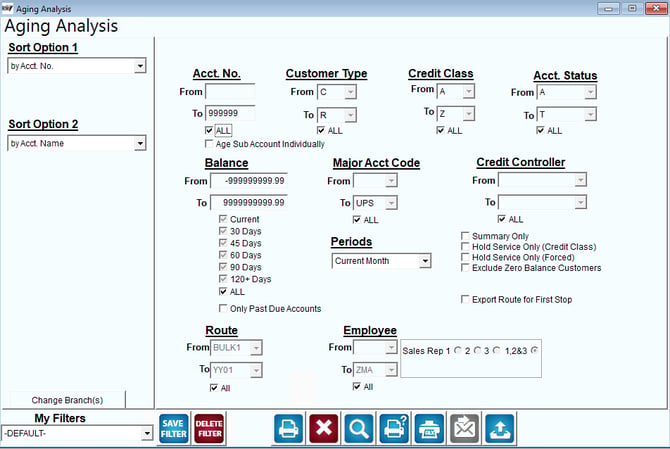
Sort Option 1 & 2: The primary and secondary fields to sort by. You can choose from the following categories:
- Account Number
- Account Name
- Balance
- Credit Class
- Status Code
- Branch
- Balance (High to Low)
Change Branch: If you are logged into multiple branches, this option may be shown and allows you to re-select the branches to include in the report instead of having to completely exit the report.
Acct No: Enter the range of accounts to include in the report.
All: Check these boxes to include all accounts in the report.
Age Sub Account Individually: Select this box to age sub account individually instead of together.
Customer Type: Select the range of customer types to include in the report.
All: Check these boxes to include all customer types in the report.
Credit Class: Select the range of classes to include - Credit Classes are set up in the List pad and applied to each customer account.
All: Check these boxes to include credit classes in the report.
Acct Status: Select the range of codes to include in this report. Account status codes are defined in the Customer Status field in Customer Setup Codes, under Lists.
All: Check these boxes to include all accounts in the report, regardless of the specified criteria.
Only Past Due Accounts: Choose this option to only show Past Due Accounts (determined by their Credit Class) on the report.
Age Sub Accounts Individually: Select this option to include detailed aged balance information for each Sub Account separate from their associated Master Account.
Balance: The range of balances to include, from low to high.
Aging: The program automatically lists all delinquent accounts. However, you can narrow the list by selecting: Current, 30, 60, 90, or 120 or more days overdue.
Major Account Code: The range of major account codes to include on the report.
Credit Controller: The range of Credit Controller Types to include in the report.
All: Check these boxes to include all available Credit Controllers in the report, regardless of the specified criteria.
Periods: Select the appropriate period from the dropdown menu.
Summary Only: Only the aged A/R totals will print on the report.
Hold Service Only (Credit Class): Select this option to only include customers, by Credit Class, that are on Hold Service status in the report.
Hold Service Only (Forced): Select this option to only include customers that have been manually placed on Hold Service.
Exclude Zero Balance Customers: This will exclude all accounts on the report with a zero balance.
Export Route for First Stop: Select this option to include the Route ID with the first customer when exporting the report (by selecting the export button).
Route: Select the range of Routes to include in the report.
All: Select to include all Routes in the report.
Employee: Select the range of Employees to include in the report.
All: Select to include all Employees in the report.
Sales Rep 1,2,3: Check the box for Sales Rep 1, 2, 3.