
Introduction
This article outlines the steps to add an alert message to a customer within the RMA system, assign the customer to a route, and confirm the alert on a handheld device. Alert messages ensure important information about a customer is easily accessible to the team members.
Steps- Add an Alert Message to a Customer in RMA
- Navigate to Customer Information.
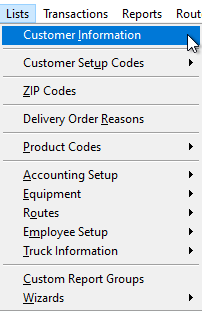
- Select the customer for whom you want to add an alert.
- Go to the Route Info tab and select Messages.
- Under Alert Message, enter the desired message content.
- Navigate to Customer Information.
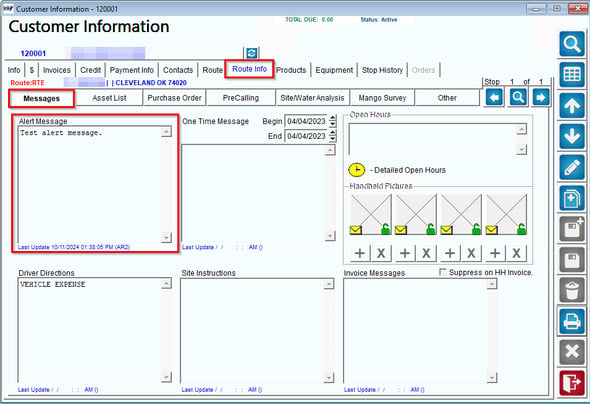
- Save your changes.
- Assign the Customer to a Route
- Go to the Route Management section of RMA.
- Add the customer to the relevant route.
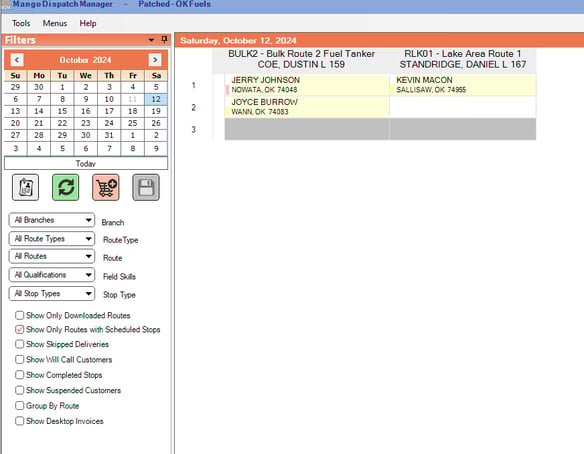
- Once added, Download the route in MOM.
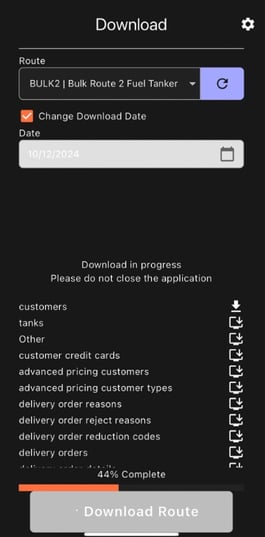
- Check the Alert Message on the Handheld
- Open the Handheld Device and navigate to a stop.
- Select the customer assigned to the route.
- The message will automatically appear before checkout.
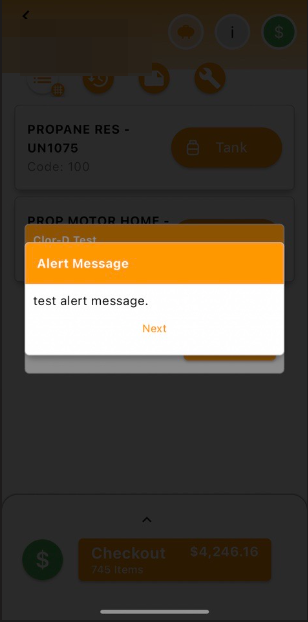
By following these steps, you can successfully add an alert message to a customer, assign the customer to a route, and verify the alert on the handheld device.