
QuickBooks Desktop does not allow the sales tax amount on an invoice to be overridden directly. Because of that, letting QuickBooks calculate tax can produce invoice totals that do not exactly match Route Manager.
The new Inline Tax Rates option under Sales Tax Settings changes how tax is sent during sync so the final invoice total in QuickBooks Desktop can match the tax calculated in Route Manager more precisely. There is no change to data entry in RMA. This enhancement, once turned on, changes the way Invoices with sales taxes are sent to QuickBooks Desktop.
When support should use this
Use this option when a customer reports that invoice totals in QuickBooks Desktop do not match Route Manager and the difference appears to be caused by tax rounding, usually by one or two cents.
- Customer uses QuickBooks Desktop
- Invoice subtotal and tax logic look correct in Route Manager
- QuickBooks Desktop invoice total differs slightly after sync
- The issue is tied to sales tax calculation, not product price, quantity, or discount setup
This enhancement was created specifically because the original issue was caused by differences in the rounding routine between Route Manager and QuickBooks Desktop.
Why this happens
By default, QuickBooks Desktop calculates sales tax using its own internal logic. Route Manager may calculate the same invoice tax amount slightly differently. Since QuickBooks Desktop does not allow Route Manager to directly override the tax total on the invoice, the two systems can end up a few cents apart.
In the original investigation, it was confirmed that QuickBooks Desktop was calculating tax instead of using the Route Manager tax amount.
The enhancement works around that limitation by sending tax as invoice line items instead of relying on QuickBooks Desktop to calculate the final tax amount automatically.
What the enhancement does
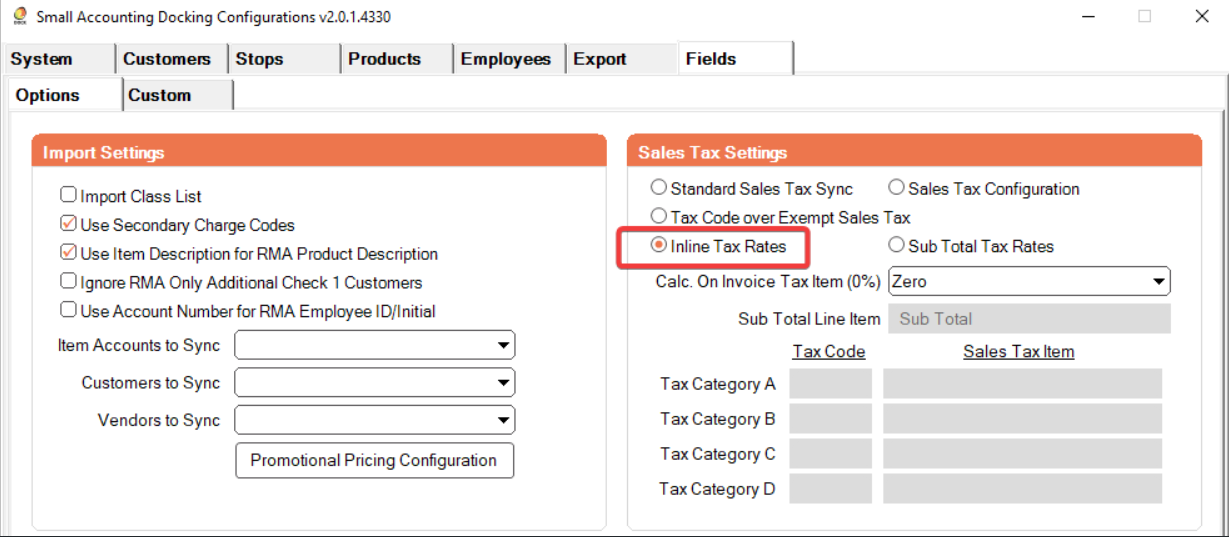
When Inline Tax Rates is enabled in Docking:
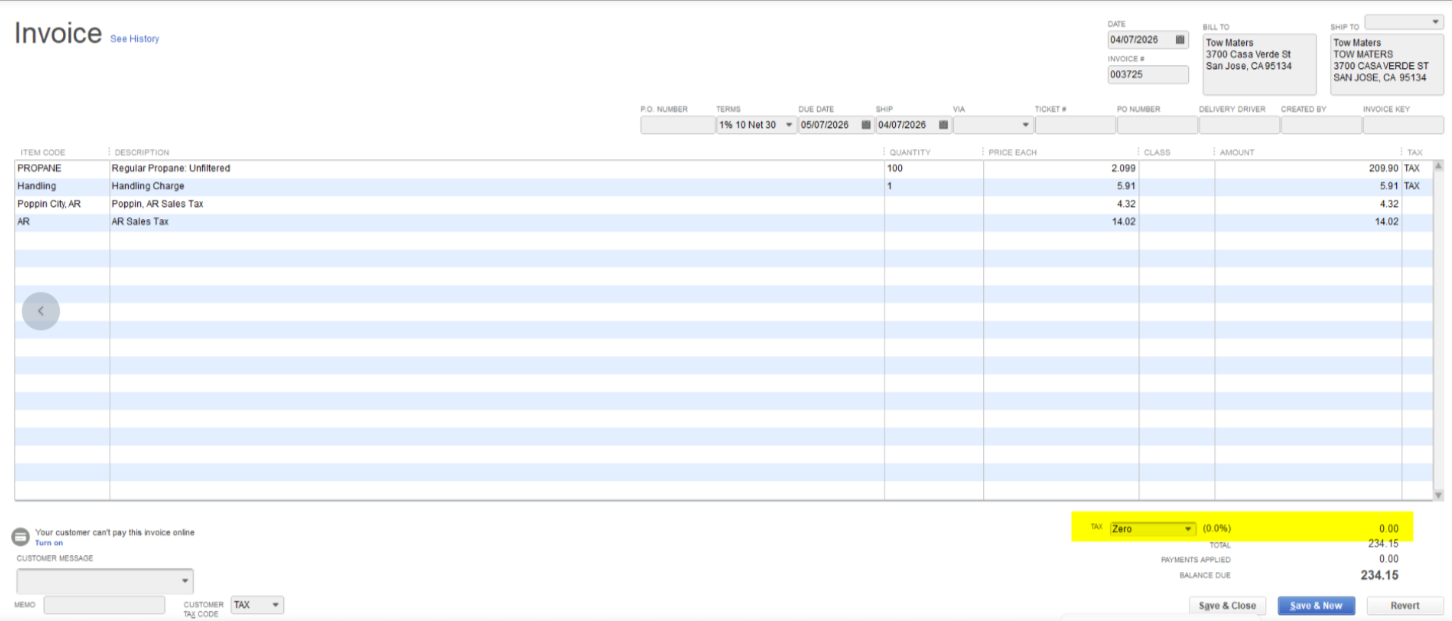
- The invoice tax setting in QuickBooks uses a 0% sales tax item or group
- Actual tax amounts are added to the invoice as line items
- The line items are split based on the configured tax item rates
- This allows the synced invoice total to align with the tax amount calculated in Route Manager
Engineering recommends naming the 0% tax item something clear such as Tax Calculated On Invoice so users understand why the tax item itself is zero while tax appears as line items.
How support should explain it to customers
A simple way to explain the enhancement:
- Route Manager and QuickBooks Desktop can round sales tax differently
- QuickBooks Desktop cannot accept a direct override of the tax amount on the invoice
- This option changes the sync so tax is represented through invoice lines instead of QuickBooks auto-calculation
- That helps the invoice total in QuickBooks Desktop match Route Manager more closely
Configuration requirements
Before enabling this setting, confirm the customer has an appropriate tax item available in QuickBooks Desktop and in Docking configuration.
|
Requirement |
Details |
|
Sync type |
Customer must be using QuickBooks Desktop. |
|
Setting location |
The enhancement is available under Sales Tax Settings as Inline Tax Rates. |
|
Tax item selection |
A 0% sales tax item or group must be selected in Docking configuration. |
|
Recommended naming |
Use a clear name such as Tax Calculated On Invoice for easier support and customer understanding. |
If a valid 0% sales tax item is not configured, the feature will not behave as intended because the tax must be represented as line items while the invoice tax setting remains at 0%.
Support workflow
- Confirm the customer is syncing invoices to QuickBooks Desktop.
- Review the mismatch and verify the difference is due to tax rounding rather than pricing setup.
- Open the customer's Docking configuration and go to Sales Tax Settings.
- Enable Inline Tax Rates.
- Confirm a 0% sales tax item/group is selected.
- Recommend using a clearly named item such as Tax Calculated On Invoice.
- Resync or test with a representative invoice.
- Validate that QuickBooks Desktop now shows tax as line items and that the final total matches Route Manager as expected.
Expected behavior after enablement
|
Area |
Expected result |
|
Invoice tax field |
QuickBooks Desktop uses the selected 0% tax item/group. |
|
Tax presentation |
Tax amounts appear as line items on the invoice. |
|
Tax distribution |
Amounts are split according to the configured tax item rates. |
|
Invoice total |
The total should align more closely with the amount calculated in Route Manager. |
Troubleshooting notes
The total still does not match after enabling Inline Tax RatesCheck whether the selected tax item is truly a 0% item, verify the invoice was re-synced after the configuration change, and confirm the mismatch is still tax-related rather than caused by product pricing, discounts, or invoice edits made directly in QuickBooks Desktop.
The customer is confused because the tax item shows 0%Explain that the 0% tax item is intentional. It prevents QuickBooks Desktop from recalculating tax automatically, while the actual tax value is sent as line items so the invoice total can match Route Manager.
The customer asks why this is needed only for QuickBooks DesktopThis enhancement addresses a QuickBooks Desktop limitation: the sales tax amount on the invoice cannot be overridden directly. The workaround is to represent the tax through line items.